Linux file Command: Identify File Types Safely
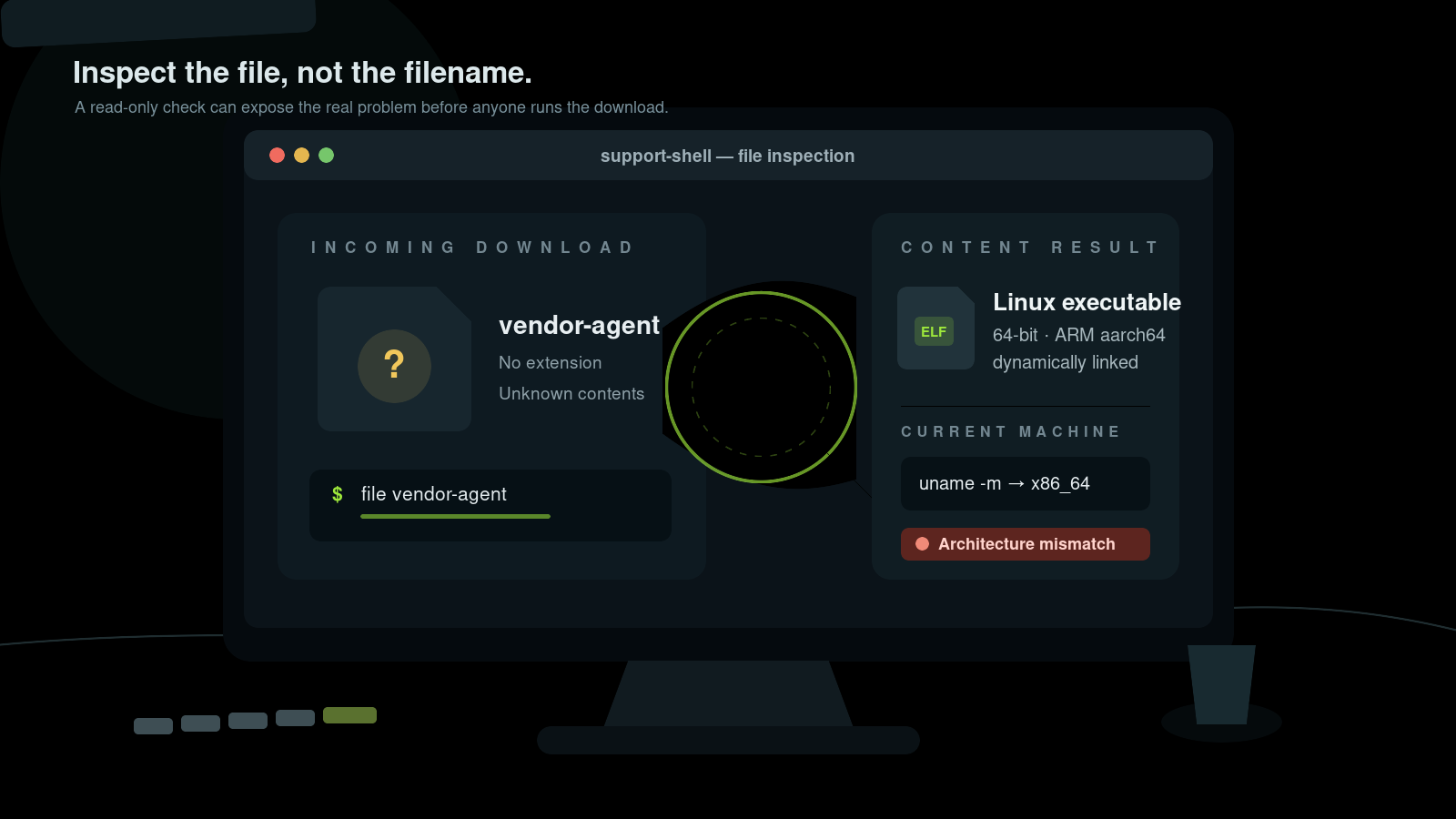
The Linux file command identifies what a file appears to contain. It checks the file’s data instead of trusting its name or extension:
file filenameFor example:
file support-bundle.zipPossible output:
support-bundle.zip: Zip archive data, at least v2.0 to extractUse file when a download has the wrong extension, an attachment has no extension, a script will not run, a binary fails on the current machine, or a ticket contains a mystery blob named something deeply helpful like final2-new.
Quick file command reference
| Goal | Command |
|---|---|
| Identify one file | file filename |
| Identify several files | file file1 file2 file3 |
| Hide the filename in output | file -b filename |
| Show MIME type and encoding | file --mime filename |
| Show only MIME type | file --mime-type filename |
| Follow a symbolic link | file -L linkname |
| Inspect compressed content | file -z archive.gz |
| Read a null-separated filename list | file -0 --files-from=list.txt |
Start with plain file. Add options only when the normal description does not answer the ticket.
What the file command actually checks
Linux does not require filename extensions in the same way many desktop workflows do. A shell script can be named backup, an executable can be named agent, and a JPEG can be named upload.dat.
The file command tests filesystem information, known byte patterns, text encoding, executable headers, and script interpreter lines such as #!/bin/bash. It normally reports the first useful match from its installed pattern database. You do not need to edit that database for routine help desk work.
Important limitation: file reports its best identification, not a security verdict. A result saying PNG image data does not prove the file is safe, trustworthy, or appropriate to upload. Treat the output as one piece of evidence.
Identify a text file, script, image, archive, or binary
Here are common examples.
Plain text
file notes.txtnotes.txt: Unicode text, UTF-8 textThat tells you the content is text and suggests an encoding. It does not tell you whether the text is accurate or harmless.
Shell script
file collect-logs.shcollect-logs.sh: Bourne-Again shell script, ASCII text executableThe command recognized the script’s interpreter line and text content. If the script still will not run, check its permissions, line endings, and first line rather than renaming it repeatedly.
Image
file screenshot.binscreenshot.bin: PNG image data, 1920 x 1080, 8-bit/color RGB, non-interlacedThe .bin extension was misleading. The file data looks like a PNG image.
Compressed archive
file diagnostics.tar.gzdiagnostics.tar.gz: gzip compressed data, from Unix, original size modulo 2^32 40960That identifies the outer gzip layer. Use tar -tzf diagnostics.tar.gz to list an expected tar archive without extracting it.
Linux executable
file support-agentsupport-agent: ELF 64-bit LSB pie executable, x86-64, dynamically linked, not strippedThe useful details are:
- ELF: the common executable format on Linux
- 64-bit: the binary class
- x86-64: the CPU architecture
- dynamically linked: it expects shared libraries at runtime
This can explain why an ARM binary does not run on an x86-64 server, or why a Linux executable downloaded onto Windows does not behave like a Windows .exe.
Do not trust extensions alone
A common support case looks like this:
ls -lh installer.sh
file installer.sh
Output:
-rw-r--r-- 1 alex alex 18K Jul 23 08:12 installer.sh
installer.sh: HTML document, Unicode text, UTF-8 text
The filename says shell script. The content says HTML.
This often happens when a download command saves one of these instead of the expected file:
- a sign-in page
- a proxy block page
- a 404 response
- a vendor error page
- a redirect notice
Do not make the file executable and run it. Inspect the download URL, HTTP status, authentication, and proxy behavior. The Linux curl guide shows how to check headers and status codes, while the wget guide covers safer download verification.
This tiny check can save an hour of debugging a “broken script” that was never a script.
Use brief output in scripts
By default, file includes the filename:
file report.datreport.dat: PDF document, version 1.7, 3 pagesUse -b for only the description:
file -b report.datPDF document, version 1.7, 3 pagesBrief mode is handy when a script already prints or stores the filename separately.
Do not build brittle automation around the exact human-readable wording. Descriptions can vary between file versions and pattern databases. Use MIME output when a program needs a more consistent category.
Show MIME type and character encoding
Run:
file --mime filenameExample:
filename: text/plain; charset=utf-8Show only the MIME type:
file --mime-type filenamefilename: text/plainThis can help with:
- web upload validation
- email attachment handling
- API troubleshooting
- checking whether a supposed JSON response is actually HTML
- deciding which safe viewer should open a file
For a JSON-looking download:
file --mime-type response.jsonIf the result is text/html, inspect the response before feeding it to another tool. An API login page saved as .json has wasted enough support time already.
MIME output is still identification, not permission. Do not upload sensitive files to random online viewers just because the type is unfamiliar.
Follow symbolic links only when you mean to
Suppose current-config is a symbolic link:
file current-configDepending on the version and options, the output may describe the symbolic link and show its target path:
current-config: symbolic link to /etc/myapp/config.ymlUse -L to follow the link and identify the target content:
file -L current-configPossible output:
current-config: ASCII textThis distinction matters. One command answers “what is this directory entry?” The other answers “what content is at the target?”
Before changing or deleting anything, inspect the link with readlink or ls -l. The Linux symbolic links guide explains links and targets in more detail.
Inspect compressed files with care
Plain file identifies the outer compression format. The -z option can inspect inside recognized compressed data:
file -z app.log.gzDecompression requires extra work, so keep the scope small and follow your attachment-handling process for untrusted files. To inspect an expected tar archive without extracting it, use tar -tzf diagnostics.tar.gz | head. Never extract an unfamiliar archive as root just to see what happens.
Why a script says “cannot execute binary file”
A user downloads vendor-agent, grants execute permission, and gets:
bash: ./vendor-agent: cannot execute binary file: Exec format errorStart with:
file vendor-agent
uname -m
Example:
vendor-agent: ELF 64-bit LSB executable, ARM aarch64, dynamically linked
x86_64
The binary targets ARM64, while the machine is x86-64. Permissions are not the problem. Repeated chmod +x attempts will not translate the CPU instructions.
Other useful checks include:
ls -l vendor-agent
sha256sum vendor-agent
Compare the checksum only with a trusted value from the vendor. Do not paste proprietary binaries into public scanning services unless company policy explicitly allows it.
If file reports a script but execution still fails, inspect the interpreter line:
head -n 1 collect-logs.shCommon causes include a missing interpreter, Windows CRLF line endings, a bad path after #!, or insufficient execute permission.
Why file may say only “data”
Sometimes the result is vague:
mystery.bin: dataThat means the installed pattern database did not find a more specific match. It does not mean the file is empty, safe, encrypted, corrupt, or useless.
Continue with low-risk facts:
stat mystery.bin
file --mime mystery.bin
sha256sum mystery.bin
If policy permits and the file is expected to be text, inspect a small portion with a safe viewer. Avoid sending arbitrary binary bytes directly to the terminal.
Useful next questions:
- Where did the file come from?
- What was it supposed to be?
- Does its size match the source?
- Is there a trusted checksum?
- Could it be encrypted or application-specific data?
- Is approved malware analysis required?
The Linux stat command guide helps you record size, timestamps, ownership, and permissions without changing the file.
Beginner mistakes to avoid
Trusting the extension
A filename is a label. file checks content patterns. Compare both.
Treating identification as a security scan
file does not prove a download is clean or trustworthy. Use the approved security process.
Opening a binary with cat
cat mystery.bin can dump control characters and unreadable output into your terminal. Use file, stat, checksums, and purpose-built viewers first.
Running a mystery file to identify it
Execution is not inspection. Do not run an unknown attachment just to learn what it does.
Assuming every ELF binary works locally
Check architecture, interpreter, shared-library needs, operating system, and vendor support.
Recursively scanning sensitive directories
Broad file scans can be slow and can expose filenames in logs or ticket output. Keep the scope narrow and authorized.
Renaming the file as a fix
Changing .bin to .jpg does not change the content. Fix the source, transfer, export, or application workflow.
A practical help desk workflow
When a file does not look or behave as expected:
- Record the path and source.
- Check metadata without changing it:
ls -lh suspicious-name
stat suspicious-name- Identify the content:
file suspicious-name
file --mime suspicious-name- If it is a downloaded executable or archive, verify the trusted checksum:
sha256sum suspicious-name- Compare architecture if it is an executable:
file suspicious-name
uname -m- Use the approved viewer, extraction procedure, or security workflow.
- Put the actual output in the ticket, minus secrets and sensitive paths.
Notice what is missing: no random execution, no sudo, and no uploading customer data to a website you found during lunch.
Practice file identification safely
Create a small practice folder with harmless files you already own:
mkdir -p ~/file-command-lab
cd ~/file-command-lab
printf 'hello\n' > notes.txt
printf '#!/bin/bash\necho hello\n' > hello.sh
cp /bin/echo ./echo-copy
file notes.txt hello.sh echo-copy
file --mime notes.txt hello.sh echo-copy
Predict each result before running the command. Then rename notes.txt to notes.bin and verify that the content identification does not change.
If you want more guided practice before the next mystery-attachment ticket, use Shell Samurai. The useful habit is simple: inspect first, compare the evidence, and only then choose the next tool.
FAQ
What does the file command do in Linux?
The file command examines a file’s data and reports its likely type, such as text, shell script, PNG image, gzip archive, PDF, or ELF executable. It does not rely only on the filename extension.
How do I check a file type in Linux?
Run file filename. For a MIME type, run file --mime-type filename. Use file --mime filename when you also need the detected character encoding.
Is the file command safe?
Basic identification is read-only, but you should still limit scans to authorized files. Options that inspect compressed content can consume more resources. The result is not a malware or trust assessment.
Why does file say “data”?
The installed pattern database did not recognize a more specific format. Check the source, expected purpose, size, MIME result, and trusted checksum before using more specialized analysis tools.
Can file detect a renamed file?
Often, yes. Because it checks content patterns, it may recognize a PNG named .bin or an HTML error page named .sh. Identification is not guaranteed for every proprietary, encrypted, damaged, or unfamiliar format.
Can file tell whether an executable will run?
It can reveal useful details such as ELF format, architecture, and linking style. It cannot guarantee that dependencies, permissions, kernel support, policy, or application configuration are correct.
Use file before opening, extracting, or executing something unfamiliar. It takes one command to replace a guess with evidence, which is a decent trade on any support ticket.
Practice This in a Real Terminal
Shell Samurai gives you safe Linux missions so the commands actually stick. Chapter 1 is free; the full practice path is a one-time purchase, not another subscription.