Linux curl Command for Beginners: Test Websites from the Terminal
Updated
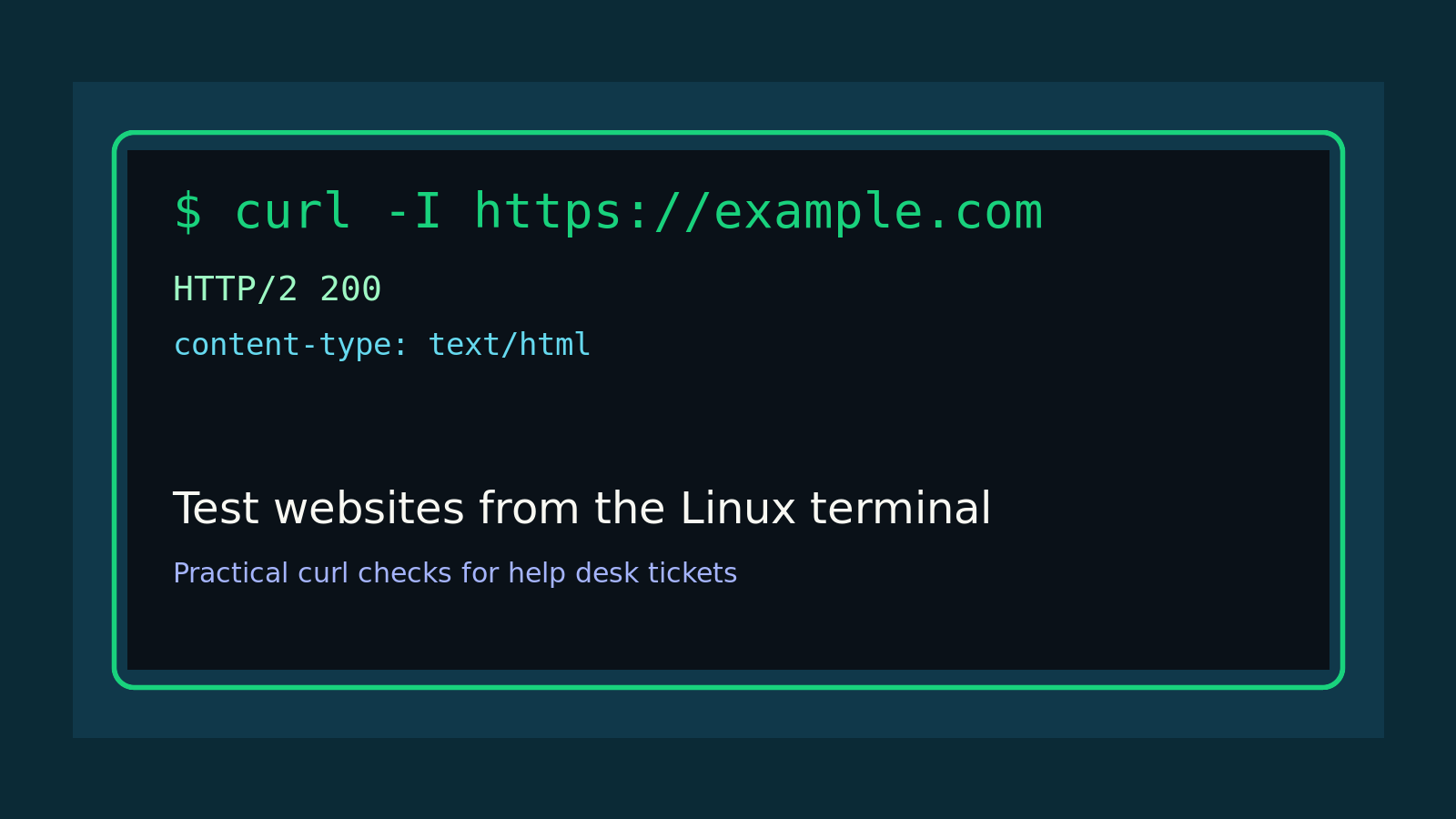
The Linux curl command lets you make web requests from the terminal.
Quick version:
curl https://example.comThat asks example.com for its page and prints the response in your terminal.
If you work help desk, desktop support, junior sysadmin, or anything adjacent to web apps, curl is one of those commands that turns vague tickets into testable facts. A user says “the site is down.” Is it down from the server? Is DNS resolving? Is the app redirecting weirdly? Is the login page returning an error? Is the load balancer answering but the backend broken? Your browser can hide a lot of that. curl is less pretty, but it is honest.
This guide covers the beginner version: how to use curl to check websites, view headers, follow redirects, test APIs, download files safely, and avoid the mistakes that make terminal output look like someone spilled alphabet soup into a ticket.
Quick answer: use curl to check a website
To check whether a website returns content:
curl https://shellsamurai.comTo show only the response headers:
curl -I https://shellsamurai.comTo follow redirects:
curl -L https://shellsamurai.comTo see the HTTP status code only:
curl -o /dev/null -s -w "%{http_code}\n" https://shellsamurai.comThat last command is ugly, but useful. It prints something like 200, 301, 403, or 500 without dumping the whole HTML page into your terminal.
What curl actually does
curl is a command-line tool for transferring data with URLs. Most beginners use it for HTTP and HTTPS, but it can handle other protocols too.
In normal human terms: curl asks a URL for something and shows you what came back.
That “something” might be:
- a web page
- a redirect
- a file download
- an API response
- response headers
- an error page
- a login wall
- a JSON object
A browser does the same basic request, but then it renders the page, runs JavaScript, loads images, follows redirects, stores cookies, and generally adds a lot of moving parts. curl lets you test the request itself.
That is why it matters at work. When a browser says a page is broken, you still need to know what layer is broken.
Install curl if it is missing
Most Linux systems already have curl, but minimal servers and containers may not.
Check:
curl --versionOn Ubuntu or Debian:
sudo apt update
sudo apt install curl
On Fedora, RHEL, or newer CentOS-style systems:
sudo dnf install curlOn older RHEL/CentOS systems:
sudo yum install curlBeginner mistake: typing curl website.com and assuming a failure means the site is down. Try the full URL first:
curl https://website.comWithout https://, behavior can vary depending on the URL and environment. Be explicit when troubleshooting.
Use curl to check status codes
HTTP status codes are one of the fastest ways to turn “it does not work” into a real clue.
Useful examples:
curl -I https://example.comYou might see:
HTTP/2 200
content-type: text/html
A 200 usually means the request worked.
A redirect might look like:
HTTP/2 301
location: https://www.example.com/
Common status codes:
| Code | Meaning | What it often means in a ticket |
|---|---|---|
200 | OK | The server answered successfully. |
301 / 302 | Redirect | The URL moved somewhere else. |
401 | Unauthorized | Authentication is required. |
403 | Forbidden | You reached it, but access is blocked. |
404 | Not Found | The path is wrong or missing. |
429 | Too Many Requests | Rate limiting is probably involved. |
500 | Server Error | The app or backend is unhappy. |
502 / 503 | Gateway/Unavailable | Proxy, load balancer, or upstream service trouble. |
If you only want the code:
curl -s -o /dev/null -w "%{http_code}\n" https://example.comBreakdown:
-smeans silent mode, so progress bars stay out of your way.-o /dev/nullthrows away the body.-w "%{http_code}\n"prints the status code.
That command is great for quick checks and scripts.
Follow redirects with -L
By default, curl does not always follow redirects the way your browser does.
Try:
curl -I http://example.comYou may get a redirect to HTTPS. To follow it:
curl -L http://example.comFor troubleshooting, combine redirect following with headers:
curl -I -L http://example.comThis shows the chain of responses. That matters when a user says a bookmark stopped working and you discover it bounces through three old URLs before landing on a login page from 2019. Nobody enjoys that ticket, but at least now you can prove what is happening.
View headers without the whole page
Headers tell you useful things without dumping an entire HTML document into your terminal.
Use:
curl -I https://example.comLook for:
content-typelocationservercache-controlset-cookiestrict-transport-securitycontent-length
Example:
HTTP/2 200
content-type: text/html; charset=utf-8
cache-control: public, max-age=3600
If you are checking a file download, content-type and content-length help confirm you are getting the expected file, not a login page saved with a .zip name. That sounds oddly specific because it happens all the time.
Download a file with curl
To download a file and keep the remote filename:
curl -O https://example.com/file.zipTo save it with your own name:
curl -o installer.zip https://example.com/file.zipUse -L if the download URL redirects:
curl -L -o installer.zip https://example.com/downloadBe careful with scripts from the internet. You will see commands like this online:
curl https://example.com/install.sh | bashDo not blindly run that on a work machine or server. It downloads a script and immediately executes it. At minimum, download it first, read it, verify the source, and understand what it changes.
Safer pattern:
curl -L -o install.sh https://example.com/install.sh
less install.sh
bash install.sh
Still not automatically safe, but at least you looked before handing it the keys.
Test an API endpoint
Many help desk and sysadmin tickets eventually touch an API, webhook, monitoring endpoint, or internal service.
To call a simple JSON endpoint:
curl https://api.example.com/statusIf it returns JSON, you might see:
{"status":"ok","version":"1.2.3"}To send an Accept header:
curl -H "Accept: application/json" https://api.example.com/statusTo send a POST request with JSON:
curl -X POST https://api.example.com/check \
  -H "Content-Type: application/json" \
  -d '{"hostname":"web-01"}'
Do not paste real tokens into random terminals, screenshots, tickets, or AI chats. If you need an authorization header, treat it like a password:
curl -H "Authorization: Bearer ***" https://api.example.com/meAnd then do not leave that sitting in shared docs. Future-you should not have to explain why a bearer token is visible in a ticket comment.
Use verbose mode when the request is confusing
When you need more detail, add -v:
curl -v https://example.comVerbose mode shows connection details, TLS negotiation, request headers, and response headers.
This is useful for:
- TLS/certificate issues
- connection failures
- redirect confusion
- proxy weirdness
- checking which host was contacted
The output can be noisy, so do not start here every time. Use it when the simple checks do not explain the problem.
If you only care about DNS and connection timing, curl can print timing details too:
curl -o /dev/null -s -w "dns=%{time_namelookup} connect=%{time_connect} total=%{time_total}\n" https://example.comThat can help separate “DNS is slow” from “the app is slow” from “everything is slow because the office Wi-Fi is having a tiny meltdown.”
Common curl mistakes beginners make
Mistake 1: forgetting quotes around URLs with special characters
If a URL has & in it, your shell may treat part of it as a background command.
Bad:
curl https://example.com/search?q=linux&sort=newBetter:
curl 'https://example.com/search?q=linux&sort=new'This mistake is extremely common. If your command output looks incomplete and your terminal suddenly says something like [1] 12345, you probably forgot quotes.
Mistake 2: not following redirects
Your browser follows redirects automatically. curl may show the redirect response instead.
Use:
curl -L https://example.comMistake 3: mixing up headers and body
curl https://example.com shows the body.
curl -I https://example.com shows headers.
If you are checking whether a page exists, headers and status code are usually cleaner than reading a pile of HTML.
Mistake 4: using curl when JavaScript rendering is required
curl does not run browser JavaScript. If a site is a heavy single-page app, curl may only show the initial shell HTML.
That does not mean the app works. It means the server returned the first page. Use the right tool for the layer you are testing.
Mistake 5: pasting secrets into command history
Shell history can save commands. If you put tokens directly in a curl command, they may stay in history.
For sensitive work, use environment variables carefully, short-lived tokens, or a secure internal procedure. Do not freestyle production secrets because a vendor doc made it look casual.
A practical help desk curl workflow
When a ticket says “website is down,” try this sequence:
curl -I https://example.comCheck the status code.
Then follow redirects:
curl -I -L https://example.comIf it is slow or failing oddly:
curl -v https://example.comIf you need only the final status code:
curl -s -L -o /dev/null -w "%{http_code}\n" https://example.comIf the user is on a specific URL with query parameters, quote it:
curl -I 'https://example.com/search?q=printer&sort=new'Write the result in the ticket like a human:
Tested from terminal at 10:42 AM. https://example.com/login returns HTTP 302 to /maintenance, then HTTP 503. Looks like the site is reachable, but the app is serving maintenance/unavailable rather than a local browser issue.That is much better than “seems broken.”
Practice curl without breaking anything
The best way to learn curl is to practice against safe, boring targets before you are staring at a real incident.
Try:
curl -I https://shellsamurai.com
curl -L https://shellsamurai.com
curl -s -o /dev/null -w "%{http_code}\n" https://shellsamurai.com
Then try a known API testing service:
curl https://httpbin.org/status/200
curl https://httpbin.org/status/404
curl https://httpbin.org/headers
The goal is not to memorize every flag. The goal is to get comfortable enough that, when a ticket shows up, you can test the basics without waiting for someone senior to translate the internet into commands.
Where Shell Samurai fits
curl sits at the intersection of Linux basics, networking, web troubleshooting, and API work. That is exactly the kind of command that feels awkward until you have typed it enough times to stop flinching.
If you want a safer place to build that terminal confidence, practice Linux commands in Shell Samurai. It gives you guided command-line practice without making your first reps happen on a production server that has already had a long day.
Final takeaway
Use curl when you need to test what a URL returns from the terminal.
Start with these:
curl https://example.com
curl -I https://example.com
curl -L https://example.com
curl -s -o /dev/null -w "%{http_code}\n" https://example.com
For beginner help desk work, that is already enough to answer a lot of common questions: is the site reachable, is it redirecting, what status code is it returning, and is this likely a browser problem or a server-side problem?
That is the real value of curl: not fancy syntax, not pretending to be a senior network engineer, just turning messy web tickets into facts you can act on.
Related practice
For saving files and retrying downloads, compare the wget command guide.
Practice This in a Real Terminal
Shell Samurai gives you safe Linux missions so the commands actually stick. Chapter 1 is free; the full practice path is a one-time purchase, not another subscription.