Linux wget Command for Beginners: Download Files Safely
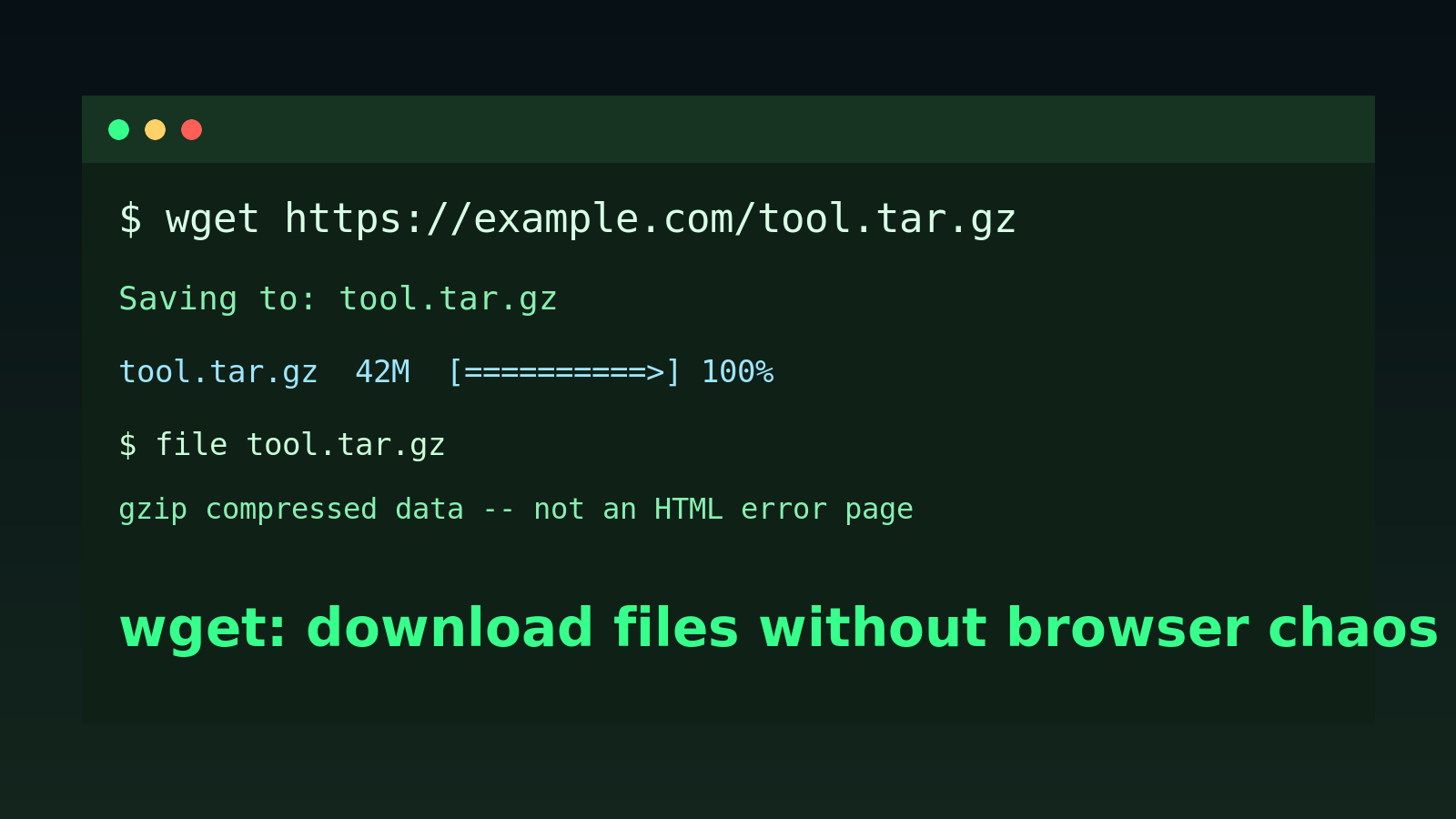
The Linux wget command downloads files from the terminal.
Quick version:
wget https://example.com/file.zipThat command asks the server for file.zip and saves it in your current directory.
If you work help desk, desktop support, junior sysadmin, or you are the Windows admin who keeps getting handed “just SSH into the Linux box real quick” tickets, wget is worth learning. It is not glamorous. It will not make anyone clap in a meeting. But it will let you pull down installers, logs, scripts, ISO files, backups, and test files without opening a browser on a server like a tiny chaos gremlin.
This beginner guide covers the practical version: how to download a file, choose the output name, resume a failed download, avoid overwriting the wrong thing, fetch from a URL list, and know when wget is the wrong tool.
Quick answer: use wget to download a file
To download a file into the current folder:
wget https://example.com/downloads/tool.tar.gzTo save it with a specific filename:
wget -O tool.tar.gz https://example.com/downloads/latestTo resume a partial download:
wget -c https://example.com/downloads/big-image.isoTo download several URLs from a text file:
wget -i urls.txtThe most important beginner habit is this: check where you are before you download.
pwd
ls -lh
Servers do not care that you meant to save the file somewhere else. They will happily let you fill /root, your home directory, or the wrong project folder while everyone in Slack contributes guesses.
What wget actually does
wget is a command-line downloader. You give it a URL, and it saves the response to disk.
It is commonly used for:
- downloading packages or release archives
- pulling an installer script to inspect before running
- grabbing a diagnostic file from an internal web server
- downloading large files over SSH
- resuming interrupted transfers
- fetching a list of URLs in a repeatable way
- testing whether a URL is reachable from a Linux machine
A browser can download files too, obviously. The difference is that wget works cleanly over SSH, inside scripts, on servers without a desktop, and in repeatable troubleshooting steps.
That repeatability matters. “I clicked some stuff and it downloaded eventually” is not a great ticket note. “Ran wget -S --spider URL from server A and got HTTP 403” is a clue.
Install wget if it is missing
Many Linux systems have wget already installed, but minimal cloud images and containers may not.
Check:
wget --versionOn Ubuntu or Debian:
sudo apt update
sudo apt install wget
On Fedora, RHEL, or newer CentOS-style systems:
sudo dnf install wgetOn older RHEL/CentOS systems:
sudo yum install wgetBeginner mistake: assuming “command not found” means the URL is bad. It may simply mean the tool is not installed. Different problem, different fix.
Download a file with wget
The normal pattern is simple:
wget https://example.com/files/report.csvBy default, wget saves the file using the name from the URL. In this example, the file becomes:
report.csvAfter the download, check it:
ls -lh report.csv
file report.csv
ls -lh shows the size in a readable format. file gives you a quick guess about the file type.
That is useful because not every “download” is actually the file you wanted. Sometimes you download an HTML login page, a redirect notice, or an error message wearing a fake mustache as installer.sh.
If the file is suspiciously tiny, inspect it before using it:
head report.csvFor binary files, use file and checksums instead of dumping junk into your terminal.
Save the download with a different name
Some URLs do not end with a nice filename. You might see URLs like:
https://example.com/download?id=12345If you run plain wget, you may end up with a weird filename such as download?id=12345.
Use -O to choose the output name:
wget -O inventory-export.csv "https://example.com/download?id=12345"The capital -O means “write output to this file.” It is handy, but be careful: if the file already exists, wget -O can overwrite it.
A safer habit:
ls -lh inventory-export.csv
wget -O inventory-export-2026-06-18.csv "https://example.com/download?id=12345"
Dates are boring. Boring filenames have saved more troubleshooting time than motivational posters ever will.
Resume a failed download
Large downloads fail. Wi-Fi flakes out, VPNs cough, hotel networks do hotel network things, and sometimes the server just decides it has had enough of you.
Use -c to continue a partial download:
wget -c https://example.com/images/ubuntu-server.isoThis tells wget to resume instead of starting over, if the server supports it.
A realistic help desk scenario: you are downloading a vendor recovery ISO over a remote session, the connection drops at 87%, and you do not want to restart a multi-gigabyte download. wget -c is the difference between “give me ten minutes” and “welp, see you after lunch.”
Check the final size when it finishes:
ls -lh ubuntu-server.isoIf the vendor provides a checksum, verify it:
sha256sum ubuntu-server.isoThen compare the output to the vendor’s published SHA256 value. Do not skip this for operating system images, firmware, security tools, or anything you are going to run as admin.
Download in the background
If a download will take a while, -b starts it in the background:
wget -b https://example.com/large-backup.tar.gzwget usually writes progress to a log file such as:
wget-logCheck it with:
tail -f wget-logPress Ctrl+C to stop following the log. That does not necessarily stop the background download; it just stops watching the log.
For beginner admins, I usually prefer a terminal multiplexer like tmux for long-running work, but wget -b is useful when you need a simple background download and a log.
Check a URL without downloading the whole file
Sometimes you only want to know whether a file is reachable.
Use --spider:
wget --spider https://example.com/files/tool.tar.gz--spider checks the URL without saving the content. Add -S if you want server response headers too:
wget -S --spider https://example.com/files/tool.tar.gzThis is useful for tickets like:
- “the download link is broken”
- “the server can reach the vendor site from the DMZ but not from the app subnet”
- “the script fails because it cannot fetch a dependency”
- “the URL works in my browser but not from the Linux server”
If you get 403 Forbidden, the server answered but refused access. If you get DNS or connection errors, you are dealing with a different layer.
Download several URLs from a file
Create a plain text file with one URL per line:
https://example.com/file-one.txt
https://example.com/file-two.txt
https://example.com/file-three.txt
Save it as urls.txt, then run:
wget -i urls.txtThis is great for repeatable downloads. It is also great for making a mess quickly, so use a clean folder:
mkdir downloads-test
cd downloads-test
wget -i ../urls.txt
A good troubleshooting note includes the URL list, the command you ran, and which files succeeded or failed. Do not make the next person reconstruct your archaeology project from shell history.
Limit download speed if needed
If you are on a shared connection or a fragile remote site, you can limit the download rate:
wget --limit-rate=500k https://example.com/large-file.zipThat keeps wget from chewing all available bandwidth.
This is not always necessary, but it matters on small offices, branch VPNs, cellular failover, or any network where someone will absolutely ask why Teams sounds like a robot falling down stairs.
Put downloads in the right folder
You can use -P to choose a destination directory:
wget -P /tmp/downloads https://example.com/file.zipThat saves the file under /tmp/downloads.
For one-off troubleshooting, /tmp can be fine. For anything you need later, use a real project or ticket folder. Also remember that /tmp may be cleaned automatically.
A clean workflow:
mkdir -p ~/tickets/ticket-1842
cd ~/tickets/ticket-1842
wget https://example.com/vendor-tool.tar.gz
ls -lh
This keeps your evidence together. Future you will still have problems, but at least one of them will not be “where did I put that file?”
The scary command: downloading scripts
You will see commands like this on the internet:
wget -qO- https://example.com/install.sh | bashThat downloads a script and immediately runs it.
Is it common? Yes.
Should beginners blindly run it on work systems? Absolutely not.
A safer version:
wget -O install.sh https://example.com/install.sh
less install.sh
Read the script first. Look for what it downloads, where it writes files, whether it uses sudo, and whether it changes services, users, firewall rules, or package repositories.
If you do not understand it, ask before running it on anything important. That is not weakness. That is how you avoid becoming the reason for a new change-control policy.
wget vs curl
Both wget and curl can fetch URLs, but they feel different.
Use wget when you mainly want to download files to disk:
wget https://example.com/file.zipUse curl when you mainly want to inspect web responses, headers, APIs, or status codes:
curl -I https://example.comThere is overlap. You can download with curl, and you can test URLs with wget. For beginner help desk work, the simple mental model is:
wget= download this thingcurl= show me what this web request returns
That model is not perfect, but it gets you moving without turning the first week of Linux into a philosophical argument.
Common wget mistakes
Downloading into the wrong directory
Always check:
pwdBefore a large download, also check disk space:
df -h .The dot means “the filesystem for the current directory.” That helps you avoid filling the wrong partition.
Trusting the filename too much
A file named backup.tar.gz might be an HTML error page if authentication failed.
Check:
file backup.tar.gz
ls -lh backup.tar.gz
If it says HTML, you probably downloaded a web page instead of the actual file.
Forgetting quotes around URLs
URLs with &, ?, or other shell-sensitive characters should be quoted:
wget "https://example.com/download?id=123&format=zip"Without quotes, your shell may treat parts of the URL as separate commands or background jobs. That is a very annoying way to learn shell syntax.
Running random installer scripts
Download first. Inspect second. Run third, if it makes sense.
wget -O install.sh https://example.com/install.sh
less install.sh
bash install.sh
On production systems, there should probably be a fourth step called “get approval”. Annoying, yes. Less annoying than explaining why the server has a surprise crypto miner.
A practical help desk wget workflow
Suppose a ticket says: “The Linux server cannot download the new agent package. Works from my laptop.”
Start with basics:
pwd
df -h .
wget -S --spider https://vendor.example.com/agent/latest.tar.gz
If the URL is reachable, download it:
wget -O agent-latest.tar.gz https://vendor.example.com/agent/latest.tar.gzCheck what you got:
ls -lh agent-latest.tar.gz
file agent-latest.tar.gz
sha256sum agent-latest.tar.gz
Your ticket note might say:
From app-server-02, wget reached vendor.example.com and received HTTP 200.
Downloaded agent-latest.tar.gz, size 84M. File command identifies gzip compressed data.
SHA256: <paste hash here>. Waiting on vendor checksum to confirm package integrity.
That note is boring in the best way. It gives the next person facts instead of vibes.
Practice before the ticket is on fire
wget is easy to learn badly and still easy to use well.
Practice these until they feel normal:
wget URL
wget -O filename URL
wget -c URL
wget --spider URL
wget -i urls.txt
wget --limit-rate=500k URL
Also practice the surrounding habits:
pwd
ls -lh
df -h .
file downloaded-file
sha256sum downloaded-file
The command is only half the skill. The other half is knowing what you downloaded, where it landed, and whether it is safe to use.
If you want a safer place to build that muscle memory, Shell Samurai gives you practical command-line reps without making your production server the practice dummy.
Practice This in a Real Terminal
Shell Samurai gives you safe Linux missions so the commands actually stick. Chapter 1 is free; the full practice path is a one-time purchase, not another subscription.