Linux ln Command for Beginners: Symbolic Links Without the Headache
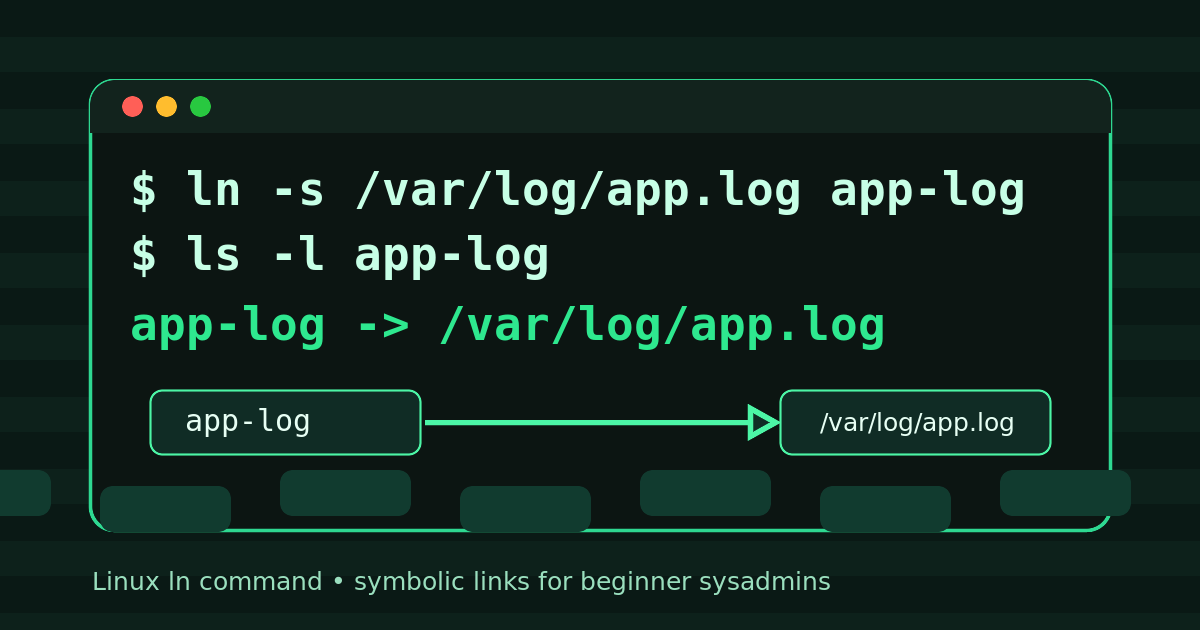
The Linux ln command creates links between files. Most beginners use it for symbolic links, also called symlinks.
Quick version:
ln -s target link-nameExample:
ln -s /var/log/nginx/access.log ~/nginx-access.logThat creates a shortcut-like link in your home directory that points to the real Nginx access log.
If you came from Windows, a symbolic link is close to a shortcut, but more useful at the command line. Scripts, tools, and shell commands usually treat it like a real path. That is why symlinks show up in Linux administration, web server configs, deployment folders, log directories, and support tickets where someone says, “I swear the file is right there,” and technically they are correct in the most annoying possible way.
You do not need to become a filesystem historian. You need to know what a symlink is, how to create one safely, how to inspect it, and how not to accidentally create a link that points nowhere.
Quick answer: create a symbolic link
Use ln -s:
ln -s /real/path/to/file link-nameExample with a file:
ln -s /etc/nginx/sites-available/helpdesk.conf /etc/nginx/sites-enabled/helpdesk.confExample with a directory:
ln -s /opt/tools/support-scripts ~/support-scriptsCheck the link with:
ls -l link-nameYou should see output with an arrow:
support-scripts -> /opt/tools/support-scriptsThe arrow is the important part. It tells you the path is a symlink and shows where it points.
Why symbolic links matter in help desk and beginner sysadmin work
Symlinks are not just trivia. They solve boring problems that show up constantly around Linux systems.
You might use a symlink to:
- enable a site config without copying it
- expose a log file in a convenient location
- point an application at the current release folder
- keep one shared config file in a single place
- avoid duplicating a big directory
- make a messy vendor path easier to type
- support a script that expects a file at a specific location
A realistic support example:
ls -l /etc/nginx/sites-enabled/You may see something like:
helpdesk.conf -> /etc/nginx/sites-available/helpdesk.confThat means the enabled site is a link to the real config file. If the target file is missing, renamed, or typoed, the link can exist while the service still fails. This is one of those Linux moments where the filesystem says, “looks fine to me,” and the service says, “absolutely not.”
The basic syntax of ln
The command shape is:
ln [options] target link-nameFor symbolic links, the option you usually want is -s:
ln -s target link-nameThink of it as:
make a link named link-name that points to targetThe order matters. This is the beginner mistake:
ln -s link-name targetThat is backwards.
Use this mental model:
ln -s thing-that-already-exists new-shortcut-nameIf the target already exists and the link name is what you are creating, you are probably in the right order.
Create a symlink to a file
Suppose you have a script at:
/opt/support-tools/check-disk.shYou want an easier path in your home directory:
ln -s /opt/support-tools/check-disk.sh ~/check-disk.shNow check it:
ls -l ~/check-disk.shExample output:
lrwxrwxrwx 1 alex alex 32 Jun 14 09:00 check-disk.sh -> /opt/support-tools/check-disk.shThe first character is l, which means link. The arrow shows the target.
Now you can run:
~/check-disk.shThe shell follows the link to the real script.
Create a symlink to a directory
Directory symlinks are common.
Example:
ln -s /var/www/current ~/current-siteNow this works:
cd ~/current-site
pwd
ls
Depending on your shell and command options, pwd may show the symlink path or the real path. That can confuse beginners during troubleshooting. If you need the physical real path, use:
pwd -PThat prints the resolved physical directory instead of the symlink path.
This matters when you are editing a web app, checking deployment folders, or trying to figure out why a config path does not match the path in an error message.
Symbolic links vs hard links
The ln command can create two kinds of links:
| Type | Command | Beginner explanation |
|---|---|---|
| Hard link | ln target link-name | Another directory entry for the same file data |
| Symbolic link | ln -s target link-name | A path that points to another path |
Most beginners and help desk techs should start with symbolic links.
Hard links have rules that make them less beginner-friendly:
- they usually work only for files, not directories
- they must stay on the same filesystem
- they do not visibly show an arrow in
ls -l - deleting one hard link does not necessarily delete the file data if another hard link still exists
Symlinks are easier to reason about because they point somewhere. You can inspect the arrow and say, “this path points to that path.”
Hard links matter eventually, but do not make them your first stop unless you know why you need one.
How to tell if a file is a symlink
Use:
ls -lExample:
lrwxrwxrwx 1 root root 34 Jun 14 09:00 site.conf -> /etc/nginx/sites-available/site.confSigns it is a symlink:
- the permissions start with
l - there is an arrow
-> - the path after the arrow is the target
You can also use readlink:
readlink site.confOutput:
/etc/nginx/sites-available/site.confFor the fully resolved absolute path, use:
readlink -f site.confThat is useful when links point to links, which happens in real systems more often than anyone admits during onboarding.
Broken symlinks: the classic “it exists but it doesn’t” problem
A symlink can point to a target that does not exist.
Example:
ln -s /opt/old-app/config.yml app-config.ymlIf /opt/old-app/config.yml gets deleted or moved, app-config.yml still exists as a symlink, but it is broken.
Check it:
ls -l app-config.ymlYou may see:
app-config.yml -> /opt/old-app/config.ymlBut when you try to read it:
less app-config.ymlYou get an error because the target is gone.
Use this pattern when troubleshooting:
ls -l app-config.yml
readlink -f app-config.yml
If readlink -f prints nothing or returns an error, the target may be missing.
This is common after migrations, renamed release folders, cleanup scripts, and the proud tradition of someone manually fixing production at 2:13 AM and not writing it down.
Replace or update a symlink safely
Do not overwrite random paths when you are tired.
First inspect the existing link:
ls -l currentRemove the old link only if you are sure it is a symlink:
rm currentThen create the new one:
ln -s /var/www/releases/2026-06-14 currentImportant: rm current removes the symlink itself, not the target directory, when current is a symlink. Still, check before you do it. If current is a real directory instead of a symlink, you are in a different situation.
A safer habit:
ls -ld currentThe -d option tells ls to show the directory entry itself instead of listing inside it.
Use relative links when they make sense
A symlink target can be absolute or relative.
Absolute example:
ln -s /opt/app/shared/.env /opt/app/current/.envRelative example:
cd /opt/app/current
ln -s ../shared/.env .env
Relative links can be easier to move with a project folder. Absolute links are easier to understand at a glance.
For beginner admin work, prefer clarity. If a future tired human has to read it during an outage, obvious usually beats clever.
Common beginner mistakes with ln
Mistake 1: Reversing target and link name
Wrong:
ln -s shortcut.txt /var/log/app.logRight:
ln -s /var/log/app.log shortcut.txtThe target comes first. The new link name comes second.
Mistake 2: Creating a link inside an unexpected directory
If the link name is a directory, ln may create the link inside that directory.
Example:
ln -s /opt/tools ~/bin/That can create ~/bin/tools, not replace ~/bin.
Check with:
ls -l ~/binMistake 3: Assuming symlink permissions are the real permissions
Symlinks often show permissions like this:
lrwxrwxrwxDo not panic. The target file or directory permissions are what usually matter. Check the target:
ls -lL link-nameThe -L option follows the link.
Mistake 4: Editing the link when you meant to inspect the target
Most editors follow the symlink and edit the target file. That may be exactly what you want. It may also be a surprise.
Before editing a config through a symlink, run:
ls -l config-name
readlink -f config-name
Now you know what you are actually changing.
A practical help desk workflow
When a ticket involves a path that might be a symlink, use this checklist:
- Show the path itself:
ls -ld /path/from/ticket- If it is a symlink, show the target:
readlink /path/from/ticket- Resolve the final real path:
readlink -f /path/from/ticket- Check whether the target exists:
ls -lL /path/from/ticket- Before editing or deleting anything, confirm whether you are touching the link or the target.
That last step is where a lot of avoidable damage gets prevented. Linux is perfectly happy to do exactly what you typed. It does not care that you meant something emotionally different.
Practice this without turning production into a learning lab
A safe practice set:
mkdir -p ~/link-practice/real-folder
printf 'hello from the target\n' > ~/link-practice/real-folder/note.txt
cd ~/link-practice
ln -s real-folder/note.txt note-link.txt
ls -l note-link.txt
readlink note-link.txt
less note-link.txt
rm note-link.txt
That gives you the whole loop: create a target, create a symlink, inspect it, read through it, then remove only the link.
If you want this to feel less abstract, practice it in Shell Samurai. Links are one of those commands where muscle memory matters because the syntax order is easy to flip. Running safe drills beats discovering symlink behavior while a service restart is waiting on you.
Practice Linux file and path commands in Shell Samurai
The useful mental model
A symbolic link is a path that points to another path.
Remember these commands:
ln -s target link-name
ls -l link-name
readlink link-name
readlink -f link-name
rm link-name
That is enough for most beginner Linux and help desk scenarios.
The big rule: know whether you are looking at the link or the thing behind the link. Once that clicks, symlinks stop feeling weird and start feeling like one more boring but powerful tool in the support kit.
Practice This in a Real Terminal
Shell Samurai gives you safe Linux missions so the commands actually stick. Chapter 1 is free; the full practice path is a one-time purchase, not another subscription.