Linux stat Command: File Size, Permissions, and Timestamps
Updated
Check file size and modification time in one command
stat -c '%n: %s bytes; modified %y' /etc/hostsThis GNU/Linux format prints the name, byte count, and last content-modification time. ctime is metadata-change time, not creation time; birth time may be unavailable. macOS/BSD stat uses different flags.
Try it with a temporary file
sample=$(mktemp)
printf 'hello\n' > "$sample"
stat -c '%s bytes; permissions %a' "$sample"
Expect 6 bytes (the newline counts) and normally permissions 600. Append another line, rerun stat, and compare the size and modification time. Remove only your test file with rm -- "$sample" when finished. For path handling, compare realpath and basename.
The Linux stat command shows detailed metadata about a file or directory: size, permissions, owner, timestamps, inode number, file type, and more.
Start with:
stat /path/to/fileUse stat when a ticket says a file changed unexpectedly, a service cannot read a config, two files look identical in ls, or you need exact timestamps for an incident. Unlike cat, stat does not read or print the file’s contents. It inspects the information the filesystem stores about the file.
Quick stat command reference
| Goal | Command |
|---|---|
| Show all file metadata | stat file.txt |
| Check a directory | stat /var/log |
| Show only permissions | stat -c '%A %a' file.txt |
| Show owner and group | stat -c '%U %G' file.txt |
| Show size in bytes | stat -c '%s' file.txt |
| Show modification time | stat -c '%y' file.txt |
| Show inode number | stat -c '%i' file.txt |
| Show filesystem details | stat -f /path |
| Compare several files | stat file1 file2 file3 |
stat is read-only in normal use. Running it does not modify the target file, but reading metadata may be logged or restricted on tightly controlled systems.
Read normal stat output
Run:
stat /etc/ssh/sshd_configTypical output looks like this:
  File: /etc/ssh/sshd_config
  Size: 3223       Blocks: 8          IO Block: 4096   regular file
Device: 8,2        Inode: 1837321     Links: 1
Access: (0644/-rw-r--r--)  Uid: (    0/    root)   Gid: (    0/    root)
Access: 2026-07-18 08:12:44.000000000 -0400
Modify: 2026-07-17 15:41:09.000000000 -0400
Change: 2026-07-17 15:41:09.000000000 -0400
 Birth: 2025-11-02 09:18:51.000000000 -0500
The most useful fields for everyday support work are:
- File: The exact path inspected.
- Size: Logical size in bytes.
- Blocks: Storage blocks allocated to the file.
- IO Block: Preferred block size for filesystem I/O, not the file size.
- Type: Regular file, directory, symbolic link, device, or another type.
- Inode: The filesystem record identifying the object.
- Links: Number of hard links pointing to the inode.
- Access: Permissions in numeric and symbolic form.
- Uid/Gid: Numeric and named owner and group.
- Access/Modify/Change/Birth: Different timestamps with different meanings.
If permissions are the problem, the Linux file permissions guide explains 644, 755, owners, groups, and why 777 is not a troubleshooting strategy.
Understand the four file timestamps
The timestamp section causes more confusion than the rest of stat combined.
Access time
Access or atime records when file data was last read. Depending on mount options such as relatime or noatime, Linux may delay or skip access-time updates for performance. Do not assume it records every read.
Show only access time:
stat -c '%x' file.txtModification time
Modify or mtime records when the file’s contents last changed.
stat -c '%y' file.txtThis is usually the timestamp you want when asking, “When was this config edited?” It can still be changed intentionally with tools such as touch, restored from a backup, or preserved during a copy.
Change time
Change or ctime records when inode metadata last changed. That includes permissions, ownership, link count, and often content changes.
stat -c '%z' file.txtA common beginner mistake is calling ctime the creation time. On Linux, it means change time, not creation time.
Birth time
Birth is the creation timestamp when the filesystem and kernel expose it. Some filesystems, old files, network mounts, or tools may report - because birth time is unavailable.
stat -c '%w' file.txtTreat timestamps as evidence to correlate with logs and change records—not as proof that one specific person performed an action.
Check permissions without parsing ls output
To print symbolic and numeric permissions together:
stat -c '%A %a %n' /etc/ssh/sshd_configExample:
-rw-r--r-- 644 /etc/ssh/sshd_configUseful format codes include:
| Code | Meaning |
|---|---|
%A | Symbolic permissions such as -rw-r--r-- |
%a | Numeric permissions such as 644 |
%U | Owner name |
%G | Group name |
%u | Numeric user ID |
%g | Numeric group ID |
%n | File name |
For a support-friendly one-line report:
stat -c 'file=%n mode=%A(%a) owner=%U group=%G' file.txtExample output:
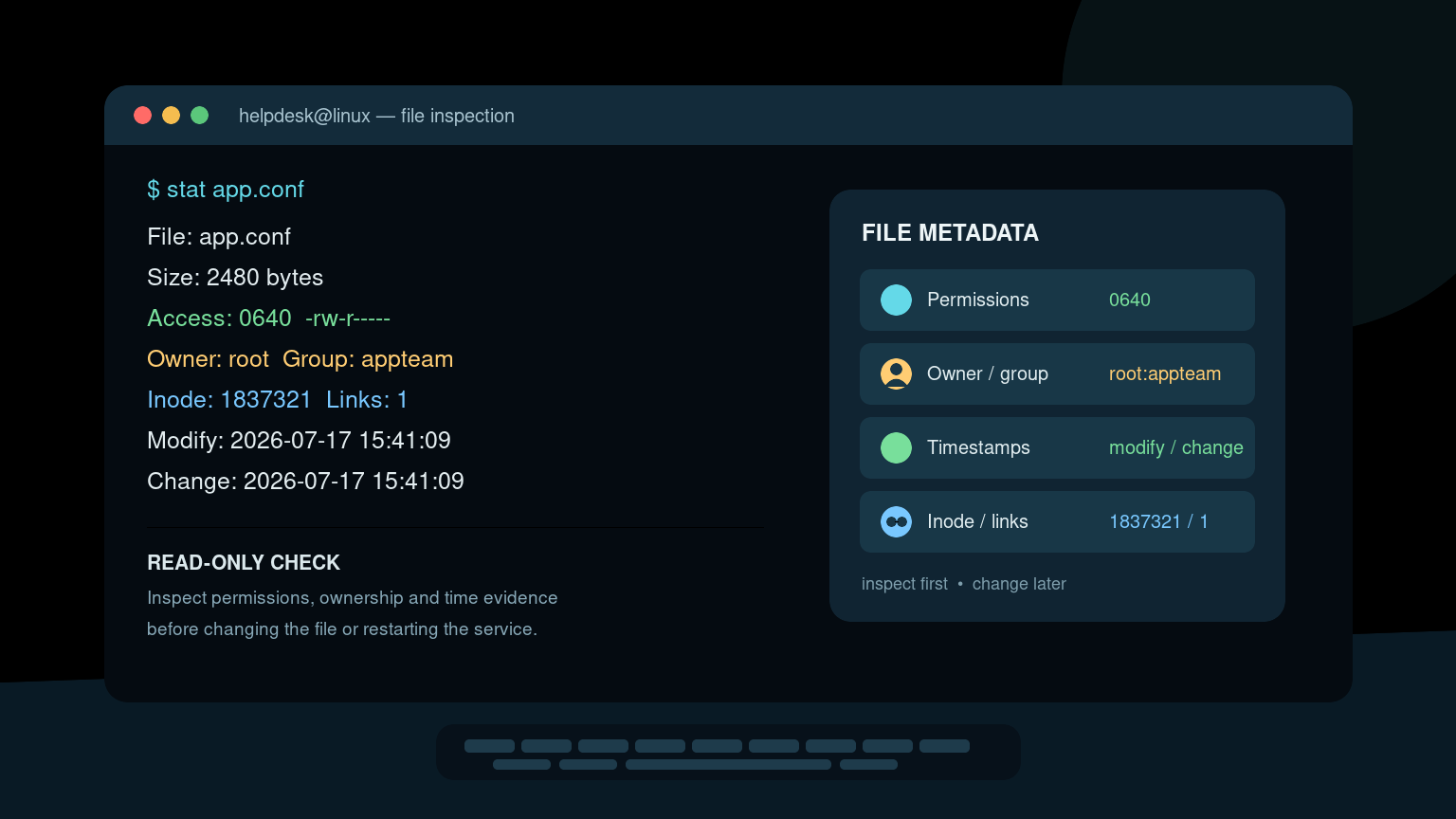
file=app.conf mode=-rw-r-----(640) owner=root group=appteamThat is easier to paste into a ticket than the full default output. It also avoids brittle scripts that try to split human-formatted ls -l output by spaces.
Check file size and allocated blocks
Show exact size in bytes:
stat -c '%n: %s bytes' backup.tarThe reported size can differ from disk space actually allocated. Sparse files can have a large logical size but consume fewer blocks. Small files may occupy a full filesystem block.
To compare logical size and allocated blocks:
stat -c '%n size=%s bytes blocks=%b block_size=%B' file.imgDo not multiply random fields until you know what they mean. %b is the number of allocated blocks, and %B is the size in bytes of each block reported by %b.
For a full disk-capacity problem, use df and du instead. The workflow in How to Find What Is Eating Disk Space on Linux separates filesystem capacity from directory usage.
Use inode numbers to spot hard links and replacements
An inode identifies a filesystem object. Show it with:
stat -c '%i %n' file.txtTwo pathnames on the same filesystem with the same inode number are hard links to the same underlying file:
stat -c '%i %h %n' report.txt report-link.txtHere %h shows the hard-link count.
Inodes also help when a service still has an old file open after the pathname was replaced. The path may show a new inode while the process retains the deleted old one. Use lsof to investigate that situation; the Linux lsof guide covers open and deleted files.
Inode numbers are only unique within a filesystem. Do not compare numbers from unrelated mounted filesystems and assume they identify the same object.
Inspect a symbolic link instead of its target
By default, GNU stat reports the symbolic link itself when you pass a symlink path:
stat current-configTo follow the link and report the final target, use:
stat -L current-configYou can compare both:
stat -c 'link: %F %N' current-config
stat -Lc 'target: %F %n inode=%i' current-config
This matters when an application deploy switches a current symlink to a new release directory. The link’s metadata and the target’s metadata answer different questions.
For symlink creation and safe replacement examples, see Linux ln Command for Beginners.
Check several files at once
stat accepts multiple paths:
stat /etc/app/app.conf /etc/app/app.conf.bakFor compact comparison output:
stat -c '%n | inode=%i | size=%s | modified=%y' \
  /etc/app/app.conf \
  /etc/app/app.conf.bak
This is useful after a deployment, restore, or hurried “I copied the backup over it” incident. You can compare exact size, modification time, permissions, owner, and inode without opening either file.
Remember that equal size does not mean equal contents. Use a checksum or diff when content equality matters. The Linux diff command guide shows safe text comparison workflows.
Show filesystem information with stat -f
Normal stat describes a file. stat -f describes the filesystem containing it:
stat -f /var/lib/appIt can show:
- Filesystem type.
- Block size.
- Total and available blocks.
- Total and free inodes.
- Filesystem ID and maximum filename length.
A compact filesystem report is:
stat -f -c 'type=%T block_size=%S blocks=%b free=%f available=%a' /var/lib/appThis can help confirm that two directories sit on different filesystem types or that inode exhaustion—not byte capacity—is blocking new files. For mount source and options, findmnt -T /path is usually clearer than stat -f.
A realistic helpdesk workflow
Suppose a service stopped after someone updated /etc/app/app.conf.
- Confirm the host and exact path.
- Inspect metadata without changing the file:
stat /etc/app/app.conf- Capture a concise ticket line:
stat -c 'mode=%A(%a) owner=%U:%G size=%s modified=%y changed=%z inode=%i' \
/etc/app/app.conf- Compare permissions and ownership with a known-good host or documented requirement.
- Compare content with the approved version using
diffor a trusted configuration-management source. - Check service logs and deployment records around the timestamps.
- Make the smallest approved correction, then verify the service and file metadata again.
Do not immediately run chmod 777, replace the file, or use touch to “fix the date.” Those actions destroy or muddy the evidence you were trying to inspect.
Common stat mistakes
Confusing ctime with creation time
ctime is inode change time. Use birth time when available for creation information.
Assuming atime records every read
Mount options commonly reduce access-time writes. Check the filesystem’s mount options before relying on atime for an investigation.
Following a symlink without noticing
Decide whether you need metadata for the link or its target. Use -L deliberately.
Treating timestamps as an audit trail
Timestamps can be preserved, changed, restored, rounded, or omitted. Correlate them with logs, version control, backups, and change tickets.
Using stat when content is the question
stat tells you metadata. It does not tell you whether two files contain the same bytes. Use diff, checksums, or another content-aware tool.
Practice file investigation without changing anything
Create a few files and directories in a lab, inspect them with stat, change permissions with chmod, update content, and compare how mtime and ctime respond. Add a symlink and compare stat link with stat -L link. This gives you a useful mental model before a production ticket arrives with three nearly identical config files and no useful notes.
Practice Linux troubleshooting in Shell Samurai to build the command-line confidence to inspect file problems without making a rushed change on the wrong server.
FAQ
What does the stat command do in Linux?
stat displays filesystem metadata for files and directories, including type, size, permissions, ownership, timestamps, inode number, and hard-link count.
What is the difference between stat and ls -l?
ls -l gives a compact directory listing. stat gives more exact metadata, including multiple timestamps, inode information, block allocation, and custom output formatting.
Does stat change a file?
Normal stat usage reads metadata and does not alter the target file’s contents, permissions, ownership, or modification time.
How do I show only a file’s modification time?
Run stat -c '%y' file.txt. Use %Y if a script needs the modification time as seconds since the Unix epoch.
How do I check numeric file permissions with stat?
Run stat -c '%a' file.txt. Use stat -c '%A %a %n' file.txt to show symbolic permissions, numeric permissions, and the file name together.
Practice This in a Real Terminal
Shell Samurai gives you safe Linux missions so the commands actually stick. Chapter 1 is free; the full practice path is a one-time purchase, not another subscription.