Linux dmesg: Logs, -T and Previous Boot Messages
Updated
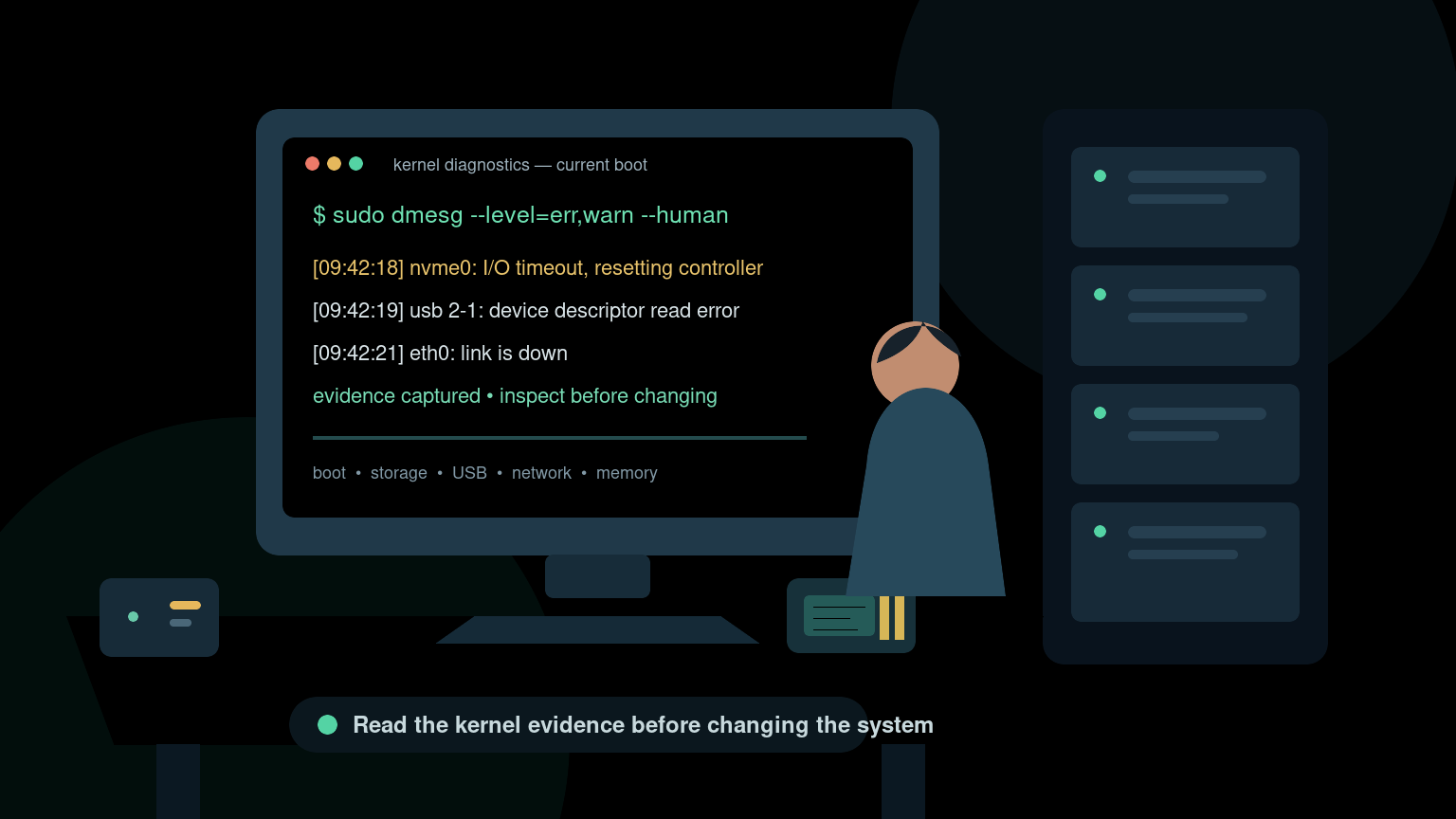
The Linux dmesg command reads the current kernel ring buffer. Run sudo dmesg -T for readable timestamps, or sudo dmesg --follow --human to watch hardware events. For messages from the previous boot, use sudo journalctl -k -b -1 if that boot is still stored in the journal.
sudo dmesg -TUse it to investigate USB detection, disk I/O errors, drivers, and boot problems. In a restricted container, even root may be unable to read the host’s kernel log.
For a device that does not appear, follow the USB detection walkthrough and compare the output with lsusb.
Quick dmesg command reference
| Goal | Command |
|---|---|
| Read all kernel messages | sudo dmesg |
| Use readable timestamps | sudo dmesg -T |
| Omit timestamps | sudo dmesg -t |
| Read retained previous-boot kernel logs | sudo journalctl -k -b -1 |
| Page through output | `sudo dmesg —human |
| Show warnings and errors | sudo dmesg --level=err,warn --human |
| Follow new messages | sudo dmesg --follow --human |
| Search for disk errors | `sudo dmesg —human |
| Search for USB events | `sudo dmesg —human |
| Search for network drivers | `sudo dmesg —human |
| Clear the display’s old context | Note the current time, reproduce once, then inspect the newest lines |
Some distributions restrict kernel logs to root. If plain dmesg returns Operation not permitted, use sudo dmesg. Do not weaken system security settings just to avoid typing sudo.
What dmesg actually shows
dmesg reads the kernel ring buffer. That buffer records events such as:
- Hardware detected during startup.
- Drivers loaded or rejected.
- Storage devices connected, reset, or failed.
- Filesystem and block-device errors.
- USB devices attached and removed.
- Network interfaces changing state.
- Out-of-memory actions taken by the kernel.
- Security controls denying an operation.
The ring buffer has a limited size. New messages eventually replace old ones, especially on a noisy or long-running system. For durable logs across boots, use the system journal:
sudo journalctl -kThe -k option limits the journal to kernel messages. See How to Check Linux Logs for a broader workflow that includes services and application logs.
Make dmesg output readable
Raw dmesg output can begin with timestamps like this:
[18432.918276] usb 2-1: device descriptor read/64, error -71That number is time since boot, not the wall-clock time from your ticket. Use:
sudo dmesg --humanOn common util-linux versions, --human enables readable timestamps and paging-friendly output. You can also request ISO-style timestamps:
sudo dmesg --time-format isoTimestamp conversion is not perfect if the system clock changed or the machine suspended. Treat it as a correlation aid, not unquestionable proof.
For a long result, send it to less:
sudo dmesg --human | lessInside less, type /nvme to search for nvme, press n for the next match, and press q to quit. If reading large outputs still feels awkward, the Linux less command guide covers the useful keys.
dmesg -T versus dmesg -t: case matters
sudo dmesg -T displays human-readable wall-clock timestamps. Lowercase sudo dmesg -t removes timestamps. Neither option selects an earlier boot.
| Option | Result |
|---|---|
-T or --ctime | Readable wall-clock timestamps |
-t or --notime | Messages without timestamps |
-H or --human | Human-readable output with a pager |
Uppercase -T timestamps can be inaccurate after suspend/resume. Preserve the original output when timing matters. These options are documented in the dmesg manual.
Show only warnings and errors
A full kernel log contains lots of normal startup detail. Filter by severity first:
sudo dmesg --level=err,warn --humanYou can request only errors:
sudo dmesg --level=err --humanDo not assume every warning caused the ticket. Servers often carry harmless firmware warnings for months. The useful question is whether the message is new, repeated, and connected to the failing device or exact incident time.
A better ticket note is:
At 09:42, the server logged three NVMe controller resets while the application reported write failures.
A weak ticket note is:
dmesg had red stuff.
Color is useful for scanning. Context is what makes the output actionable.
Follow new kernel messages while reproducing an issue
To watch new messages as they arrive:
sudo dmesg --follow --humanThis is useful when you can safely reproduce an issue once—for example, connecting a known USB adapter or bringing a test interface up. Open one terminal to follow the messages, perform the controlled action in another, and stop following with Ctrl+C.
Do not repeatedly disconnect a questionable production disk just to produce cleaner logs. Reproduction should be low-risk. If the device may be failing, preserve evidence and escalate before making it work harder.
Find disk and filesystem errors
Storage problems are one of the strongest reasons to check dmesg. Start broad:
sudo dmesg --human | grep -Ei 'I/O error|buffer error|reset|nvme|ata|sd[a-z]|filesystem'Messages worth investigating include:
blk_update_request: I/O error, dev sdb, sector 8421376
nvme nvme0: I/O 23 QID 4 timeout, aborting
EXT4-fs error (device sda2): ext4_find_entry: reading directory
These can point to a failing drive, cable, controller, storage path, filesystem, or virtual storage layer. They do not automatically tell you which component must be replaced.
If a filesystem suddenly mounts read-only, check the safe workflow in Linux Read-Only File System Troubleshooting. Do not jump directly to fsck on a mounted production filesystem, and do not keep retrying writes against a device reporting I/O failures.
For capacity problems such as No space left on device, dmesg is not your first tool. Use df, du, and the steps in How to Find What Is Eating Disk Space on Linux.
Troubleshoot a USB device that does not appear
Follow the kernel log before connecting the device:
sudo dmesg --follow --humanThen connect it once. Healthy output may show the device, manufacturer, driver, and assigned name. Failure output may mention descriptor errors, insufficient power, disconnect loops, or an unsupported driver.
For a saved view:
sudo dmesg --human | grep -i usbPair that with:
lsusbIf lsusb sees the device but the expected application does not, the problem may be permissions, a missing driver, or application configuration. If the kernel repeatedly connects and disconnects it, suspect the port, cable, power, device, or hub before reinstalling random packages.
Beginner mistake: checking only the last line. Kernel messages often tell a short story across several lines—device detected, driver attempted, firmware missing, device rejected. Capture the whole sequence.
Check network adapter and firmware errors
When an interface disappears or never comes up, search for the interface, driver, and firmware terms:
sudo dmesg --human | grep -Ei 'eth|enp|wlan|link|firmware|network'Possible messages include firmware load failures, renamed interfaces, link changes, or driver resets. Compare the result with:
ip link
ip addr
A DOWN interface is different from a missing interface. A missing interface may indicate hardware, driver, firmware, virtualization, or device-passthrough trouble. A present interface without an address may instead be a configuration or DHCP problem.
For the broader network triage sequence, use Linux Networking Commands for Beginner Sysadmins.
Look for out-of-memory kills
When an application vanishes without a useful application log, check whether the kernel’s out-of-memory handler killed it:
sudo dmesg --human | grep -Ei 'out of memory|oom-killer|killed process'A matching line may name the process and memory details. Confirm current memory pressure with:
free -hThen inspect the service’s logs and workload. An OOM kill is not fixed by blindly restarting the process forever. You may need to correct a memory leak, workload spike, service limit, container limit, or undersized machine. The Linux free command guide explains the basic memory fields.
How to read dmesg messages from the previous boot
After a reboot, dmesg reads the new kernel’s ring buffer. Use the systemd journal to retrieve stored kernel messages from the previous boot:
sudo journalctl -k -b -1-k selects kernel messages; -b -1 selects the boot before the latest one stored in the journal. To inspect the current boot, use sudo journalctl -k -b.
If the previous boot is missing
List the boots your account can read:
sudo journalctl --list-bootsIf only boot 0 appears, an earlier boot may not have been retained. Access restrictions, journal retention, or volatile storage can also limit what is available. Enabling persistent logging now cannot recover already-lost messages. Check existing log backups or centralized logging before concluding there is no evidence.
For a specific retained boot, copy its boot ID from the list:
sudo journalctl -k -b BOOT_IDReplace BOOT_ID with the actual ID. See the journalctl manual and our Linux logs guide. For post-restart checks, use the reboot and shutdown guide.
Common dmesg mistakes
Treating every warning as the outage
Old ACPI, firmware, or device warnings may be unrelated. Match the device, time, and symptom.
Searching only for the word error
Some serious events say timeout, reset, failed, blocked, or killed. Search terms should fit the symptom and device.
Running dmesg after the buffer rotated
On a long-running machine, the event may be gone. Check journalctl -k and your centralized logs.
Clearing the kernel buffer on a shared system
dmesg -C clears the ring buffer and destroys useful context for other responders. Do not do that during ordinary troubleshooting.
Changing drivers before capturing evidence
Record the exact output, kernel version, device identity, and incident time first. A reboot or driver reload can erase the state you needed to diagnose.
A practical helpdesk workflow
When a Linux ticket suggests hardware or kernel trouble:
- Confirm the host and incident time.
- Save the relevant kernel messages before changing anything.
- Filter by severity, device name, and symptom.
- Compare with the system journal and service logs.
- Check whether the event repeats or appeared only once.
- Reproduce only if the action is safe and controlled.
- Escalate storage, memory, driver, or hardware failures with exact evidence.
A useful evidence bundle might include:
hostnamectl --static
uname -r
sudo dmesg --level=err,warn --human
sudo journalctl -k -b --no-pager
Be careful before pasting complete logs into public tickets. Kernel logs can contain hostnames, device identifiers, network details, or other internal information. Share only through approved channels and trim unrelated data.
Practice reading kernel messages safely
The command is easy to type; recognizing the useful line among normal noise takes practice. Use a lab VM, inspect current-boot messages, filter for USB or networking events, and compare dmesg with journalctl -k without changing system state.
Practice Linux troubleshooting in Shell Samurai to build the command-line confidence to investigate a real ticket without guessing under pressure.
FAQ
What is dmesg used for in Linux?
dmesg displays kernel messages about boot events, hardware, drivers, storage, networking, memory pressure, and other low-level system activity.
Why does dmesg say operation not permitted?
Many Linux distributions restrict kernel logs for security. Run sudo dmesg if your account is authorized rather than disabling the restriction.
Is dmesg the same as journalctl?
No. dmesg reads the current kernel ring buffer. journalctl reads logs stored by systemd-journald and can include kernel, service, and previous-boot records when persistent storage is enabled.
How do I see dmesg errors only?
Use sudo dmesg --level=err --human. Add warnings with --level=err,warn.
How do I monitor dmesg live?
Run sudo dmesg --follow --human, then press Ctrl+C when finished.
Practice This in a Real Terminal
Shell Samurai gives you safe Linux missions so the commands actually stick. Chapter 1 is free; the full practice path is a one-time purchase, not another subscription.