How to Check Linux Logs: A Beginner Help Desk Guide
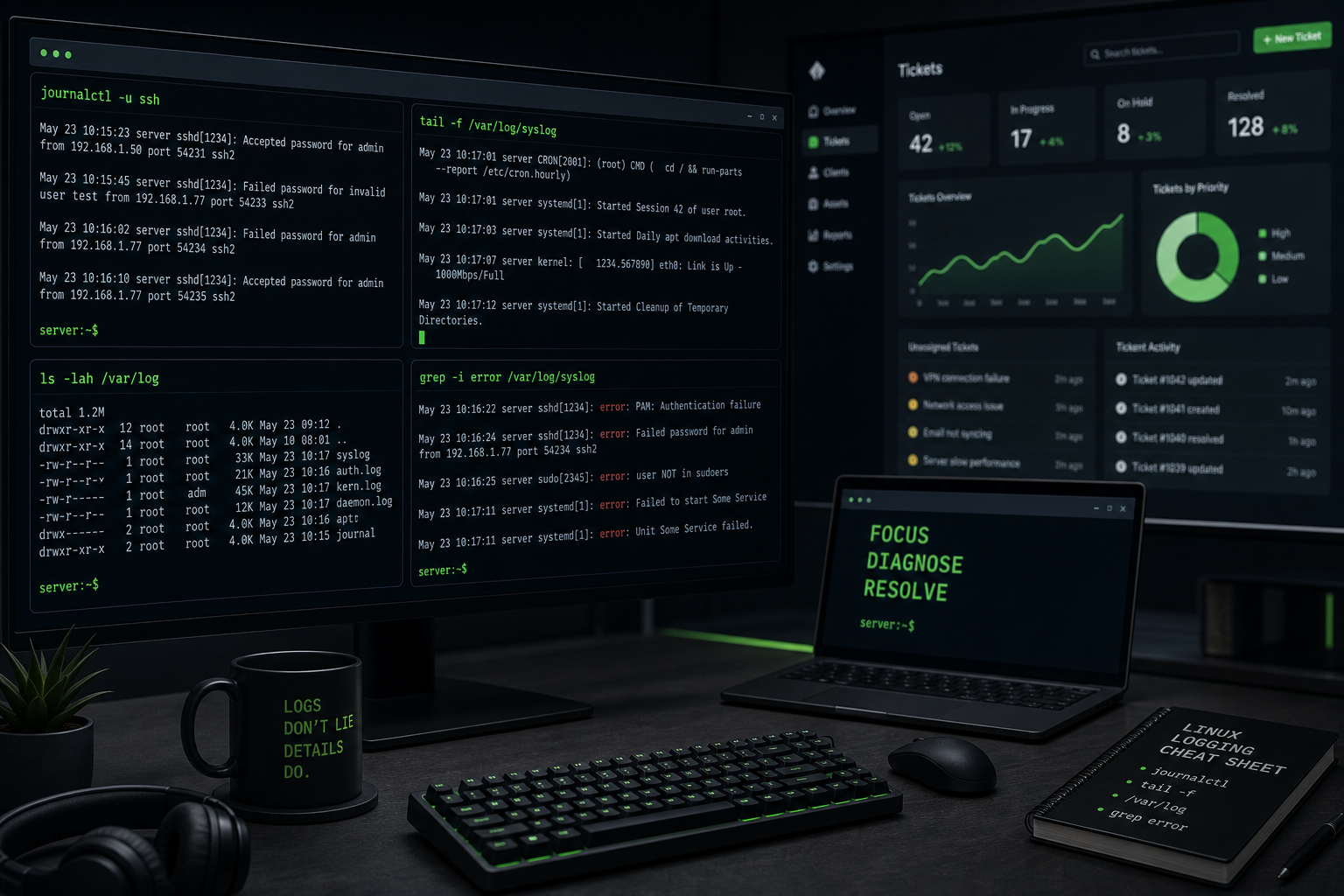
Checking Linux logs means looking at the records your system and applications write when something starts, fails, restarts, crashes, connects, disconnects, or quietly complains in the corner.
For help desk and beginner sysadmin work, logs are where you go when the ticket says something deeply useful like “it stopped working.” The user may not know what changed. The app may not show a friendly error. The server, however, probably wrote something down.
The beginner version is simple:
journalctl -xe
sudo journalctl -u ssh --since "1 hour ago"
sudo tail -f /var/log/syslog
grep -i "error" /var/log/syslog
Those four patterns cover a lot of real troubleshooting. You can check recent system errors, look at one service, watch a log live, and search for suspicious words without opening a giant file and scrolling until your eyes file a complaint with HR.
The short version
Use these commands first:
| Task | Command |
|---|---|
| See recent systemd logs | journalctl -xe |
| Check one service | sudo journalctl -u nginx --since "30 minutes ago" |
| Follow logs live | sudo tail -f /var/log/syslog |
| Search a log file | grep -i "error" /var/log/syslog |
| Show the newest lines | sudo tail -n 100 /var/log/syslog |
| Check boot logs | journalctl -b |
| Check failed services first | systemctl --failed |
If you are brand new, start with this workflow:
systemctl --failed
journalctl -xe
sudo journalctl -u service-name --since "1 hour ago"
Replace service-name with the service you are troubleshooting, like ssh, nginx, apache2, docker, or cron.
Why Linux logs matter for help desk work
Logs help you move from guessing to evidence.
A normal ticket might look like this:
“VPN stopped working after lunch.”
Or:
“The website is down.”
Or the classic:
“Linux server issue. Please advise.”
That last one should come with hazard pay, but here we are.
Logs can answer questions like:
- Did the service crash?
- Did someone restart it?
- Is authentication failing?
- Is disk space causing errors?
- Did a config file fail to load?
- Did the problem start after a package update?
- Is the issue happening right now or did it happen once three hours ago?
You do not need to memorize every log location. You need a repeatable first pass that keeps you calm and gives you useful clues.
Start with systemd: systemctl --failed
Before diving into thousands of log lines, check whether Linux already knows something is broken:
systemctl --failedYou might see output like:
UNIT          LOAD   ACTIVE SUB    DESCRIPTION
nginx.service loaded failed failed A high performance web server
That tells you where to look next:
sudo journalctl -u nginx --since "1 hour ago"This is better than opening random files and hoping the answer jumps out. Start broad, then narrow down.
Use journalctl for system logs
On many modern Linux systems, especially Ubuntu, Debian, Fedora, and enterprise distros using systemd, journalctl is your main log viewer.
See recent logs:
journalctl -xeWhat that means:
journalctlreads the systemd journal.-xadds helpful explanations when available.-ejumps to the end, where recent events live.
This is useful when something just failed and you want recent context.
If the output opens in a pager, use:
Spaceto move forwardbto move back/errorto search forerrorqto quit
Knowing how to quit the log viewer is not optional. Everyone learns this the awkward way once.
Check logs for one service
Most real troubleshooting is not “show me everything.” It is “show me what happened to this service.”
For SSH:
sudo journalctl -u ssh --since "1 hour ago"For Nginx:
sudo journalctl -u nginx --since "1 hour ago"For Docker:
sudo journalctl -u docker --since "today"For cron:
sudo journalctl -u cron --since "today"The --since filter matters. Without it, you may get a wall of old logs from last month, which is technically information and emotionally not helpful.
Useful time filters:
--since "10 minutes ago"
--since "1 hour ago"
--since "today"
--since "yesterday"
--since "2026-05-16 08:00"
Beginner mistake: forgetting sudo. Some logs are visible as a normal user, but many service logs need elevated permissions. If the output looks suspiciously empty, try again with sudo before assuming nothing happened.
Follow logs live with tail -f
Sometimes you want to watch a log while you reproduce the issue.
sudo tail -f /var/log/syslogThe -f means “follow.” It keeps the command running and prints new lines as they appear.
This is useful when:
- restarting a service
- trying a login again
- plugging in a device
- testing an app request
- watching whether an error repeats
Stop following with:
Ctrl+CA realistic workflow:
sudo tail -f /var/log/syslogThen in another terminal, restart the service or reproduce the issue. Watch for new lines that appear at the exact time of the problem.
If your terminal starts filling with unrelated noise, do not panic. Logs are chatty. Servers apparently have a lot to say.
Where common Linux logs live
Many traditional log files live under /var/log.
List them:
ls -lh /var/logCommon files and directories:
| Path | What it is usually for |
|---|---|
/var/log/syslog | General system messages on Ubuntu/Debian |
/var/log/auth.log | Authentication and sudo logs on Ubuntu/Debian |
/var/log/kern.log | Kernel messages on Ubuntu/Debian |
/var/log/dmesg | Boot and hardware messages |
/var/log/nginx/ | Nginx access and error logs |
/var/log/apache2/ | Apache access and error logs |
Not every distro uses the exact same files. RHEL-style systems often use /var/log/messages instead of /var/log/syslog.
If a file does not exist, do not assume the article lied to you personally. Check your distro and service configuration.
Search logs with grep
Opening a huge log file and reading it top to bottom is punishment, not troubleshooting.
Search for errors:
grep -i "error" /var/log/syslogThe -i makes the search case-insensitive, so it matches error, Error, and ERROR.
Search for a username:
grep -i "stetson" /var/log/auth.logSearch for a service name:
grep -i "nginx" /var/log/syslogShow line numbers:
grep -in "failed" /var/log/syslogSearch compressed rotated logs:
zgrep -i "error" /var/log/syslog.1.gzRotated logs are older log files. Linux rotates them so one file does not grow forever like a printer spooler from 2009.
Use less when you need to browse safely
Use less to view logs without editing them:
sudo less /var/log/syslogInside less:
- Press
Gto jump to the bottom. - Press
gto jump to the top. - Type
/failedto search forfailed. - Press
nfor the next match. - Press
qto quit.
less is safer than opening logs in a text editor because you are not tempted to accidentally modify anything. In support work, read-only habits are good habits.
Check logs for the current boot
If the issue started after a reboot, check logs from the current boot:
journalctl -bShow only errors from the current boot:
journalctl -b -p errPriority levels include:
| Priority | Meaning |
|---|---|
emerg | System is unusable |
alert | Immediate action needed |
crit | Critical condition |
err | Error |
warning | Warning |
info | Informational |
debug | Very detailed debug output |
For beginner troubleshooting, -p err is a good filter when the full log is too noisy.
Follow one service live
You can also follow one service with journalctl:
sudo journalctl -u nginx -fThen reproduce the problem.
Example:
- Start following Nginx logs.
- Refresh the broken website.
- Watch for errors.
- Press
Ctrl+Cwhen done.
This beats repeatedly refreshing a web page and muttering at it. The muttering can continue, but now it has data.
A practical help desk workflow
When someone reports a Linux service problem, try this first:
1. Check failed units
systemctl --failedIf a service is failed, get its name.
2. Check service status
systemctl status nginx --no-pagerReplace nginx with the actual service.
3. Read recent service logs
sudo journalctl -u nginx --since "1 hour ago" --no-pager4. Search for obvious words
sudo journalctl -u nginx --since "1 hour ago" --no-pager | grep -i "error\|failed\|denied"5. Check disk space
df -hDisk-full issues can cause weird log and service failures. Always check it before you spend 45 minutes diagnosing the wrong thing.
6. If safe, reproduce while following logs
sudo journalctl -u nginx -fThen trigger the issue again.
This gives you a clean path: status, logs, search, basic system checks, reproduce.
Beginner mistakes to avoid
Mistake 1: Reading logs with no time filter
This can bury you in old information.
Better:
sudo journalctl -u ssh --since "30 minutes ago"Mistake 2: Assuming every error is the error
Logs contain warnings, old failures, harmless noise, and messages from services unrelated to your ticket.
Match the timestamp to the reported issue. If the user says it failed at 9:15, a scary line from 3:00 probably is not your main suspect.
Mistake 3: Forgetting rotated logs
If yesterday’s incident is missing from the current file, check rotated logs:
ls -lh /var/log/syslog*
zgrep -i "failed" /var/log/syslog.1.gz
Mistake 4: Editing logs
Logs are evidence. Do not “clean them up” because they look messy. Read them, copy relevant lines into the ticket, and leave the files alone.
Mistake 5: Pasting sensitive logs into random tools
Logs can contain usernames, IP addresses, hostnames, tokens, paths, and customer data. Be careful where you paste them. Redact before sharing outside your company.
What to put in the ticket
A good ticket update does not say:
“Checked logs.”
That is not an update. That is a shrug wearing a badge.
Write something like:
Checked nginx service status and logs from 09:00-09:30.
Service was running, but access attempts returned repeated 502 errors at 09:14.
No disk-space issue found. Next step: check upstream app service logs.
Or:
SSH login failures started at 13:22 for user jdoe.
/auth.log shows repeated password failures, no sudo activity after login.
User confirmed password reset attempt around that time.
The goal is to show evidence, time range, what you ruled out, and the next step.
Practice commands safely
Here is a safe practice set:
systemctl --failed
journalctl -xe
journalctl -b -p warning
ls -lh /var/log
sudo tail -n 50 /var/log/syslog
grep -i "error" /var/log/syslog
Some commands may need sudo; some files may not exist on your distro. That is normal. Part of getting good at Linux is learning how your specific system lays things out.
If you want a place to drill these commands without turning a production server into your personal learning sandbox, Shell Samurai is built for that. Practice reading output, narrowing the problem, and getting comfortable before the ticket is already on fire.
FAQ
What command shows Linux logs?
Use journalctl for systemd logs:
journalctl -xeFor traditional log files, check /var/log:
ls -lh /var/logHow do I check logs for one Linux service?
Use journalctl -u with the service name:
sudo journalctl -u ssh --since "1 hour ago"Replace ssh with the service you are troubleshooting.
How do I watch Linux logs live?
Use tail -f for log files:
sudo tail -f /var/log/syslogOr follow a systemd service:
sudo journalctl -u nginx -fPress Ctrl+C to stop following.
Where are Linux log files stored?
Many traditional Linux logs live in /var/log. Common examples include /var/log/syslog, /var/log/auth.log, /var/log/kern.log, and service-specific folders like /var/log/nginx/ or /var/log/apache2/.
What should beginners look for in logs?
Start with timestamps, service names, and words like error, failed, denied, timeout, and permission. Then match those lines to the time the issue happened. Do not treat every scary-looking line as the root cause.
Practice This in a Real Terminal
Shell Samurai gives you safe Linux missions so the commands actually stick. Chapter 1 is free; the full practice path is a one-time purchase, not another subscription.