Linux Networking Commands for Beginner Sysadmins
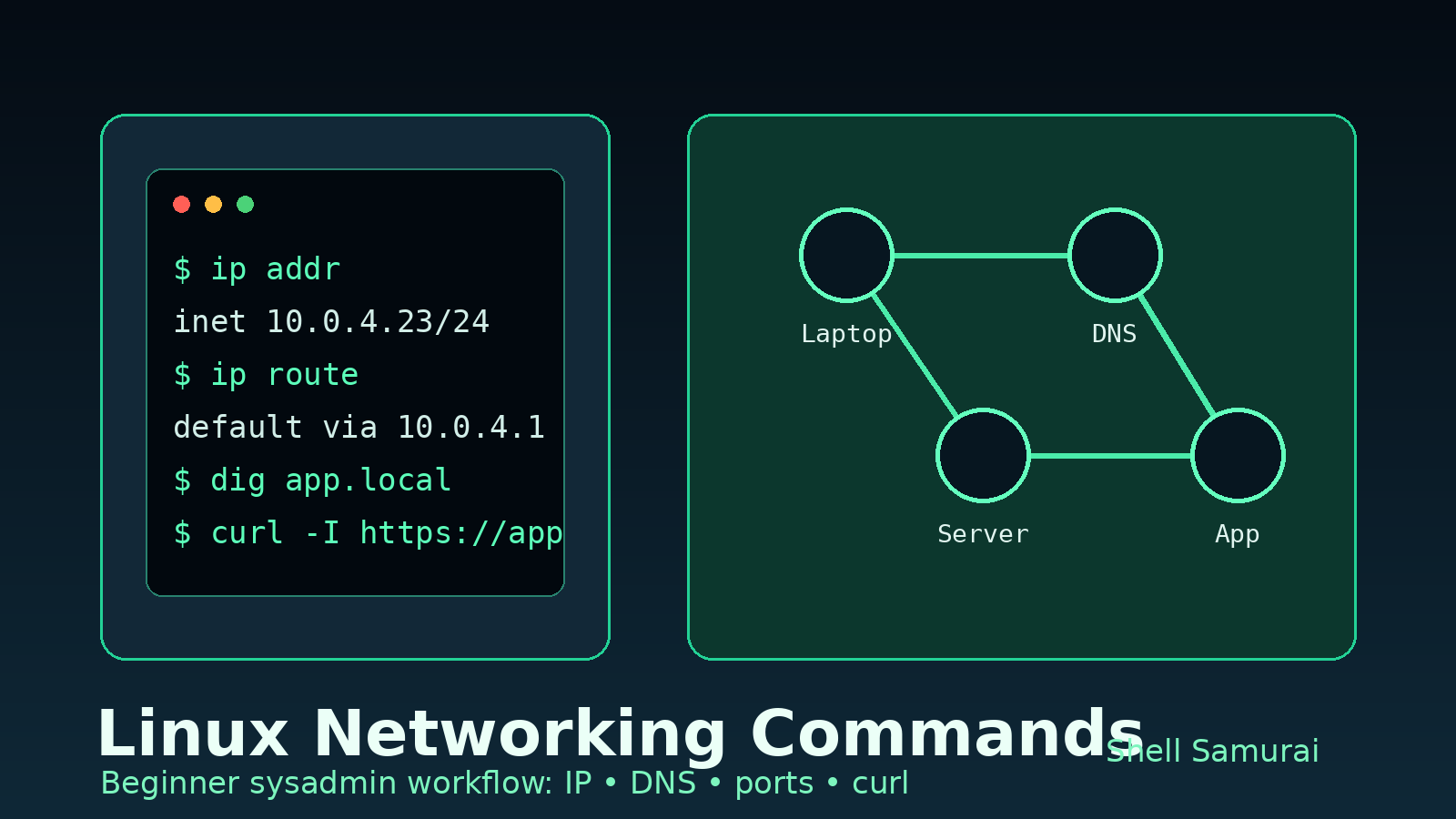
Linux networking commands are where a lot of Windows admins and help desk techs first start sweating in the terminal.
Not because the commands are impossible. Because the ticket usually arrives as something vague like “the server can’t reach the app” or “Linux is down”, which is about as specific as a user saying their computer is “doing the thing again.”
You do not need to become a packet-capture expert to handle the first pass. You need a simple order of operations:
- Confirm the machine has the right network identity.
- Check whether it can reach the network.
- Check whether DNS is working.
- Check whether the port or service is listening.
- Test the actual application endpoint.
- Write down what failed before changing anything.
This guide covers the Linux networking commands a beginner sysadmin should know first: ip, ping, ss, dig, curl, traceroute, and a few practical helpers.
The quick command list
If you only save one section, save this:
ip addr                         # show IP addresses on this machine
ip route                        # show default gateway and routes
ping -c 4 8.8.8.8               # test basic internet reachability
ping -c 4 example.com           # test reachability plus DNS name use
dig example.com                 # query DNS records
ss -tulpn                       # show listening TCP/UDP ports
curl -I https://example.com     # test HTTP response headers
traceroute example.com          # show the network path, if installed
hostname -I                     # print local IP addresses quickly
resolvectl status               # DNS resolver details on many systemd distros
Do not run these like a slot machine. Each command should answer one question.
- Do I have an IP address?
- Do I have a default route?
- Can I reach anything by IP?
- Can I resolve names with DNS?
- Is the service listening?
- Does the actual app respond?
That is the difference between troubleshooting and flailing with admin rights.
Start with the actual ticket question
Before touching the terminal, translate the ticket into a network question.
Bad question:
“Why is Linux broken?”
Better questions:
- Can this server reach the internet?
- Can this server reach the database?
- Can users reach this server?
- Is the web app listening on the expected port?
- Is DNS resolving the right hostname?
- Did VPN, firewall, or a route change break access?
Linux commands are much easier when you know what you are trying to prove.
A realistic help desk example:
A developer says
api01cannot reachdb01after a maintenance window.
Your first pass is not “restart random services and hope the outage gets bored.” Your first pass is:
- Does
api01have an IP address? - Does
api01have a route to the network? - Can
api01resolvedb01? - Can
api01connect to the database port? - Is the database actually listening on
db01?
Now the commands have a job.
Check IP addresses with ip addr
Start by asking Linux what addresses it has:
ip addrYou will see network interfaces like lo, eth0, ens33, enp0s3, or something equally memorable because apparently network interface names are where Linux stores its unresolved feelings.
Look for an address like:
inet 192.168.1.42/24That means the machine has IPv4 address 192.168.1.42 with a /24 network mask.
You may also see:
inet 127.0.0.1/8That is loopback. It is the machine talking to itself. Useful, but not proof that the server is actually on the network.
Beginner mistake: seeing 127.0.0.1 and thinking networking is fine. If the only IP you have is loopback, the box is basically alone with its thoughts.
For a shorter view:
hostname -IThat prints the machine’s IP addresses without the extra detail.
Check the default gateway with ip route
An IP address alone is not enough. The machine also needs to know where to send traffic outside its own local network.
Run:
ip routeLook for a default route:
default via 192.168.1.1 dev eth0That means traffic that does not match a more specific route goes through gateway 192.168.1.1 on interface eth0.
No default route often means the server can talk to local neighbors but not the internet or other networks. That is a classic “it works from one place but not another” clue.
For help desk work, capture the output before changing network settings:
ip addr
ip route
If the issue gets escalated, those two outputs are useful evidence instead of a Slack message that says “network looked weird.”
Test reachability by IP with ping
ping sends small packets to see whether another host responds.
Start with a known IP address:
ping -c 4 8.8.8.8The -c 4 option sends four pings and stops. Without it, Linux will keep pinging until you press Ctrl+C, which is a tiny rite of passage but not a great monitoring strategy.
If ping to an IP works, basic outbound network reachability is probably okay.
If ping to an IP fails, possible causes include:
- No network connection.
- Bad route or gateway.
- Firewall blocking ICMP.
- VPN missing.
- The target does not respond to ping.
Important: failed ping does not always mean the host is down. Some networks block ping. Treat it as a clue, not a courtroom verdict.
Test DNS with dig
DNS turns names into IP addresses. If IP reachability works but hostnames fail, DNS is the suspect.
Run:
dig example.comLook for an ANSWER SECTION:
example.com. 300 IN A 93.184.216.34That means DNS returned an A record.
If dig fails, check what DNS resolver the machine is using. On many modern Linux distros:
resolvectl statusOn older or simpler systems:
cat /etc/resolv.confCommon DNS problems:
- The server is not on VPN.
- Internal names only resolve on corporate DNS.
/etc/resolv.confpoints to the wrong resolver.- The hostname is misspelled.
- Someone gave you a Windows-only short name and expected Linux to guess the rest.
For a ticket like “cannot reach db01,” test both the short name and the fully qualified name:
dig db01
dig db01.company.local
If one works and one does not, you may have a search-domain issue rather than a server outage.
Check listening ports with ss
When users cannot reach a service, ask whether the service is actually listening.
Run:
ss -tulpnThat shows TCP and UDP sockets, listening ports, process names, and numeric ports.
Useful flags:
-tshows TCP.-ushows UDP.-lshows listening sockets.-pshows the process using the port, when permissions allow.-nkeeps addresses and ports numeric instead of trying to resolve names.
Example output:
LISTEN 0 128 0.0.0.0:22    0.0.0.0:* users:(("sshd",pid=811,fd=3))
LISTEN 0 511 127.0.0.1:3000 0.0.0.0:* users:(("node",pid=1442,fd=18))
The first line means SSH is listening on port 22 on all IPv4 addresses. The second means a Node app is listening on port 3000, but only on 127.0.0.1.
That loopback detail matters. If an app only listens on 127.0.0.1, other machines cannot connect to it directly. That may be correct behind a reverse proxy, or it may explain why everyone outside the server gets connection refused.
Beginner mistake: checking that the process is running but not checking what address it is bound to. “The app is running” and “the app is reachable from the network” are not the same sentence.
For more service workflow practice, see systemctl explained for beginners.
Test the actual web endpoint with curl
ping tells you whether a host may be reachable. curl tells you whether an HTTP endpoint responds.
For a quick header check:
curl -I https://example.comYou might see:
HTTP/2 200
content-type: text/html
That is a good sign.
Other useful responses:
301or302: redirect.401: authentication required.403: forbidden.404: path not found.500: server error.502or503: often proxy/upstream/service trouble.
If you need more detail:
curl -v https://example.comThe -v output shows DNS resolution, connection attempts, TLS handshake details, and response headers. It is noisy, but useful when HTTPS is failing and everyone is pointing at everyone else in the group chat.
For a local app:
curl -I http://localhost:3000
curl -I http://127.0.0.1:3000
curl -I http://server-name:3000
If localhost works but the server name does not, the app may be bound only to loopback, blocked by a firewall, or routed through a proxy incorrectly.
Use traceroute for path questions
When traffic can reach some places but not others, path matters.
Run:
traceroute example.comIf traceroute is not installed, on Ubuntu/Debian you can usually install it with:
sudo apt install traceroutetraceroute shows each hop between your machine and the target. It is helpful when diagnosing routing issues, VPN weirdness, or “works from the office but not from home” problems.
Do not panic if some hops show * * *. Many routers ignore traceroute packets. Look for the overall pattern: does the path leave your network, stop immediately, or die near the destination?
A beginner network troubleshooting workflow
Here is a practical sequence for a Linux server networking ticket.
1. Confirm local network config
hostname
ip addr
ip route
You are looking for the right server, a real IP address, and a default gateway.
2. Test IP reachability
ping -c 4 8.8.8.8
ping -c 4 192.168.1.1
If the gateway responds but the internet does not, the issue may be upstream. If the gateway does not respond, check local network/VPN/interface status.
3. Test DNS
dig example.com
dig internal-service.company.local
If IP works but DNS fails, stop blaming the app and investigate resolver settings or VPN.
4. Check the service port
On the server hosting the service:
ss -tulpnOn a client trying to reach it, use curl for HTTP:
curl -I http://server-name:8080For non-HTTP ports, you may use tools like nc if installed:
nc -vz server-name 5432That tests whether a TCP connection to port 5432 succeeds.
5. Capture evidence before making changes
Before restarting services or changing config, save what you know:
ip addr
ip route
dig app.company.local
ss -tulpn
curl -I https://app.company.local
Paste the relevant output into the ticket. Future you, senior sysadmins, and everyone trying to avoid duplicate work will appreciate it.
Common beginner mistakes
Mistake 1: treating DNS failure like server failure
If ping 8.8.8.8 works but ping example.com fails, the network may be fine and DNS may be broken.
That is a different problem. Do not restart the web server because name resolution failed on the client.
Mistake 2: forgetting VPN or split DNS
Internal names often require VPN or office network DNS.
If dig db01.company.local fails from your laptop at home but works from a jump box, that is not necessarily a Linux issue. It may be expected network design.
Mistake 3: checking from the wrong machine
A server can reach a database from inside the data center while your laptop cannot. Your laptop can reach a public website while the server cannot. Network tests only prove something from the machine where you run them.
Always say where you tested from.
Mistake 4: ignoring loopback bindings
If ss -tulpn shows an app listening on 127.0.0.1:3000, it is not directly listening for outside connections. That might be fine if Nginx sits in front of it. It is not fine if another server is supposed to connect to port 3000 directly.
Mistake 5: changing firewall rules before proving the basics
Firewalls matter, but beginners jump there too fast. First check IP, route, DNS, listening port, and app response. Then escalate with evidence.
Mini cheat sheet by symptom
| Symptom | First commands | What you are checking |
|---|---|---|
| Server has no network | ip addr, ip route | IP address and gateway |
| Can reach IP, not names | dig, resolvectl status | DNS resolver and records |
| Website down | curl -I, ss -tulpn, systemctl status | HTTP response and service state |
| SSH failing | ping, ss -tulpn, ssh -v | Reachability, port 22, auth stage |
| App cannot reach database | dig dbhost, nc -vz dbhost 5432, ip route | DNS, port reachability, route |
| Works locally, not remotely | ss -tulpn, curl localhost, curl server-name | Bind address, firewall, proxy |
For SSH-specific failures, this guide pairs well with common SSH errors explained.
Practice this before the ticket is on fire
Linux networking is much easier when you have run the commands before production is grumpy.
A simple practice routine:
- Run
ip addrand identify your real IP address. - Run
ip routeand find your default gateway. - Run
dig shellsamurai.comand find the answer section. - Run
curl -I https://shellsamurai.comand read the status code. - Run
ss -tulpnand identify one listening service.
That little sequence builds the muscle memory you need for real help desk and junior sysadmin work.
If you want a safer place to practice terminal workflows without poking a production server, Shell Samurai is built for exactly this: practical command-line reps for people who want Linux confidence without pretending they were born in a server rack.
Final takeaway
Beginner Linux networking troubleshooting is mostly about separating layers.
Ask one question at a time:
- Does the machine have an IP?
- Does it have a route?
- Does DNS resolve?
- Is the port listening?
- Does the app respond?
- Where did I test from?
That is enough to turn a vague “network is broken” ticket into useful evidence. And in IT, useful evidence beats confident guessing pretty much every time.
Practice This in a Real Terminal
Shell Samurai gives you safe Linux missions so the commands actually stick. Chapter 1 is free; the full practice path is a one-time purchase, not another subscription.