Linux less Command for Beginners: Read Files Safely
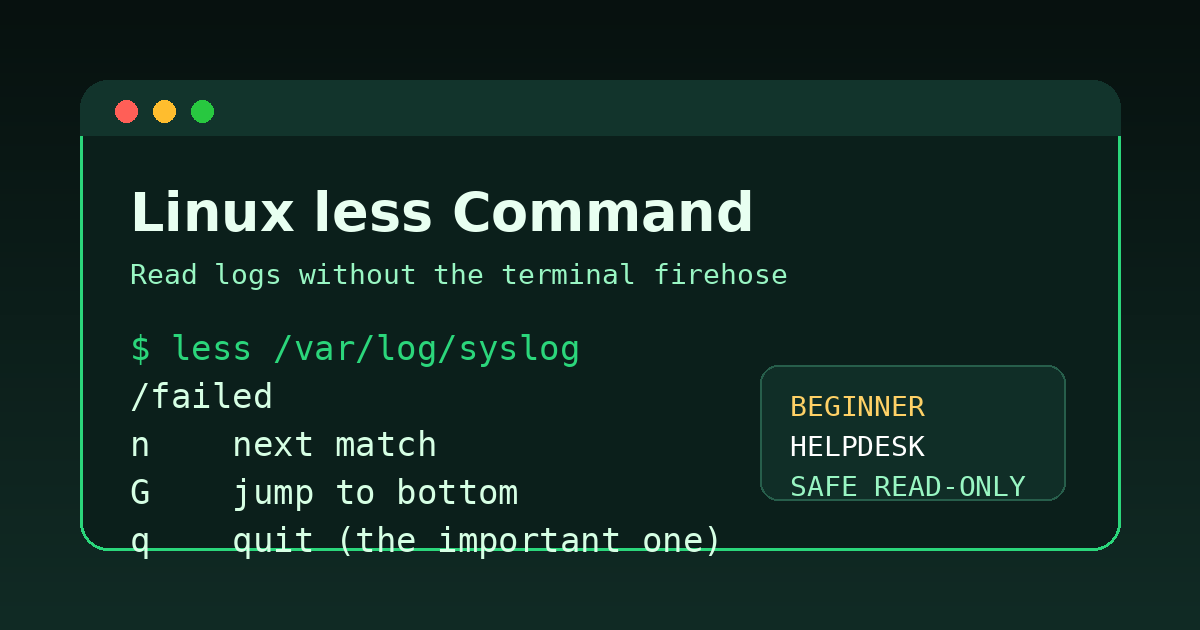
The Linux less command lets you open a text file, move around inside it, search it, and quit without dumping the whole thing into your terminal.
That sounds boring until you are on a help desk call, someone says “check the logs,” and you run cat /var/log/syslog like a brave fool. Now your terminal is a firehose, the useful error line vanished three thousand lines ago, and your confidence has left the building.
Use this instead:
less /var/log/syslogless is the safe beginner move for reading bigger files: logs, config files, command output you saved earlier, README files, and anything else you want to inspect without turning your terminal into a scrolling crime scene.
Quick answer: how to use less
Run:
less filenameExample:
less /var/log/syslogInside less, use these keys:
| Key | What it does |
|---|---|
Space | Move forward one page |
b | Move back one page |
j or down arrow | Move down one line |
k or up arrow | Move up one line |
/text | Search forward for text |
n | Go to the next search match |
N | Go to the previous search match |
g | Jump to the top |
G | Jump to the bottom |
q | Quit |
If you remember only one thing, remember q quits. Every beginner gets trapped in less, man, or vim at least once. It is basically a rite of passage, except HR does not give you a certificate.
Why less matters for help desk and beginner sysadmin work
A lot of Linux troubleshooting starts with reading text files:
- service logs
- authentication logs
- application config files
- package manager output
- shell scripts
.envfiles- README files
- generated reports
You do not always want to edit those files. You usually want to inspect them first.
That is where less fits. It is a read-only viewer. It lets you look around without changing the file. That is exactly what you want when you are new, tired, or logged into a production server where every typo has consequences.
Real work examples:
less /etc/ssh/sshd_config
less /etc/nginx/nginx.conf
less /var/log/auth.log
less /var/log/syslog
less README.md
For help desk work, less is useful when someone says:
- “Can you see why SSH logins are failing?”
- “What config file is this service using?”
- “Does the app log show a database error?”
- “Can you confirm what this install script does before running it?”
You are not fixing anything yet. You are gathering evidence. Good support work starts there, because guessing is how tickets become archaeology.
less vs cat vs tail
Beginners often learn cat first, which is fine. cat prints a file to the terminal:
cat notes.txtThat is great for short files. It is annoying for long files.
Use this rule of thumb:
| Situation | Use |
|---|---|
| Tiny file you want to print once | cat file.txt |
| Bigger file you want to browse | less file.txt |
| Last few lines of a file | tail file.txt |
| Watch new log lines live | tail -f file.txt |
| Search for matching lines | grep "text" file.txt |
Example: if /var/log/syslog has 50,000 lines, this is a mess:
cat /var/log/syslogThis is sane:
less /var/log/syslogAnd if you only want the newest lines, this is better:
tail -50 /var/log/syslogDifferent commands, different jobs. The terminal is not trying to be mean. It is just very literal, like a ticketing system that technically lets users set every priority to urgent.
Open a file with less
The basic syntax is:
less path/to/fileFor a file in your current folder:
less app.logFor a system log:
less /var/log/syslogFor a config file that normal users can read:
less /etc/hostsSome files require elevated permissions. If you get Permission denied, you may need sudo:
sudo less /var/log/auth.logBe careful with sudo. Reading a protected log is normal. Editing random root-owned files because a forum comment told you to is how you create a side quest nobody wanted.
Move around inside less
Once the file is open, use keyboard shortcuts.
Move forward:
SpaceMove backward:
bMove one line at a time:
j      down one line
k      up one line
Arrow keys usually work too, but learning j and k helps when you spend more time in Linux tools.
Jump to the top:
gJump to the bottom:
GThat capital G means Shift+g. Useful when you open a log and immediately want the newest entries at the end.
Search inside a file with less
This is the part that makes less genuinely useful.
To search forward, type / followed by your search term:
/errorThen press Enter.
Examples:
/failed
/permission
/denied
/timeout
/connection
After you find a match:
- Press
nfor the next match. - Press
Nfor the previous match.
A practical help desk flow might look like this:
sudo less /var/log/auth.logThen inside less:
/failedNow you can jump through failed login entries without printing the entire log. This is much cleaner than staring at a wall of text and pretending you are reading it. We have all done that. It fools nobody, especially not the blinking cursor.
Follow a growing log with less
tail -f is the common command for watching a log live:
tail -f /var/log/syslogBut less can do a similar thing with +F:
less +F /var/log/syslogThis opens the file and follows new lines as they appear.
To stop following and return to normal browsing inside less, press:
Ctrl+CThen you can search, scroll up, or quit with q.
For beginners, tail -f is usually easier to remember. But less +F is handy when you want to watch a log live, pause, then search through what just happened.
Example scenario:
- Start watching the log.
- Reproduce the issue.
- Stop following with
Ctrl+C. - Search for the service name or error.
- Copy the useful line into the ticket.
That is a real troubleshooting workflow, not just command trivia.
Open command output in less
You can also send command output into less using a pipe.
Example:
systemctl status nginx | lessOr:
ps aux | lessOr a directory listing with lots of files:
ls -lah /var/log | lessThe pipe sends output from the command on the left into less on the right. This gives you scrolling and searching even when the original command prints a ton of text.
This is especially useful for commands with noisy output. You can search inside the results instead of rerunning the command five times and squinting harder each time, which is not a troubleshooting methodology no matter how committed you are.
Show line numbers in less
Line numbers can help when you need to tell someone where a setting appears.
Use -N:
less -N /etc/ssh/sshd_configNow less shows line numbers on the left.
This is useful when you want to say:
PasswordAuthenticationis set around line 57.
Do not treat the line number like sacred truth forever. Config files change. But for a current ticket or handoff note, line numbers are helpful.
Open less at the bottom of a file
Logs usually put the newest entries near the bottom. You can open a file at the bottom with +G:
less +G /var/log/syslogThen scroll up from there or search backward.
To search backward, use ? instead of /:
?errorThen use:
nfor the next match in the current search directionNto reverse direction
If that sounds slightly confusing, welcome to Unix tools. The useful beginner version is simple: /text searches forward, ?text searches backward, and q gets you out.
Common beginner mistakes with less
Mistake 1: Forgetting how to quit
Press:
qNot Escape. Not Ctrl+C in normal viewing mode. Just q.
Mistake 2: Using cat on huge files
If a file might be long, use less first:
less big-file.logYour scrollback buffer deserves mercy.
Mistake 3: Searching too broadly
Searching for /error may return hundreds of matches. Try more specific terms:
/permission denied
/failed password
/database
/timeout
Mistake 4: Running sudo without thinking
This is normal:
sudo less /var/log/auth.logThis deserves a pause:
sudo some-random-command-from-a-forumReading is safer than changing. When you are new, build the habit of inspecting first.
Mistake 5: Confusing less with an editor
less is not where you edit files. If you need to edit, use an editor like nano or vim, depending on your comfort level and local standards.
For support work, that separation is useful:
lessto inspectgrepto search matching linesnanoorvimto edit when you actually mean to change something
A beginner help desk workflow with less
Imagine a user says they cannot SSH into a Linux box.
You might start with:
sudo less /var/log/auth.logInside less, search for:
/failedThen try:
/usernameMaybe you find lines showing bad passwords, a locked account, or public key failures. Now your ticket note can say something useful:
Checked /var/log/auth.log. Failed SSH attempts for jsmith show "Permission denied (publickey)" at 14:22. Account is reachable, but key auth is failing.That is much better than:
Linux broken maybe?Ticket notes like that are how teams develop trust. Also how your future self avoids wanting to fight your past self.
Practice checklist
Try these on a lab machine, WSL, or any safe Linux environment:
less /etc/hosts
less -N /etc/hosts
less /etc/os-release
ls -lah /var/log | less
If you have readable logs:
less /var/log/syslog
less +G /var/log/syslog
Inside less, practice:
- moving forward with
Space - moving backward with
b - searching with
/text - jumping to the top with
g - jumping to the bottom with
G - quitting with
q
Do that a few times and less stops feeling like a trap door.
Where Shell Samurai fits
Reading files safely is one of those command-line skills that feels tiny until you need it under pressure. Shell Samurai gives you a place to practice terminal habits like opening files, navigating output, searching text, and quitting tools without sweating through your hoodie on a real server.
If you are building Linux confidence for help desk or junior sysadmin work, practice the boring commands until they become automatic. Boring is good. Boring means you are not discovering the quit key during an outage.
Practice Linux basics in Shell Samurai
Quick reference
less file.txt                  # open a file
less -N file.txt               # show line numbers
less +G file.txt               # open at the bottom
less +F file.txt               # follow new lines like tail -f
command | less                 # browse command output
sudo less /var/log/auth.log    # read a protected log if allowed
Inside less:
Space  forward one page
b      back one page
/text  search forward
?text  search backward
n      next match
N      previous match
g      top of file
G      bottom of file
q      quit
Learn less early. It makes Linux feel calmer, and calm is underrated when a ticket says “server issue” and provides exactly zero other useful details.
Practice This in a Real Terminal
Shell Samurai gives you safe Linux missions so the commands actually stick. Chapter 1 is free; the full practice path is a one-time purchase, not another subscription.