Linux free Command Explained for Beginners
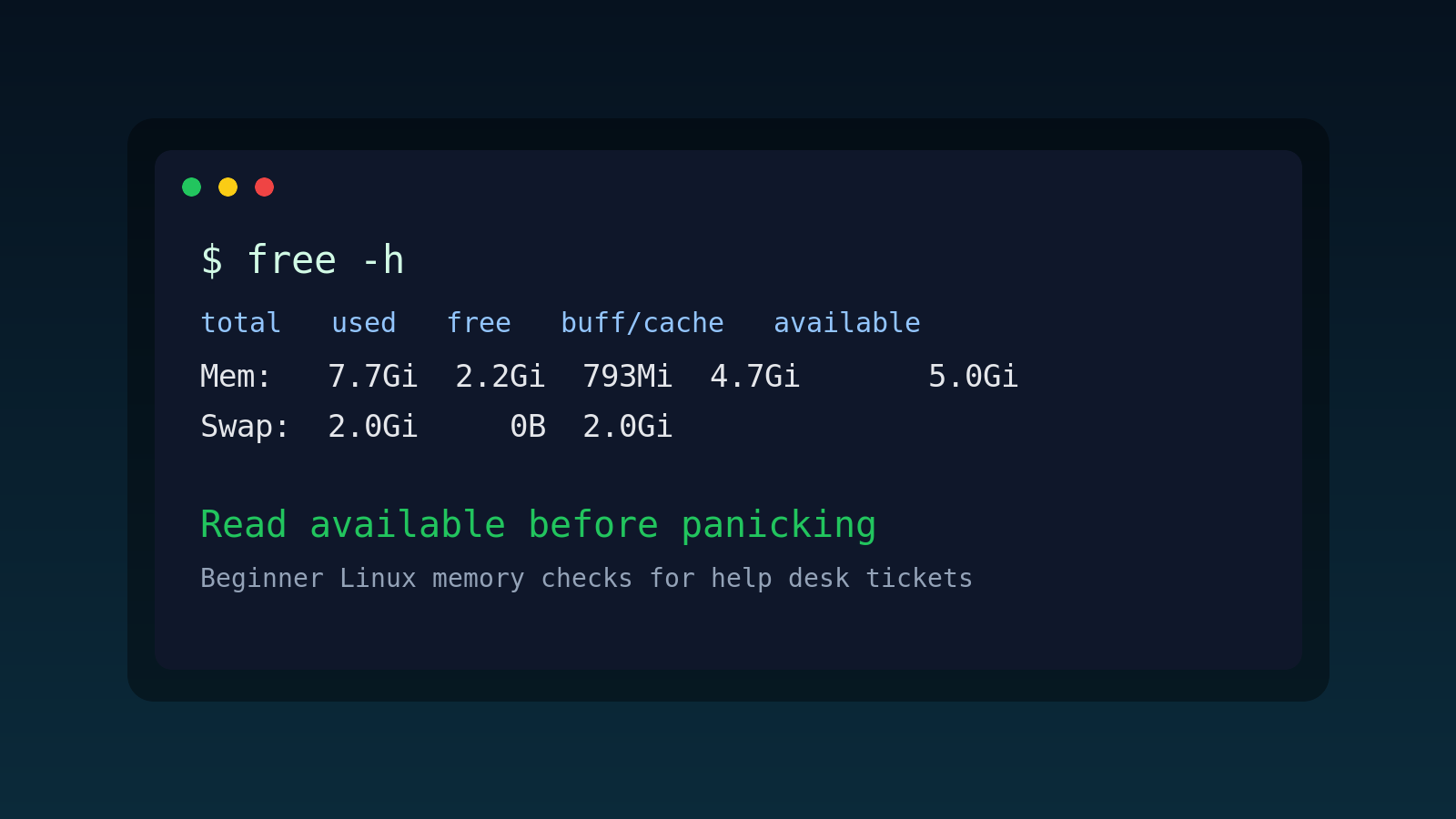
The Linux free command shows how much memory a system is using.
For beginners, the useful version is this: free -h helps you answer “is this Linux box actually out of RAM, or does it just look busy?” That question comes up a lot in help desk and junior sysadmin work. A server feels slow, an app gets cranky, someone says “memory is at 90%,” and now everybody is staring at a dashboard like it personally offended them.
The free command will not solve the whole ticket by itself, but it gives you a fast read on RAM, cache, available memory, and swap. It also teaches one of the most important Linux support lessons: used memory is not always bad memory.
This guide covers the beginner-friendly way to read free, what available means, why Linux uses memory for cache, how swap fits in, and what to check next when memory really is the problem.
The basic free command
Run:
freeYou will see output like this:
               total        used        free      shared  buff/cache   available
Mem:         8032144     2341020      812344      183212     4878780     5210900
Swap:        2097148           0     2097148
That is technically readable, but the numbers are in kibibytes by default. Humans reading tickets at 4:52 p.m. do not need that kind of character-building exercise.
Use the human-readable flag instead:
free -hExample:
               total        used        free      shared  buff/cache   available
Mem:           7.7Gi       2.2Gi       793Mi       179Mi       4.7Gi       5.0Gi
Swap:          2.0Gi          0B       2.0Gi
For most beginner troubleshooting, free -h is the version you want.
What each column means
Here is the practical translation.
| Column | Meaning | Beginner translation |
|---|---|---|
total | Installed usable memory | The RAM Linux can use |
used | Memory currently used | Not automatically bad |
free | Memory doing absolutely nothing | Often smaller than beginners expect |
shared | Memory shared between processes | Usually not the first thing to worry about |
buff/cache | Memory used for disk buffers and cache | Linux keeping useful stuff ready |
available | Memory available for new apps without heavy swapping | The number beginners should look at first |
The big trap is staring at free and panicking because it is low.
Linux likes to use spare RAM for cache. That is normal. Empty RAM is not earning its paycheck. If an application needs memory, Linux can usually reclaim cache.
So when you are doing first-pass troubleshooting, look at available before you start yelling about RAM.
The number to care about first: available
This is the line to remember:
availableavailable estimates how much memory can be used by new processes without forcing the system into painful swap usage.
Example:
Mem: 7.7Gi 2.2Gi 793Mi 179Mi 4.7Gi 5.0GiAt first glance, free says only 793Mi is unused. That sounds low.
But available says 5.0Gi. That system is probably not starving for memory. Linux is just using spare RAM for cache, which is exactly what you want.
Now compare that with this:
Mem:  7.7Gi  7.1Gi  121Mi  422Mi  489Mi  210Mi
Swap: 2.0Gi  1.6Gi  410Mi
That looks rough. Available memory is low, swap is being used heavily, and the machine may be under memory pressure.
A calm help desk read is:
“Available RAM is around 210 MiB and swap is already 1.6 GiB used. This may be a memory pressure issue. I am checking the largest processes next.”
That is better than:
“Linux says memory is used. I am scared.”
One of those makes you sound like a person with a process. The other sounds like the server won.
Use free -m or free -g when you need specific units
free -h is best for humans. Sometimes you need consistent units for notes or scripts.
Show megabytes:
free -mShow gigabytes:
free -gExample:
              total        used        free      shared  buff/cache   available
Mem:           7824        2286         774         179        4763        5082
Swap:          2047           0        2047
If you are pasting into a ticket, free -h is usually clearer. If you are comparing before/after values in a script, free -m can be easier to parse.
Watch memory repeatedly with free -h -s
You can ask free to refresh every few seconds:
free -h -s 2That shows memory every two seconds until you stop it with Ctrl+C.
This helps when you are reproducing a problem:
free -h -s 2Then in another terminal, start the app, run the report, or trigger the workload.
You are watching for patterns:
- Does
availablekeep dropping? - Does swap usage start climbing?
- Does memory recover when the workload stops?
- Does the system slowly get worse over time?
If memory drops and never comes back, you might be dealing with a leak or a workload that is simply too large for the box.
If memory dips during a job and returns afterward, that may be normal.
Understand swap without overreacting
Swap is disk space Linux can use as overflow memory.
Run:
free -hLook at the Swap: line:
Swap: 2.0Gi 0B 2.0GiThat means swap exists, but none is currently used.
This is also fine:
Swap: 2.0Gi 120Mi 1.9GiSmall swap usage does not automatically mean disaster. Linux may have moved inactive pages there.
This is more concerning:
Swap: 2.0Gi 1.8Gi 204MiHeavy swap usage plus low available memory can make a system feel awful. Disk is much slower than RAM. When a machine starts leaning hard on swap, users experience it as “everything is slow,” which is not a technically precise ticket but is certainly a familiar one.
A real help desk memory check workflow
Here is a basic workflow for a slow Linux server ticket.
First, confirm where you are:
hostname
whoami
uptime
Then check memory:
free -hThen check load and processes:
topOr, if you want a quick process list sorted by memory:
ps aux --sort=-%mem | headA useful ticket note might look like this:
Checked web02 at 14:30.
free -h shows 7.7Gi total, 220Mi available, 1.4Gi swap used.
Top memory processes are node workers owned by appuser.
Escalating to app team with process list and timestamp.
That is clean. You are not just saying “server slow.” You are giving the next person something they can act on.
Common beginner mistakes with free
Mistake 1: panicking because free memory is low
Low free is not always a problem.
Look at available.
Linux using RAM for cache is normal. If available is healthy, the system may be fine.
Mistake 2: ignoring swap
If available memory is low and swap is heavily used, that matters.
Swap is not evil, but heavy swap can explain a slow system fast.
Mistake 3: treating free as the whole diagnosis
free tells you memory status. It does not tell you why.
Pair it with:
ps aux --sort=-%mem | head
uptime
top
dmesg | tail
That gives you more context: biggest processes, system load, live resource usage, and recent kernel messages.
Mistake 4: checking the wrong machine
This one sounds dumb until you do it once.
Before writing notes, run:
hostnameIf you have three SSH tabs open, free -h is only useful if you know which box you ran it on. Otherwise you are just producing confident nonsense with a timestamp.
Quick reference: free command examples
| Task | Command |
|---|---|
| Show memory usage | free |
| Show readable units | free -h |
| Show values in megabytes | free -m |
| Show values in gigabytes | free -g |
| Refresh every 2 seconds | free -h -s 2 |
| Stop refreshing output | Ctrl+C |
If you only remember one command, remember this:
free -hThen read available before panicking.
Practice it safely
You do not need a production server to learn this. In fact, please do not make your first memory troubleshooting reps on the one server everyone is angry about.
Practice the habit:
hostname
free -h
ps aux --sort=-%mem | head
uptime
Say out loud what each command tells you. Yes, you will feel slightly ridiculous. That is still cheaper than learning during an outage while Slack is making the angry notification sound.
Shell Samurai is built for exactly this kind of repetition: short command-line practice, realistic Linux situations, and enough structure that you do not have to invent a lab every time you want reps.
If you want a safer place to build the muscle memory, practice Linux troubleshooting in Shell Samurai.
The short version
Use free -h to check Linux memory usage in readable units.
Look at available first. Low free memory is not automatically a problem because Linux uses spare RAM for cache. Low available memory plus heavy swap usage is more concerning.
When a server is slow, do not stop at free. Confirm the host, check memory, check processes, and leave ticket notes that the next person can understand without decoding your panic.
Practice This in a Real Terminal
Shell Samurai gives you safe Linux missions so the commands actually stick. Chapter 1 is free; the full practice path is a one-time purchase, not another subscription.