Linux dirname Command: Get the Parent Path
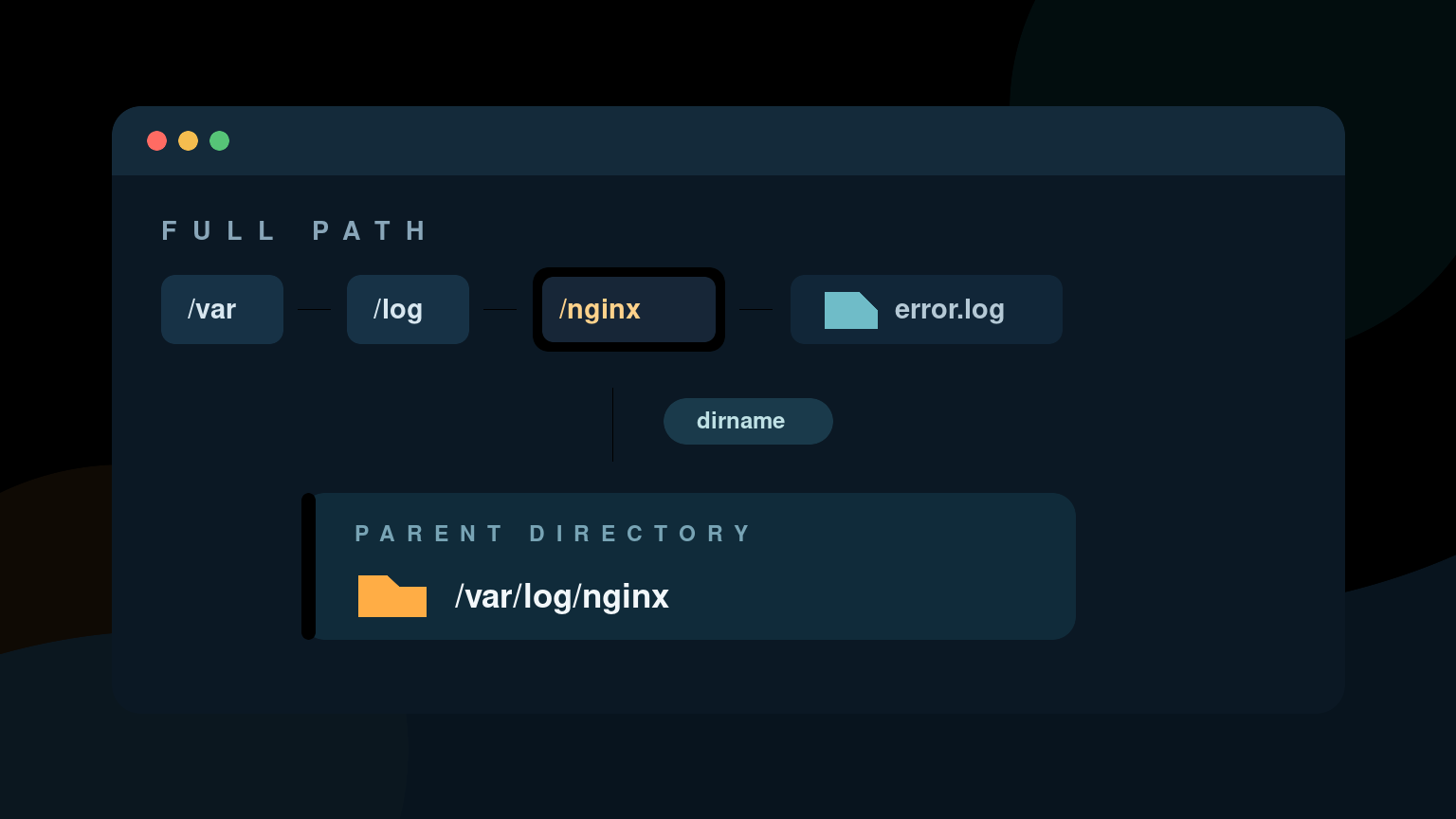
The Linux dirname command removes the final component from a path and prints the directory portion that remains. Give it a log file path:
dirname /var/log/nginx/error.logIt prints:
/var/log/nginxThat is useful when a script needs to locate the directory containing a log, configuration file, support bundle, or script. dirname only transforms path text. It does not check whether the file or directory exists, resolve symbolic links, or change your current directory.
Quick dirname command reference
| Task | Command | Result |
|---|---|---|
| Get a parent directory | dirname /var/log/nginx/error.log | /var/log/nginx |
Get the parent of a file in /etc | dirname /etc/hosts | /etc |
| Handle a relative file name | dirname report.txt | . |
| Remove the final directory component | dirname /srv/support/bundles/ | /srv/support |
| Handle the root directory | dirname / | / |
Protect a name beginning with - | dirname -- /tmp/-report.txt | /tmp |
The basic form is:
dirname NAMEGNU Coreutils also accepts multiple path arguments and prints one result per line. Portable scripts should use the one-path form unless you have confirmed the target systems support GNU options.
Get the directory from a file path
A common support script starts with a path supplied by an argument:
log_path=/var/log/nginx/error.log
log_dir=$(dirname -- "$log_path")

printf 'Log directory: %s\n' "$log_dir"
Output:
Log directory: /var/log/nginxTwo details matter here:
--ends option parsing, so a path component beginning with-is treated as data.- Quoting
"$log_path"keeps spaces and wildcard characters inside one argument.
Use both when paths come from tickets, users, command output, or configuration files. The one path that breaks an unquoted script will arrive during a busy shift, usually attached to a ticket marked “quick question.”
dirname works on text, not the filesystem
This command succeeds even if the path is imaginary:
dirname /srv/support/not-created-yet/report.zipOutput:
/srv/support/not-created-yetdirname does not tell you whether that directory exists or whether you can access it. Check those conditions separately:
file_path=/srv/support/case-4821/report.zip
parent_dir=$(dirname -- "$file_path")

if [ ! -d "$parent_dir" ]; then
  printf 'Directory does not exist: %s\n' "$parent_dir" >&2
  exit 1
fi

if [ ! -w "$parent_dir" ]; then
  printf 'Directory is not writable: %s\n' "$parent_dir" >&2
  exit 1
fi
The Linux test command guide explains checks such as -d, -f, -r, and -w. Keep path formatting and filesystem validation as separate steps so your script does not confuse a plausible-looking string with a real, safe destination.
Why dirname returns a dot for a plain file name
A beginner surprise is this result:
dirname report.txtOutput:
.A plain name has no slash, so its directory portion is the current directory, represented by .. The result is not the absolute path to your current directory.
If you need an absolute path, you must request one deliberately. On GNU/Linux, realpath can resolve a path:
realpath report.txtBut realpath has different behavior and a different job. It may resolve symbolic links and normally expects path components to exist. Do not swap it in for dirname without deciding whether you want text processing, normalization, or filesystem resolution.
You can combine tools when that is truly the requirement:
file_path=./reports/inventory.csv
absolute_path=$(realpath -- "$file_path")
parent_dir=$(dirname -- "$absolute_path")

printf '%s\n' "$parent_dir"
For a display label, plain dirname may be enough. For security-sensitive file operations, validate the resolved target and permissions instead of trusting text manipulation alone.
Trailing slashes can change the result
dirname removes trailing slashes, then removes the final component. Compare these inputs:
dirname /var/log/nginx/error.log
dirname /var/log/nginx/
Output:
/var/log/nginx
/var/log
The first input names a file inside nginx. The second input names the nginx directory itself, so its parent is /var/log.
That distinction matters when a script may receive either a file path or a directory path. Decide what the argument represents and validate it:
target=${1:-}

if [ -z "$target" ]; then
  echo "Usage: $0 PATH" >&2
  exit 2
fi

if [ -d "$target" ]; then
  printf 'Directory supplied: %s\n' "$target"
elif [ -f "$target" ]; then
  printf 'Containing directory: %s\n' "$(dirname -- "$target")"
else
  printf 'Path not found: %s\n' "$target" >&2
  exit 1
fi
Do not blindly strip a slash and hope the script guesses correctly.
Use dirname and basename together
dirname returns the directory portion. basename returns the final component:
path=/var/log/nginx/error.log

printf 'Directory: %s\n' "$(dirname -- "$path")"
printf 'Name:      %s\n' "$(basename -- "$path")"
Output:
Directory: /var/log/nginx
Name:      error.log
This pair is useful for readable ticket notes:
bundle=/srv/support/case-4821/network-logs.tar.gz
bundle_dir=$(dirname -- "$bundle")
bundle_name=$(basename -- "$bundle")

printf 'Collected %s from %s\n' "$bundle_name" "$bundle_dir"
It is not a secure path-authorization system. A path can contain ..; symbolic links can point elsewhere; mounts can change; and a target can be replaced between checking and opening it. Treat dirname and basename as formatting tools, not access-control tools.
Change to the directory containing a script
You will often see this pattern:
script_dir=$(dirname -- "$0")
cd -- "$script_dir" || exit 1
It changes into the directory portion of the path used to launch the script. That can help a script find files stored beside it, but $0 has limits:
- It may be relative, such as
./collect-logs.sh. - It may be only a command name when the script was found through
PATH. - It may point to a symbolic link rather than the real script file.
- Sourcing a script changes what
$0means.
For a simple script launched by path, a safer Bash pattern is:
script_dir=$(CDPATH= cd -- "$(dirname -- "${BASH_SOURCE[0]}")" && pwd -P)Then verify it succeeded:
if [ -z "$script_dir" ]; then
  echo "Could not determine script directory" >&2
  exit 1
fi
CDPATH= prevents a user’s CDPATH setting from changing or printing the cd result. pwd -P returns a physical absolute directory after changing into it. Symlink behavior still deserves deliberate handling if your deployment uses symlinked entry points.
Do not write this:
cd $(dirname $0)Both expansions are unquoted. A directory containing spaces becomes several arguments, and wildcard characters can expand unexpectedly.
Safely inspect a file’s neighboring directory
Suppose a ticket includes the path to a failed service configuration. You want to list nearby files without changing directories:
config=/etc/nginx/sites-enabled/helpdesk.conf
config_dir=$(dirname -- "$config")

if [ -d "$config_dir" ]; then
  ls -la -- "$config_dir"
else
  printf 'Missing configuration directory: %s\n' "$config_dir" >&2
fi
This is easier to reason about than changing the shell’s working directory and hoping later commands still run in the expected place.
For automation, avoid parsing ls output as data. ls is fine for a person inspecting a ticket. Scripts should use direct path tests, shell globs with care, or find with safe delimiters.
Process multiple paths
GNU dirname can process several arguments:
dirname /etc/hosts /var/log/syslog /srv/support/case-4821.zipOutput:
/etc
/var/log
/srv/support
For portable shell code, use a loop:
for path in /etc/hosts /var/log/syslog /srv/support/case-4821.zip; do
  dirname -- "$path"
done
Line-separated results become ambiguous if path names contain newlines. GNU dirname -z can terminate results with null bytes, but every command consuming that output must also support null-delimited data. For beginner scripts, direct variables and one path at a time are usually clearer.
Common dirname mistakes
Expecting dirname to create a directory
dirname only prints text. Use mkdir to create a directory:
output=/srv/reports/daily/inventory.csv
output_dir=$(dirname -- "$output")
mkdir -p -- "$output_dir"
Read the Linux mkdir guide before using mkdir -p in automation. Confirm the destination first; a typo can create a perfectly valid directory in the wrong place.
Using dirname as an existence check
This is wrong:
if dirname "$path"; then
  echo "The directory exists"
fi
dirname normally succeeds because it formatted the string. Test the result with [ -d "$parent_dir" ] instead.
Forgetting quotes
This breaks on spaces:
dirname /srv/support/Case 4821/report.txtQuote the full path:
dirname -- "/srv/support/Case 4821/report.txt"Assuming the result is absolute
Relative input produces relative output. dirname reports/daily.csv returns reports, while dirname daily.csv returns .. Use realpath or a deliberate cd plus pwd when you need an absolute location.
Running cd without checking failure
This hides the important error:
cd "$(dirname -- "$path")"Use:
cd -- "$(dirname -- "$path")" || {
  echo "Could not enter parent directory" >&2
  exit 1
}
A failed cd should stop the workflow before the next command runs somewhere unintended.
A practical help desk example
This small script validates a support bundle, records its parent directory, and prints useful metadata:
#!/usr/bin/env bash
set -u

bundle=${1:-}

if [ -z "$bundle" ]; then
  echo "Usage: $0 BUNDLE_PATH" >&2
  exit 2
fi

if [ ! -f "$bundle" ]; then
  printf 'Bundle not found: %s\n' "$bundle" >&2
  exit 1
fi

bundle_dir=$(dirname -- "$bundle")
bundle_name=$(basename -- "$bundle")

if [ ! -r "$bundle" ]; then
  printf 'Bundle is not readable: %s\n' "$bundle" >&2
  exit 1
fi

printf 'Bundle:    %s\n' "$bundle_name"
printf 'Directory: %s\n' "$bundle_dir"
stat --format='Size:      %s bytes\nModified:  %y' -- "$bundle"
The workflow keeps each command focused:
testchecks whether the bundle exists and is readable.dirnamegets the directory label.basenamegets the short file name.statreports real filesystem metadata.
That separation makes failures easier to explain in a ticket and easier to debug later.
Practice dirname without risking production files
Create a throwaway directory tree and test absolute paths, relative paths, spaces, trailing slashes, and names beginning with a dash. Compare dirname with basename, then add real -d and -f checks.
You can practice the same command-line habits in Shell Samurai. It is a better place to learn path handling than a live cleanup script whose working directory is already a mystery.
Frequently asked questions
What does dirname do in Linux?
dirname removes the final component from a path and prints the directory portion. For /var/log/nginx/error.log, it prints /var/log/nginx.
Why does dirname return a dot?
A dot means the current directory. dirname report.txt returns . because the input contains no directory separator before the file name.
Does dirname check whether a directory exists?
No. It processes path text. Use [ -d "$directory" ] to test whether a directory exists and use access tests such as -r, -w, or -x when relevant.
What is the difference between dirname and basename?
dirname prints everything before the final path component. basename prints the final component itself. For /etc/nginx/nginx.conf, the results are /etc/nginx and nginx.conf.
Does dirname return an absolute path?
Only when the input and resulting directory portion are absolute. Relative input produces relative output. Use realpath or a deliberate directory change followed by pwd when an absolute resolved path is required.
Practice This in a Real Terminal
Shell Samurai gives you safe Linux missions so the commands actually stick. Chapter 1 is free; the full practice path is a one-time purchase, not another subscription.