Linux mkdir Command Explained for Beginners
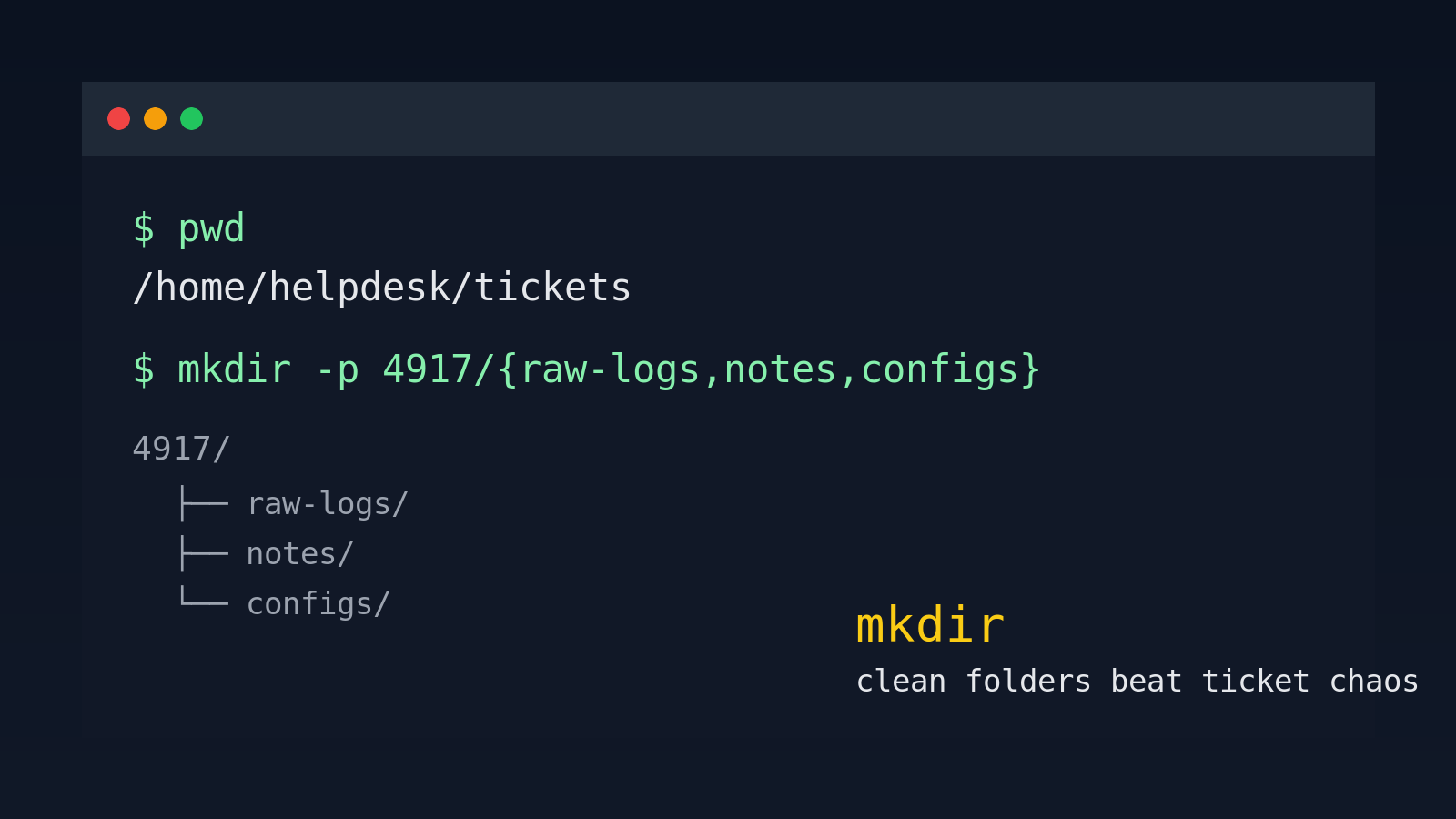
The Linux mkdir command creates directories.
That sounds almost too simple for a whole guide, but mkdir is one of those commands beginners use constantly and still manage to trip over. You use it when you make a place for logs, create a backup folder before editing a config, set up a project directory, unpack an archive safely, or build a quick scratch area while troubleshooting a ticket.
For help desk techs and Windows admins learning Linux, mkdir is the command that turns “I hope this lands somewhere sane” into “I made a clean place to work.” That is not glamorous, but neither is explaining to your manager why your extracted vendor package is scattered across /home like a dropped box of screws.
This guide covers the mkdir patterns beginners actually need: basic folders, nested folders with -p, names with spaces, permissions, common errors, and a safe practice workflow.
The basic mkdir command
The simplest version is:
mkdir notesThat creates a directory named notes in your current location.
Check it with:
lsOr move into it:
cd notesIf you are not sure where you are before creating a directory, run:
pwdThat prints your current working directory. This matters because mkdir notes creates notes wherever you currently are, not wherever you were thinking about. Linux does not know you meant “that other folder from five minutes ago.” It just does exactly what you typed, like a very literal coworker.
Create more than one directory at once
You can create multiple directories in one command:
mkdir logs backups scriptsThat creates three directories:
logs/
backups/
scripts/
This is useful when you are setting up a clean workspace for a ticket:
mkdir ticket-4821 logs screenshots notesA help desk example:
mkdir vpn-user-cannot-connect raw-logs cleaned-logs notesNow you have a place for the original files, a place for edited copies, and a notes folder. Future-you will appreciate this when the ticket gets reopened two days later and nobody remembers what happened.
Use mkdir -p for nested directories
The most useful beginner flag is -p.
mkdir -p projects/linux-practice/day-1Without -p, this fails if projects/ or projects/linux-practice/ does not already exist.
With -p, Linux creates the missing parent directories too.
So this:
mkdir -p ~/tickets/4821/logs/nginxCreates the full path if needed:
~/tickets/
~/tickets/4821/
~/tickets/4821/logs/
~/tickets/4821/logs/nginx/
This is extremely handy for repeatable troubleshooting workflows. For example, before pulling logs from a server:
mkdir -p ~/tickets/4832/{raw,reviewed,notes}Brace expansion creates the three final folders under the same parent:
~/tickets/4832/raw/
~/tickets/4832/reviewed/
~/tickets/4832/notes/
If brace expansion feels weird, do the boring version first:
mkdir -p ~/tickets/4832/raw ~/tickets/4832/reviewed ~/tickets/4832/notesBoring and correct beats fancy and confusing every single time.
Why mkdir -p is safer in scripts
mkdir -p is also common in Bash scripts because it does not fail if the directory already exists.
Example:
#!/usr/bin/env bash
mkdir -p ~/support-tools/logs
mkdir -p ~/support-tools/reports
If those directories already exist, the command quietly succeeds. That is usually what you want in setup scripts.
Without -p, a script may stop or print an error because the directory already exists:
mkdir: cannot create directory 'logs': File existsThat message is not always a disaster. It may just mean the folder is already there. The problem is that beginners often see an error and start deleting things. Please do not let mkdir peer-pressure you into random cleanup.
Create directories with spaces in the name
Linux allows spaces in names, but the shell treats spaces as separators unless you quote them.
This creates two directories:
mkdir Support NotesYou get:
Support/
Notes/
This creates one directory:
mkdir "Support Notes"You can also escape the space:
mkdir Support\ NotesFor Linux work, I usually avoid spaces in directory names. Use hyphens or underscores instead:
mkdir support-notes
mkdir ticket_4832_logs
It makes commands, scripts, and tab completion less annoying. You do not get bonus points for turning every path into a tiny quoting exam.
Make a directory somewhere else
You do not have to be inside the parent folder to create a directory there.
mkdir /tmp/test-restoreThat creates test-restore inside /tmp.
Or:
mkdir ~/scriptsThat creates scripts in your home directory because ~ means your home folder.
A practical workflow before extracting a downloaded archive:
mkdir -p ~/Downloads/vendor-tool-test
cd ~/Downloads/vendor-tool-test
Then extract the archive there. If the archive sprays files everywhere, at least it sprays them into the folder you made for that purpose. Controlled mess is still a mess, but it is much easier to clean up.
Understand permissions when mkdir fails
Sometimes mkdir fails because you do not have permission.
Example:
mkdir /opt/my-toolYou might see:
mkdir: cannot create directory '/opt/my-tool': Permission deniedThat means your user cannot create directories in /opt.
On a managed system, that is often correct. You should not automatically reach for sudo just because Linux said no. Ask yourself:
- Am I supposed to create this folder here?
- Is this a production server?
- Does our team have a standard location for this tool?
- Should this be under my home directory instead?
If you really do need admin rights, the command might be:
sudo mkdir /opt/my-toolBut now the directory is owned by root. That may be exactly right for system software, or it may create another problem when your normal user tries to write files into it.
Check ownership with:
ls -ld /opt/my-toolExample output:
drwxr-xr-x 2 root root 4096 Jun 7 09:15 /opt/my-toolThat root root means the owner and group are root.
Set permissions while creating a directory
You can set directory permissions with -m:
mkdir -m 750 secure-notesThat creates secure-notes with permissions 750.
Beginner translation:
- Owner can read, write, and enter the directory.
- Group can read and enter it.
- Others get nothing.
You probably do not need -m every day, but it is useful when creating folders for scripts, shared service files, or support artifacts that should not be world-readable.
Check permissions with:
ls -ld secure-notesIf permissions still feel fuzzy, pair this with a permissions guide and practice on throwaway folders. Do not learn permission math for the first time on a folder full of payroll exports. That is how tickets become meetings.
Common mkdir errors
Here are the beginner errors worth recognizing.
File exists
mkdir: cannot create directory 'logs': File existsA directory or file named logs already exists.
Check it:
ls -ld logsIf it is already the directory you wanted, you are fine. If you are writing a script, use mkdir -p logs.
No such file or directory
mkdir: cannot create directory 'tickets/4821/logs': No such file or directoryOne of the parent folders does not exist.
Use:
mkdir -p tickets/4821/logsPermission denied
mkdir: cannot create directory '/var/support': Permission deniedYou do not have rights to create that directory there. Do not blindly add sudo; confirm the location and ownership expectations first.
Not a directory
mkdir: cannot create directory 'notes/today': Not a directoryThis can happen when notes exists but is a file, not a directory.
Check it:
ls -l notesIf the first character is -, it is a file. If it is d, it is a directory.
A realistic help desk workflow
Say a user reports that a Linux-hosted web app is returning errors after a deployment. You SSH into a support box and need a clean place to collect notes and logs.
Start with a ticket folder:
mkdir -p ~/tickets/4917/{raw-logs,notes,configs}Move into it:
cd ~/tickets/4917Create a place for nginx logs:
mkdir -p raw-logs/nginxCopy or download files into the right place:
cp /tmp/nginx-error.log raw-logs/nginx/Create a notes file:
touch notes/timeline.txtNow your work has structure:
tickets/4917/
  raw-logs/
    nginx/
      nginx-error.log
  notes/
    timeline.txt
  configs/
That structure makes it easier to hand the ticket to someone else, attach the right files, and avoid mixing this issue with the next one.
Practice commands
Try this in a safe folder:
mkdir -p ~/mkdir-practice
cd ~/mkdir-practice
mkdir logs backups notes
mkdir -p tickets/1001/{raw,reviewed,notes}
mkdir "folder with spaces"
ls -R
Then clean up the practice folder when you are done:
cd ~
rm -r ~/mkdir-practice
Read that last command carefully before running it. rm -r removes directories recursively. In a practice folder, fine. In the wrong place, enjoy your character-building moment.
Where Shell Samurai fits
mkdir is a small command, but it is part of the muscle memory that makes the terminal stop feeling hostile. The real win is not memorizing one syntax pattern. The win is getting comfortable building clean workspaces, checking your location, using -p, and understanding what the error messages mean.
Shell Samurai gives you a safe place to practice those reps without using a production server as your personal learning lab.
Practice Linux directory commands in Shell Samurai
Quick mkdir cheat sheet
| Task | Command |
|---|---|
| Create one directory | mkdir notes |
| Create several directories | mkdir logs backups scripts |
| Create nested directories | mkdir -p tickets/4821/logs |
| Create a folder in your home directory | mkdir ~/scripts |
| Create a folder with spaces | mkdir "Support Notes" |
| Set permissions while creating | mkdir -m 750 secure-notes |
| Check the folder details | ls -ld notes |
If you remember only one thing, remember this: run pwd when you are unsure where you are, and use mkdir -p when you need the parent folders created too. That habit prevents a surprising amount of beginner terminal nonsense.
Practice This in a Real Terminal
Shell Samurai gives you safe Linux missions so the commands actually stick. Chapter 1 is free; the full practice path is a one-time purchase, not another subscription.