Linux basename: Extract File Names and Remove Extensions
Updated
Get a filename without its extension
basename '/srv/reports/weekly report.csv' .csvOutput:
weekly reportThe second argument removes an exact matching suffix, not any arbitrary extension. basename archive.tar.gz .gz prints archive.tar; use .tar.gz if you want archive. Quote variables, for example basename -- "$file" .csv, so spaces stay part of one argument.
This is text processing: the path need not exist. realpath resolves a path against the filesystem; stat reads file metadata. Pick the command that answers your actual question.
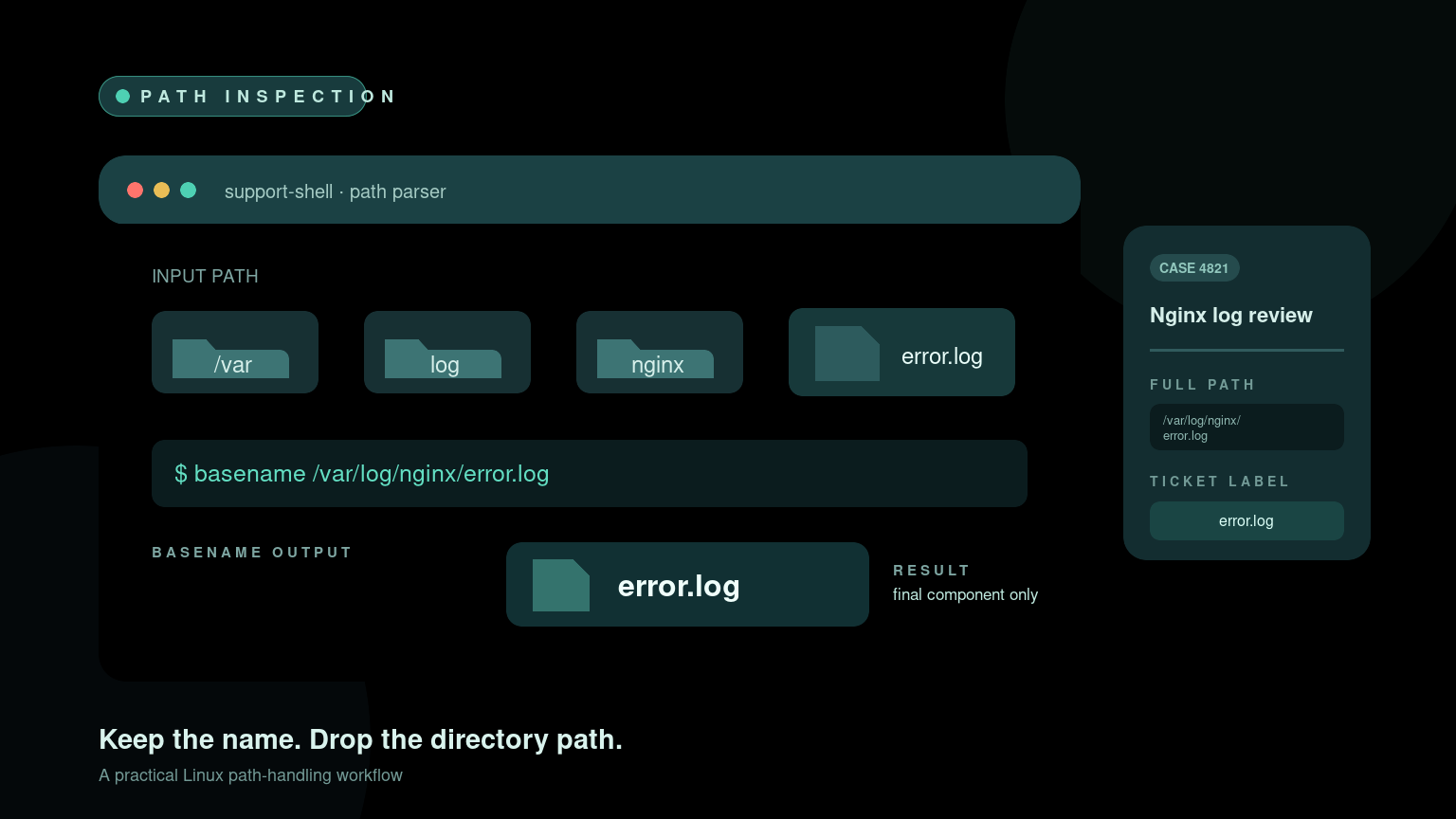
The Linux basename command removes the directory portion of a path and prints the final name. Give it this path:
basename /var/log/nginx/error.logIt prints:
error.logThat is useful when a script receives a full path but needs a short file name for a ticket note, backup label, upload message, or report. basename works with text; it does not need the file to exist and does not inspect its contents.
Quick basename command reference
| Task | Command | Result |
|---|---|---|
| Get a file name | basename /var/log/nginx/error.log | error.log |
| Get the last directory name | basename /srv/support/bundles/ | bundles |
| Remove one suffix | basename report.csv .csv | report |
Protect a name beginning with - | basename -- /tmp/-n | -n |
| Process several paths with GNU basename | basename -a /etc/hosts /etc/passwd | One name per line |
| Remove a suffix with GNU basename | basename -s .service backup.service | backup |
The portable form to remember is:
basename STRING [SUFFIX]On common GNU/Linux systems, GNU Coreutils also provides options such as -a and -s. If a script must run on macOS, BusyBox, or several Unix-like systems, check the local manual before depending on GNU-specific options.
Get the file name from a full path
A basic help desk example starts with a log path:
log_path=/var/log/nginx/error.log
basename -- "$log_path"
Output:
error.logThe -- marks the end of command options. It prevents a final path component such as -n from being interpreted as an option. Quoting "$log_path" keeps paths containing spaces or wildcard characters as one argument.
Use both habits when a value comes from a user, a ticket, another command, or a configuration file:
basename -- "$path"They cost very little and prevent confusing failures later.
basename does not check the filesystem
This succeeds even when the path is imaginary:
basename /srv/support/not-created-yet.zipOutput:
not-created-yet.zipbasename only transforms the string you provide. It does not answer any of these questions:
- Does the file exist?
- Is it a regular file or a directory?
- Can the current user read it?
- Is a symbolic link involved?
- What is the absolute path?
Use the Linux test command for existence and access checks, the Linux file command to identify content, or realpath when you need a resolved path. Do not treat a tidy-looking name as proof that a file is safe or present.
Remove a file suffix
The second argument tells basename to remove an exact suffix from the end of the name:
basename /srv/reports/inventory.csv .csvOutput:
inventoryThe match is literal and case-sensitive. This does not remove .csv from inventory.CSV, and it does not remove text from the middle of a name.
A suffix is not automatically the same as a file extension. You can remove any exact ending:
basename /etc/systemd/system/backup.service .serviceOutput:
backupBe specific about what the script needs. If you only need the displayed file name, keep the suffix. Removing it can collapse distinct names such as report.csv and report.txt into the same label.
Multiple dots are not special
Consider this archive:
basename /srv/backups/helpdesk-2026-07-27.tar.gz .gzThe result is:
helpdesk-2026-07-27.tarOnly the exact .gz ending was removed. To remove .tar.gz, request the whole ending:
basename /srv/backups/helpdesk-2026-07-27.tar.gz .tar.gzOutput:
helpdesk-2026-07-27That behavior is predictable, which is better than guessing based on dots.
Handle trailing slashes and directories
basename also returns the final directory component:
basename /var/log/nginx/Output:
nginxTrailing slashes are removed before the final component is selected. This makes the command useful when a script receives either /var/log/nginx or /var/log/nginx/.
There are edge cases. The basename of / remains /, and empty or unusual input may not mean what your workflow expects. Validate required input before building file operations around it:
path=${1:-}

if [ -z "$path" ]; then
  echo "Usage: $0 PATH" >&2
  exit 2
fi

name=$(basename -- "$path")
printf 'Selected name: %s\n' "$name"
This catches a missing argument instead of quietly generating a misleading label.
Use basename and dirname together
basename returns the final component. dirname returns everything before it:
path=/var/log/nginx/error.log

printf 'Directory: %s\n' "$(dirname -- "$path")"
printf 'File:      %s\n' "$(basename -- "$path")"
Output:
Directory: /var/log/nginx
File:      error.log
This pair is useful for ticket notes and diagnostics. It is not a secure way to authorize paths. Text containing .., symbolic links, mount changes, and race conditions can matter when a script later opens or modifies a file. For risky automation, resolve and validate the actual target before changing it.
Store basename output in a variable
Command substitution captures the result:
bundle_path=/srv/support/case-4821.tar.gz
bundle_name=$(basename -- "$bundle_path")

printf 'Uploading %s\n' "$bundle_name"
Output:
Uploading case-4821.tar.gzQuote the variable when you use it. A file name can contain spaces:
bundle_path='/srv/support/Case 4821 logs.tar.gz'
bundle_name=$(basename -- "$bundle_path")
printf 'Bundle: %s\n' "$bundle_name"
Unquoted expansions are split into words and may also expand wildcard characters. That turns one file name into several shell arguments, usually during the one support ticket where nobody needs extra surprises.
Avoid parsing ls output to find names. ls is designed for people, and file names can contain spaces, tabs, wildcard characters, and even newlines. Use shell globs, find with safe delimiters, or direct paths instead.
Process multiple paths
GNU basename accepts -a to process several arguments:
basename -a /etc/hosts /etc/passwd /etc/resolv.confOutput:
hosts
passwd
resolv.conf
GNU -s removes a suffix and also enables multiple-argument mode:
basename -s .service \
  /etc/systemd/system/backup.service \
  /etc/systemd/system/inventory.service
Output:
backup
inventory
For a portable shell loop, use the basic form:
for path in /etc/hosts /etc/passwd /etc/resolv.conf; do
  basename -- "$path"
done
If arbitrary file names are flowing between commands, newline-separated output may be ambiguous. GNU basename -z uses a null byte after each result, but every command in the pipeline must support null-delimited data. Do not add -z unless you understand the complete pipeline.
basename versus Bash parameter expansion
Bash can remove the directory portion without starting another process:
path=/var/log/nginx/error.log
printf '%s\n' "${path##*/}"
That prints error.log. Bash can also remove a known suffix:
name=inventory.csv
printf '%s\n' "${name%.csv}"
For a Bash-only script processing thousands of values, parameter expansion is efficient. basename is often easier for beginners to recognize, works directly at the command line, and is available to many shell environments.
There is also a behavior difference with trailing slashes. ${path##*/} returns an empty value when path=/var/log/nginx/, while basename returns nginx. Pick the method that matches the input you actually have, then test that input.
Real help desk example: label a support bundle
Suppose a diagnostic script receives a support archive path. It should confirm the archive exists, extract a readable name, and print a ticket-ready summary without uploading or deleting anything:
#!/usr/bin/env bash
set -u

bundle=${1:-}

if [ -z "$bundle" ]; then
  echo "Usage: $0 SUPPORT_BUNDLE" >&2
  exit 2
fi

if [ ! -f "$bundle" ]; then
  echo "Bundle not found: $bundle" >&2
  exit 1
fi

if [ ! -r "$bundle" ]; then
  echo "Bundle is not readable: $bundle" >&2
  exit 1
fi

bundle_name=$(basename -- "$bundle")
bundle_dir=$(dirname -- "$bundle")

printf 'Support bundle: %s\n' "$bundle_name"
printf 'Stored in:      %s\n' "$bundle_dir"
printf 'Size:           %s bytes\n' "$(stat -c %s -- "$bundle")"
This separates three jobs clearly:
testchecks the filesystem object.basenameanddirnamecreate readable labels.statreads file metadata.
On GNU/Linux, stat -c %s prints the size in bytes. Other Unix systems may use different stat options, so verify portability before distributing the script broadly.
Common basename mistakes
Forgetting quotes
Wrong:
basename $bundle_pathCorrect:
basename -- "$bundle_path"Quotes preserve the complete value. -- protects option-like names.
Assuming it removes every extension
basename file.tar.gz .gz returns file.tar, not file. The suffix must match exactly what you want removed.
Using the result as proof of safety
A short name does not prove where a path resolves, who owns it, or whether it is safe to overwrite. Validate the full path and operation separately.
Overwriting files with duplicate short names
Both /srv/a/report.txt and /srv/b/report.txt become report.txt. If you copy them into one destination using only the base name, one may replace the other. Add a unique directory, timestamp, case number, or collision check.
Expecting Windows path rules
Linux tools normally treat / as the path separator. A string such as C:\\Logs\\error.txt is not parsed as a Windows path by standard Linux basename. Normalize or handle paths according to the system that created them.
Practice path handling safely
Create a throwaway directory and try paths with spaces, several suffixes, trailing slashes, and names beginning with a dash. Then combine basename with dirname, test, and stat while keeping every variable quoted.
You can practice the same command-line habits in Shell Samurai. It is a better place to learn path handling than a production cleanup script pointed at the wrong directory.
FAQ
What does basename do in Linux?
It removes the leading directory components from a path string and prints the final file or directory name. It does not check whether the path exists.
How do I remove a file extension with basename?
Pass the exact suffix as a second argument:
basename /path/to/report.csv .csvThis prints report. The suffix match is literal and case-sensitive.
Why should I use basename -- "$path"?
Quotes keep spaces and wildcard characters inside one argument. -- stops option parsing so a final component beginning with - is treated as a name.
What is the difference between basename and dirname?
basename prints the final component, such as error.log. dirname prints the preceding directory portion, such as /var/log/nginx.
Does basename work if the file does not exist?
Yes. It transforms text and does not inspect the filesystem. Use test, stat, or another appropriate command when existence or metadata matters.
Practice This in a Real Terminal
Shell Samurai gives you safe Linux missions so the commands actually stick. Chapter 1 is free; the full practice path is a one-time purchase, not another subscription.