Linux File Permissions Explained: chmod, rwx, 644, 755, and 777
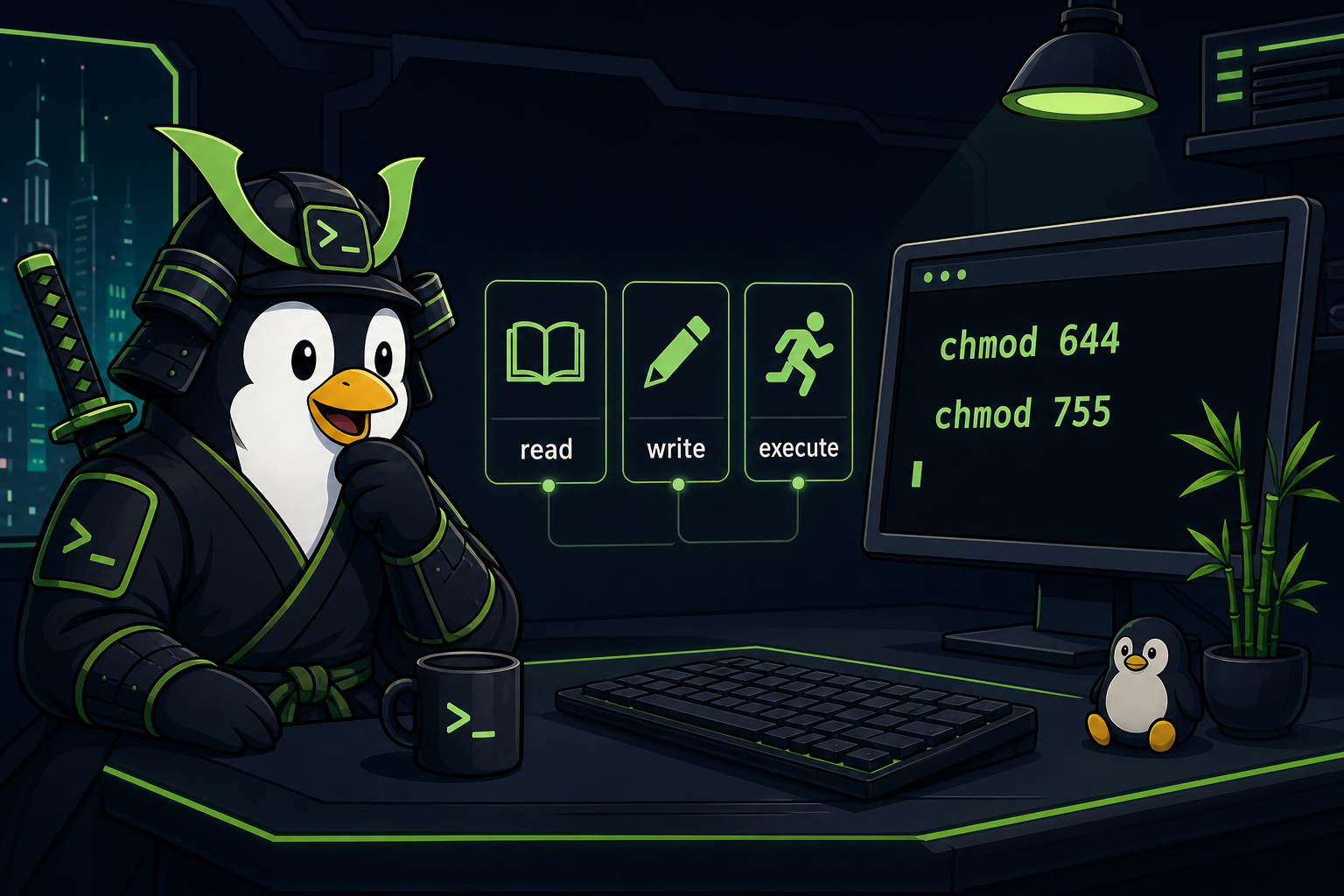
Linux file permissions decide who can read, write, or execute every file and directory on the system. They show up in ls -l as something like -rwxr-xr--, and you change them with chmod using either letters (r, w, x) or three-digit numbers like 644 and 755.
Once you can read those nine characters as three groups — owner, group, others — the rest is mostly recognizing a handful of common patterns: 644 for normal files, 755 for directories and scripts, 600 for SSH keys and other private files, and 777 for “I have given up and security is now a rumor.”
This guide explains Linux file permissions for help desk techs, Windows admins, and beginner sysadmins who need the practical version: what read, write, and execute mean; how chmod 644 and chmod 755 actually work, what 755 and 777 permissions mean, why 777 is usually a crime scene, and how to troubleshoot permission errors without angrily adding sudo to everything.
If you already know Windows ACLs, do not try to map every Linux permission concept one-to-one. Linux permissions are simpler in the basic model. That simplicity is nice, but it also means a tiny mistake can make a script stop running, a website expose files, or an SSH key get rejected because it is “too open.”
The short version
Every Linux file has permissions for three groups of people:
owner group othersAnd each group can have three basic permissions:
read    write   execute
r       w       x
So when you see this:
-rwxr-xr-- 1 alex support 2048 May 6 09:00 deploy.shRead it like this:
-     rwx     r-x     r--
type  owner   group   others
Meaning:
- The owner can read, write, and execute.
- The group can read and execute.
- Everyone else can only read.
That is the whole skeleton. The rest is just learning how to read it quickly and change it safely.
What ls -l is actually showing you
Run this in a directory:
ls -lYou might see:
-rw-r--r-- 1 alex support  532 May  6 09:01 notes.txt
-rwxr-xr-x 1 alex support 1024 May  6 09:02 cleanup.sh
drwxr-xr-x 2 alex support 4096 May  6 09:03 scripts
The first character tells you the type:
-means regular file.dmeans directory.lmeans symbolic link.
The next nine characters are permissions:
rw-r--r--
rwxr-xr-x
rwxr-xr-x
They are split into three chunks:
owner group others
rw-   r--   r--
rwx   r-x   r-x
Common beginner mistake: staring at all ten characters as one unreadable blob. Split it into type + owner + group + others and it becomes much less stupid.
What read, write, and execute mean for files
For regular files, the permissions are pretty literal.
Read: r
Read means you can view the file contents.
Examples:
cat notes.txt
less /var/log/syslog
If you do not have read permission, you may see:
Permission deniedIn help desk work, read permission matters when a user can see that a file exists but cannot open it, or when a service account cannot read a config file.
Write: w
Write means you can modify the file.
Examples:
nano config.yml
> output.txt
If you do not have write permission, edits fail. This is common when someone tries to edit files under /etc as a normal user.
Example:
nano /etc/hostsThen the save fails because system config usually needs admin rights.
Use:
sudo nano /etc/hostsOr better: understand why you need admin rights before blindly editing production config at 4:58 PM on a Friday.
Execute: x
Execute means you can run the file as a program or script.
Example:
./cleanup.shIf the file is not executable, you may see:
Permission deniedThat does not always mean “you are not root.” It may simply mean the script is missing the execute bit.
Check it:
ls -l cleanup.shIf you see:
-rw-r--r-- cleanup.shThe file is readable, but not executable.
Fix it:
chmod +x cleanup.shThen check again:
ls -l cleanup.shYou should see something like:
-rwxr-xr-x cleanup.shBeginner mistake: running every script with sudo when the real problem is that the file is not executable. sudo is not seasoning. Do not sprinkle it on everything.
Directory permissions are slightly different
Directories use the same letters, but the meaning changes a bit.
For directories:
rlets you list the directory contents.wlets you create, delete, or rename files inside the directory.xlets you enter/traverse the directory.
That last one surprises people.
If a directory has read but not execute, you might be able to list names in weird cases, but you cannot actually access the files properly. For normal support work, directories usually need execute permission if users or services are supposed to reach anything inside them.
Example:
drwxr-xr-x 2 alex support 4096 May 6 09:03 scriptsThe owner can enter, list, and modify the directory. The group and others can enter and list it, but cannot create or delete files in it.
Common support issue: a website has correct file permissions but the parent directory blocks access. The app complains about a file, but the real permission problem is one folder above it.
Useful check:
namei -l /var/www/site/public/index.htmlnamei -l shows permissions for each path component. It is fantastic when you are tired of yelling at a file that is not actually the problem.
The numeric permission system: 4, 2, 1
Now for the part that looks like math but is really just addition.
Linux permissions can be represented with numbers:
read    = 4
write   = 2
execute = 1
Add them together for each permission group.
Examples:
7 = 4 + 2 + 1 = read + write + execute = rwx
6 = 4 + 2     = read + write           = rw-
5 = 4 + 1     = read + execute         = r-x
4 = 4         = read only              = r--
0 = nothing                            = ---
A three-digit mode gives permissions for:
owner group othersSo:
chmod 644 file.txtMeans:
owner: 6 = read + write
 group: 4 = read
others: 4 = read
Which displays as:
rw-r--r--And:
chmod 755 script.shMeans:
owner: 7 = read + write + execute
 group: 5 = read + execute
others: 5 = read + execute
Which displays as:
rwxr-xr-xThat is the whole numeric system. Three digits, three groups, addition.
Common permission numbers you will actually see
Here are the practical ones.
644: normal files
chmod 644 notes.txtMeans:
rw-r--r--Use this for regular files that the owner edits and everyone else can read.
Common examples:
- Text files.
- Public website files.
- Many config files.
- Documentation.
600: private files
chmod 600 ~/.ssh/id_rsaMeans:
rw-------Only the owner can read and write.
This matters for SSH private keys. If your private key is too open, SSH may reject it with a warning like:
WARNING: UNPROTECTED PRIVATE KEY FILE!
Permissions 0644 for 'id_rsa' are too open.
The fix is usually:
chmod 600 ~/.ssh/id_rsaBeginner mistake: assuming “more open” means “more likely to work.” With SSH keys, more open means “absolutely not, nice try.”
755: directories and executable scripts
chmod 755 scripts
chmod 755 deploy.sh
Means:
rwxr-xr-xFor directories, this lets the owner manage the directory while everyone else can enter and read it. For scripts, it lets others run/read the script but only the owner can edit it.
700: private directories or scripts
chmod 700 ~/.sshMeans:
rwx------Only the owner can access it.
This is common for .ssh directories:
chmod 700 ~/.ssh
chmod 600 ~/.ssh/id_rsa
chmod 644 ~/.ssh/authorized_keys
Exact SSH permission expectations can vary by file and setup, but the principle is simple: private things should be private.
777: usually a bad idea
chmod 777 somethingMeans:
rwxrwxrwxEveryone can read, write, and execute.
This is the permission equivalent of taking the front door off the hinges because you lost your keys.
Will it make some permission errors go away? Sometimes. Will it also create security problems and future tickets? Absolutely.
If you are tempted to run chmod -R 777, stop. Find out which user needs access, which directory or file is failing, and what the minimum useful permission should be.
chmod examples for beginner support work
Make a script executable:
chmod +x backup.shSet a normal web file:
chmod 644 index.htmlSet a normal web directory:
chmod 755 publicLock down a private key:
chmod 600 ~/.ssh/id_rsaFix a private SSH folder:
chmod 700 ~/.sshUse symbolic changes when you want a smaller edit:
chmod u+x script.sh
chmod g-w shared-file.txt
chmod o-r secrets.txt
That syntax means:
u= user/ownerg= groupo= othersa= all+adds permission-removes permission
Example:
chmod o-r payroll-export.csvRemoves read access for others. Good. Please do not leave payroll exports world-readable unless your career goal is “interesting meeting with HR.”
Ownership matters too: chown and chgrp
Permissions answer “what can the owner, group, and others do?”
Ownership answers “who is the owner and what is the group?”
Check ownership with:
ls -lExample:
-rw-r--r-- 1 www-data www-data 2048 May 6 09:10 config.phpHere, the owner is www-data and the group is www-data.
Change owner:
sudo chown alex file.txtChange owner and group:
sudo chown alex:support file.txtChange group only:
sudo chgrp support file.txtCommon real-world issue: someone copies files as root, then the application cannot write to them because root owns everything.
Example:
sudo cp config.yml /opt/app/config.yml
ls -l /opt/app/config.yml
If the app runs as appuser, it may need ownership or group access adjusted.
Do not randomly chown -R an entire app directory unless you understand what should own what. Recursive ownership changes can break services in exciting, time-consuming ways.
A safe troubleshooting flow for “Permission denied”
When Linux says:
Permission deniedDo not immediately reach for sudo or 777. Use this flow.
1. Check who you are
whoami
id
id shows your user and groups. This matters if access is supposed to come through group membership.
2. Check the file
ls -l /path/to/fileLook at owner, group, and permission bits.
3. Check the parent directory
ls -ld /path/toFor deeper paths:
namei -l /path/to/fileA parent directory can block access even when the file itself looks fine.
4. Check what action is failing
Ask: are you trying to read, write, execute, delete, or enter a directory?
Different actions require different permissions.
For example, deleting a file depends on write permission on the directory, not just the file. That one makes beginners deeply suspicious of reality, but it is true.
5. Apply the smallest fix
Examples:
chmod u+x script.sh
chmod 644 public-file.txt
sudo chown appuser:appgroup /opt/app/config.yml
sudo chmod 750 /opt/app/private
The goal is not “make the error disappear.” The goal is “give the right identity the right access and no more.”
Quick cheat sheet
r = read
w = write
x = execute / enter directory

owner group others
rwx   r-x   r--

4 = read
2 = write
1 = execute

644 = rw-r--r--  normal file
600 = rw-------  private file
755 = rwxr-xr-x  normal directory or executable script
700 = rwx------  private directory/script
777 = rwxrwxrwx  probably stop and think
Practice this without breaking a real server
File permissions are one of those Linux topics that only stick after your hands have done it a few times. Reading chmod 755 is fine. Actually changing a script from “permission denied” to “runs correctly” is what makes the concept click.
If you want a safe place to practice, use Shell Samurai. You can drill the beginner Linux permission patterns in a practice environment instead of learning on a production server while a ticket timer quietly judges you.
Start with these reps:
- Create a text file and set it to
644. - Create a script and make it executable with
chmod +x. - Lock down a fake private file with
600. - Make a directory
755, then test what changes when execute permission disappears. - Read
ls -loutput until therwxchunks stop looking like a random string of characters.
Once file permissions make sense, a lot of Linux support work gets less mysterious: SSH keys, web files, scripts, log access, service users, shared directories, and the classic “why can root do it but the app cannot?” ticket.
That is the real point. Not memorizing every mode. Just knowing enough to fix the problem without turning the server into a permission soup sandwich.
Practice Linux commands next
If you want these commands to actually stick, do not stop at reading:
- Start Shell Samurai Chapter 1 free and practice in a real terminal.
- Use the Linux commands cheat sheet as your quick reference.
- Browse more Shell Samurai field notes after you finish a mission.
- Comparing resources? See the Linux Journey alternative breakdown.
Practice This in a Real Terminal
Shell Samurai gives you safe Linux missions so the commands actually stick. Chapter 1 is free; the full practice path is a one-time purchase, not another subscription.