Linux lsof Command: Find Ports, Open Files, and Process IDs
Updated
What does lsof -t do?
lsof -t prints process IDs without column headings. For example, lsof -t -i:3005 returns the PIDs of processes with matching network sockets on port 3005. It does not stop them, and the port filter alone is not limited to listening TCP sockets.
lsof -t -i:3005Example output:
4182To inspect only TCP listeners, including their names, use:
sudo lsof -nP -iTCP:3005 -sTCP:LISTEN-nP keeps addresses and ports numeric. Multiple processes can appear; empty output can mean there is no match or you lack permission to see it.
What does kill -9 $(lsof -t -i:3005) mean?
The shell runs the command inside $() first and passes its PID output to kill -9. That sends SIGKILL to every returned PID, preventing normal application cleanup. It can affect an unrelated service and produces an error when there are no PIDs. Understand the expression; do not use it as a default troubleshooting shortcut.
Instead, inspect the full listener row, verify its owner and command, and stop your own foreground test server with Ctrl+C. For a managed service, use its service manager when a stop or restart is appropriate. A normal termination signal gives an application a chance to clean up; SIGKILL is a last resort.
Try the complete port already in use practice lab to create, identify, and stop your own listener. See the lsof manual for selection-option details.
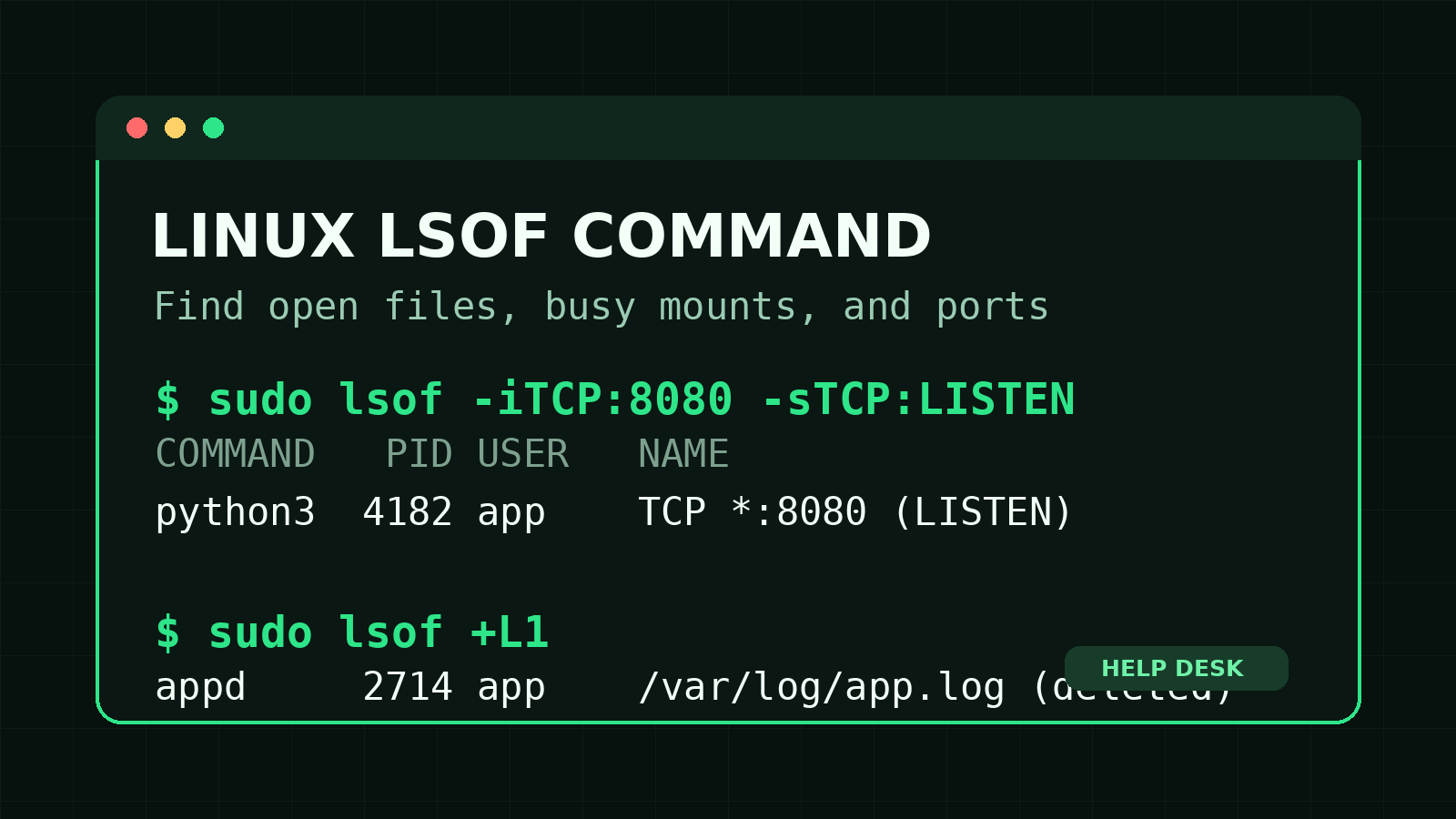
The Linux lsof command lists open files and the processes using them. It can answer questions like “What process is using port 8080?”, “Why is this drive busy?”, and “Why did disk space not return after I deleted a huge log?”
Quick examples:
sudo lsof -i :8080
sudo lsof /var/log/app.log
sudo lsof +L1
Linux treats more things as files than Windows admins may expect. Regular files count, but so do network sockets, directories, libraries, devices, and mounted filesystems. That is why a command named “list open files” can help with both storage problems and network-port conflicts.
You do not need to memorize every lsof option. Learn the handful below, verify the process ID before changing anything, and you will have a useful troubleshooting tool instead of another command copied blindly from an old ticket.
Quick answer: what does lsof do?
lsof shows which processes currently have files or sockets open.
Run it without filters:
sudo lsofThat usually produces far too much output. On a normal server, thousands of files may be open. The useful habit is to give lsof a target:
sudo lsof /path/to/file
sudo lsof -i :PORT
sudo lsof -p PID
sudo lsof -u USERNAME
A typical row looks like this:
COMMAND   PID USER   FD   TYPE DEVICE SIZE/OFF NODE NAME
python3  4182 app    3u  IPv4  58213      0t0  TCP *:8080 (LISTEN)
The columns tell you:
COMMAND: process name.PID: process ID.USER: account running the process.FD: file descriptor, such as3ufor descriptor 3 open for reading and writing.TYPE: file type, such as a regular file, directory, IPv4 socket, or IPv6 socket.NAME: file path, device, or network endpoint.
For beginner troubleshooting, focus first on COMMAND, PID, USER, and NAME.
Why lsof matters in help desk and sysadmin work
A process can hold onto a resource even when the resource looks available from another angle.
Common examples:
- A web service fails because another process already owns its port.
- A USB drive or mounted share refuses to unmount because a shell or application is using it.
- A deleted log still consumes disk space because the service has the old file open.
- A configuration file cannot be replaced cleanly because an editor or daemon still has it open.
- You know a suspicious process ID and want to see which files and connections belong to it.
lsof connects the resource to the process. It gives you evidence before you restart a service, stop a process, or tell a user that the server is “probably just being weird.”
Install lsof if the command is missing
Many distributions include lsof, but minimal systems may not.
Ubuntu or Debian:
sudo apt update
sudo apt install lsof
Fedora or newer RHEL-family systems:
sudo dnf install lsofOlder CentOS or RHEL systems:
sudo yum install lsofIf you are on a managed server, follow your team’s package-change process. Do not install tools on production just because a search result told you to.
Find which process has a file open
Pass a file path directly to lsof:
sudo lsof /var/log/app.logExample output:
COMMAND  PID USER   FD   TYPE DEVICE SIZE/OFF NODE NAME
appd    2714 app     7w   REG  253,0  7340032 9121 /var/log/app.log
This tells you that process appd, PID 2714, has the file open for writing.
Use an absolute path when possible. It reduces confusion about which file you mean, especially when your current directory contains symlinks or similarly named files.
A realistic ticket might say a log cannot be rotated or a file cannot be replaced. Instead of immediately killing anything, use lsof to identify the process, then check whether it is a managed service:
ps -p 2714 -o pid,user,cmd
systemctl status appd
The first command confirms the process details. The second checks the service, if one exists. Evidence first; restart button second.
Find which process is using a port
One of the most useful lsof patterns is:
sudo lsof -i :8080Example:
COMMAND   PID USER   FD   TYPE DEVICE SIZE/OFF NODE NAME
python3  4182 app    3u  IPv4  58213      0t0  TCP *:8080 (LISTEN)
Now you know port 8080 belongs to python3, PID 4182, running as app.
This is useful when an application fails with an error such as:
Address already in useYou can narrow the query to TCP:
sudo lsof -iTCP:8080Show only listening TCP processes:
sudo lsof -iTCP:8080 -sTCP:LISTENFor UDP port 53:
sudo lsof -iUDP:53You may also use ss for socket troubleshooting. The Linux networking commands guide covers ss, ip, ping, dig, and related checks:
sudo ss -ltnpss is often faster for a broad view of listening ports. lsof is convenient when you want to connect a specific port to a process and then inspect that process’s other open resources.
Find network connections for a process
If you already know the PID, use -p:
sudo lsof -p 4182That lists files, libraries, directories, and sockets opened by PID 4182.
To focus on network activity for that PID, combine filters with -a, which means all conditions must match:
sudo lsof -a -p 4182 -iWithout -a, multiple selection options can behave like “either condition” instead of “both conditions.” This surprises beginners. If your question is “network files opened by this exact PID,” include -a.
You can also inspect all TCP connections:
sudo lsof -iTCPOr all network sockets:
sudo lsof -iThose broad commands can be noisy. Start specific when you have a PID, port, or protocol.
Find open files for a user
Use -u followed by the username:
sudo lsof -u aliceThis can help when a user session is preventing an unmount, when an application is running under the wrong service account, or when you need to understand what a shared account is doing.
Exclude a user by adding a caret:
sudo lsof -u ^rootBe careful with broad user queries on busy systems. They can return a lot of output.
Troubleshoot a busy mount or directory
Suppose this fails:
sudo umount /mnt/usbAnd Linux replies:
umount: /mnt/usb: target is busyCheck which processes are using the mounted filesystem:
sudo lsof +f -- /mnt/usbOn some systems, a recursive directory check is more useful:
sudo lsof +D /mnt/usb+D walks the directory tree and can be slow on a large filesystem. Use it carefully. For a small USB drive or a focused directory, it is usually reasonable.
A common beginner mistake is overlooking their own shell. If your terminal’s current directory is inside /mnt/usb, the shell itself can keep the mount busy. Check:
pwd
cd ~
Then try the unmount again.
Do not jump straight to forced or lazy unmount options on a production system. Find the process, close or stop it safely, and unmount cleanly whenever possible. If mounts are new to you, read the Linux mount command beginner guide before changing a production filesystem.
Find deleted files still using disk space
Deleting a file removes its directory entry, but a running process can keep the file open. Disk space may remain in use until that process closes the file.
Find open files with a link count below one:
sudo lsof +L1You may see (deleted) in the NAME column:
COMMAND  PID USER   FD   TYPE DEVICE  SIZE/OFF NLINK NODE NAME
java    5221 app    9w   REG  253,0 2147483648     0 8841 /var/log/app.log (deleted)
This explains a classic incident. The Linux disk-space troubleshooting guide walks through the larger df and du workflow:
- A huge log is deleted.
dulooks smaller.dfstill shows the filesystem as full.- The application still has the deleted file open.
Do not kill PID 5221 without checking what it is. Identify the service:
ps -p 5221 -o pid,user,cmd
systemctl status app.service
If a restart is safe and approved, restarting the service usually closes the old descriptor and releases the space. On a critical service, coordinate the restart instead of trading a disk alert for an outage.
Show files opened by a command name
Use -c to match process names beginning with a string:
sudo lsof -c nginxAnother example:
sudo lsof -c sshdThis is useful when several worker processes share a command name and you want a combined view.
The process name shown by the kernel may be shorter or different from the friendly service name. If -c returns nothing, use systemctl status, ps, or pgrep to find the real process name and PID.
Repeat lsof while troubleshooting
Use -r to repeat the command every few seconds:
sudo lsof -iTCP:8080 -sTCP:LISTEN -r 2That reruns the query every two seconds. Press Ctrl+C to stop.
This can help during a service restart when you want to see whether a port is released and then claimed again. Do not leave broad repeating queries running longer than needed; on a busy host they create noisy output and unnecessary work.
Permission matters
Run lsof as your normal user first when appropriate, but understand that the results may be incomplete. Linux restricts information about other users’ processes.
Compare:
lsof -i :8080
sudo lsof -i :8080
If the non-sudo command returns nothing, that does not prove the port is unused. It may mean you do not have permission to see the owning process.
Use elevated privileges only when the troubleshooting task requires them, and follow your organization’s access rules.
Common beginner mistakes
Running bare lsof and drowning in output
This works:
sudo lsofIt is rarely the best first move. Filter by file, port, PID, user, command, or filesystem.
Killing the first PID you see
lsof identifies a process. It does not tell you whether stopping that process is safe. Confirm the command and service first:
ps -p PID -o pid,user,cmd
systemctl status SERVICE
Try a managed service restart only when you understand the impact and have approval.
Forgetting sudo and trusting an empty result
An empty result may be a permissions problem. Retry with appropriate privileges before deciding that nothing owns the resource.
Confusing a listening socket with an active connection
This output:
TCP *:8080 (LISTEN)means a process is waiting for connections. It does not mean a user is actively connected.
Forgetting the -a option
When combining filters, use -a when you need all conditions to match:
sudo lsof -a -p 4182 -iTCPThat means TCP entries belonging to PID 4182, not TCP entries plus everything opened by PID 4182.
Using +D on a huge directory tree
lsof +D /path searches recursively and may take time. Prefer a specific file, mount, PID, or smaller directory when possible.
A practical help desk workflow
When a service says its port is already in use:
-
Record the error and target port.
-
Find the owner:
sudo lsof -iTCP:8080 -sTCP:LISTEN -
Confirm the process:
ps -p 4182 -o pid,user,lstart,cmd -
Check whether it belongs to a managed service:
systemctl status app.service -
Decide whether the existing process is expected, stale, or misconfigured.
-
Restart or stop it only through the approved service workflow.
-
Rerun
lsofto verify the port state. -
Add the command output and decision to the ticket.
That is better than killing a PID, rerunning the installer, and leaving the next technician to investigate why the process disappeared.
Practice lsof safely
You can practice without touching production. Start a temporary local web server:
lab_dir=$(mktemp -d)
python3 -m http.server 8080 --bind 127.0.0.1 --directory "$lab_dir"
In another terminal, find it:
lsof -iTCP:8080 -sTCP:LISTENCopy the PID and inspect it:
lsof -p PID
ps -p PID -o pid,user,cmd
Then return to the first terminal and press Ctrl+C to stop the server. Remove the empty test directory with rmdir -- "$lab_dir". Run the port query again and confirm that the listener is gone.
This small exercise teaches the full loop: create a listener, identify it, inspect it, stop it cleanly, and verify the result.
If you want more safe Linux practice without using a work server as your lab, Shell Samurai gives you a place to build command-line confidence through practical exercises.
Practice Linux troubleshooting commands in Shell Samurai
lsof cheat sheet
sudo lsof /path/to/file                    # process using a file
sudo lsof -i :8080                         # process using port 8080
sudo lsof -iTCP:8080 -sTCP:LISTEN          # TCP listener on port 8080
sudo lsof -iUDP:53                         # process using UDP port 53
sudo lsof -p 4182                          # resources opened by one PID
sudo lsof -a -p 4182 -i                    # network entries for one PID
sudo lsof -u alice                         # files opened by one user
sudo lsof -c nginx                         # files opened by matching commands
sudo lsof +f -- /mnt/usb                   # processes using a mounted filesystem
sudo lsof +D /mnt/usb                      # recursive directory check
sudo lsof +L1                              # deleted files still held open
Bottom line
The Linux lsof command connects open files, sockets, ports, directories, and mounts to the processes using them. Start with targeted queries instead of a bare lsof, verify the PID and service before taking action, and rerun the command afterward to prove the resource was released.
For beginner help desk and sysadmin work, the three patterns worth remembering first are:
sudo lsof /path/to/file
sudo lsof -i :PORT
sudo lsof +L1
Those commands solve real tickets and, more importantly, help you change the system based on evidence rather than guesswork.
Practice This in a Real Terminal
Shell Samurai gives you safe Linux missions so the commands actually stick. Chapter 1 is free; the full practice path is a one-time purchase, not another subscription.