Linux nohup Command for Beginners: Keep Jobs Running
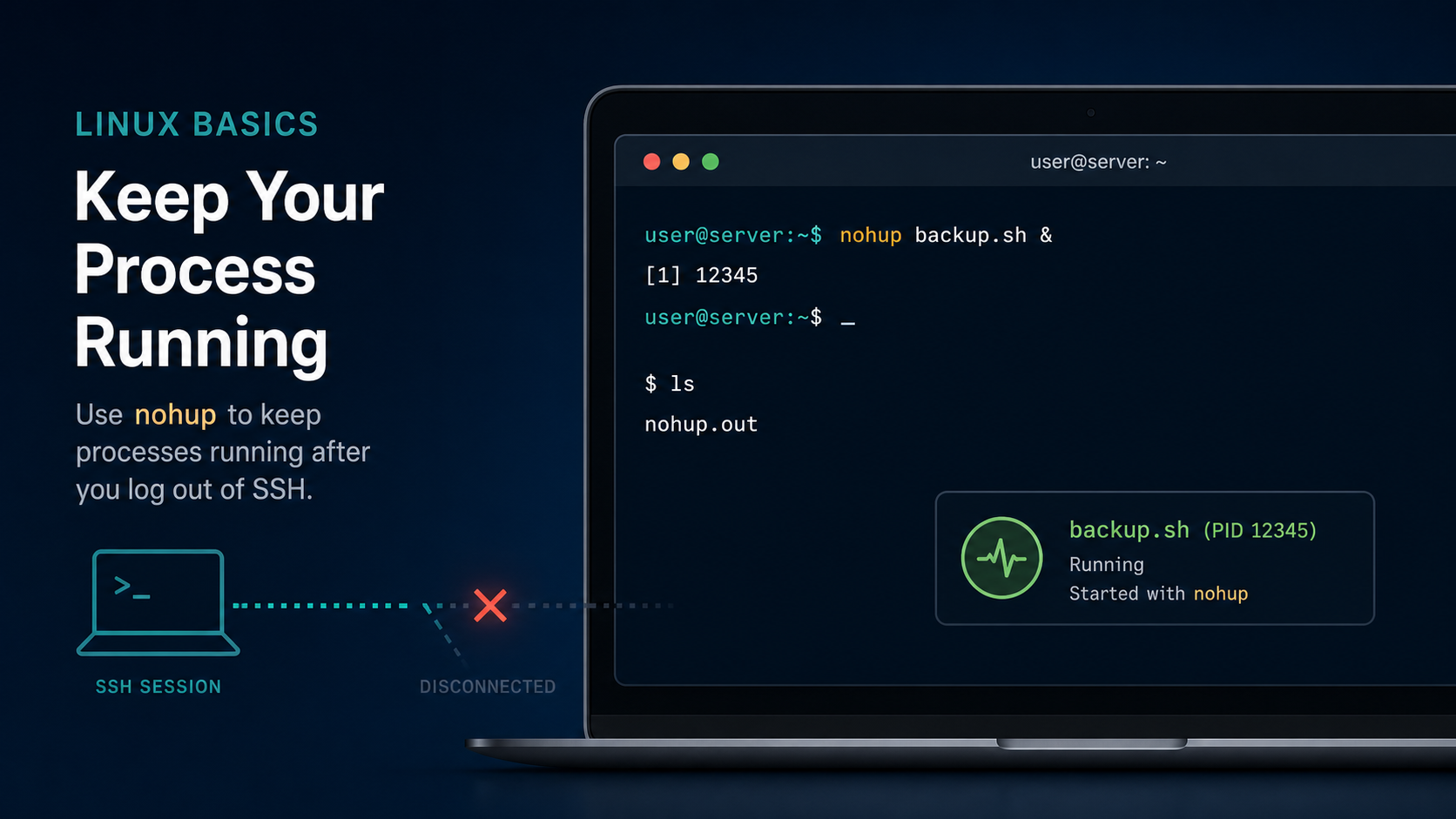
The Linux nohup command starts a program so it can keep running after you close the terminal or lose your SSH connection. A common example is:
nohup ./backup.sh > backup.log 2>&1 &That starts backup.sh in the background, writes both normal output and errors to backup.log, and protects the job from the hangup signal sent when your session ends.
nohup is useful for a one-off migration, export, scan, compression job, or maintenance script that takes longer than your SSH session. It is not a full job scheduler or service manager. For recurring or production-critical work, use cron, a systemd service, or your team’s automation platform instead.
Quick answer: what does nohup do?
nohup means no hangup. It runs another command while making that command ignore SIGHUP, the hangup signal normally associated with a terminal session ending.
Basic syntax:
nohup COMMAND [ARGUMENTS]To start a command and immediately get your prompt back, add &:
nohup COMMAND &These pieces do different jobs:
nohuphelps the command survive the session ending.&runs the command in the background so your shell prompt returns.> file.logsends standard output to a file you choose.2>&1sends standard error to the same place as standard output.
Beginners often treat nohup and & as interchangeable. They are not. A plain background job can still be tied to the shell. A foreground nohup command may survive a disconnect, but it keeps your terminal occupied until you suspend it, stop it, or open another session.
A practical first example
Suppose you have a script that produces a system inventory report:
./inventory-report.shIt takes 20 minutes, and your VPN has a habit of dropping at minute 19 because apparently timing is a feature.
Start it with:
nohup ./inventory-report.sh > inventory-report.log 2>&1 &Your shell may print something like:
[1] 18427The first number is the shell job number. The second is the process ID, or PID. Save the PID in your ticket notes if you may need to check or stop the process later.
Verify it is running:
ps -p 18427 -o pid,etime,cmdExample output:
  PID     ELAPSED CMD
18427       00:12 /bin/bash ./inventory-report.sh
Now you can disconnect and reconnect later without assuming the script died with your terminal.
Why nohup creates nohup.out
If you do not redirect output, nohup normally writes it to a file named nohup.out:
nohup ./inventory-report.sh &You may see:
nohup: ignoring input and appending output to 'nohup.out'That message is normal. Check the output with:
tail -f nohup.outPress Ctrl+C to stop following the file. That does not stop the background job; it only stops tail.
Using an explicit log file is usually clearer:
nohup ./inventory-report.sh > /tmp/inventory-report.log 2>&1 &You know where the output is, and you avoid mixing several unrelated jobs into one nohup.out file.
The Linux tail command guide explains how to follow a growing log, show its last lines, and exit without touching the process writing to it.
Understand the output redirection
This pattern is worth understanding instead of pasting it forever:
> inventory-report.log 2>&1Linux programs normally have three standard streams:
- Standard input, numbered
0. - Standard output, numbered
1. - Standard error, numbered
2.
The first redirect sends standard output to inventory-report.log. Then 2>&1 sends standard error to wherever standard output is currently going.
The order matters. Use:
nohup ./script.sh > script.log 2>&1 &Do not casually rearrange the redirects unless you understand the result.
If you do not care about any output, you can send it to /dev/null:
nohup ./script.sh > /dev/null 2>&1 &That is appropriate only when the command truly produces nothing you may need for troubleshooting. Throwing away every error before an overnight job is how tomorrow’s ticket gets the deeply informative update “it didn’t work.”
Keep a command running after SSH disconnects
A realistic remote-server workflow looks like this:
ssh admin@server01
cd /opt/support-tools
nohup ./collect-diagnostics.sh > diagnostics.log 2>&1 &
echo $!
$! prints the PID of the most recently started background process:
20731Confirm it:
ps -p 20731 -o pid,user,etime,cmdThen leave the session:
exitAfter reconnecting, check the same PID:
ps -p 20731 -o pid,user,etime,cmdAnd inspect the log:
tail -n 50 /opt/support-tools/diagnostics.logUse an absolute log path when you need to find the file later. Your future session may open in a different directory, and “I know the log is around here somewhere” is not a strong recovery plan.
Check whether a nohup job is still running
If you saved the PID, query it directly:
ps -p 20731 -o pid,ppid,user,stat,etime,cmdUseful fields include:
PID: the process ID.PPID: the parent process ID.USER: the account running it.STAT: process state.ETIME: elapsed running time.CMD: the command and arguments.
If you forgot the PID, search carefully:
pgrep -af collect-diagnosticsOr:
ps aux | grep '[c]ollect-diagnostics'The bracket pattern keeps the grep process from matching its own command line.
Do not use a vague search and kill the first result. Multiple users may be running similar scripts. Confirm the user, full command, start time, and arguments before taking action. The beginner process-management guide covers ps, top, signals, and safer ways to stop stuck jobs.
Stop a nohup process safely
nohup does not create a special kind of process. Stop the program by its PID like any other process.
First send the normal termination signal:
kill 20731Wait a moment, then check:
ps -p 20731If the process exits, you are done. If it remains, inspect the log and process state before escalating.
Use kill -9 only as a last resort:
kill -9 20731SIGKILL gives the program no chance to flush output, remove temporary files, release locks cleanly, or finish its current write. For a backup, database export, package operation, or file migration, that can leave a mess larger than the original problem.
Also confirm whether the PID belongs to a wrapper shell with a child process. View the process tree:
ps -o pid,ppid,stat,cmd --forest -p 20731 --ppid 20731Stopping only the wrapper may not always stop every child. This is another reason production jobs deserve a real service manager rather than a growing pile of shell tricks.
Common beginner mistakes
Mistake 1: forgetting the ampersand
This runs under nohup, but it still occupies your terminal:
nohup ./long-job.shFor a background job, use:
nohup ./long-job.sh > long-job.log 2>&1 &Mistake 2: assuming nohup schedules the job
nohup starts the command now. It does not run it every night, retry failures, rotate logs, or start it after reboot.
Use crontab for scheduled jobs or a systemd timer when recurrence and reboot behavior matter.
Mistake 3: closing the terminal before checking the PID
Start the command, record $!, and verify it with ps before disconnecting:
nohup ./long-job.sh > long-job.log 2>&1 &
PID=$!
echo "$PID"
ps -p "$PID" -o pid,etime,cmd
If the command failed instantly because of a missing file or permission problem, this catches it while you are still connected.
Mistake 4: using a relative script path carelessly
This may work only from one directory:
nohup ./backup.sh &For unattended work, use clear paths:
nohup /opt/support-tools/backup.sh > /var/tmp/backup.log 2>&1 &Also check whether the script itself relies on relative paths. nohup cannot repair assumptions inside a badly written script.
Mistake 5: launching the same job twice
A slow job can look idle while it is still working. Before starting another copy, check:
pgrep -af backup.shTwo inventory scans may only waste CPU. Two migrations or cleanup scripts can damage data. Verify first.
Mistake 6: ignoring permissions and disk space
The process needs permission to read its inputs and write its output. The target filesystem also needs free space.
Check before a large job:
df -h /var/tmp
ls -l /opt/support-tools/backup.sh
If storage is already tight, use the Linux disk-space troubleshooting guide before generating another giant log.
nohup versus disown, tmux, screen, and systemd
These tools overlap, but they solve different problems.
| Tool | Best use |
|---|---|
nohup | Start one non-interactive command that should survive logout |
disown | Detach a job you already started in the current shell |
tmux or screen | Keep an interactive terminal session you can reconnect to |
cron | Run commands on a schedule |
systemd | Manage long-running services with restart, logging, and boot behavior |
Use tmux when you need to return to an interactive installer, shell, or monitoring session. Use nohup when the command can run unattended and write progress to a log.
Use systemd for an application that should run continuously. It can track the process, restart it, apply security controls, capture logs, and start it after reboot. A production service launched by somebody’s forgotten nohup command is operational debt wearing a PID.
A safe help desk checklist
Before starting a long remote command:
- Confirm the exact command and working directory.
- Check permissions and available disk space.
- Choose an explicit log path.
- Start with
nohup, redirection, and&. - Save
$!as the PID. - Verify the PID and command with
ps. - Check the first log lines for immediate errors.
- Record the command, PID, host, user, log path, and start time in the ticket.
- Reconnect later and verify both the process and output.
- Use normal
killbefore consideringkill -9.
A compact pattern is:
cd /opt/support-tools || exit 1
nohup ./collect-diagnostics.sh > /var/tmp/diagnostics.log 2>&1 &
PID=$!
printf 'Started PID %s\n' "$PID"
ps -p "$PID" -o pid,user,etime,cmd
tail -n 20 /var/tmp/diagnostics.log
The cd ... || exit 1 prevents the script from running in the wrong directory if the directory change fails.
Practice nohup without risking a real ticket
You can practice with a harmless loop:
nohup bash -c 'for n in {1..10}; do date; sleep 5; done' > practice.log 2>&1 &
echo $!
tail -f practice.log
Press Ctrl+C to leave tail, then inspect the process and log again. This teaches background jobs, PIDs, redirection, and log following without using a production server as your lab.
If you want more command-line practice with guidance instead of random copy-paste, start Shell Samurai free. Practice the commands until checking the PID and log feels routine.
nohup command cheat sheet
| Task | Command |
|---|---|
| Run in background | nohup command & |
| Save output and errors | nohup command > job.log 2>&1 & |
| Print the new PID | echo $! |
| Check the PID | ps -p PID -o pid,etime,cmd |
| Find a forgotten job | pgrep -af command-name |
| Follow output | tail -f job.log |
| Stop normally | kill PID |
| Discard all output | nohup command > /dev/null 2>&1 & |
The reliable habit is simple: use an explicit log, save the PID, verify the process, and leave enough notes that another technician can understand what is running. nohup keeps the command alive; your ticket notes keep the team sane.
Practice This in a Real Terminal
Shell Samurai gives you safe Linux missions so the commands actually stick. Chapter 1 is free; the full practice path is a one-time purchase, not another subscription.