Linux crontab Command for Beginners: Schedule Jobs Without Surprise Tickets
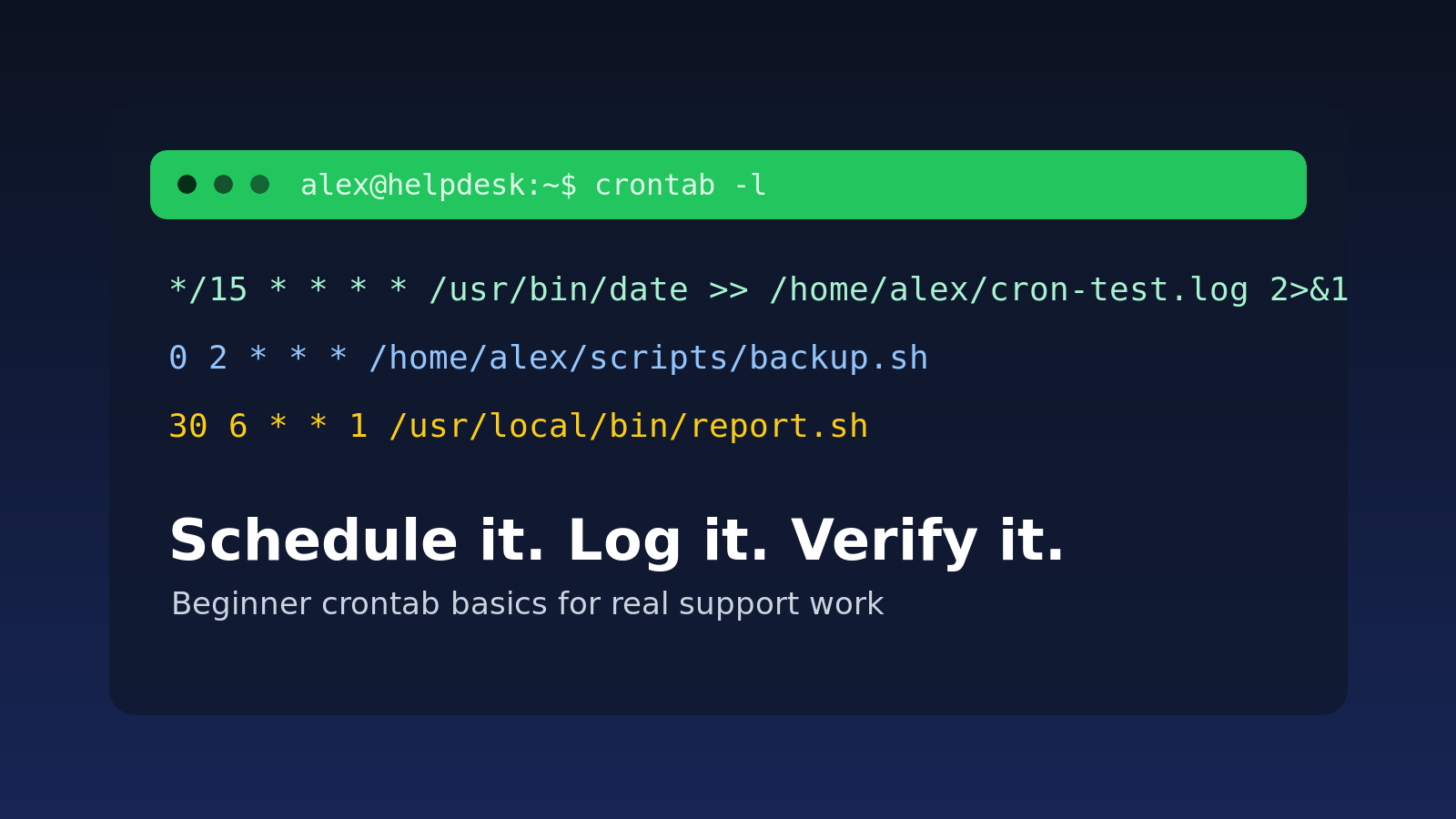
The Linux crontab command lets you schedule commands to run automatically at specific times.
Quick version:
crontab -eThen add a line like this:
0 2 * * * /home/alex/scripts/backup.shThat means: run /home/alex/scripts/backup.sh every day at 2:00 AM.
If you came from Windows, cron is one of the Linux versions of Task Scheduler. It is used for backups, cleanup scripts, report exports, monitoring checks, certificate renewals, and all kinds of small jobs that quietly keep systems from becoming paperwork generators.
The beginner problem is that cron is also very good at failing quietly. A command works perfectly when you type it in your terminal, then does nothing at 2:00 AM because cron has a different environment, a different working directory, no interactive prompt, and absolutely no interest in your feelings.
This guide is the practical help desk version: how to read cron timing, edit a user crontab safely, avoid the common mistakes, and troubleshoot scheduled jobs without turning a five-minute task into an archaeology project.
Quick answer: schedule a Linux cron job
Open your crontab:
crontab -eAdd this example job:
*/15 * * * * /usr/bin/date >> /home/alex/cron-test.log 2>&1Save and exit.
Check that it was installed:
crontab -lThat job runs every 15 minutes and appends the current date to /home/alex/cron-test.log.
The 2>&1 part sends errors to the same log file as normal output. That is not required, but it is one of those tiny habits that prevents future-you from muttering at a blank terminal.
What crontab means
A cron job is a scheduled command.
A crontab is the table of cron jobs for a user.
The crontab command is how you view, edit, install, or remove that table.
Common commands:
crontab -l     # list your cron jobs
crontab -e     # edit your cron jobs
crontab -r     # remove your crontab
Be careful with crontab -r. It removes the whole crontab for that user. No confirmation on many systems. That is a bad surprise if you only meant to remove one old line.
If you are troubleshooting a job that runs as another user, you may need:
sudo crontab -u username -l
sudo crontab -u username -e
And if you are checking root’s crontab:
sudo crontab -lThat shows root’s scheduled jobs, not yours. This distinction matters. A lot.
Cron timing syntax explained
A basic cron line has five time fields, then the command:
minute hour day-of-month month day-of-week commandExample:
30 6 * * * /home/alex/scripts/report.shRead it as:
- minute:
30 - hour:
6 - day of month:
* - month:
* - day of week:
* - command:
/home/alex/scripts/report.sh
That runs every day at 6:30 AM.
The * means “every valid value.” Not every second. Cron is usually minute-based.
Here are useful examples:
0 * * * *       run at the top of every hour
*/5 * * * *     run every 5 minutes
0 9 * * 1       run every Monday at 9:00 AM
30 2 * * *      run every day at 2:30 AM
0 0 1 * *       run at midnight on the first day of each month
Day of week usually uses 0 or 7 for Sunday, 1 for Monday, and so on. Some systems also accept names like MON, but numbers are common in quick examples.
A safe first cron job
When you are learning cron, do not start with a deletion script, a database job, or anything that emails the entire company. Start with a harmless test.
Create a scripts folder:
mkdir -p ~/scriptsCreate a simple script:
nano ~/scripts/cron-test.shPut this in it:
#!/usr/bin/env bash
set -euo pipefail

echo "Cron ran at $(date)" >> "$HOME/cron-test.log"
Make it executable:
chmod +x ~/scripts/cron-test.shEdit your crontab:
crontab -eAdd:
*/5 * * * * /home/alex/scripts/cron-test.sh >> /home/alex/cron-test-output.log 2>&1Replace /home/alex with your real home directory. Do not paste /home/alex into production unless you enjoy tickets with your name on them.
After a few minutes, check:
ls -lah ~/cron-test.log ~/cron-test-output.log
cat ~/cron-test.log
If the file updates, cron is running the job.
Use full paths in cron jobs
This is the mistake that catches beginners constantly.
A command works here:
python3 ~/scripts/report.pyBut fails in cron.
Why? Cron does not load your normal interactive shell setup the same way your terminal does. It may not have the same PATH. It may not understand ~ the way you expect in every position. It may start from a different working directory.
Better cron line:
0 6 * * * /usr/bin/python3 /home/alex/scripts/report.py >> /home/alex/report.log 2>&1You can find command paths with:
command -v python3
command -v bash
command -v rsync
Use those full paths in your crontab when reliability matters.
Redirect output so failures have somewhere to go
Cron often sends output by local mail. On many beginner systems, that mail is not configured or not checked. So the job fails, cron technically tried to tell someone, and everyone still loses.
Add log redirection:
0 2 * * * /home/alex/scripts/backup.sh >> /home/alex/logs/backup.log 2>&1That sends normal output and errors into one log file.
A better script can also create its own log directory:
mkdir -p /home/alex/logsThen log a clear start and end:
echo "Starting backup at $(date)"
# backup command here
echo "Finished backup at $(date)"
If you support users or servers, this is basic ticket hygiene. A scheduled job with no logs is just a tiny haunted house you built for yourself.
Check whether cron is running
If a job did not run, first check the service.
On many Linux systems:
systemctl status cronOn some distributions, the service is named crond:
systemctl status crondYou can also search service names:
systemctl list-units | grep cronIf cron is stopped, jobs will not run. Very rude, but at least obvious.
Where cron logs live
Cron logging depends on the Linux distribution.
Common places to check:
grep CRON /var/log/syslog
sudo grep CRON /var/log/syslog
sudo journalctl -u cron
sudo journalctl -u crond
On some systems, cron activity may show in /var/log/cron:
sudo less /var/log/cronImportant: cron logs may only show that cron attempted to run the command. They might not show the command’s internal error unless you redirected output to a log file.
That is why this pattern is worth memorizing:
* * * * * /path/to/script.sh >> /path/to/script.log 2>&1Environment variables are different in cron
Your terminal might know variables like:
echo $PATH
echo $HOME
echo $SHELL
Cron may have a much smaller environment.
If a script depends on something like an API key, app path, virtual environment, Node version manager, Python environment, or custom shell profile, it may work by hand and fail from cron.
A simple debugging trick:
* * * * * env > /home/alex/cron-env.txtWait a minute, then read the file:
cat /home/alex/cron-env.txtCompare that to your interactive environment:
env > /home/alex/terminal-env.txtDo not paste secrets into tickets or screenshots. The point is to understand the difference, not create a new incident.
Common beginner crontab mistakes
Mistake 1: Editing the wrong user’s crontab
You run:
crontab -eThen wonder why the job does not have permission to write under /var/www.
Maybe it needed to run as www-data, deploy, or root. Or maybe it should not be writing there at all. Check who owns the files, then choose the right user on purpose.
Mistake 2: Forgetting executable permission
If your crontab runs a script directly:
0 3 * * * /home/alex/scripts/cleanup.shThe script needs execute permission:
chmod +x /home/alex/scripts/cleanup.shOr call it with Bash explicitly:
0 3 * * * /usr/bin/bash /home/alex/scripts/cleanup.shMistake 3: Using relative paths
This is fragile:
0 3 * * * ./cleanup.shThis is better:
0 3 * * * cd /home/alex/scripts && /usr/bin/bash cleanup.sh >> /home/alex/logs/cleanup.log 2>&1Even better, make the script handle its own paths clearly.
Mistake 4: Assuming cron uses your local timezone
Most servers use the system timezone. Check it:
timedatectlIf a job ran at the “wrong” time, verify timezone before blaming cron, the server, the vendor, the intern, or the nearest printer.
Mistake 5: Scheduling something too often
This looks harmless:
* * * * * /home/alex/scripts/sync.shIt runs every minute.
If the script sometimes takes longer than a minute, jobs can overlap. Now you have two copies running, then three, then a help desk ticket titled something like “server slow???”
Use locking for jobs that must not overlap, or schedule them less aggressively.
Crontab vs system cron folders
You may also see these directories:
/etc/cron.hourly/
/etc/cron.daily/
/etc/cron.weekly/
/etc/cron.monthly/
And files like:
/etc/crontab
/etc/cron.d/some-job
These are system-level cron locations. They are different from a user’s personal crontab.
One key difference: files in /etc/crontab and /etc/cron.d/ often include a user field.
Example:
0 2 * * * root /usr/local/bin/nightly-maintenanceThat root field is not used in a normal user crontab. If you copy lines between system cron and user crontabs without noticing that difference, you can break things in weird ways.
For beginners, start with crontab -e unless you have a clear reason to touch system cron files.
A help desk troubleshooting checklist
When someone says “the scheduled job did not run,” work through this:
- Which user owns the crontab?
crontab -l
sudo crontab -u username -l
sudo crontab -l- Is the cron service running?
systemctl status cron
systemctl status crond- Does the timing mean what the requester thinks it means?
minute hour day-of-month month day-of-week- Does the script run manually as the same user?
sudo -u username /path/to/script.sh- Are full paths used for commands and files?
command -v bash
command -v python3- Is output redirected to a log?
>> /path/to/job.log 2>&1- Do system logs show cron attempted the job?
sudo journalctl -u cron
sudo grep CRON /var/log/syslog- Could jobs be overlapping?
ps aux | grep script-nameThat checklist solves a lot of “cron is broken” tickets where cron is, sadly, innocent.
Practice this safely
Cron is worth practicing because scheduled jobs show up everywhere in real support work. Backups, reports, cleanup tasks, certificate renewals, monitoring checks, and one-off “temporary” jobs from 2021 that nobody wants to admit still exist.
Practice the safe version first:
- list existing jobs with
crontab -l - create a harmless job with
crontab -e - redirect output to a log
- verify the log changed
- remove only the test line when done
Do not learn cron for the first time on a production database server at 4:55 PM. That is how keyboards learn to fly.
If you want a safer place to build the muscle memory, practice Linux command-line basics in Shell Samurai. The point is to get comfortable reading commands, editing files, checking logs, and verifying results before the real ticket queue is staring at you.
Quick crontab reference
crontab -l                 # list your cron jobs
crontab -e                 # edit your cron jobs
crontab -r                 # remove your whole crontab; be careful
sudo crontab -u user -l    # list another user's cron jobs
sudo crontab -u user -e    # edit another user's cron jobs
systemctl status cron      # check cron service on many systems
sudo journalctl -u cron    # check cron logs on systemd systems
Cron is not complicated once you slow down and verify the boring parts: user, time, path, environment, output, and logs. That is most Linux troubleshooting in miniature, which is exactly why it is a good beginner sysadmin skill.
Practice This in a Real Terminal
Shell Samurai gives you safe Linux missions so the commands actually stick. Chapter 1 is free; the full practice path is a one-time purchase, not another subscription.