ps, top, and kill Explained for Beginner Linux Admins
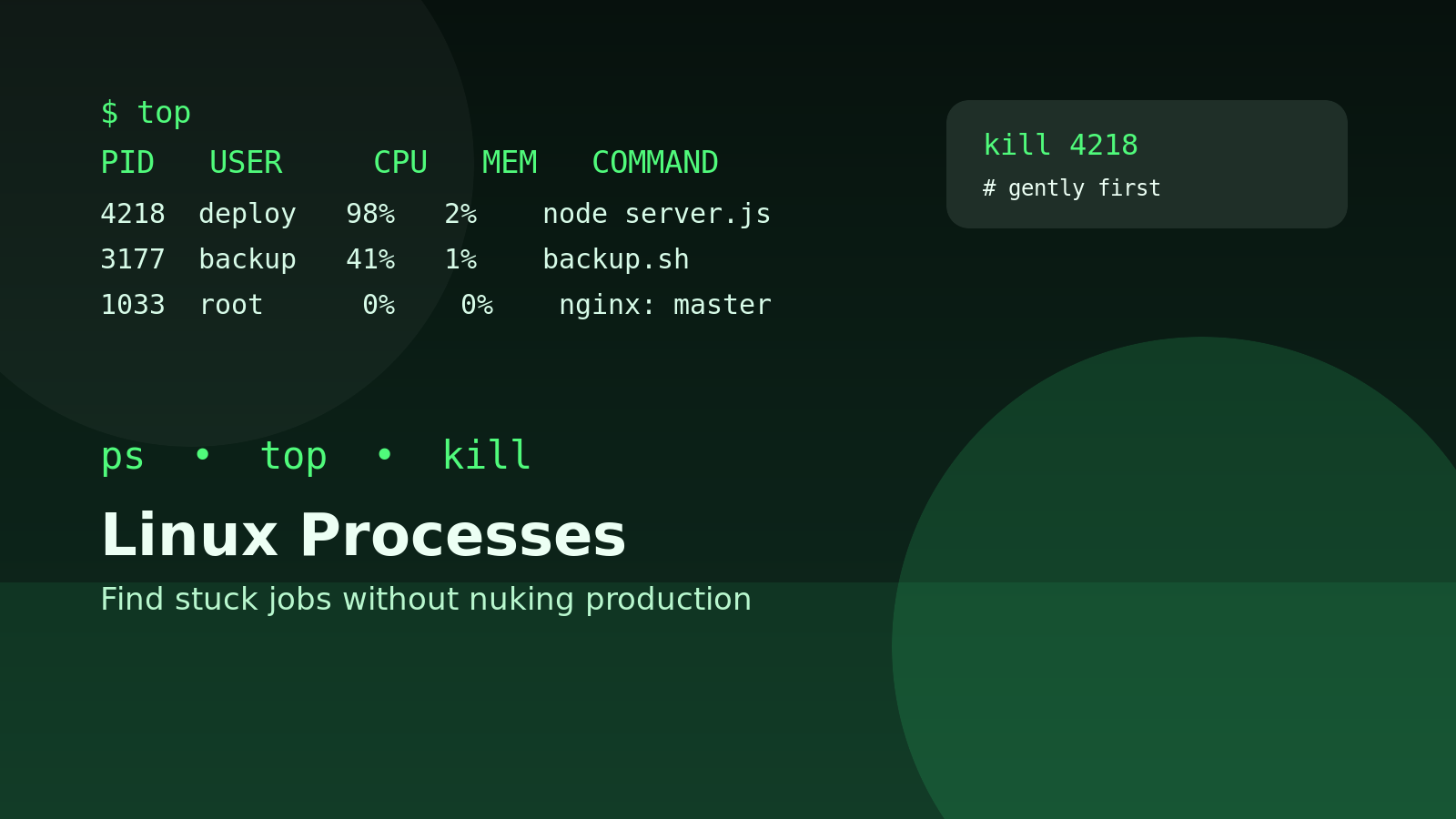
Linux processes are running programs.
That sounds obvious until a ticket says, “the server is slow,” and you need to figure out whether the problem is a web service, a backup job, a stuck script, or somebody’s test command eating the CPU like it found an unlimited buffet.
For beginner help desk techs and Windows admins moving into Linux, three commands come up constantly:
ps
top
kill
Use ps to list processes, top to watch live CPU and memory usage, and kill to ask a process to stop. Those three commands will not make you a senior Linux admin overnight, but they will keep you from staring at a terminal while a broken job quietly sets the building on fire.
This guide explains what Linux processes are, how to read the output, which beginner mistakes to avoid, and when it makes sense to practice the workflow in a safe lab instead of learning on production at 4:57 PM.
What a Linux process is
A process is an instance of a running program.
If you start nginx, Linux creates one or more processes for it. If you open vim, that editor is a process. If a script runs in the background, that is a process too. Each process gets a process ID, usually called a PID.
A PID is just a number Linux uses to identify that running thing.
Example:
PID   COMMAND
1482  sshd
2190  nginx
3177  backup.sh
The important part: process names are not always unique, but PIDs are unique while the process is running. If you need to inspect or stop something, you usually work with the PID.
The help desk version of process troubleshooting
In real support work, process commands usually answer questions like:
- What is using all the CPU?
- What is eating memory?
- Is the service actually running?
- Did that script finish, or is it still hanging around?
- Which user started this process?
- Can I stop this safely, or should I escalate?
You are not trying to memorize every column in every tool. You are trying to gather enough facts to avoid making the ticket worse.
A decent beginner process workflow looks like this:
- Use
topto see whether the machine is under load. - Use
psto get a cleaner list or find a specific process. - Confirm what the process is and who owns it.
- Stop it gently if that is appropriate.
- Re-check that the issue improved.
Skipping steps is how people kill the wrong thing and turn “one user is annoyed” into “the entire team is asking questions in Slack.”
Use top to watch live system activity
top gives you a live view of processes.
Run:
topYou will see CPU usage, memory usage, load average, and a list of processes updating every few seconds.
The columns beginners should notice first are:
| Column | Meaning | Why you care |
|---|---|---|
PID | Process ID | The number you use for deeper checks or stopping a process |
USER | Owner of the process | Helps identify whether this is system, app, or user activity |
%CPU | CPU usage | High values can explain slowness |
%MEM | Memory usage | High values can explain memory pressure |
COMMAND | Command/process name | Gives you the rough identity of the process |
Inside top, press:
qto quit.
That one matters. More beginners than anyone wants to admit have opened top, panicked, and closed the terminal because they did not know q exits. The terminal did nothing wrong. It was just sitting there, judging nobody.
A realistic top example
Imagine users say an internal dashboard is slow. You SSH into the server and run top.
You notice this:
PID     USER      %CPU  %MEM  COMMAND
4218    deploy    98.7  2.1   node
That tells you a node process owned by deploy is using almost all of one CPU core. That is not the whole answer, but it is a lead. Now you know where to look instead of randomly restarting services because it feels productive.
Use ps to list processes without the live screen
ps prints process information and exits.
The most common beginner command is:
ps auxYou will see a lot of output. The usual pattern is to combine it with grep:
ps aux | grep nginx
ps aux | grep backup
ps aux | grep node
Example output:
deploy   4218  98.7  2.1  node server.js
root     1033   0.0  0.2  nginx: master process
www-data 1037   0.1  0.4  nginx: worker process
The first number-ish field after the user is usually the PID in ps aux output.
In the example, 4218 is the PID for the node server.js process.
The grep mistake beginners make
When you search with grep, you may see your own search command in the results.
Example:
ps aux | grep nginxmight show:
root      1033  nginx: master process
www-data  1037  nginx: worker process
alex      5021  grep nginx
The grep nginx line is not an nginx service. It is your search command. Do not proudly kill that and call the issue resolved. It is already gone by the time you finish reading it.
A cleaner pattern is:
ps aux | grep '[n]ginx'That avoids matching the grep command itself. It looks a little odd, but it is a handy trick.
Use kill to ask a process to stop
Despite the dramatic name, kill does not always mean “destroy this thing immediately.”
By default, kill sends a signal asking the process to terminate cleanly:
kill 4218That sends TERM, also called SIGTERM. It gives the process a chance to shut down, clean up files, finish logging, and exit normally.
After running it, check again:
ps aux | grep '[n]ode'or watch top to see whether CPU usage drops.
Do not start with kill -9
Beginners often discover this command:
kill -9 4218kill -9 sends SIGKILL. It is the hard stop. The process does not get to clean up. Linux just ends it.
Sometimes that is necessary. A process may ignore the normal stop signal, or it may be so wedged that it cannot exit cleanly.
But do not use kill -9 as your first move. It can leave temp files, lock files, half-written data, or confused services behind. It is the command-line equivalent of pulling the power cord because the app looked at you funny.
A better beginner order is:
kill 4218
# wait a few seconds
ps aux | grep '[n]ode'
# only if it refuses to stop and you understand the risk:
kill -9 4218
Check the service manager before killing services
If the process belongs to a managed service, use systemctl when possible.
For example, if nginx is the issue, prefer:
sudo systemctl status nginx
sudo systemctl restart nginx
over manually killing nginx worker processes.
Why? Because systemd is responsible for starting, stopping, tracking, and restarting services. If you randomly kill a managed service process, systemd may restart it anyway, or you may stop only part of the service and make the state confusing.
Use process commands to investigate. Use the service manager to manage services when it applies.
A safe beginner workflow for a stuck process
Here is a practical sequence you can use on a lab machine or a low-risk support scenario:
# 1. Check live activity
top

# 2. Search for the process by name
ps aux | grep '[b]ackup'

# 3. Read the owner and command carefully
# Example PID: 3177

# 4. Ask it to stop cleanly
kill 3177

# 5. Confirm it stopped
ps aux | grep '[b]ackup'
Before doing this in production, ask:
- Do I know what this process does?
- Is it part of a managed service?
- Is it writing data right now?
- Is there a safer restart command?
- Do I have approval to stop it?
If the answer is “I have no idea, but the CPU number is rude,” slow down. Rude numbers are evidence, not permission.
How this maps to Windows admin experience
If you come from Windows, think of top like a terminal version of Task Manager’s live process view. Think of ps like a snapshot of running processes. Think of kill like ending a task, except Linux expects you to be more precise about the PID and signal.
The same common sense applies:
- Do not end random system processes.
- Check the user and command before acting.
- Prefer service-aware restarts for services.
- Verify after the change.
- Write down what you did in the ticket.
Linux is not trying to be mysterious here. It is just less interested in protecting you from confident clicking.
Beginner practice commands
Try these on a test VM, WSL instance, or training environment:
ps aux | head
ps aux | grep '[s]sh'
top
Then start a harmless command in one terminal:
sleep 300In another terminal, find it:
ps aux | grep '[s]leep'Stop it cleanly:
kill <PID>Then confirm it is gone:
ps aux | grep '[s]leep'That tiny drill teaches the core idea: find the process, identify the PID, stop it carefully, verify the result.
Practice process troubleshooting without gambling on production
Process commands are worth practicing before you need them. When a real server is slow, you do not want your first thought to be, “Wait, which column is the PID again?”
Shell Samurai gives you a safe place to build that muscle memory with Linux command-line practice designed for beginners, help desk techs, and Windows admins crossing into sysadmin work.
If you want a less chaotic way to learn this stuff, practice process and troubleshooting commands here:
Start practicing Linux commands in Shell Samurai
Quick recap
- A process is a running program.
- A PID is the process ID Linux uses to identify it.
- Use
topwhen you need a live view of CPU and memory usage. - Use
ps auxwhen you want a process snapshot. - Use
grepcarefully so you do not confuse your search command for the thing you searched for. - Use plain
kill <PID>before reaching forkill -9. - Use
systemctlfor managed services when possible. - Verify after every action.
You do not need to become a process-command encyclopedia. You just need enough confidence to gather facts, make a safe move, and avoid being the person who killed the wrong thing because COMMAND looked vaguely suspicious.
Practice This in a Real Terminal
Shell Samurai gives you safe Linux missions so the commands actually stick. Chapter 1 is free; the full practice path is a one-time purchase, not another subscription.