Linux id Command: Check User and Group IDs
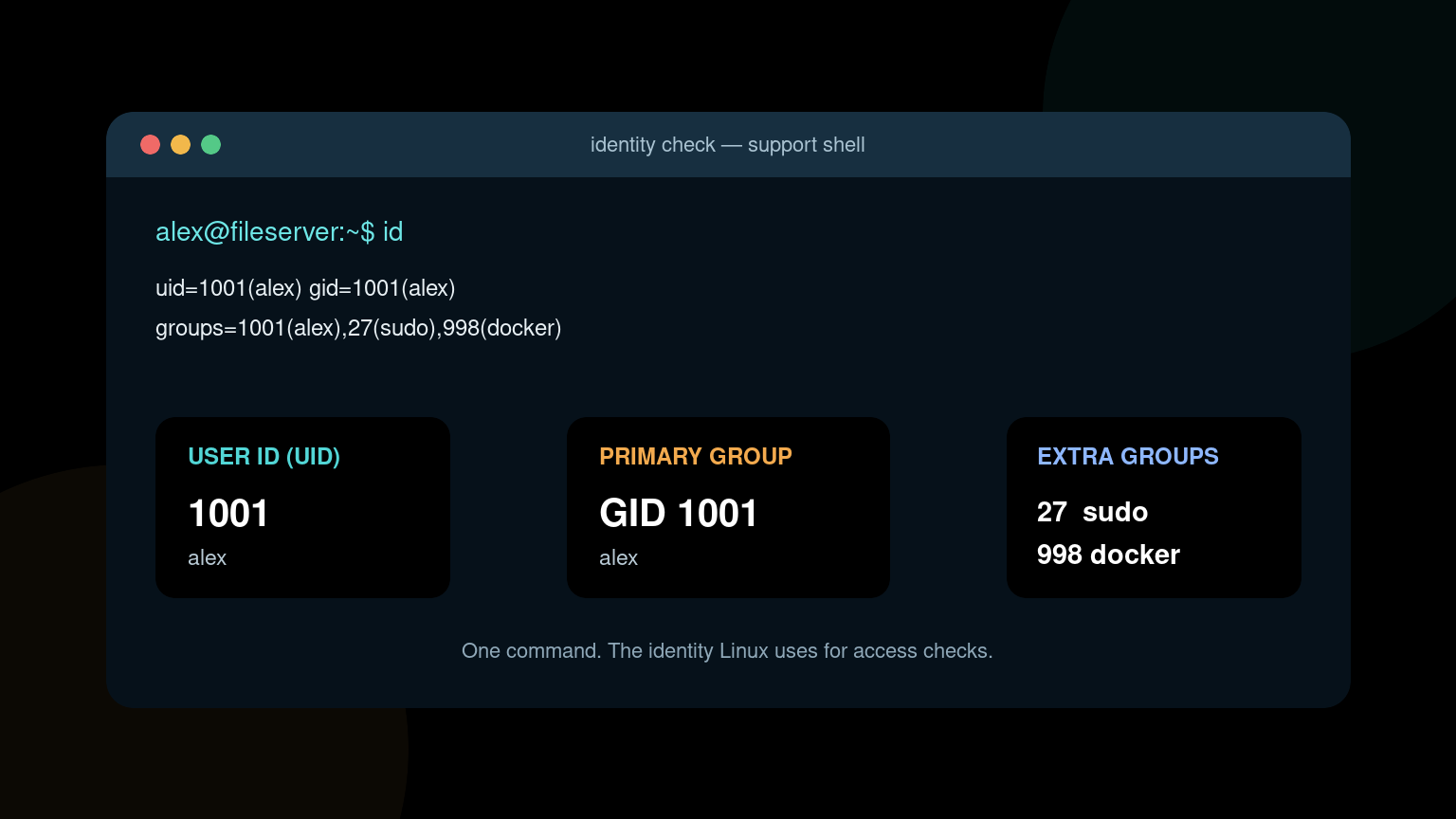
The Linux id command shows which user and groups Linux believes you are using. Run it without options for the complete answer:
idTypical output looks like this:
uid=1001(alex) gid=1001(alex) groups=1001(alex),27(sudo),998(docker)That line says the current user is alex, the user ID is 1001, the primary group ID is 1001, and the account also belongs to the sudo and docker groups.
Use id when a user gets Permission denied, an application runs as the wrong account, a new group membership does not seem active, or you need numeric IDs for a ticket, script, container, or network share.
Quick id command reference
| Goal | Command |
|---|---|
| Show the current identity | id |
| Check another account | id username |
| Print only the user ID | id -u |
| Print only the username | id -un |
| Print only the primary group ID | id -g |
| Print only the primary group name | id -gn |
| Print every group ID | id -G |
| Print every group name | id -Gn |
| Check the real user ID | id -ru |
| Check a command’s service identity | sudo -u serviceuser id |
The lowercase options return one value. Uppercase -G returns the full group list. Adding -n asks for names instead of numbers.
Read the output from left to right
Consider this result again:
uid=1001(alex) gid=1001(alex) groups=1001(alex),27(sudo),998(docker)It contains three useful parts.
uid: the user ID
uid=1001(alex)Linux uses the numeric user ID, or UID, internally. The username is the human-friendly label associated with that number.
Files usually store numeric ownership. Commands such as ls -l translate the UID back into a name for display. This is why a copied disk, broken directory service, or mismatched container can show a number instead of a familiar username.
Print only the current UID with:
id -uPrint only the username with:
id -ungid: the primary group ID
gid=1001(alex)The GID is the account’s primary group. New files normally start with this group, although a setgid directory, application, filesystem, or service configuration can change that behavior.
Print the primary GID:
id -gPrint its name:
id -gngroups: every active group
groups=1001(alex),27(sudo),998(docker)This list includes the primary group plus supplementary groups. Supplementary groups grant access to shared files, administrative commands, devices, application sockets, and other resources.
Show only group names:
id -GnExample:
alex sudo dockerShow only numeric group IDs:
id -GThe Linux file permissions guide explains how owner, group, and other permissions use this identity information.
Check another user without switching accounts
Pass an account name to id:
id backupsvcExample:
uid=992(backupsvc) gid=992(backupsvc) groups=992(backupsvc),110(reports)This tells you how the account is configured according to the system’s identity sources. It does not prove that a currently running process has refreshed a recent group change.
You can also use a numeric UID:
id 992That can help when a file listing shows numeric ownership and you need to find the corresponding account.
Do not confuse inspection with access. Seeing that an account belongs to a group does not authorize you to run commands as that account or read its data.
A realistic Permission denied ticket
A user reports that a reporting tool cannot write to /srv/reports, even though someone says the account was added to the reports group.
Start with identity and directory facts:
id reportuser
ls -ld /srv/reports
stat -c '%A %U %G %n' /srv/reports
Suppose the results show:
uid=1050(reportuser) gid=1050(reportuser) groups=1050(reportuser),110(reports)
drwxrws--- 4 root reports 4096 Jul 22 08:40 /srv/reports
drwxrws--- root reports /srv/reports
The configured membership and directory group appear compatible. Now check the actual process context rather than assuming the application uses the same session:
ps -o user,group,egroup,comm -C report-toolFor a systemd service, inspect its configured account and current properties:
systemctl show report-tool.service -p User -p Group -p SupplementaryGroups
systemctl status report-tool.service
A common cause is that the account was added to reports after the service or login session started. Existing processes usually keep the group list they received at startup. A new login, approved service restart, or other session refresh may be required.
Do not “fix” this by running chmod -R 777. That replaces one clear identity problem with broad access and a future incident review.
Why a new group membership may not appear
After an administrator adds an account to a group, this may show the updated configuration:
id reportuserBut an old shell opened before the change can still have its previous active groups. In that shell, run:
idIf the group is missing, sign out and begin a fresh session. For services, use the approved restart procedure and maintenance window. For desktop sessions, a full logout may be necessary.
newgrp groupname can start a child shell with a changed group context, but it is easy to misunderstand and is not a substitute for verifying the real application session.
If you need to add a user to a group, follow the usermod -aG helpdesk guide. The -a matters; omitting it can replace existing supplementary groups.
Understand id under sudo
Compare these commands:
id
sudo id
The first shows your current shell identity. The second normally shows the identity used by the elevated command, often:
uid=0(root) gid=0(root) groups=0(root)That does not mean your original account became root permanently. It means sudo launched one command with a different effective identity.
To check a specific service account in the command context:
sudo -u www-data idThis is often more useful than checking only the account database because it shows the identity assigned to the command being launched.
Review the sudo vs su guide before changing how administrative commands run.
Real and effective user IDs
Most beginner checks need only id, but processes can have a real UID and an effective UID.
- The real UID usually identifies who started the process.
- The effective UID is generally used for permission checks.
Print the effective UID:
id -uPrint the real UID:
id -ruFor an ordinary shell, they are normally the same. They can differ for setuid programs and certain controlled execution contexts.
Do not treat a mismatch as automatic proof of compromise. Record the executable, parent process, and full context before escalating.
Local accounts and directory accounts
id can resolve identities from more than /etc/passwd. Depending on system configuration, users and groups may come from:
- Local files
- LDAP
- Active Directory through SSSD
- Other Name Service Switch sources
If id username succeeds, Linux’s configured identity lookup can currently resolve that account. To inspect the same lookup path more directly, use:
getent passwd username
getent group groupname
If a directory-backed user resolves intermittently, collect timestamps and check the approved identity service rather than editing /etc/passwd to make the ticket disappear.
Troubleshoot “id: no such user”
Example:
id: ‘morgan’: no such userCheck these in order:
- Confirm spelling and letter case.
- Try the expected login name rather than a display name or email address.
- Run
getent passwd morgan. - Check whether the identity source is reachable and healthy.
- Compare behavior on another approved system using the same identity provider.
- Review SSSD, LDAP, or other identity-service logs if that is within your role.
Do not create a local account with the same name as a missing directory user unless that is an approved design. Duplicate local and remote identities can produce inconsistent ownership and access.
Numeric IDs matter in containers and shared storage
A container may call its user app, while the host calls UID 1001 something else. A network share may receive a numeric UID with no matching local name. In both cases, access decisions can depend on the number rather than the label.
Useful checks include:
id
stat -c '%u %g %U %G %n' /path/to/file
The first command shows the process identity. The second shows numeric and named ownership for the file. Compare numbers before assuming matching names represent matching identities across systems.
The Linux stat command guide covers those ownership fields in more detail.
Security groups deserve respect
Membership in some groups can grant substantial control. Examples may include:
sudoorwheeldockerlibvirt- Groups that can read logs, backups, keys, or application data
- Device-access groups
Do not add an account to a powerful group just to clear an error. Identify the resource, required action, approved role, and least-privileged group first.
The id command is evidence. It is not permission to expand access.
Beginner mistakes to avoid
Checking the target account but not the failing process
id reportuser shows configured identity data. It does not prove a service started yesterday has today’s group membership.
Reading groups as supplementary groups only
The groups= field includes the primary group as well as supplementary groups.
Assuming names are universal
Usernames and group names can map to different numeric IDs on different hosts, containers, and storage systems.
Running the test under sudo accidentally
sudo id answers a different question from id. Record which command you ran.
Changing permissions before proving identity
Check the process UID, GID, active groups, file ownership, and directory traversal before using chmod or chown.
Treating group membership as harmless
Some groups effectively grant administrative access. Use the same care you would use with any privileged role.
Practice identity troubleshooting
Create a safe lab user or use an existing nonproduction account approved for testing. Predict the output of id, id -u, id -g, and id -Gn, then compare your prediction with the terminal. Inspect a harmless file with stat and connect its numeric ownership to the process identity.
If you want guided command-line practice before the next permissions ticket, use Shell Samurai. The habit worth building is simple: identify the process, identify the resource, compare the numbers, and only then change something.
FAQ
What does the id command do in Linux?
id prints user and group identity information. With no username, it shows the current process identity, including UID, primary GID, and active groups.
How do I check my user ID in Linux?
Run id -u for the numeric UID or id -un for the username. Run plain id when you also need the primary group and supplementary groups.
How do I list my groups in Linux?
Run id -Gn to print group names or id -G to print numeric group IDs. The result includes the primary group.
What is the difference between UID and GID?
A UID identifies a user account. A GID identifies a group. Linux compares process UIDs and GIDs with file ownership and permission rules when deciding whether access is allowed.
Why does id show an old group list?
An existing process may still have the groups assigned when its session began. Start a fresh login session or use the approved restart procedure for the service, then verify again.
Why does id show numbers instead of names?
The system may know the numeric UID or GID but be unable to resolve it to a local or directory-backed name. Check Name Service Switch and the relevant identity provider before changing ownership.
Does id show the current user or another user?
id with no argument shows the current process identity. id username looks up the named account. Those can differ from the identity of a separate running service.
Use id early in permissions troubleshooting. One short line often tells you whether you are investigating the right user, the right group, and the right execution context.
Practice This in a Real Terminal
Shell Samurai gives you safe Linux missions so the commands actually stick. Chapter 1 is free; the full practice path is a one-time purchase, not another subscription.