Sudo vs Su Explained: What Beginners Actually Need to Know
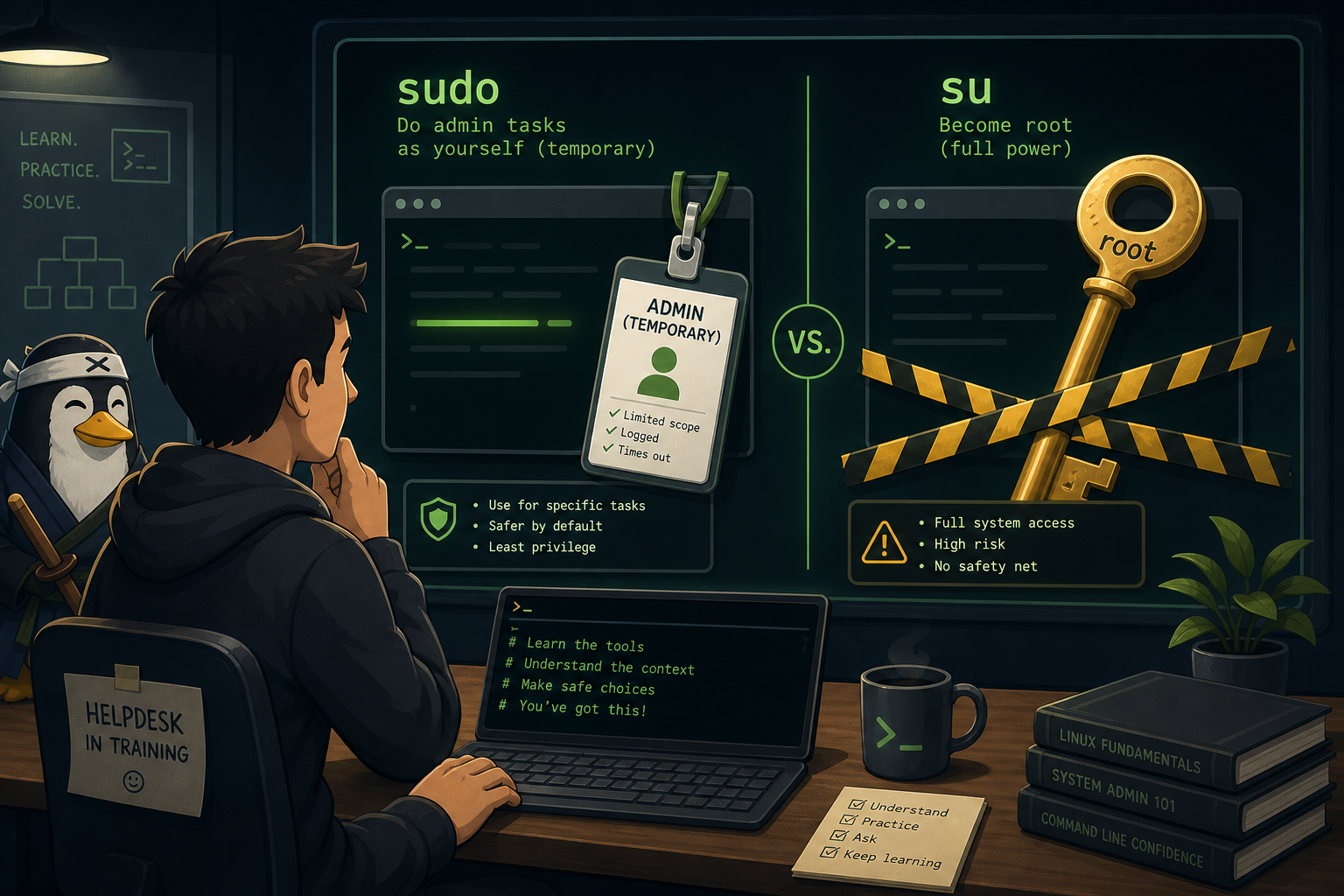
sudo and su are two of the first Linux commands that make beginners feel like they accidentally walked into the server room holding a flamethrower.
Both deal with admin power. Both can fix a problem. Both can also help you break something faster than normal permissions would allow, which is why they deserve more respect than the average copy-pasted command from a forum post.
Here is the practical version: sudo lets you run one command with elevated privileges. su switches you into another user account, often the root account. For help desk techs, Windows admins, and beginner sysadmins, sudo is usually the safer default. su is useful, but it changes your whole shell context, and that is where beginners start doing root-level damage with confidence.
This guide explains sudo vs su without turning it into a religious argument from 2004.
The short version
Use this mental model:
sudo = run this one command as an admin
su   = become another user until you exit
Example with sudo:
sudo systemctl restart sshThat means: run systemctl restart ssh with elevated privileges.
Example with su:
su -That means: switch into a login shell as root, assuming you know the root password and the system allows it.
Common beginner mistake: treating both commands like magic “permission denied” sauce. They are not the same tool. sudo is usually a temporary badge. su is more like changing into the admin’s entire uniform and hoping you do not trip near the power button.
What sudo does
sudo stands for “superuser do.” In normal-person English, it means “run this command with higher privileges.”
If you try to edit a system file as a regular user:
nano /etc/hostsYou may be able to open the file, but saving changes usually fails because /etc/hosts is system config.
Use:
sudo nano /etc/hostsNow that one nano command runs with admin privileges.
You will use sudo for tasks like:
- Installing packages.
- Restarting services.
- Editing files under
/etc. - Viewing protected logs.
- Managing users and groups.
- Changing ownership or permissions on system paths.
Examples:
sudo apt update
sudo apt install nginx
sudo systemctl status ssh
sudo tail -50 /var/log/auth.log
sudo usermod -aG sudo alex
On many Linux systems, sudo asks for your own password, not the root password. Whether you are allowed to use it depends on your account and the system’s sudoers configuration.
In support work, this matters because not every user should be able to run admin commands. If a normal user says “my sudo password does not work,” the real issue might be that they are not in the correct admin group. That is different from a bad password.
What su does
su means “substitute user” or “switch user.” It lets you become another user in the terminal.
Basic example:
su alexThat switches to the user alex, assuming you know the right password and the system allows it.
The famous version is:
su -or:
su - rootThat switches to the root user with a login shell. A login shell loads the target user’s environment more completely, which usually means root’s home directory, PATH, shell startup files, and normal login behavior.
You may also see:
suWithout a username, su usually means “switch to root.”
The important difference: after su, you are not just running one command as root. You are inside a shell as that user until you leave.
You can check who you are:
whoamiIf it says:
rootYou are driving the server with the guardrails removed.
Exit when you are done:
exitCommon beginner mistake: using su to become root, doing five different things, getting distracted, then forgetting the shell is still root. That is how harmless commands become exciting.
Why sudo is usually safer for beginners
sudo is easier to audit and harder to misuse accidentally.
When you run:
sudo systemctl restart nginxThe elevated part is obvious. That one command needed admin rights.
When you run:
su -Everything after that may be root-level until you exit. Your prompt may change, but beginners often stop noticing prompts after the third terminal tab. That is not a character flaw. That is just how humans work when five tickets are yelling at them.
sudo also tends to leave clearer logs. On many systems, sudo activity is logged, which helps answer questions like:
- Who restarted the service?
- Who edited the config?
- Who ran the command that turned the web server into modern art?
For a help desk or junior admin role, that audit trail matters. You want to know what happened, not start a group séance around /var/log/auth.log.
When you should use sudo
Use sudo when you need admin rights for one specific task.
Good examples:
sudo apt install htop
sudo systemctl restart ssh
sudo cp /etc/ssh/sshd_config /etc/ssh/sshd_config.bak
sudo nano /etc/ssh/sshd_config
sudo chown alex:support report.txt
This is the normal beginner workflow:
- Try the command as yourself if it should not need admin rights.
- If it fails with a permissions problem, ask whether admin rights actually make sense.
- Use
sudofor the specific command that needs it. - Stop using elevated privileges when the task is done.
That second step is the part people skip.
If cat notes.txt says permission denied in someone’s home folder, the answer might not be “sudo everything.” The answer might be “why are the file permissions wrong?” or “am I logged in as the wrong user?”
sudo should be a deliberate tool, not a reflex twitch.
When su makes sense
su is not evil. It is just easier to use sloppily.
You might use su when:
- You need to test something as another user.
- You are troubleshooting user-specific environment problems.
- You need a full root shell for a controlled maintenance task.
- You are working on a system where
sudois not configured. - You need the target user’s login environment, not just one elevated command.
Example: testing a script as the service account that actually runs it.
su - appuser
whoami
pwd
./run-health-check.sh
exit
That can be useful because environment matters. A script may work as your user and fail as appuser because of PATH differences, missing variables, different home directories, or file access.
Another example:
su - postgres
psql
exit
Some database workflows use a dedicated system account. In those cases, switching user can be cleaner than trying to cram everything into one sudo command.
Still, the rule is the same: know who you are before running commands.
sudo su and sudo -i: the root-shell shortcuts
You will eventually see someone type:
sudo suThis uses sudo to start a root shell through su. It is basically saying, “use my sudo permission to become root.”
You may also see:
sudo -iThat starts an interactive login shell as root.
Or:
sudo -sThat starts a shell with elevated privileges, usually keeping more of your current environment.
For beginner support work, avoid these unless you have a good reason. A root shell is convenient, but convenience is not the same thing as safety. If you only need to restart a service, restart the service with sudo and move on with your life.
Good:
sudo systemctl restart nginxOverkill:
sudo -i
systemctl restart nginx
# then forgetting you are still root for the next 20 minutes
That is not bravery. That is how you accidentally delete the wrong thing at full admin speed.
The permission denied troubleshooting habit
When beginners see:
Permission deniedThey often jump straight to:
sudo !!sudo !! reruns the previous command with sudo. It is handy, but dangerous if you do not understand what the previous command was doing.
Before using it, ask:
- Am I trying to access a system path like
/etc,/var/log, or/usr? - Am I editing another user’s file?
- Is the file supposed to be protected?
- Am I logged in as the wrong user?
- Are the permissions actually broken?
Check who you are:
whoamiCheck where you are:
pwdCheck the file:
ls -l filenameCheck the directory:
ls -ld .A lot of Linux troubleshooting is not memorizing 500 commands. It is asking boring questions in the right order. Boring is good. Boring means fewer production incidents named after you.
A practical help desk example
Ticket: “The monitoring script stopped running after I edited it.”
You SSH in and check the file:
ls -l /opt/monitoring/check-disk.shYou see:
-rw-r--r-- 1 root root 842 May 7 08:45 /opt/monitoring/check-disk.shThe script is not executable. A beginner might try:
sudo /opt/monitoring/check-disk.shBut that still may fail because the execute bit is missing.
The better fix:
sudo chmod +x /opt/monitoring/check-disk.sh
sudo /opt/monitoring/check-disk.sh
If the script needs to run as a specific service account, test that context:
sudo -u monitoring /opt/monitoring/check-disk.shNotice that last command uses sudo -u to run as another user without fully switching shells. That is often cleaner than su for one-off testing.
If you really need the service account’s environment:
su - monitoring
/opt/monitoring/check-disk.sh
exit
The point is not “always use one command.” The point is to choose the smallest privilege change that matches the job.
Beginner mistakes to avoid
Mistake 1: Using root because permissions are annoying
Root is not a productivity hack. If something only works as root, understand why before making it permanent.
Mistake 2: Forgetting to exit a root shell
If you use su - or sudo -i, run whoami occasionally and exit when done.
whoami
exit
Mistake 3: Editing system files without a backup
Before editing important config:
sudo cp /etc/ssh/sshd_config /etc/ssh/sshd_config.bakA backup is cheaper than explaining why SSH is broken.
Mistake 4: Running random internet commands with sudo
This is the classic:
curl https://example.com/install.sh | sudo bashSometimes vendors tell you to do this. That does not make it magically safe. You are downloading a script and running it with admin rights. At least read the script or use a safer install method when possible.
Mistake 5: Thinking sudo means “Linux password reset button”
If your account is not allowed to use sudo, typing your password harder will not help. You need permission from an admin or membership in the right group.
A simple rule for beginners
Use the smallest privilege change that gets the job done.
- Need one admin command? Use
sudo. - Need to run one command as another user? Use
sudo -u username command. - Need to test a full user environment? Use
su - username. - Need a root shell? Make sure you know why, do the task, then
exit.
That rule will keep you out of a lot of dumb trouble.
Practice it safely
The annoying part about learning sudo and su is that real systems have consequences. Practicing on a production server is a terrible training plan, unless your career goal is “example in next quarter’s security awareness deck.”
Use a lab. Break fake things. Fix fake things. Learn what whoami, pwd, ls -l, sudo, sudo -u, and su - actually do when the pressure is low.
That is exactly the kind of muscle memory Shell Samurai is built for: safe Linux missions where you can practice admin commands, permissions, users, services, and terminal habits without turning a real server into soup.
Start practicing Linux admin commands in Shell Samurai.
Final takeaway
sudo and su are both about identity and privilege.
sudo says: “run this command with more power.”
su says: “become this other user.”
For most beginner Linux and help desk work, start with sudo because it is specific, auditable, and less likely to leave you wandering around as root. Use su when you truly need another user’s shell environment. And whatever you do, keep checking whoami until it feels silly.
Silly habits are fine. Accidentally running destructive commands as root is less cute.
Practice Linux commands next
If you want these commands to actually stick, do not stop at reading:
- Start Shell Samurai Chapter 1 free and practice in a real terminal.
- Use the Linux commands cheat sheet as your quick reference.
- Browse more Shell Samurai field notes after you finish a mission.
- Comparing resources? See the Linux Journey alternative breakdown.
Practice This in a Real Terminal
Shell Samurai gives you safe Linux missions so the commands actually stick. Chapter 1 is free; the full practice path is a one-time purchase, not another subscription.