Linux lsusb: List USB Devices, IDs, and Drivers
Updated
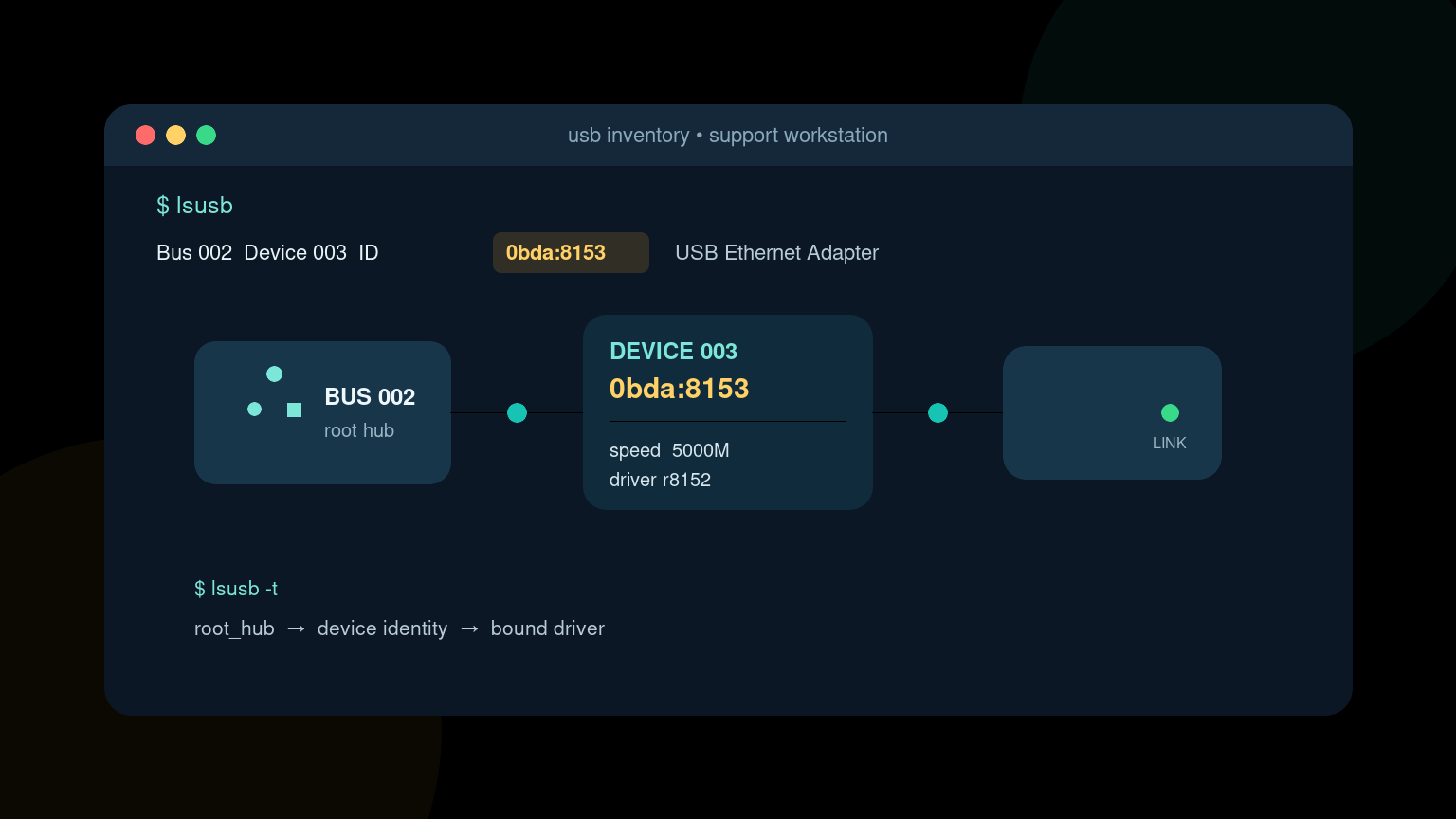
How to list all USB devices in Linux
Run lsusb for the devices visible to your Linux system. Run lsusb -t for a tree showing interfaces, bound drivers, and reported connection speeds. A listed device has enumerated; that does not guarantee an application can use it.
If a device is missing, compare the list before and after connecting it, then inspect kernel messages with dmesg. In a virtual machine, check USB passthrough; a container generally does not have the same device view as its host.
Follow the USB device not detected exercise for a structured diagnosis with success criteria. Avoid disconnecting a mounted storage device merely to test detection.
The Linux lsusb command lists USB devices that the kernel has detected. It shows the USB bus and device number plus a vendor ID, product ID, and usually a readable device name.
Start with:
lsusbExample output:
Bus 002 Device 003: ID 0bda:8153 Realtek Semiconductor Corp. RTL8153 Gigabit Ethernet Adapter
Bus 001 Device 005: ID 046d:c534 Logitech, Inc. Unifying Receiver
Bus 001 Device 002: ID 8087:0026 Intel Corp. AX201 Bluetooth
This is useful when a dock, headset, keyboard, USB network adapter, storage enclosure, or other peripheral is not working. lsusb answers the first question: did Linux enumerate the device at all? It does not prove that the correct driver loaded or that an application can use it.
Quick lsusb command reference
| Goal | Command |
|---|---|
| List detected USB devices | lsusb |
| Show the USB device tree | lsusb -t |
| Filter by vendor and product ID | lsusb -d 0bda:8153 |
| Filter by vendor only | lsusb -d 0bda: |
| Select one bus and device | lsusb -s 002:003 |
| Show detailed descriptors | sudo lsusb -v -d 0bda:8153 |
| Watch for connect/disconnect changes | watch -n 1 lsusb |
| Read recent kernel USB messages | sudo dmesg --follow |
Run plain lsusb first. The verbose output is large, and reading every descriptor before confirming the device exists is a good way to turn a five-minute ticket into a research project.
Read lsusb output
Take this line apart:
Bus 002 Device 003: ID 0bda:8153 Realtek Semiconductor Corp. RTL8153 Gigabit Ethernet Adapter- Bus 002 is the USB bus controlled by a host controller.
- Device 003 is the address assigned to this device on that bus right now.
- 0bda is the hexadecimal vendor ID.
- 8153 is the hexadecimal product ID.
- The remaining text is a friendly name from the USB ID database.
The vendor and product IDs are the most useful search and matching values. If a no-name USB adapter appears as 0bda:8153, that ID can help you identify the chipset and check driver support.
Bus and device numbers are temporary. Unplugging a device, rebooting, or moving it to another port can change them. Do not build a permanent rule around Bus 002 Device 003 and expect it to stay true.
Filter for one USB device
Use -d with a vendor and product ID:
lsusb -d 0bda:8153You can filter by vendor alone by leaving the product side empty:
lsusb -d 0bda:That is handy when a laptop has several devices from the same manufacturer or when you know the vendor ID but not the exact product.
To select the current bus and device address, use -s:
lsusb -s 002:003Use -d for device identity and -s for the device’s current location in the USB inventory. For most troubleshooting notes, the stable vendor:product pair is more useful than the temporary bus:device pair.
See ports, speeds, and drivers with lsusb -t
The tree view shows how devices connect through host controllers and hubs:
lsusb -tExample:
/:  Bus 002.Port 001: Dev 001, Class=root_hub, Driver=xhci_hcd/4p, 10000M
    |__ Port 002: Dev 003, If 0, Class=Vendor Specific Class, Driver=r8152, 5000M
/:  Bus 001.Port 001: Dev 001, Class=root_hub, Driver=xhci_hcd/16p, 480M
    |__ Port 004: Dev 005, If 0, Class=Human Interface Device, Driver=usbhid, 12M
This view can reveal:
- whether a device sits behind a hub or dock;
- the negotiated speed, such as
12M,480M, or5000M; - the kernel driver bound to an interface;
- a suspicious device showing no driver;
- a USB 3 device negotiating at an unexpectedly slow USB 2 speed.
Speed alone does not identify the fault. A cable, port, hub, dock, device capability, or controller can set the negotiated speed. Record the topology before swapping hardware so you know what actually changed.
Get detailed USB descriptors
Use verbose mode for one known device:
sudo lsusb -v -d 0bda:8153Depending on the device and permissions, this can show manufacturer strings, serial numbers, interfaces, endpoint types, power requirements, and supported USB versions.
Do not paste the full output into a public ticket without reviewing it. Serial numbers and other hardware identifiers can be sensitive inventory data. Capture only the fields needed for the case.
Verbose mode may print warnings when it cannot read every descriptor. Try the approved elevated method if appropriate, but do not treat one permission warning as proof that the hardware is broken.
A practical missing-device workflow
Suppose a user’s USB Ethernet adapter stopped working after they moved desks.
1. Capture the current USB inventory
lsusb
lsusb -t
If the adapter appears, record its vendor:product ID and the driver shown in the tree.
2. Watch kernel messages while reconnecting it
sudo dmesg --followThen unplug and reconnect the adapter once. Look for a complete sequence: connection, device identification, driver binding, link state, or an error such as repeated resets.
The Linux dmesg guide explains how to read those messages without assuming the last red-looking line caused the incident.
3. Compare a known-good port or cable
Change one thing at a time. Reconnect directly instead of through the dock, or test another approved cable or port. Run lsusb and lsusb -t again after each change.
If the device appears only when connected directly, the dock, hub, cable, power budget, or upstream port deserves attention. If it never appears and the kernel logs nothing, check physical connection, power, hardware inventory, and whether the device works on another approved system.
4. Check the device-specific subsystem
lsusb does not tell you whether a network interface, disk, camera, or sound device is usable. Follow with the right tool:
ip link                    # USB network adapter
lsblk                      # USB storage
pactl list short sinks     # audio output devices
v4l2-ctl --list-devices    # cameras, when v4l-utils is installed
For storage, use the blkid guide only after the USB device and its block device appear. For a network adapter, check ip link, driver messages, and the network configuration.
5. Write useful ticket notes
Record:
- vendor:product ID;
- friendly device name;
- USB tree path and negotiated speed;
- bound driver, if shown;
- what changed when you tested another port, cable, or direct connection;
- relevant kernel messages and timestamps.
“USB broken” is not a handoff. “Device 0bda:8153 appears behind the dock at 480M with driver r8152, disconnects repeatedly in dmesg, and stays stable when connected directly” gives the next technician something to use.
If lsusb says command not found
lsusb normally comes from the usbutils package.
Ubuntu or Debian:
sudo apt update
sudo apt install usbutils
Fedora or RHEL-family systems:
sudo dnf install usbutilsArch Linux:
sudo pacman -S usbutilsUse your organization’s package-management process on managed systems. Do not add packages to production just because a troubleshooting article suggested it; verify the package source and change policy first.
On WSL, lsusb may not show a physical Windows USB device unless it has been attached to the WSL environment through supported USB/IP tooling. Check the Windows side and your WSL device-sharing setup before diagnosing a Linux driver failure.
Common lsusb mistakes
Assuming detected means working
Enumeration is only the first layer. A driver, permissions, service, or application can still fail afterward.
Treating bus and device numbers as permanent
Those addresses can change. Use vendor:product IDs for identification, and use udev attributes or stable subsystem identifiers when building persistent configuration.
Looking only at lsusb for a USB drive
lsusb can show the enclosure or bridge chipset, not necessarily the filesystem you care about. Continue with lsblk, blkid, and findmnt.
Running verbose mode for every device
Filter first. sudo lsusb -v can produce pages of output and distract from the one adapter in the ticket.
Reinstalling drivers before checking the cable and port
Collect evidence before making changes. Support queues contain plenty of “driver incidents” fixed by replacing a bad cable.
Practice USB troubleshooting as a sequence
The command is easy. The useful skill is moving from hardware detection to topology, driver, and subsystem checks without guessing or changing five things at once.
Practice Linux commands in Shell Samurai so inventory and troubleshooting commands feel familiar before a real dock or adapter ticket lands in your queue.
FAQ
What does lsusb do in Linux?
lsusb lists USB devices detected by Linux. It reports each device’s bus, current address, vendor ID, product ID, and usually a readable name.
How do I find the vendor and product ID of a USB device?
Run lsusb and read the hexadecimal pair after ID, such as 0bda:8153. The first value is the vendor ID and the second is the product ID.
How do I see which driver a USB device uses?
Run lsusb -t. The tree output often includes Driver= for each USB interface. Confirm details with kernel messages and subsystem-specific tools.
Why does my USB device appear in lsusb but not work?
Linux has enumerated the USB device, but the driver may be missing or failing, permissions may block access, or the relevant network, audio, storage, or camera subsystem may not be configured correctly.
Is lsusb safe to run?
Plain lsusb, lsusb -t, and filtered inspection commands are read-only. Review verbose output before sharing it because it may contain serial numbers or other inventory identifiers.
Practice This in a Real Terminal
Shell Samurai gives you safe Linux missions so the commands actually stick. Chapter 1 is free; the full practice path is a one-time purchase, not another subscription.