Linux blkid Command: Find Disk UUIDs
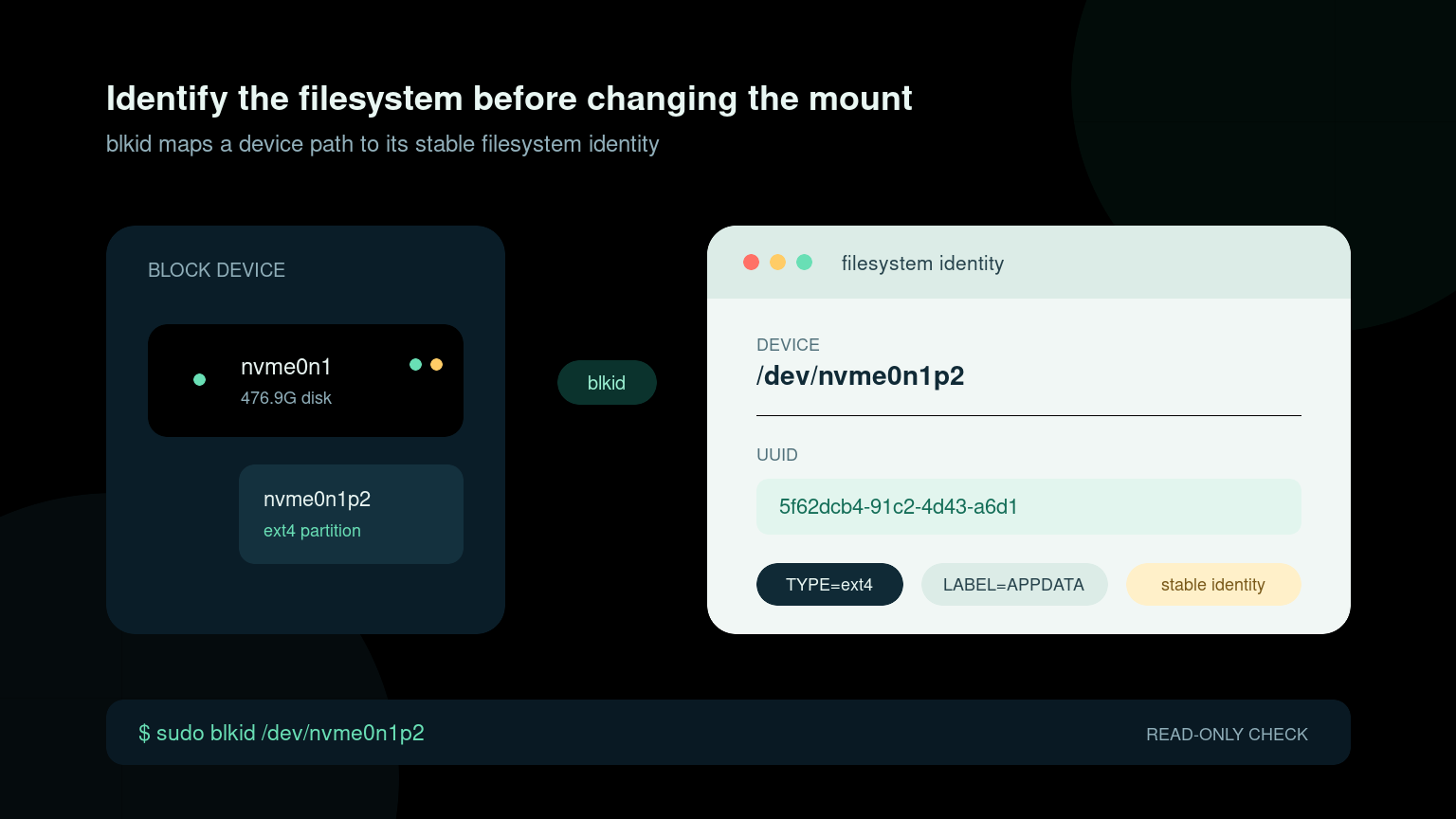
The Linux blkid command identifies filesystems on block devices. It can show a filesystem’s UUID, label, and type so you can tell /dev/sdb1 from /dev/sdc1 without trusting device names that may change after a reboot.
Start with a read-only inventory:
sudo blkidTypical output looks like this:
/dev/nvme0n1p2: UUID="5f62dcb4-91c2-4d43-a6d1-70a9e26c51bf" TYPE="ext4" PARTUUID="3a70cfc4-02"
/dev/sdb1: LABEL="BACKUP" UUID="A12B-34CD" TYPE="exfat" PARTUUID="d8b8392e-01"
That is useful during disk replacements, failed mounts, backup-drive checks, and /etc/fstab troubleshooting. blkid reports identity; it does not mount, format, repair, or otherwise change a filesystem.
Quick blkid command reference
| Goal | Command |
|---|---|
| Identify visible filesystems | sudo blkid |
| Inspect one device | sudo blkid /dev/sdb1 |
| Print one device’s UUID | sudo blkid -s UUID -o value /dev/sdb1 |
| Print its filesystem type | sudo blkid -s TYPE -o value /dev/sdb1 |
| Show script-friendly key/value output | sudo blkid -o export /dev/sdb1 |
| Find devices with an ext4 filesystem | sudo blkid -t TYPE=ext4 |
| Resolve a UUID to a device | blkid -U UUID-HERE |
| Resolve a label to a device | blkid -L LABEL-HERE |
| Show filesystem details in a table | lsblk -f |
Use sudo when collecting a full inventory. Permissions and cached information can make unprivileged output incomplete or different across systems.
Understand UUID, LABEL, TYPE, and PARTUUID
A blkid line can contain several identifiers:
- UUID identifies the filesystem stored inside a partition or logical volume.
- LABEL is a human-readable filesystem name, such as
BACKUPorAPPDATA. - TYPE is the filesystem format, such as
ext4,xfs,vfat,exfat, orswap. - PARTUUID identifies the partition itself in the partition table.
UUID and PARTUUID are not interchangeable. A common /etc/fstab entry uses a filesystem UUID:
UUID=5f62dcb4-91c2-4d43-a6d1-70a9e26c51bf /srv/app ext4 defaults 0 2A partition can keep its PARTUUID while its filesystem UUID changes after reformatting. Conversely, cloning a filesystem can create duplicate filesystem UUIDs. Record which identifier a configuration expects instead of copying whichever long value is nearest.
Inspect one device instead of reading everything
If a ticket points to /dev/sdb1, query only that device:
sudo blkid /dev/sdb1Example:
/dev/sdb1: LABEL="BACKUP" UUID="A12B-34CD" BLOCK_SIZE="512" TYPE="exfat" PARTUUID="d8b8392e-01"This narrows the evidence and makes ticket notes easier to read. Before using a device path, confirm the disk tree with:
lsblk -o NAME,SIZE,TYPE,FSTYPE,LABEL,UUID,MOUNTPOINTSDo not identify a disk only by capacity. Two identical drives can sit beside each other, and selecting the wrong one becomes expensive as soon as someone runs a write command later.
Print only the value you need
Use -s to select a tag and -o value to remove surrounding labels:
sudo blkid -s UUID -o value /dev/sdb1Output:
A12B-34CDFor the filesystem type:
sudo blkid -s TYPE -o value /dev/sdb1Output:
exfatThis is convenient in a script, but an empty result must not be treated as permission to guess. The device may be wrong, inaccessible, unformatted, encrypted, using an unsupported format, or returning an error. Check the command’s exit status and validate the value before using it.
A readable key/value format is also available:
sudo blkid -o export /dev/sdb1Example:
DEVNAME=/dev/sdb1
LABEL=BACKUP
UUID=A12B-34CD
TYPE=exfat
PARTUUID=d8b8392e-01
Find a device by UUID or label
If /etc/fstab or a ticket gives you a UUID, resolve it back to the current device path:
blkid -U 5f62dcb4-91c2-4d43-a6d1-70a9e26c51bfExample output:
/dev/nvme0n1p2For a filesystem label:
blkid -L BACKUPPossible output:
/dev/sdb1Labels are readable but not guaranteed to be unique. UUIDs are generally safer for persistent mount configuration, though cloned filesystems can still duplicate them. If results look suspicious, compare blkid, lsblk -f, and the physical or virtual disk inventory before changing anything.
Filter devices by filesystem type
To list devices that report an ext4 filesystem:
sudo blkid -t TYPE=ext4To search by label:
sudo blkid -t LABEL=BACKUPFilters help on servers with many disks, but they answer only the query you supplied. A missing result does not prove a disk is absent. Check lsblk, kernel messages, permissions, encryption layers, and the storage platform if the expected device is not detected.
blkid vs lsblk vs findmnt
These commands answer related but different questions:
| Question | Best first command |
|---|---|
| What disks and partitions does Linux see? | lsblk |
| What filesystem identity is on this device? | blkid |
| What filesystem is mounted at this path? | findmnt -T /path |
| Where is this UUID currently mounted? | findmnt --source UUID=... |
For a missing application volume, use them together:
lsblk -f
sudo blkid
findmnt -T /srv/app
findmnt --fstab
The Linux findmnt guide explains active mounts and path ownership. The Linux mount guide covers mounting and safely unmounting devices.
A realistic help desk workflow
Imagine an application volume did not return after maintenance. The runbook says /srv/app should use a particular UUID.
-
Check whether the expected path is mounted:
findmnt -T /srv/app -
List visible devices and filesystem identities:
lsblk -f sudo blkid -
Resolve the expected UUID:
blkid -U 5f62dcb4-91c2-4d43-a6d1-70a9e26c51bf -
Compare that result with
/etc/fstab:grep -n '5f62dcb4' /etc/fstab findmnt --fstab -
Record the device, UUID, filesystem type, expected mount point, and current mount state before escalating or changing configuration.
Do not blindly run mount -a on a production server just to see what happens. Validate the configuration and follow the maintenance or escalation procedure. A typo in /etc/fstab is easier to fix before it becomes a boot-time incident.
Common blkid mistakes
Assuming /dev/sdb is permanent
Kernel device names can change as hardware, virtual disks, controllers, or discovery order changes. Use stable identifiers where the system expects them.
Copying PARTUUID when the config expects UUID
Read the key as well as the value. They identify different layers.
Trusting incomplete non-root output
Use the approved elevated method for inventory work, then document that elevation in the ticket.
Editing fstab before confirming the disk
First compare lsblk -f, blkid, findmnt, and the expected platform inventory. Storage changes deserve more evidence than “that one looked right.”
Running repair or formatting commands during identification
blkid, lsblk, and findmnt are inspection tools. Keep the first pass read-only. Do not improvise with mkfs, fsck, or destructive disk tools on an unknown or mounted filesystem.
Practice reading storage identity safely
The important skill is not memorizing a long UUID. It is knowing which command answers which layer of the problem and collecting enough evidence before a storage change.
Practice Linux commands in Shell Samurai so blkid, lsblk, and findmnt feel familiar before a failed mount lands in your queue.
FAQ
Does blkid change a disk?
Normal identification queries are read-only. They inspect filesystem metadata and report identifiers.
Why does blkid show nothing for a device?
Possible causes include permissions, an incorrect device path, no recognizable filesystem signature, encryption, unsupported metadata, or an unavailable device. Check the exit status and compare with lsblk and system logs.
Should I use UUID or PARTUUID in fstab?
Use the identifier required by your platform and configuration standard. Filesystem UUID= entries are common, while PARTUUID= identifies the partition-table entry. Confirm the existing convention before changing it.
Can two filesystems have the same UUID?
Yes. Cloning a disk or filesystem can duplicate a UUID. Treat duplicate identifiers as a configuration problem and follow an approved remediation process rather than changing one casually.
Practice This in a Real Terminal
Shell Samurai gives you safe Linux missions so the commands actually stick. Chapter 1 is free; the full practice path is a one-time purchase, not another subscription.