Linux mount Command for Beginners: Drives, USBs, and Shared Folders
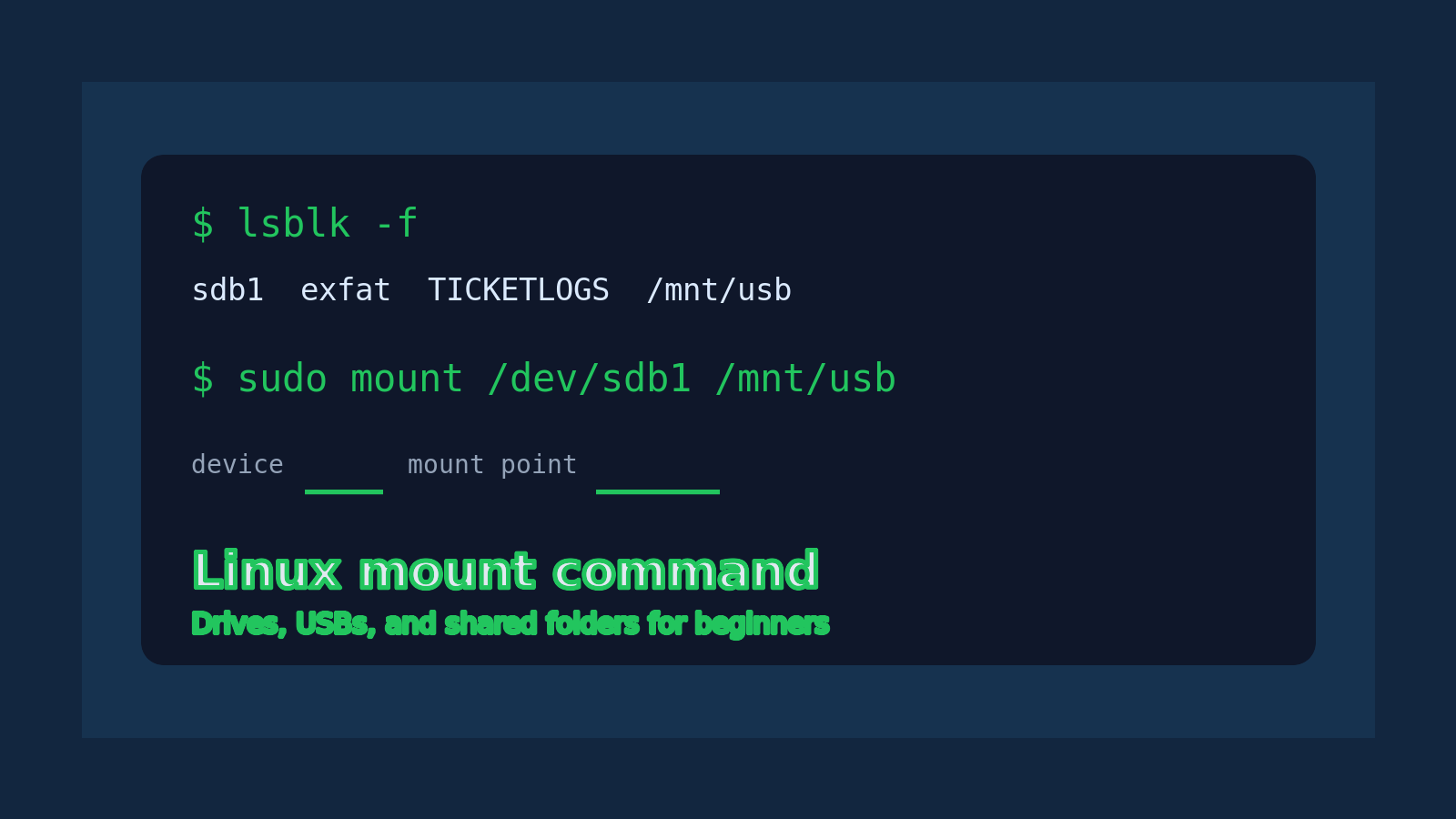
The Linux mount command attaches a filesystem to a directory so you can read and write files through that directory.
Quick version:
sudo mount /dev/sdb1 /mnt/usbThat command says: take the filesystem on /dev/sdb1 and make it available at /mnt/usb.
If you came from Windows, think of mounting as the Linux version of making a disk, USB stick, network share, ISO image, or extra volume show up somewhere useful. Windows usually gives storage a drive letter like E:. Linux usually attaches it to a folder path like /mnt/usb, /media/alex/USB, or /srv/backups.
The part beginners trip over is this: the folder is not the drive. The folder is the mount point. Before the mount, it is just an empty directory. After the mount, it becomes the doorway into that filesystem. If you mount the wrong thing in the wrong place, you can hide files, confuse yourself, or make a support ticket more exciting than it needed to be.
Quick answer: mount a USB drive
Create a mount point:
sudo mkdir -p /mnt/usbFind the device:
lsblkMount it:
sudo mount /dev/sdb1 /mnt/usbList the files:
ls -lah /mnt/usbWhen you are done, unmount it:
sudo umount /mnt/usbNotice the command is umount, not unmount. Linux kept the missing letter around as a small test of patience.
What mounting actually means
A filesystem is the structure on a disk or partition that stores files and directories. Common examples include ext4, xfs, vfat, exfat, and ntfs.
A block device is the device file that represents a disk, partition, or virtual disk. You will see names like:
/dev/sda
/dev/sda1
/dev/sdb
/dev/sdb1
/dev/nvme0n1
/dev/nvme0n1p1
The whole disk might be /dev/sdb. A partition on that disk might be /dev/sdb1.
Most of the time, you mount the partition, not the whole disk:
sudo mount /dev/sdb1 /mnt/usbThe mount point is the directory where the filesystem appears:
/mnt/usbOnce mounted, commands like ls, cp, less, grep, and du work through that folder path.
Why mount matters in help desk and beginner sysadmin work
You do not need to memorize every storage detail to be useful. You need to recognize what is attached, where it is mounted, and whether Linux can actually read it.
The mount command shows up when:
- a USB drive does not appear automatically
- a backup disk is attached but the backup path is empty
- a shared folder is expected under
/mnt/share - a server has an extra volume for app data
- a disk was moved from one machine to another
- a VM has a newly attached data disk
- a read-only filesystem needs investigation
- an ISO image needs to be inspected
Real ticket example:
User says the backup drive is plugged in, but the backup script says
/mnt/backupis empty.
A useful first pass:
lsblk
mount | grep backup
ls -lah /mnt/backup
Those three checks tell you whether Linux sees the disk, whether anything is mounted at the expected path, and what the mount point currently shows.
Check connected drives with lsblk
Before mounting anything, inspect what Linux sees:
lsblkExample output:
NAME   MAJ:MIN RM  SIZE RO TYPE MOUNTPOINTS
sda      8:0    0   80G  0 disk
├─sda1   8:1    0    1G  0 part /boot
└─sda2   8:2    0   79G  0 part /
sdb      8:16   1   32G  0 disk
└─sdb1   8:17   1   32G  0 part
In that output:
sdais probably the main system disk.sda1andsda2are mounted already.sdblooks like a removable 32 GB disk.sdb1is probably the partition you want to mount.- The blank
MOUNTPOINTSfield means it is not currently mounted.
Do not guess device names from memory. Device names can change between boots or after unplugging and replugging devices. sdb1 might be the USB stick today and something else tomorrow. Check first.
For more detail, use:
lsblk -fThat shows filesystem type, labels, and UUIDs:
NAME   FSTYPE LABEL      UUID                                 MOUNTPOINTS
sdb1   exfat  TICKETLOGS 1234-ABCD
The label can help you avoid mounting the wrong drive. If the user says the USB is named TICKETLOGS, seeing that label is a nice little sanity check before you touch anything.
Create a mount point
A mount point is just a directory:
sudo mkdir -p /mnt/usbYou can choose another path, but common beginner-safe locations are:
/mnt/usb
/mnt/backup
/mnt/share
Desktop Linux systems often auto-mount removable drives under /media/username/label, but servers and minimal environments may not.
Check the directory before mounting:
ls -lah /mnt/usbIf the directory already contains files, stop and think. Mounting another filesystem on top of a non-empty directory hides the existing files until you unmount it. It usually does not delete them, but it can absolutely make you believe they disappeared while your ticket timer quietly judges you.
Mount the filesystem
The basic command is:
sudo mount DEVICE MOUNTPOINTExample:
sudo mount /dev/sdb1 /mnt/usbThen confirm it worked:
mount | grep /mnt/usbOr use:
df -h /mnt/usbYou should see the mounted filesystem and available space.
Now list files:
ls -lah /mnt/usbIf you see the expected files, good. If it is empty, that does not automatically mean the disk is empty. You might have mounted the wrong partition, mounted the wrong device, or created a new empty directory but never mounted anything.
Unmount safely with umount
When you are done, unmount the filesystem:
sudo umount /mnt/usbYou can also unmount by device:
sudo umount /dev/sdb1I prefer unmounting by mount point when teaching beginners because it reinforces where the filesystem is attached.
Before pulling a USB drive, unmount it. If data is still being written and you yank the drive, you can corrupt files. That is the boring warning everyone ignores until the one time it ruins their afternoon.
If you get this error:
umount: /mnt/usb: target is busySomething is still using the mounted folder. Common causes:
- your terminal is currently inside
/mnt/usb - a file manager window is open there
- a process is reading or writing files there
- a shell, editor, backup job, or log command has a file open
First, leave the directory:
cd ~
sudo umount /mnt/usb
If it is still busy, check what is using it:
sudo lsof +f -- /mnt/usbDo not just force unmount because you are annoyed. Find the process first unless you are in a controlled lab and nothing important is at risk.
Mount a read-only filesystem
Sometimes you want to inspect a drive without writing to it. Use read-only mode:
sudo mount -o ro /dev/sdb1 /mnt/usbThis is useful when:
- you are looking at a questionable disk
- you do not want to change evidence or logs
- the filesystem may be damaged
- you only need to copy files off
Confirm the options:
mount | grep /mnt/usbYou should see ro in the option list.
Mount an ISO file
You can mount an ISO image with a loop device:
sudo mkdir -p /mnt/iso
sudo mount -o loop downloads/server-tools.iso /mnt/iso
Then read it:
ls -lah /mnt/isoUnmount it when done:
sudo umount /mnt/isoThis is handy when a vendor gives you an ISO and you only need a driver, config file, or installer script from inside it.
Common mount errors and what they mean
mount: /mnt/usb: special device /dev/sdb1 does not exist
Linux does not see that device name. Run:
lsblkMaybe the device is /dev/sdc1, the drive was unplugged, or the partition was never created.
wrong fs type, bad option, bad superblock
This error can mean several things:
- the filesystem type is not supported
- the disk is damaged
- you are trying to mount the wrong partition
- a helper package is missing, such as exFAT or NTFS support on older systems
Check filesystem details:
lsblk -fIf it says ntfs or exfat, make sure the system supports that filesystem. Do not format the disk as a troubleshooting step unless you are intentionally erasing it. That should not need saying, but support work has seen things.
permission denied
Mounting usually requires root privileges:
sudo mount /dev/sdb1 /mnt/usbIf you are using a desktop file manager, it may mount drives for your user automatically. On a server, assume you need sudo unless told otherwise.
The mount point is empty
Check whether anything is mounted there:
mount | grep /mnt/usbIf nothing returns, you are just looking at a normal directory. Mount the device or check the expected path.
Files disappeared after mounting
You probably mounted over a non-empty directory. Unmount and check again:
sudo umount /mnt/usb
ls -lah /mnt/usb
The old files should reappear if they were simply hidden by the mount.
What about /etc/fstab?
The file /etc/fstab controls filesystems that should mount automatically at boot.
A line might look like this:
UUID=1234-ABCD /mnt/backup exfat defaults,nofail 0 0For beginners, do not edit /etc/fstab casually. A bad entry can slow boot, break expected mounts, or make a server wait around looking for a disk that is not there.
If you need to test fstab after editing, use:
sudo mount -aThat tries to mount everything in /etc/fstab that is not already mounted. If it errors, fix the file before rebooting.
Safer beginner workflow:
- Mount manually first.
- Confirm the device, filesystem type, and mount point.
- Use UUIDs instead of device names for persistent mounts.
- Add
nofailfor removable or optional drives when appropriate. - Test with
sudo mount -a.
Using /dev/sdb1 in fstab can be fragile because device names can change. UUIDs are more stable.
Find UUIDs with:
lsblk -fBeginner mistakes to avoid
Mounting the whole disk instead of the partition
This is usually wrong:
sudo mount /dev/sdb /mnt/usbThis is usually what you want:
sudo mount /dev/sdb1 /mnt/usbThere are exceptions, but beginners should check lsblk carefully before assuming.
Forgetting to unmount before unplugging
Unmount first:
sudo umount /mnt/usbThen remove the drive.
Mounting over a directory with important files
Check the mount point before using it:
ls -lah /mnt/backupIf it has files, understand why before mounting on top of it.
Using force when patience would work
There are force and lazy unmount options. You will see commands like umount -l in forums. Do not start there. Use lsof, close the process, leave the directory, and unmount cleanly.
Treating every storage issue like a mount issue
Sometimes the problem is not mount at all. It might be:
- permissions
- a full disk
- a failed service
- a bad cable
- a missing filesystem driver
- an application writing to the wrong path
- a network share requiring credentials
Mounting is one part of the troubleshooting path, not the entire personality.
A simple help desk mount checklist
When someone says a drive or shared folder is missing, run through this:
- What path should contain the files?
- Does the path exist?
- Does Linux see the device?
- Is anything mounted at that path?
- Is the filesystem type supported?
- Is it mounted read-only or read-write?
- Are permissions blocking the user?
- Can you unmount safely when done?
Commands:
pwd
ls -lah /mnt
lsblk -f
mount | grep /mnt
df -h
For a specific path:
df -h /mnt/backup
mount | grep /mnt/backup
ls -lah /mnt/backup
These commands make your ticket notes much better. “Drive not visible” is vague. “System sees /dev/sdb1 as exFAT labeled BACKUP, mounted read-only at /mnt/backup, user lacks write permission” is actual information.
Practice safely
You do not need a real production disk to practice the mental model. Start with harmless checks:
lsblk
mount | head
df -h
Then, in a lab VM or spare Linux box, practice mounting a USB drive or an ISO file. The goal is not to become the storage team overnight. The goal is to stop freezing when a ticket mentions /mnt, /media, fstab, or “the drive is plugged in but empty.”
Shell Samurai is a good place to build that reflex because it lets you practice Linux commands without treating a real server like a training dummy. Use the app to drill the basics first: inspect paths, read command output, recognize mount points, and write cleaner ticket notes.
Practice Linux command-line basics in Shell Samurai before the next storage ticket shows up with bad timing.
Final thought
The Linux mount command is not complicated once the model clicks: device on one side, directory on the other.
sudo mount /dev/sdb1 /mnt/usbUse lsblk to identify the device, use a clear mount point, verify with df -h or mount, and unmount with umount before removing anything. That small workflow covers a surprising number of beginner Linux and help desk storage problems.
Practice This in a Real Terminal
Shell Samurai gives you safe Linux missions so the commands actually stick. Chapter 1 is free; the full practice path is a one-time purchase, not another subscription.