Linux comm Command: Compare Sorted Files
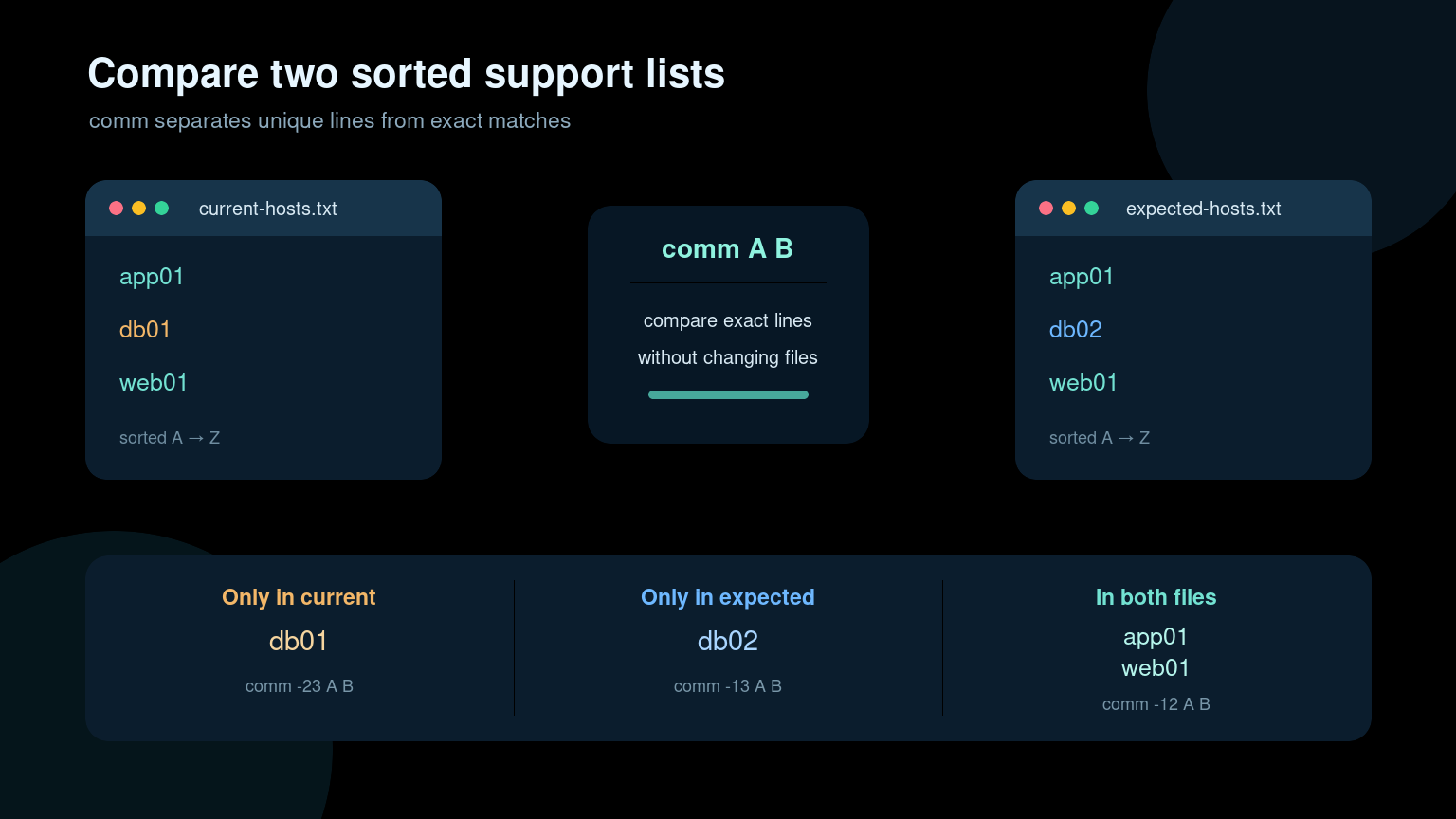
The Linux comm command compares two sorted text files line by line. It separates the results into lines found only in the first file, only in the second file, and in both files.
comm current-hosts.txt expected-hosts.txtThat makes comm useful when you need to answer questions such as:
- Which servers disappeared from the new inventory export?
- Which usernames exist in one list but not another?
- Which package names appear in both snapshots?
- Did the approved and installed software lists drift apart?
The word sorted is the part beginners miss. comm does not hunt through an unordered file for matching lines. Both inputs must be sorted using the same rules first, or the comparison can be wrong.
Quick comm command reference
| Task | Command |
|---|---|
| Show all three comparison columns | comm file1.txt file2.txt |
| Show lines only in the first file | comm -23 file1.txt file2.txt |
| Show lines only in the second file | comm -13 file1.txt file2.txt |
| Show lines present in both files | comm -12 file1.txt file2.txt |
| Sort copies, then compare them | sort old.txt -o old.sorted && sort new.txt -o new.sorted && comm old.sorted new.sorted |
| Compare without creating sorted copies in Bash | comm <(sort old.txt) <(sort new.txt) |
| Verify that a file is sorted | sort -c file.txt |
The general syntax is:
comm [OPTION]... FILE1 FILE2comm reads complete lines. A line either matches exactly or it does not. Capitalization, whitespace, punctuation, and hidden carriage returns all matter.
Understand the three output columns
Suppose current-hosts.txt contains:
app01
db01
web01
And expected-hosts.txt contains:
app01
db02
web01
Both files are already sorted. Run:
comm current-hosts.txt expected-hosts.txtThe output is arranged in three tab-separated columns:
		app01
db01
	db02
		web01
Read the columns this way:
- No leading tab: the line exists only in the first file.
- One leading tab: the line exists only in the second file.
- Two leading tabs: the line exists in both files.
Here, db01 appears only in the current list, db02 appears only in the expected list, and app01 plus web01 appear in both.
The default layout is compact but not especially friendly in a ticket. In practice, you will usually suppress the columns you do not need.
Show lines only in the first file with comm -23
Each option suppresses an output column:
-1hides lines unique to file 1.-2hides lines unique to file 2.-3hides lines shared by both files.
To find lines that exist only in the first file, hide columns 2 and 3:
comm -23 current-hosts.txt expected-hosts.txtOutput:
db01This is a practical way to find entries that may have been removed from a newer source. The command itself does not know whether db01 is stale, retired, misspelled, or missing by mistake. It only reports the difference. Confirm the meaning before deleting or changing anything.
A useful help desk workflow is comparing yesterday’s device list with today’s:
comm -23 devices-yesterday.sorted devices-today.sortedTreat the result as an investigation list, not an automatic deletion list. A laptop may simply be offline during the export.
Show lines only in the second file with comm -13
To find lines unique to the second file, suppress columns 1 and 3:
comm -13 current-hosts.txt expected-hosts.txtOutput:
db02This can identify new records in a later snapshot:
comm -13 packages-before.sorted packages-after.sortedIf the result contains a package name, it appeared in the second list but not the first. That does not prove who installed it or whether it is safe. It gives you a focused place to start checking logs, package history, or change records.
The numbers can feel backward at first. Remember that the digits name the columns to hide, not the result to keep. For “only file 2,” hide file 1 and shared lines: -13.
Show shared lines with comm -12
To keep only the lines present in both files, suppress the two unique columns:
comm -12 current-hosts.txt expected-hosts.txtOutput:
app01
web01
Shared-line checks are useful for finding overlap between two clean lists. For example, compare systems assigned to an upgrade wave with systems reporting an old agent version:
comm -12 upgrade-wave.sorted old-agent.sortedThe output is the set that appears in both lists. You still need to make sure both files use the same identifier. A hostname list will not meaningfully match a list of IP addresses just because both happen to be text.
Sort both files before using comm
The safest beginner workflow is to create sorted copies and preserve the original exports:
sort current-hosts.txt > current-hosts.sorted
sort expected-hosts.txt > expected-hosts.sorted
comm current-hosts.sorted expected-hosts.sorted
This leaves the source files unchanged. It also makes the preparation visible when another technician reviews your commands.
You can verify the order with:
sort -c current-hosts.sorted
sort -c expected-hosts.sorted
A successful sort -c normally prints nothing and exits successfully. If it finds disorder, it reports the first problematic line and returns a nonzero status.
To remove exact duplicate lines while sorting, use:
sort -u current-hosts.txt > current-hosts.sorted
sort -u expected-hosts.txt > expected-hosts.sorted
Do that only when duplicates are irrelevant. Duplicate usernames, hostnames, or asset IDs can be evidence of a bad export or inventory problem. If counts matter, inspect the duplicates instead of quietly erasing them.
The sort command guide explains text ordering and options in more detail.
Keep the locale consistent
Sorting rules depend on the locale. If one file was sorted under different collation rules, lines involving capitalization or punctuation may not appear in the order comm expects.
For predictable byte-oriented comparisons, use the same locale for sorting and comparing:
LC_ALL=C sort current-hosts.txt > current-hosts.sorted
LC_ALL=C sort expected-hosts.txt > expected-hosts.sorted
LC_ALL=C comm current-hosts.sorted expected-hosts.sorted
LC_ALL=C is especially useful in scripts or repeatable support procedures. It does not make inconsistent data consistent, though. WEB01, web01, and web01 remain different lines.
If identifiers should be case-insensitive, normalize copies deliberately:
tr '[:upper:]' '[:lower:]' < current-hosts.txt | LC_ALL=C sort -u > current.normalized
tr '[:upper:]' '[:lower:]' < expected-hosts.txt | LC_ALL=C sort -u > expected.normalized
comm current.normalized expected.normalized
Keep the originals. Normalization can merge values that were distinct in the source data. The tr command guide covers character conversion and cleanup.
Compare command output with process substitution
In Bash, process substitution lets comm read sorted command output as if it came from files:
comm <(sort current-hosts.txt) <(sort expected-hosts.txt)To show only entries unique to the second list:
comm -13 <(LC_ALL=C sort -u old.txt) <(LC_ALL=C sort -u new.txt)This is convenient for quick, read-only checks because it does not create intermediate files. It is also easier to mistype and harder to hand off in a ticket. Use named sorted files when you need an audit trail or want someone else to reproduce the result.
The <(...) syntax belongs to Bash and some other shells; it is not portable POSIX sh syntax. A script using it should start with an appropriate Bash shebang:
#!/usr/bin/env bashCommon beginner mistakes
Comparing unsorted files
This is the big one. Sort both inputs using the same locale. If the output looks impossible, check the order before blaming comm.
Confusing the suppression options
-23 means “hide columns 2 and 3,” leaving file 1 only. It does not mean “compare files 2 and 3.” There are only two input files.
Ignoring invisible characters
A Windows-generated file may contain carriage returns. A hostname may have a trailing space. Inspect suspicious lines with:
sed -n 'l' current-hosts.txt | headYou may see \r$ at line endings or spaces before $. Normalize a working copy intentionally rather than editing evidence in place.
Treating comm like a database join
comm compares whole lines. It cannot match column 1 in one CSV to column 3 in another, understand quoted commas, or choose a key. Use a CSV-aware tool, a script, or a database for structured records. The Linux join command can match sorted text on fields, but it also requires careful preparation.
Acting on differences without context
A difference is not automatically an error. Exports may come from different times, scopes, filters, or systems of record. Record where each file came from before changing accounts, devices, or packages.
A safe help desk comparison workflow
Imagine a ticket asks why several managed servers are missing from a patch report.
- Save the inventory and patch exports without modifying them.
- Extract the same identifier from both sources.
- Normalize only what the process allows, such as documented case rules.
- Sort working copies with
LC_ALL=C. - Use
sort -cto verify both files. - Run
comm -23 inventory.sorted patch-report.sortedto find inventory entries absent from the report. - Check a few results against the management console and timestamps.
- Attach the command, source dates, and assumptions to the ticket.
Example:
LC_ALL=C sort -u inventory-hosts.txt > inventory.sorted
LC_ALL=C sort -u patch-hosts.txt > patch.sorted
sort -c inventory.sorted && sort -c patch.sorted
comm -23 inventory.sorted patch.sorted > missing-from-patch-report.txt
wc -l missing-from-patch-report.txt
head missing-from-patch-report.txt
Nothing here changes a server. It creates a reviewable list and a count. That is the right level of confidence for the first pass on a support ticket.
Practice comm without risking production data
comm is small, but it teaches several habits that transfer to real Linux work: preserve inputs, normalize deliberately, sort consistently, and read command options carefully.
Create two short sample files in a practice shell, predict the three columns, then try -23, -13, and -12. Add a capitalization mismatch or trailing space and see how the result changes. That ten-minute exercise is more useful than memorizing the flags in isolation.
Practice Linux commands in Shell Samurai and build the command-line confidence to handle these comparisons on a real ticket.
FAQ
What does the Linux comm command do?
comm compares two sorted text files and reports lines unique to the first file, unique to the second file, or shared by both.
Why does comm say a file is not in sorted order?
The file does not match the ordering rules comm is using. Sort both inputs with the same locale, such as LC_ALL=C sort, then compare the sorted copies.
How do I show lines only in the first file?
Use comm -23 file1 file2. The options hide columns 2 and 3, leaving lines found only in file 1.
How do I show lines in both files?
Use comm -12 file1 file2. That hides the two unique columns and leaves lines shared by both files.
Can comm compare CSV files by a specific column?
Not safely as a general CSV solution. comm compares complete lines and does not understand CSV quoting or field keys. Use a CSV-aware tool or script for structured data.
Practice This in a Real Terminal
Shell Samurai gives you safe Linux missions so the commands actually stick. Chapter 1 is free; the full practice path is a one-time purchase, not another subscription.