Linux tr Command: Replace and Clean Text
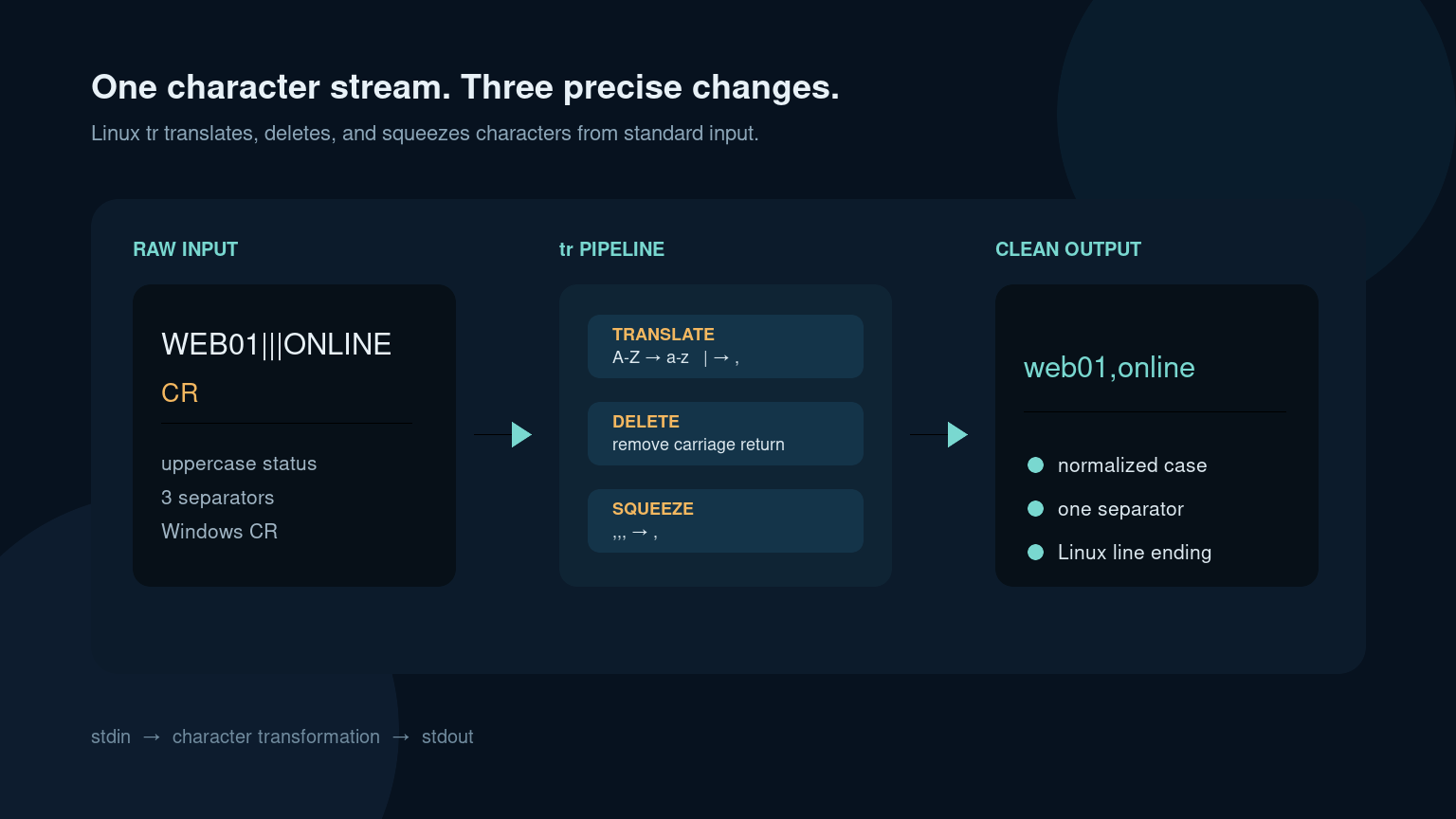
The Linux tr command replaces, deletes, or squeezes characters in text. It reads from standard input and writes the changed text to standard output, which makes it useful in pipes and small support scripts.
Convert lowercase text to uppercase:
printf '%s\n' 'server offline' | tr '[:lower:]' '[:upper:]'Output:
SERVER OFFLINEThe important beginner rule is that tr works with characters, not words. It can turn every colon into a newline or remove every carriage return, but it is not the right tool for replacing failed login with authentication error. Use sed, awk, or another text-aware tool for word and pattern replacements.
Quick tr command reference
| Task | Command |
|---|---|
| Lowercase to uppercase | tr '[:lower:]' '[:upper:]' |
| Uppercase to lowercase | tr '[:upper:]' '[:lower:]' |
| Replace colons with newlines | tr ':' '\n' |
| Delete carriage returns | tr -d '\r' |
| Delete everything except digits and newlines | tr -cd '[:digit:]\n' |
| Squeeze repeated spaces | tr -s ' ' |
| Squeeze all whitespace | tr -s '[:space:]' ' ' |
tr normally takes two character sets:
tr SET1 SET2Each character from SET1 is translated to the character in the same position in SET2. With options such as -d and -s, the behavior changes to deleting or squeezing characters.
Replace one character with another
Suppose an export contains pipe-separated values:
web01|online|192.0.2.15Turn the pipes into commas:
printf '%s\n' 'web01|online|192.0.2.15' | tr '|' ','Output:
web01,online,192.0.2.15This is a character replacement. It does not understand CSV quoting, escaped separators, or fields containing commas. For a controlled one-line support artifact, that may be enough. For real CSV data, use a CSV-aware tool instead of hoping every row behaves.
Another common example is turning a colon-separated value into one item per line:
printf '%s\n' "$PATH" | tr ':' '\n'That makes the shell’s PATH variable easier to inspect:
/usr/local/sbin
/usr/local/bin
/usr/sbin
/usr/bin
This is handy when a command works in your interactive terminal but fails in a scheduled job. Compare the directories rather than immediately reinstalling the package.
Convert lowercase and uppercase safely
Use character classes rather than typing the alphabet twice:
printf '%s\n' 'Printer-Queue-07' | tr '[:upper:]' '[:lower:]'Output:
printer-queue-07The reverse is:
printf '%s\n' 'warning: disk nearly full' | tr '[:lower:]' '[:upper:]'Character classes are clearer and work better with locale rules than hard-coding A-Z and a-z. Even so, case conversion is not a complete solution for every Unicode language. If exact international text handling matters, test with the real data and use a language-aware tool when necessary.
A practical use is normalizing a yes/no answer in a small script:
answer='YES'
normalized=$(printf '%s' "$answer" | tr '[:upper:]' '[:lower:]')

if [ "$normalized" = 'yes' ]; then
  printf '%s\n' 'Continuing'
fi
Notice the quotes around "$answer". tr does not protect you from shell word splitting; normal shell safety rules still apply.
Delete characters with tr -d
The -d option deletes every matching character.
Remove hyphens from an asset tag:
printf '%s\n' 'PC-OH-00427' | tr -d '-'Output:
PCOH00427A more useful support example is removing Windows carriage returns from a text file. Windows text commonly ends lines with carriage return plus newline (\r\n), while Linux normally uses only newline (\n). A script may fail because the invisible \r becomes part of a value or interpreter path.
Create a cleaned copy:
tr -d '\r' < windows-list.txt > linux-list.txtThen inspect the result:
file linux-list.txt
sed -n '1,5p' linux-list.txt
Do not redirect the output back into the same input file:
tr -d '\r' < windows-list.txt > windows-list.txtThe shell can truncate the file before tr reads it. Write to a new file, verify it, and then replace the original only if that is actually required. Tools such as dos2unix are often clearer for full line-ending conversion when installed.
Keep only selected characters with tr -cd
The -c option complements the set: it selects everything except the characters you listed. Combine it with -d to delete everything except the allowed set.
Keep digits and newlines from a controlled input:
printf '%s\n' 'Ticket #48291' | tr -cd '[:digit:]\n'Output:
48291That can clean a copied ticket number, but be careful with real records. If the input contains two IDs, a date, or an IP address, deleting non-digits can silently glue unrelated numbers together. Validate the result instead of treating character deletion as data parsing.
A safer pattern checks the original shape first:
raw='Ticket #48291'
case "$raw" in
  'Ticket #'[0-9]*) ticket_id=$(printf '%s\n' "$raw" | tr -cd '[:digit:]\n') ;;
  *) printf '%s\n' 'Unexpected ticket format' >&2; exit 1 ;;
esac
For structured data, use the parser designed for that format: jq for JSON, a CSV library for CSV, and regular-expression-capable tools for validated text patterns.
Squeeze repeated characters with tr -s
The -s option reduces repeated matching characters to one.
Clean repeated spaces:
printf '%s\n' 'web01 online healthy' | tr -s ' 'Output:
web01 online healthyThis can make copied terminal output easier to read. It can also damage alignment or meaningful spacing, so preserve the original evidence when formatting matters.
To normalize tabs, spaces, and line breaks into spaces:
printf 'web01\t\tonline\n' | tr -s '[:space:]' ' 'The result ends with a space rather than necessarily preserving a newline. That detail matters in scripts. If you need records to remain on separate lines, use a narrower set:
tr -s '[:blank:]' ' ' < report.txt[:blank:] usually means horizontal whitespace such as spaces and tabs. [:space:] also includes newlines and other whitespace characters.
Combine tr with other Linux commands
tr becomes useful when one command produces nearly-correct text for the next command.
Show PATH entries one per line
printf '%s\n' "$PATH" | tr ':' '\n'Normalize a copied hostname
printf '%s' 'WEB-07' | tr '[:upper:]' '[:lower:]'Remove carriage returns before comparing files
tr -d '\r' < received.txt > received-clean.txt
diff expected.txt received-clean.txt
The Linux diff guide shows how to review the remaining differences without changing either source file.
Count repeated status values
cut -d, -f3 devices.csv | tr '[:upper:]' '[:lower:]' | sort | uniq -cThat pipeline extracts the third field, normalizes case, sorts equal values together, and counts them. It is reasonable only if the file is truly simple comma-separated text with no quoted commas. The cut command guide explains that boundary.
Make a space-separated list readable
printf '%s\n' 'web01 web02 web03' | tr ' ' '\n'Now each hostname is on its own line and can be reviewed before another command uses it. Do not immediately pipe an untrusted list into a command that changes systems. Print and validate first.
A realistic help desk scenario
A vendor sends agents.txt from Windows. A Linux enrollment script reports that every hostname is invalid even though the names look correct.
-
Preserve the original attachment.
-
Identify the file:
file agents.txt -
Reveal invisible line endings on a small sample:
sed -n '1,5l' agents.txtLines ending in
^Mor\r$point to carriage returns. -
Create a cleaned copy:
tr -d '\r' < agents.txt > agents-clean.txt -
Compare and inspect:
diff agents.txt agents-clean.txt sed -n '1,5l' agents-clean.txt -
Test the enrollment script with one approved lab record before processing the full list.
-
Record the original filename, cleanup command, output filename, and test result in the ticket.
The goal is not to “fix weird Linux text” by deleting random bytes. It is to identify one exact character problem, create a reversible cleaned copy, and prove the downstream script now receives the expected input.
Common tr mistakes
Trying to replace words
This does not replace one word with another:
tr 'offline' 'online'tr treats both arguments as character sets and maps characters by position. Use sed 's/offline/online/g' for a word replacement.
Editing a file in place
tr reads standard input and writes standard output. It does not have a normal in-place editing mode. Use a new file and verify it.
Forgetting that uniq needs adjacent lines
Normalizing case with tr does not group matching values. If you plan to count with uniq -c, sort first:
tr '[:upper:]' '[:lower:]' < statuses.txt | sort | uniq -cDeleting too much
tr -cd '[:digit:]' may turn an IP address and timestamp into one long number. Character filtering is not structured parsing.
Using the wrong whitespace class
[:space:] includes newlines. Squeezing or replacing it can collapse records. Use [:blank:] when you mean horizontal spacing only.
Skipping quotes
Quote character classes and backslash escapes so the shell does not expand or reinterpret them unexpectedly:
tr '[:lower:]' '[:upper:]'
tr -d '\r'
FAQ
What does tr stand for in Linux?
tr is short for translate. It translates characters from one set to another and can also delete or squeeze matching characters.
Can tr replace a word?
No. tr maps individual characters. Use sed, awk, Perl, or another pattern-aware tool to replace words or longer strings.
Does tr change the original file?
No. It reads standard input and prints transformed output. Redirect to a new file if you want to save the result.
How do I remove Windows carriage returns?
Create a cleaned copy with tr -d '\r' < input.txt > output.txt. Verify the output before replacing anything. dos2unix is another clear option when available.
Why did tr collapse multiple lines?
You probably translated or squeezed [:space:], which includes newline characters. Use a narrower class such as [:blank:] when lines must remain separate.
Practice small text transformations safely
The useful skill is not memorizing every character class. It is recognizing when command output needs one small, predictable transformation before the next step.
Practice Linux text-processing commands in Shell Samurai. Build the habit with disposable lab text before a production export lands in your queue.
Practice This in a Real Terminal
Shell Samurai gives you safe Linux missions so the commands actually stick. Chapter 1 is free; the full practice path is a one-time purchase, not another subscription.