Linux sort Command for Beginners: Organize Output Fast
The Linux sort command puts text lines in order.
Quick version:
sort names.txtThat prints the lines from names.txt alphabetically. It does not change the original file unless you tell it to save the result somewhere.
The version that actually helps on support tickets usually looks more like this:
sort users.txt | lessor this:
sort -n disk-usage.txtThat is the boring-looking command that turns a messy export, a copied list of hostnames, or command output from “I hate this ticket” into something you can scan without needing a second coffee.
This guide explains the beginner-friendly parts of sort: alphabetic sorting, numeric sorting, reverse sorting, removing duplicates, saving sorted output, and using it with commands like cat, grep, du, and uniq.
Quick answer: use sort to organize lines of text
Sort a file alphabetically:
sort names.txtSort numbers correctly:
sort -n numbers.txtSort in reverse order:
sort -r names.txtSort and remove duplicate lines:
sort -u names.txtSave the sorted result to a new file:
sort names.txt > sorted-names.txtBeginner rule: sort works line by line. If each row of your file is one user, one hostname, one IP address, one package name, or one log summary, sort can usually make it easier to read.
Why sort matters in real help desk work
A lot of IT work is comparing messy lists.
You might need to sort:
- a list of usernames from an export
- hostnames copied from a ticket
- package names installed on a server
- failed login usernames pulled from a log
- disk usage output from several folders
- service names from a troubleshooting command
- CSV rows before checking for duplicates
The beginner mistake is pasting everything into a spreadsheet because the terminal output looks ugly. Sometimes a spreadsheet is fine. But if you are already connected to a Linux box, sort is faster and leaves fewer “why did Excel change that value?” surprises.
sort does not solve the whole ticket by itself. It does one useful thing: it makes disorder less annoying.
Practice file for the examples
Create a small file:
printf "bravo\nalpha\ncharlie\nalpha\n" > names.txtCheck it:
cat names.txtOutput:
bravo
alpha
charlie
alpha
Now sort it:
sort names.txtOutput:
alpha
alpha
bravo
charlie
The original file is still in the same messy order. sort printed a sorted version to the terminal.
sort does not edit the file by default
This trips up beginners in a good way.
Run:
sort names.txtThen run:
cat names.txtThe file still says:
bravo
alpha
charlie
alpha
That is normal. Most Linux commands print output instead of changing files automatically. This is safer. It means you can test a command before saving anything.
If you want to save the sorted output, redirect it to a new file:
sort names.txt > sorted-names.txtThen check the new file:
cat sorted-names.txtDo not do this:
sort names.txt > names.txtThat can wipe the file before sort reads it. It is one of those mistakes you only need to make once before your stomach learns Linux.
Use a new file name first. If you really need to replace the original later, verify the sorted file, then move it into place.
Sort in reverse order with sort -r
Reverse alphabetical order:
sort -r names.txtOutput:
charlie
bravo
alpha
alpha
This is useful when you want the largest-looking strings or latest-looking names near the top. For dates, logs, and numbers, use the right flag instead of hoping reverse alphabetical order means what you think it means.
A help desk example:
printf "PRN-03\nPRN-01\nPRN-07\n" > printers.txt
sort printers.txt
Output:
PRN-01
PRN-03
PRN-07
That is much easier to scan when someone dumps ten printer names into a ticket with no punctuation, no context, and somehow three screenshots of the same error.
Sort numbers correctly with sort -n
Plain sort sorts text, not numbers.
Create a number file:
printf "2\n10\n1\n20\n" > numbers.txtRun plain sort:
sort numbers.txtOutput:
1
10
2
20
That looks wrong if you expected numeric order. It happens because text sorting compares characters from left to right. 10 starts with 1, so it comes before 2.
Use numeric sort:
sort -n numbers.txtOutput:
1
2
10
20
If you are sorting counts, sizes, IDs, or anything that should behave like a number, reach for sort -n.
Sort biggest numbers first
Combine numeric and reverse sorting:
sort -nr numbers.txtOutput:
20
10
2
1
That pattern shows up constantly in support work.
For example, imagine a file with folder sizes:
printf "120 Downloads\n4 Templates\n800 Videos\n35 Desktop\n" > usage.txt
sort -nr usage.txt
Output:
800 Videos
120 Downloads
35 Desktop
4 Templates
Now the biggest item is at the top, which is usually what you care about when someone says, “The server is out of space,” and absolutely nobody wants to read every directory manually.
Sort disk usage output
A common Linux workflow is combining du and sort.
du -sh *That prints human-readable sizes for files and folders in the current directory.
To sort human-readable sizes, use sort -h:
du -sh * | sort -hBiggest last:
du -sh * | sort -hBiggest first:
du -sh * | sort -hrThe -h means “human numeric sort.” It understands sizes like 4K, 20M, and 3G better than plain numeric sorting.
This is one of the first command combinations worth practicing because it maps directly to real tickets: find what is using disk space, check whether it is safe to clean up, and do not delete random directories because you got impatient.
Remove duplicate lines with sort -u
Use sort -u when you want sorted unique lines.
sort -u names.txtOutput:
alpha
bravo
charlie
That removed the duplicate alpha line.
A realistic support example:
grep "Failed password" /var/log/auth.log | awk '{print $9}' | sort -uThat rough pattern pulls usernames from failed SSH login lines, then sorts and deduplicates them.
Do not memorize that whole pipeline on day one. The important part is the idea: once another command prints a list, sort -u can turn it into a clean list.
Count duplicates with sort and uniq -c
sort is often used before uniq because uniq only detects matching lines that are next to each other.
Create a file:
printf "vpn\nemail\nvpn\nprinter\nvpn\nemail\n" > tickets.txtCount repeated lines:
sort tickets.txt | uniq -cOutput:
      2 email
      1 printer
      3 vpn
Sort the counts with biggest first:
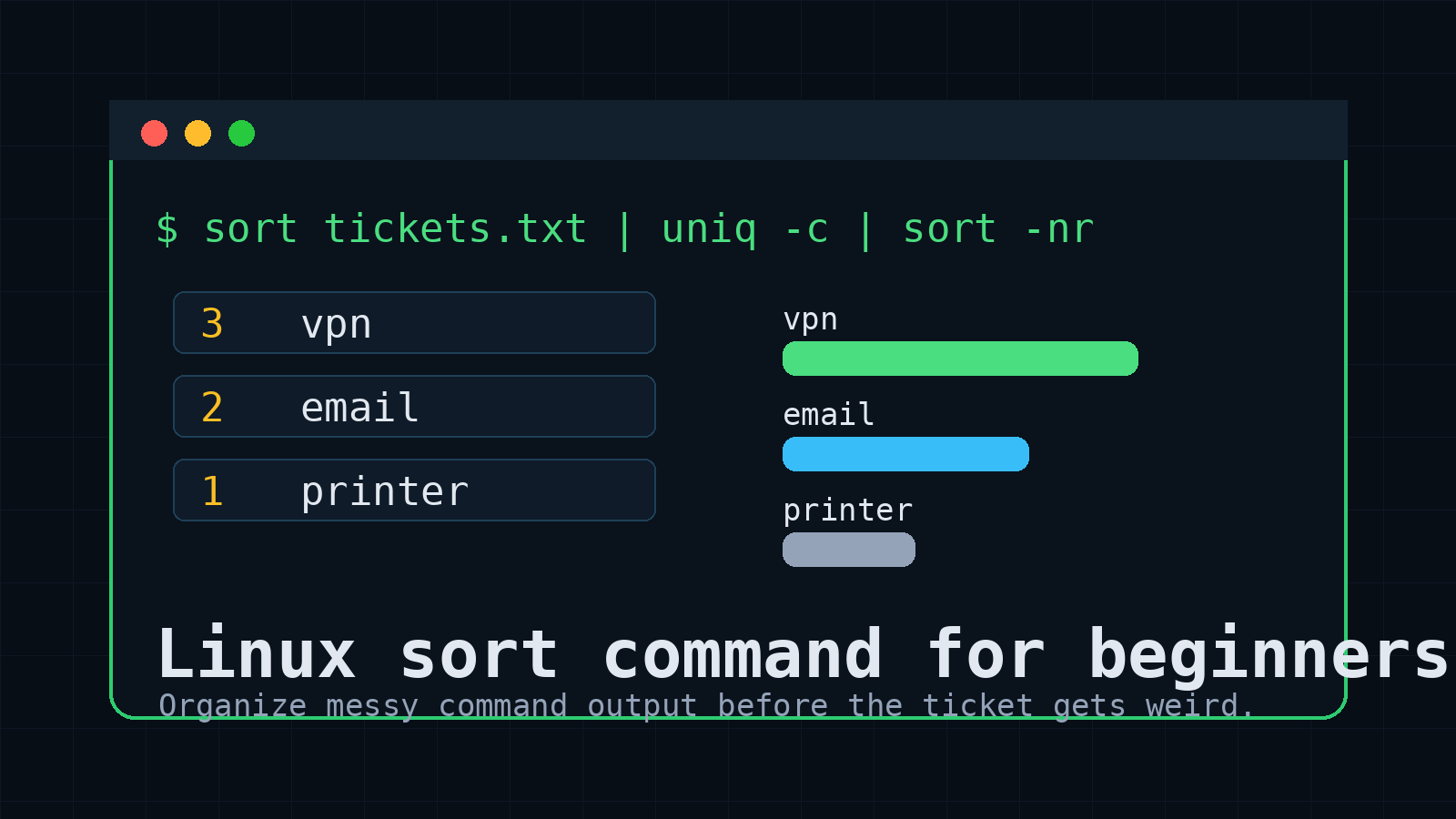
sort tickets.txt | uniq -c | sort -nrOutput:
      3 vpn
      2 email
      1 printer
That is a tiny version of a very real IT question: what problem is happening most often?
If you have ticket categories, alert names, usernames, source IPs, or error messages, this pattern helps you find the noisy stuff quickly.
Sort by a column with sort -k
Sometimes each line has multiple columns.
Create a simple file:
printf "alice support 8\nbob sales 3\ncarla it 12\n" > queue.txtSort by the third column numerically:
sort -k3,3n queue.txtOutput:
bob sales 3
alice support 8
carla it 12
Sort by the third column, biggest first:
sort -k3,3nr queue.txtOutput:
carla it 12
alice support 8
bob sales 3
Read -k3,3n as “sort using column 3 only, as a number.”
This is not the first sort flag a beginner needs, but it is handy when you start dealing with output that has names, departments, counts, or sizes on each line.
Sort CSV files carefully
CSV files are trickier because commas, quotes, and headers can matter.
For simple CSV files, you can tell sort to use a comma delimiter:
sort -t, -k2,2 users.csvThat means:
-t,uses comma as the field separator-k2,2sorts by the second field only
Example:
username,department
jdoe,Support
asmith,IT
mroberts,Accounting
Sorting by department might help you group users before an import or review.
But be careful: real CSV files can contain quoted commas, weird exports, and header rows. If the CSV is business-critical, inspect a sample first with head, and do not blindly overwrite the file.
Common beginner mistakes with sort
The big ones:
- Expecting sort to edit the file. It prints sorted output unless you redirect it.
- Overwriting the same file with
>by accident. Save to a new file first. - Sorting numbers as text. Use
sort -nfor numbers. - Sorting file sizes without
-h. Usesort -hforK,M, andGvalues. - Using
uniqwithout sorting first. If duplicates are not adjacent,uniqcan miss them. - Trusting CSV output too much. Simple CSV sorting is fine; messy CSV sorting needs caution.
None of this is glamorous. That is kind of the point. Most command-line confidence comes from small tools that do one useful thing and save you from slow manual work.
A simple practice routine
Try this in a safe folder:
mkdir sort-practice
cd sort-practice
printf "vpn\nemail\nvpn\nprinter\nvpn\nemail\n" > tickets.txt
sort tickets.txt
sort -u tickets.txt
sort tickets.txt | uniq -c
sort tickets.txt | uniq -c | sort -nr
Then create a size-style file:
printf "20M logs\n4K notes\n3G backups\n800M exports\n" > sizes.txt
sort -h sizes.txt
sort -hr sizes.txt
That gives you the muscle memory you need before using sort on a real server.
When to practice this in Shell Samurai
Practice sort when you are learning how Linux commands connect together.
On its own, sort is useful. Combined with pipes, it becomes the cleanup crew for messy output:
grep "error" app.log | sort | uniq -c | sort -nrThat kind of chain is exactly where beginners start to feel the terminal click. You are not just typing commands. You are shaping output until the answer is easier to see.
Shell Samurai gives you a safe place to practice that without poking at a production log file while a real ticket timer is quietly judging you.
Practice Linux command-line output skills in Shell Samurai.
Final takeaway
Use sort when Linux output is technically correct but visually annoying.
Start with these:
sort file.txt          # alphabetic sort
sort -n numbers.txt    # numeric sort
sort -r file.txt       # reverse sort
sort -u file.txt       # sorted unique lines
sort -h sizes.txt      # human-readable sizes
Then combine it with other commands:
grep "error" app.log | sort | uniq -c | sort -nrThat is the real value. sort helps turn raw terminal output into something you can act on before the ticket grows a comment thread long enough to need its own project manager.
Practice This in a Real Terminal
Shell Samurai gives you safe Linux missions so the commands actually stick. Chapter 1 is free; the full practice path is a one-time purchase, not another subscription.