Linux findmnt: Find the Filesystem for a Path
Updated
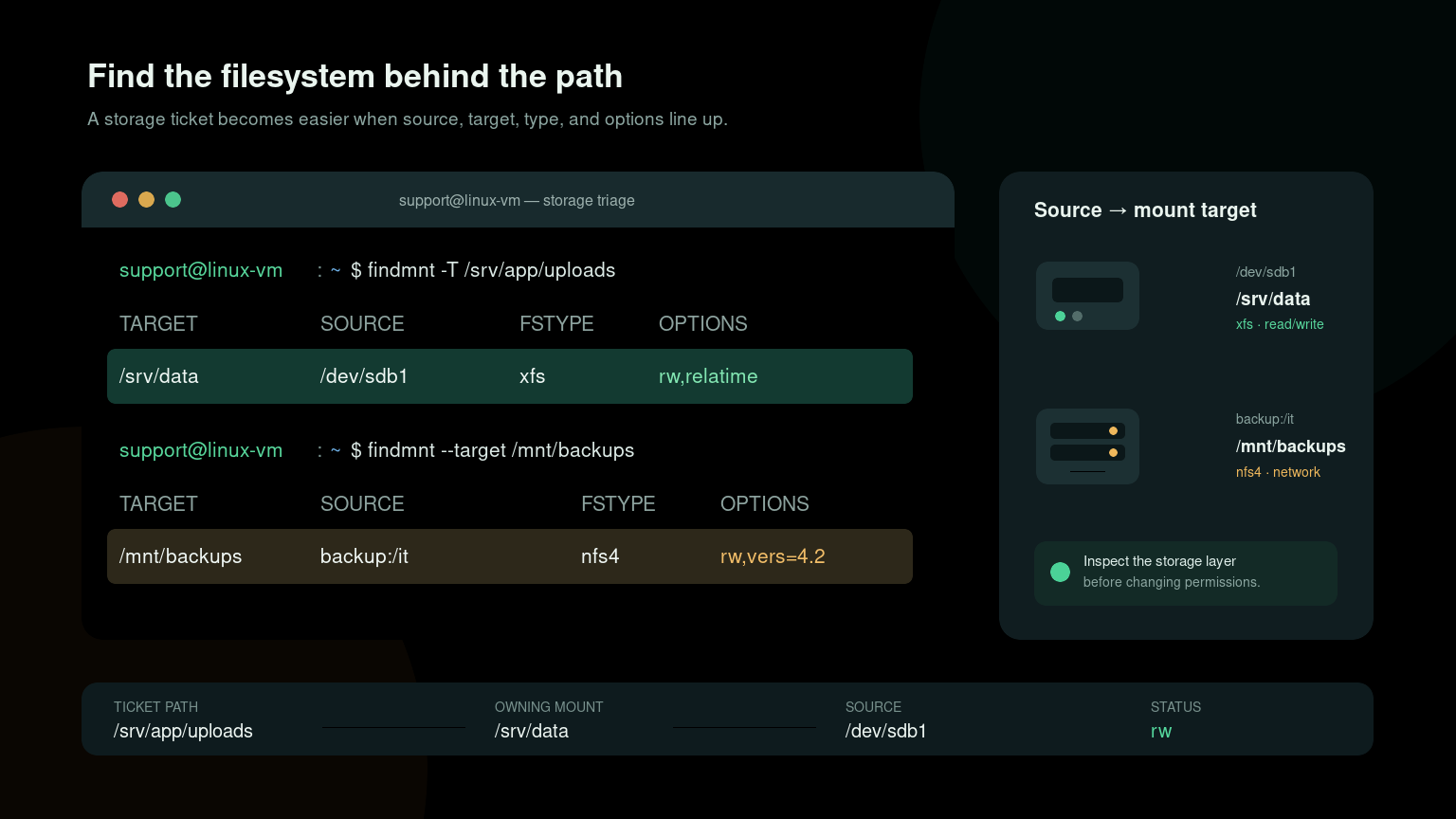
Which filesystem contains this directory?
Run findmnt -T /var/log to show the filesystem containing /var/log, even when that directory is not itself a mount point. To test whether a path is an exact mount point, use findmnt -M /mnt/backups. These answer different questions.
findmnt -T /var/log -o TARGET,SOURCE,FSTYPE,OPTIONSIf the target column is /, the directory belongs to the root filesystem. Your device name and filesystem type depend on your machine. Follow with df -h /var/log to check capacity on that same filesystem. The disk-space troubleshooting guide explains how to compare it with directory usage.
The Linux findmnt command shows mounted filesystems and answers a particularly useful support question: which filesystem owns this path?
Start with:
findmnt -T /path/to/fileThat command reports the mount source, target, filesystem type, and options for the filesystem containing the path. Use it when an application says a disk is read-only, a directory is unexpectedly on network storage, a mount is missing, or df and du seem to disagree.
Quick findmnt command reference
| Goal | Command |
|---|---|
| Show all mounted filesystems | findmnt |
| Find the filesystem containing a path | findmnt -T /srv/app/data |
| Look up an exact mount point | findmnt --mountpoint /mnt/backups |
| Look up a source device | findmnt --source /dev/sdb1 |
| Show source, target, type, and options | findmnt -o SOURCE,TARGET,FSTYPE,OPTIONS |
| Print one concise result for a path | findmnt -no SOURCE,TARGET,FSTYPE,OPTIONS -T /srv/app/data |
| Show only real block-device filesystems | findmnt --real |
| Show only ext4 and XFS mounts | findmnt -t ext4,xfs |
Show mounts from /etc/fstab | findmnt --fstab |
Check /etc/fstab for problems | findmnt --verify |
| Watch for mount changes | findmnt --poll |
Most inspection commands are read-only. findmnt tells you what is mounted; it does not mount, remount, or unmount anything unless you separately run another command.
Read the default findmnt output
Run:
findmntTypical output is a tree:
TARGET         SOURCE      FSTYPE OPTIONS
/              /dev/sda2   ext4   rw,relatime
├─/boot        /dev/sda1   vfat   rw,relatime
├─/srv/data    /dev/sdb1   xfs    rw,relatime
└─/mnt/backups backup:/it  nfs4   rw,relatime,vers=4.2
The main columns mean:
- TARGET: Where the filesystem is attached to the directory tree.
- SOURCE: The device, logical volume, network export, or other backing source.
- FSTYPE: The filesystem type, such as
ext4,xfs,nfs4,tmpfs, oroverlay. - OPTIONS: Active mount behavior, including
rwfor read-write androfor read-only.
The tree layout shows mount relationships. A mount beneath /srv appears under the root filesystem because its target is part of that directory tree. This does not mean the data lives on the root disk.
Linux also has many virtual mounts such as /proc, /sys, and temporary filesystems. Seeing a long result is normal. Use filters instead of trying to visually process the entire list during a ticket.
Find which filesystem owns a path
The most useful beginner pattern is -T, short for --target, with any file or directory path:
findmnt -T /srv/data/uploads/photo.jpgExample:
TARGET    SOURCE    FSTYPE OPTIONS
/srv/data /dev/sdb1 xfs    rw,relatime
The path is beneath /srv/data, so that mount supplies the file. Use the TARGET reported by your own system.
For ticket notes or scripts, remove the heading and tree decoration while choosing exact fields:
findmnt -no SOURCE,TARGET,FSTYPE,OPTIONS -T /srv/data/uploads/photo.jpgExample:
/dev/sdb1 /srv/data xfs rw,relatimeThis is safer than guessing that /srv/app lives on the root disk. Guessing works right up until someone quietly moves application data onto a separate volume and forgets to update the support runbook.
Look up a mount by target or source
To check an exact mount point:
findmnt --mountpoint /mnt/backupsTo find where a device is mounted:
findmnt --source /dev/sdb1Sources are not always simple device names. They may look like:
/dev/mapper/vg_data-lv_appfor LVMUUID=8d15...in persistent configurationfileserver:/exports/backupsfor NFS//fileserver/sharefor SMB/CIFSoverlayinside a container
If a ticket gives you a UUID, query it directly:
findmnt --source UUID=1234-ABCDThen compare the result with lsblk -f, which maps block devices, filesystem labels, UUIDs, and mount points:
lsblk -fThe Linux mount command guide explains devices, mount points, mounting, and safe unmounting in more detail.
Choose useful output columns
The default columns are good for interactive checks, but explicit columns make evidence clearer:
findmnt -o SOURCE,TARGET,FSTYPE,SIZE,USED,AVAIL,USE%,OPTIONSNot every filesystem exposes every value, but this view can quickly show where capacity and mount behavior differ.
For a narrow path check:
findmnt -T /var/lib/myapp -o TARGET,SOURCE,FSTYPE,OPTIONSUseful columns include:
TARGET— mount pointSOURCE— backing sourceFSTYPE— filesystem typeOPTIONS— active optionsFSROOT— root inside the source filesystem, useful for bind mountsUUIDandLABEL— persistent identifiers when availableSIZE,USED,AVAIL,USE%— capacity information
List supported columns on your installed version with:
findmnt --list-columnsutil-linux versions vary, so check local help before placing an unfamiliar column in automation.
Filter noisy mount lists
Show only real filesystems backed by devices:
findmnt --realShow selected filesystem types:
findmnt -t ext4,xfsExclude types you do not need:
findmnt -t notmpfs,nodevtmpfs,noproc,nosysfsShow the result as a flat list instead of a tree:
findmnt --listA common beginner mistake is assuming --real means “the only mounts that matter.” Network storage, bind mounts, containers, and virtual filesystems can absolutely matter to an application. Use the filter that matches the ticket rather than treating filtered output as the whole system.
Inspect mount options safely
Mount options explain behavior. Check a specific path:
findmnt -no TARGET,SOURCE,FSTYPE,OPTIONS -T /srv/app/dataCommon options include:
rw— mounted read-writero— mounted read-onlynoexec— do not execute binaries from the filesystemnosuid— ignore set-user-ID and set-group-ID bitsnodev— do not interpret device filesrelatimeornoatime— control access-time updatesbind— expose an existing directory at another path- NFS/CIFS version and connection options for network mounts
If a script returns Permission denied, do not immediately run chmod 777. A noexec, ro, network-storage, container, or security-policy issue will not be solved by wrecking the file permissions.
The read-only filesystem troubleshooting guide covers safe diagnosis when options include ro or writes suddenly fail.
Compare live mounts with /etc/fstab
Live mount state and persistent configuration are related, but they are not the same thing.
Show entries from /etc/fstab:
findmnt --fstabCheck the file for parse and usability problems:
sudo findmnt --verifyDepending on the system, verification may warn about unreachable sources, malformed fields, duplicate targets, or options it cannot validate fully.
Important distinction:
findmntnormally reads the current mount table.findmnt --fstabreads planned persistent entries.- An entry can exist in
/etc/fstabwithout being mounted. - A live mount can exist without an
/etc/fstabentry because it was mounted manually, by systemd, by an application, or by container infrastructure.
Do not edit /etc/fstab just because live state differs. First identify whether the mount is intentionally temporary, managed elsewhere, or currently failed. A bad /etc/fstab change can turn a storage ticket into a boot ticket.
Watch mount changes
For a removable drive, automounter, or unstable network mount, watch changes with:
findmnt --pollYou can limit the columns:
findmnt --poll -o ACTION,TARGET,SOURCE,FSTYPE,OPTIONSLeave the command with Ctrl+C.
This is useful when reproducing a drive disconnect or watching whether an automount service creates the expected target. It is not a replacement for logs. Pair it with journalctl or dmesg when you need the reason a mount appeared or disappeared.
A realistic helpdesk workflow
Suppose an application cannot write to /srv/app/uploads, but the root filesystem has plenty of free space.
- Identify the owning mount:
findmnt -T /srv/app/uploads- Capture concise evidence:
findmnt -no SOURCE,TARGET,FSTYPE,OPTIONS -T /srv/app/uploads- Check capacity and inodes on that mount, not just
/:
df -h /srv/app/uploads
df -i /srv/app/uploads- Map the source when it is a block device:
lsblk -f- If options show
ro, inspect kernel and service logs before changing anything:
sudo dmesg --level=err,warn
sudo journalctl -k -b --no-pager- If it is network storage, verify name resolution, reachability, credentials, and the server-side export or share.
- Compare live state with the approved persistent configuration.
- Record source, target, filesystem type, options, capacity, relevant errors, and the final fix in the ticket.
This workflow avoids two classic mistakes: checking the wrong disk and changing permissions before identifying the storage layer.
Beginner mistakes to avoid
Using mount output and eyeballing everything
The mount command works, but its output can be dense. findmnt -T, explicit columns, and type filters are easier to use and document.
Confusing the path with the mount point
/srv/app/uploads/file.txt may live on a filesystem mounted at /srv, /srv/app, or another bind-mounted target. Ask findmnt; do not infer it from the path name.
Treating /etc/fstab as live truth
It describes intended persistent mounts, not necessarily current state. Compare it with the live mount table.
Remounting before collecting evidence
A remount can change symptoms and erase the best clue. Capture source, target, options, logs, and application errors first.
Ignoring containers and namespaces
A container can see a different mount namespace than the host. Run the check in the same environment as the failing process when containerization is involved.
Practice without risking production storage
findmnt is safe to practice because its normal use is inspection. In a Linux lab or VM, run findmnt, query /, /home, and /proc with -T, choose exact columns, compare --real with the full list, and inspect /etc/fstab without editing it.
If you want to build command-line confidence before the next storage ticket, practice Linux inspection workflows in Shell Samurai. The useful habit is not memorizing every flag. It is learning to identify the correct layer before changing it.
FAQ
What does findmnt do in Linux?
findmnt searches and displays mounted filesystems. It can show the full mount tree, identify the filesystem containing a path, query a source or target, display active options, and inspect /etc/fstab entries.
How do I find which filesystem contains a file?
Run findmnt -T /path/to/file. For concise output, use findmnt -no SOURCE,TARGET,FSTYPE,OPTIONS -T /path/to/file.
What is the difference between findmnt and lsblk?
findmnt focuses on mounted filesystems and their relationships. lsblk focuses on block devices, partitions, filesystem identifiers, and their mount points. They are often most useful together.
What is the difference between findmnt and df?
findmnt shows mount relationships, sources, types, and options. df focuses on space and inode usage. Both accept a path, but they answer different troubleshooting questions.
Does findmnt change mounts?
No. Normal findmnt commands only inspect mount information. Changing a mount requires a separate command such as mount, umount, or a service/configuration change.
Why does findmnt show so many filesystems?
Linux uses virtual and temporary filesystems for processes, devices, runtime data, containers, and system services. Filter by target, source, type, or --real when you need a narrower view.
findmnt -T /path is the command worth remembering. It quickly tells you what storage you are actually troubleshooting before you touch permissions, configuration, or the mount itself.
Practice This in a Real Terminal
Shell Samurai gives you safe Linux missions so the commands actually stick. Chapter 1 is free; the full practice path is a one-time purchase, not another subscription.