Bash Aliases for Beginners: Tiny Shortcuts That Save Your Sanity
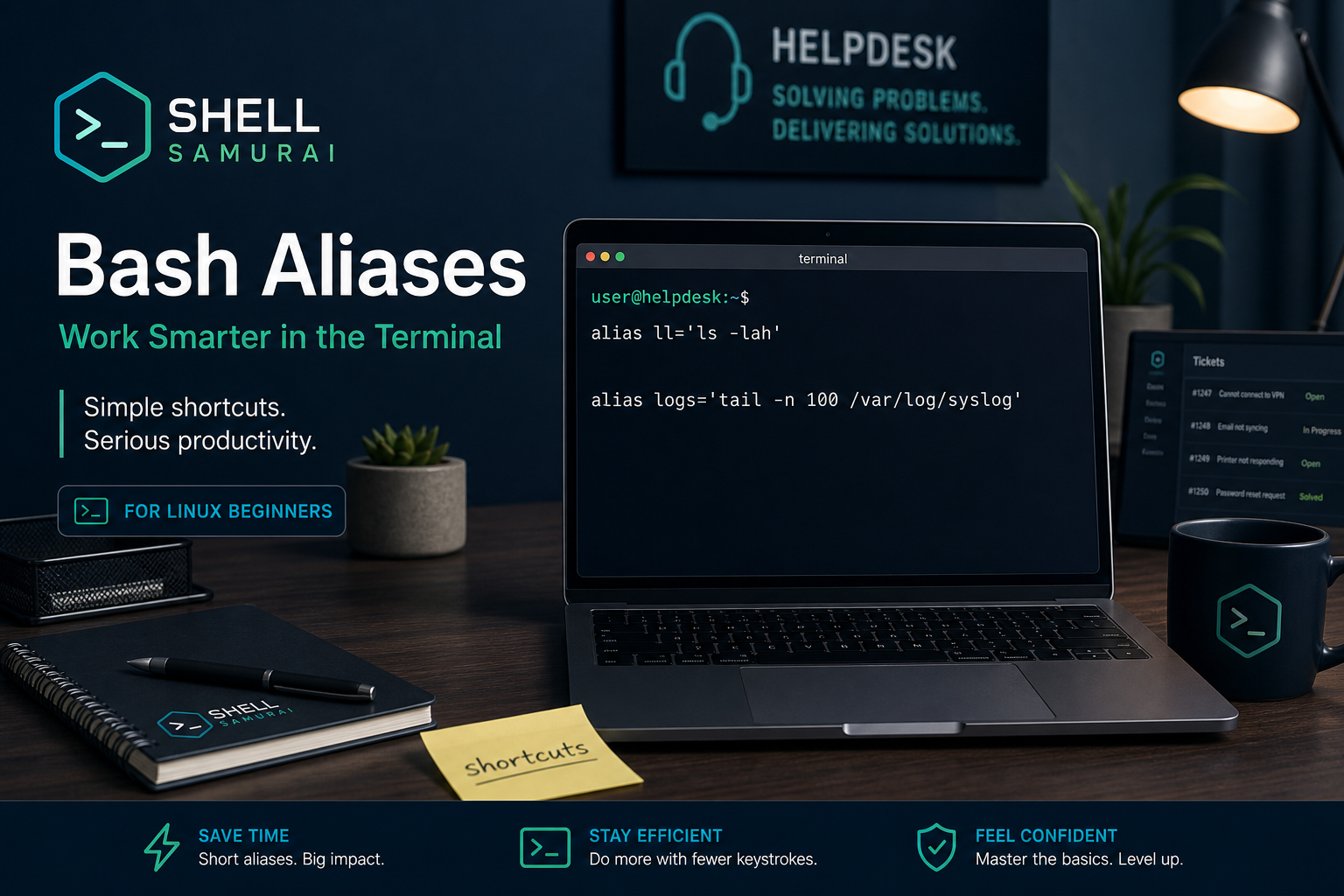
A Bash alias is a shortcut for a command you type often. That is the whole idea. You take something annoying or easy to mistype, give it a shorter name, and let your shell expand it for you.
Basic example:
alias ll="ls -lah"After that, typing ll runs:
ls -lahThat is useful because ls -lah is one of those commands you use constantly when checking files, permissions, owners, sizes, and timestamps. If you work help desk, support Linux servers, use WSL, or are trying to stop feeling weird in a terminal, aliases are a small quality-of-life win.
They are not a replacement for learning the real commands. They are more like keyboard shortcuts: helpful once you understand what they do, dangerous if you blindly copy random ones from the internet and forget what is hiding underneath.
The short version
Try these beginner-friendly aliases:
alias ll="ls -lah"
alias la="ls -A"
alias c="clear"
alias grep="grep --color=auto"
alias ports="ss -tulpn"
alias myip="ip addr show"
alias logs="journalctl -xe --no-pager"
alias update="sudo apt update"
What they do:
llshows files in a readable long format, including hidden files.lashows hidden files without the full long listing.cclears the terminal.grephighlights matches so your eyes do less unpaid overtime.portsshows listening network sockets and processes.myipshows network interface addresses.logsopens recent systemd journal errors without paging forever.updaterefreshes Ubuntu/Debian package lists.
Do not add twenty aliases on day one. Add two or three that solve real annoyances, then use them until they stick.
Why aliases matter for help desk and beginner sysadmin work
A lot of early Linux confidence comes from repetition. You check a directory. You inspect permissions. You look for a process. You search logs. You check whether a port is listening. You do it again tomorrow, then again next week when a ticket comes in at the least relaxing possible time.
Aliases help because they reduce friction around common patterns:
ls -lah
journalctl -u ssh --no-pager
ss -tulpn
find . -type f -name "*.log"
None of those commands are impossible. But beginners often lose time retyping flags, forgetting the order, or searching chat history for the same command they already used yesterday.
That matters in real support work. When someone says, “The Linux box is acting weird,” you do not want to spend five minutes remembering whether the command was ss -tulpn or ss -plunt while the ticket sits there judging you. A good alias lets you move faster while still keeping the real command close enough to learn.
Create a temporary alias
You can create an alias directly in your current terminal:
alias ll="ls -lah"Now run:
llYou should see a long listing with file permissions, owners, sizes, and hidden files.
Temporary aliases only last for the current shell session. If you close the terminal, they disappear. That is actually a good way to test an alias before you make it permanent. If it turns out to be annoying, just close the terminal and pretend it never happened. Very healthy. Very enterprise.
To see aliases currently defined in your shell, run:
aliasTo remove one in the current session:
unalias llMake aliases permanent with .bashrc
On most Linux systems using Bash, personal aliases live in your home directory inside .bashrc:
nano ~/.bashrcAdd aliases near the bottom:
alias ll="ls -lah"
alias c="clear"
alias grep="grep --color=auto"
Save the file, then reload it:
source ~/.bashrcNow the aliases should work in new terminal sessions too.
Beginner note: files that start with a dot are hidden by default. If you run ls and do not see .bashrc, use:
ls -la ~That shows hidden files in your home directory.
Practical aliases worth considering
Start with aliases that make normal diagnostic work easier.
File listing aliases
alias ll="ls -lah"
alias lt="ls -lahtr"
ll is the classic long listing. lt sorts by modification time in reverse order, which means recently changed files show near the bottom.
That is useful when you are checking what changed after a config edit, download, deploy, or log rotation.
Log aliases
alias jxe="journalctl -xe --no-pager"
alias sshlog="journalctl -u ssh --no-pager"
alias syslog="tail -n 100 /var/log/syslog"
These are useful when you repeatedly check service errors or recent system logs.
A realistic ticket pattern:
sshlog | grep -i "failed"That searches SSH logs for failed login attempts. If you have been following along with beginner Linux posts, this is where aliases and pipes start working together instead of living as separate trivia.
Network aliases
alias ports="ss -tulpn"
alias routes="ip route"
alias myip="ip addr show"
These help with questions like:
- Is the service listening?
- Which interface has the expected IP?
- What default route is this box using?
If you are coming from Windows support, think of these as the Linux commands you reach for when you would normally start checking adapter details, listening ports, and routing weirdness.
Package aliases
For Ubuntu and Debian systems:
alias update="sudo apt update"
alias upgrade="sudo apt upgrade"
alias searchpkg="apt search"
Be careful with aliases that install, remove, restart, or delete things. Saving keystrokes is nice. Accidentally running a destructive command because you made it too casual is not nice.
Use aliases for clarity, not confusion
Bad aliases hide too much.
For example, this is probably not a great beginner alias:
alias fixweb="sudo systemctl restart nginx && sudo systemctl restart php8.3-fpm && sudo certbot renew && sudo apt upgrade -y"That command does too many things. It restarts services, renews certificates, and upgrades packages. If it breaks something, your future self has to untangle a small crime scene.
A better approach is to keep aliases obvious:
alias nginx-status="systemctl status nginx --no-pager"
alias nginx-restart="sudo systemctl restart nginx"
Even then, ask yourself whether you want a restart command to be that easy. In production, I prefer aliases for checking things, not changing things. Read-only shortcuts are safer than “oops, I restarted the thing” shortcuts.
The beginner mistake: forgetting the real command
Aliases can become a crutch if you never learn what they expand to.
If you use ll, know that it means:
ls -lahIf you use ports, know that it means:
ss -tulpnThis matters when you SSH into a server that does not have your aliases. Your shortcuts may not exist there. If you only know your custom names, you will feel like someone stole your keyboard.
You can check what an alias expands to with:
type llExample output:
ll is aliased to `ls -lah`That command is worth remembering. When a command behaves differently than expected, type can tell you whether you are running an alias, a shell builtin, or a real executable somewhere in your path.
Keep your aliases portable
If you use multiple machines, put aliases in a simple section of your .bashrc or in a separate file like .bash_aliases.
Some systems already load .bash_aliases from .bashrc with a block like this:
if [ -f ~/.bash_aliases ]; then
    . ~/.bash_aliases
fi
Then you can store aliases in:
nano ~/.bash_aliasesExample:
alias ll="ls -lah"
alias c="clear"
alias grep="grep --color=auto"
alias ports="ss -tulpn"
Reload with:
source ~/.bashrcKeeping aliases in one small file makes them easier to copy, review, and clean up. It also prevents your .bashrc from turning into a junk drawer with environment variables, prompt tweaks, random experiments, and one command you copied in 2021 because a forum sounded confident.
A safe starter alias set
If you want a practical beginner set, start here:
alias ll="ls -lah"
alias c="clear"
alias grep="grep --color=auto"
alias ports="ss -tulpn"
alias myip="ip addr show"
alias jxe="journalctl -xe --no-pager"
This set mostly helps you inspect things. It does not delete files, restart services, change firewall rules, or upgrade the system. That makes it a good fit while you are still building confidence.
Once those feel normal, add aliases based on the work you actually do. If you never inspect Apache logs, you do not need an Apache alias. If you check SSH logs daily, an SSH log alias earns its keep.
Practice aliases until they feel boring
Aliases are a small Bash feature, but they teach a bigger lesson: the terminal rewards repeatable patterns. Once you understand the command behind the shortcut, you can make your everyday Linux work faster and less error-prone.
The goal is not to collect clever shortcuts. The goal is to get comfortable enough that basic file checks, log checks, and network checks stop feeling like a performance review.
If you want a safe place to build that muscle, practice beginner Linux commands in Shell Samurai. You can repeat the commands, make boring mistakes, and build terminal confidence before you are doing it on a real support ticket with three people asking for updates.
Practice Linux commands next
If aliases are starting to click, keep going:
- Learn how
grepfinds text in logs and command output. - Review
cd,ls, andpwdso file navigation feels automatic. - Read the beginner Linux terminal guide if the shell still feels uncomfortable.
- Use the Linux commands cheat sheet when you need a quick refresher.
Practice This in a Real Terminal
Shell Samurai gives you safe Linux missions so the commands actually stick. Chapter 1 is free; the full practice path is a one-time purchase, not another subscription.