How to Use the Linux Terminal Without Panicking
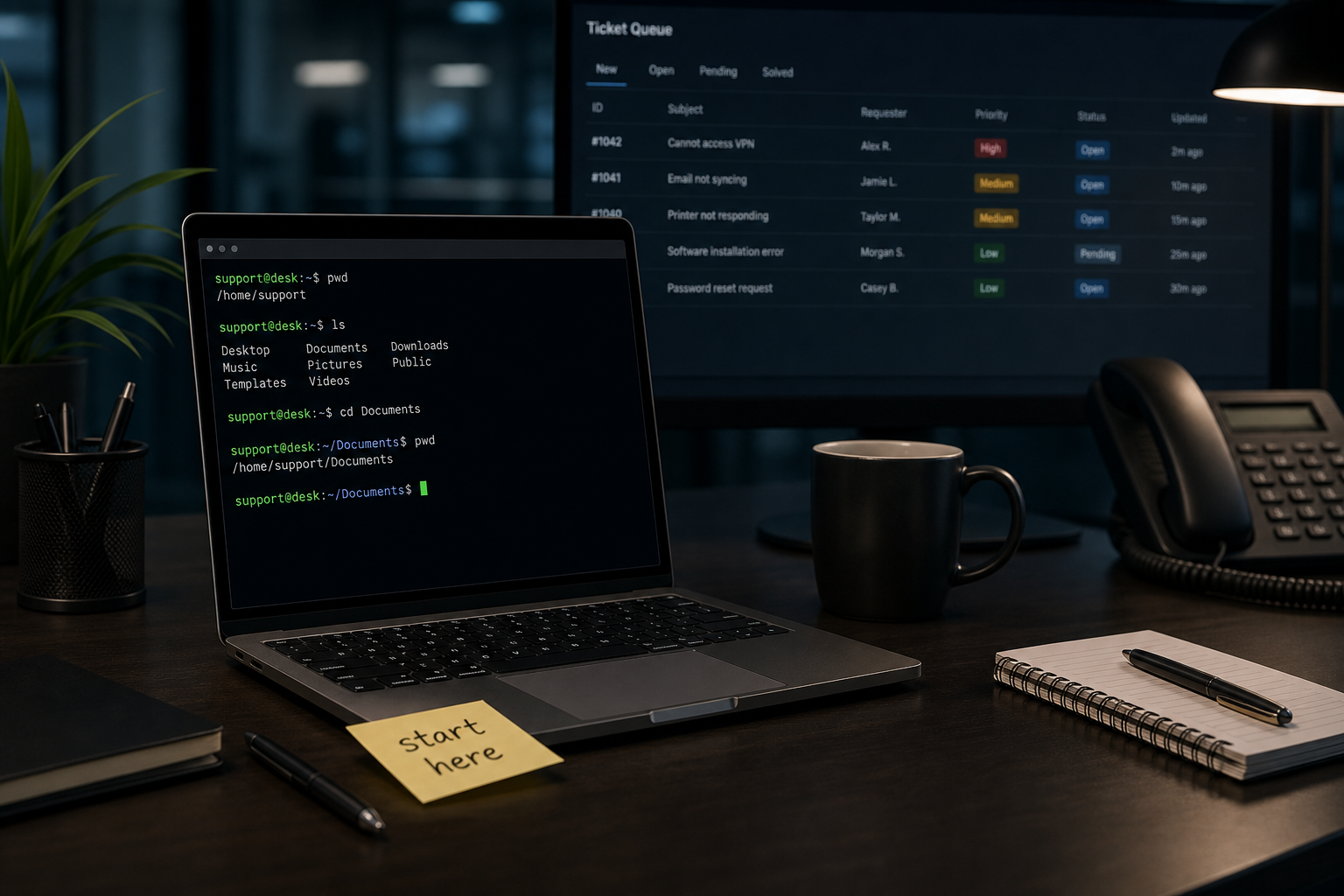
Using the Linux terminal means typing commands into a shell so you can navigate files, inspect a system, run tools, and fix problems without clicking through menus.
That is the boring definition. The useful version is this: the terminal is where a lot of real Linux support work happens. If you work help desk, support SaaS apps, touch servers, use WSL, or occasionally get asked to “check the Linux box,” you do not need to become a bearded graybeard overnight. You need to get comfortable enough to look around, run safe commands, read the output, and not accidentally delete the evidence before the ticket gets escalated.
The good news: the first layer is smaller than it looks. You can do a surprising amount with a handful of commands and a calm process.
The short version
Start with these commands:
pwd
ls
cd /path/to/folder
cat file.txt
less file.txt
grep "error" /var/log/syslog
history
man ls
What they do:
pwdshows where you are.lslists files.cdchanges folders.catprints a small file.lessopens a bigger file for reading.grepsearches text.historyshows commands you already ran.manopens the manual for a command.
If you are brand new, your first goal is not speed. Your first goal is to stop treating every prompt like it is a bomb squad scene. Most beginner terminal work is just: where am I, what is here, what does this file say, and what did the last command output?
What you are looking at when the terminal opens
A Linux prompt often looks something like this:
stetson@web01:~$Or maybe this:
root@server:/var/log#The exact style changes by system, but the pieces usually mean:
stetsonis the current user.web01is the hostname.~means your home directory./var/logis the current directory.$usually means a normal user.#usually means root/admin.
That last part matters. If you see #, slow down. You may have elevated permissions. That does not mean panic, but it does mean this is not the place to freestyle commands you found in a forum comment from 2014.
A realistic help desk moment: you SSH into a server to check logs and notice the prompt says root@prod-db-01. That is your cue to be boring, careful, and specific. Boring is underrated in production.
Start every session with pwd and ls
Before changing anything, orient yourself:
pwd
ls
Example output:
/home/stetson
Documents  Downloads  scripts
pwd answers “where am I?” ls answers “what is here?” This sounds painfully basic until you watch someone run a command from the wrong directory and spend thirty minutes debugging a problem they created themselves.
Use ls -la when you need more detail:
ls -laThat shows hidden files, permissions, owners, sizes, and timestamps.
Beginner mistake: typing commands while assuming you are in the right folder. The terminal will not always protect you from being confidently wrong. Build the habit: pwd, then ls, then act.
Moving around with cd
Use cd to change directories:
cd /var/log
pwd
ls
Move back to your home directory:
cd ~Move up one directory:
cd ..Return to the previous directory:
cd -A useful support pattern:
cd /var/log
ls
less syslog
You moved to the log directory, listed what was there, then opened a log file. That is not flashy, but it is the shape of a lot of real troubleshooting.
Paths matter here. /var/log is an absolute path because it starts at the root of the filesystem. Downloads is a relative path because it depends on where you currently are.
cd /var/log      # absolute
cd Downloads     # relative
If that distinction clicks, Linux gets less mysterious fast.
Reading files without making a mess
For small files, cat is fine:
cat /etc/os-releaseThat prints the file. You might use it to confirm what distro/version a machine is running:
NAME="Ubuntu"
VERSION="24.04 LTS (Noble Numbat)"
For bigger files, use less:
less /var/log/syslogInside less:
- Press
Spaceto move down a page. - Press
bto move back a page. - Press
/then a word to search. - Press
nfor the next match. - Press
qto quit.
Yes, q to quit is a thing you need to know. No shame. Half of terminal confidence is learning how to leave programs without closing the entire window like you are rage-quitting a ticket.
For live logs, use:
tail -f /var/log/syslogThat follows new lines as they are written. It is useful when you reproduce an issue and want to watch errors appear in real time.
To stop tail -f, press:
Ctrl+CSearching with grep
grep searches text. It is one of the first commands that makes the terminal feel worth learning.
Search a log file for errors:
grep "error" /var/log/syslogMake the search case-insensitive:
grep -i "error" /var/log/syslogShow line numbers:
grep -n "failed" /var/log/syslogSearch recursively through a directory:
grep -R "database" /etcA realistic support example: an app team says “the service failed around 9:30.” You can search logs for the service name, failed, error, or the request ID instead of opening a giant file and scrolling like you are trying to find Waldo in a data center.
Beginner mistake: searching too broadly and drowning in output. Start specific. Search for a service name, username, IP address, or exact error phrase when you have one.
Flags are command options, not secret codes
Commands often accept flags. A flag changes how the command behaves.
ls -l
ls -a
ls -la
Here:
-lmeans long listing format.-ameans include hidden files.-lacombines both.
You will also see long flags:
journalctl --since "1 hour ago"Do not memorize every flag. Learn how to discover them:
man ls
ls --help
The man page can be dense. --help is usually shorter. If both are too much, search the web for a specific task, not “everything about ls.” A good search is “linux ls sort by modified time” or “journalctl show logs since yesterday.”
Copying commands safely
Copying terminal commands is normal. Copying them blindly is where people get into trouble.
Before pasting a command, ask:
- What command is being run?
- Does it use
sudo? - Does it remove, overwrite, or change files?
- Does it download something and immediately execute it?
- Am I on the right machine?
Be extra cautious with commands that include:
rm
chmod
chown
mkfs
dd
curl ... | sh
wget ... | bash
sudo
That does not mean these commands are bad. It means they can matter. A chainsaw is useful; you still do not start it indoors because someone on Stack Overflow sounded confident.
A safer habit: paste into a text editor first, read it, then run it. On production systems, that one pause can save you from a very educational afternoon.
Using sudo without being weird about it
Some commands need admin rights:
sudo systemctl restart nginx
sudo apt install htop
sudo runs a command with elevated permissions. It is not a seasoning you sprinkle on every command until Linux stops complaining.
If a command fails with “permission denied,” do not immediately rerun it with sudo. First ask why it needs permission. Reading /var/log/syslog might require elevated access on some systems. Editing /etc/ssh/sshd_config definitely does. Listing files in your home directory should not.
A good beginner rule: use sudo when you understand the change being made. If you only understand that sudo makes the error go away, slow down.
The terminal feedback loop
A calm terminal workflow looks like this:
- Orient:
pwd,whoami,hostname. - Inspect:
ls,cat,less,grep. - Test a small command.
- Read the output.
- Change one thing if needed.
- Verify the result.
Example: a disk space ticket.
hostname
pwd
df -h
cd /var/log
sudo du -sh * | sort -h
You confirmed the machine, checked disk usage, went to logs, then looked for large directories. You did not start by deleting random files because the alert sounded annoying. That is how you become the person people trust with shell access.
Common beginner mistakes
Running commands on the wrong machine
If you SSH between systems, check where you are:
hostname
whoami
pwd
This is boring until it prevents you from restarting a service on production instead of staging.
Forgetting spaces matter
These are different:
rm -rf /tmp/example
rm -rf / tmp/example
Do not practice dangerous commands to learn spacing. Use harmless commands like echo, ls, and mkdir in a throwaway folder.
Not reading the output
Beginners often type a command, see a wall of text, and assume failure. Sometimes the answer is in the first error line. Sometimes the command succeeded and printed warnings. Read slowly. The terminal is not yelling; it just has terrible bedside manner.
Trying to memorize everything
Do not turn terminal learning into flashcard purgatory. Learn workflows:
- Find where I am.
- Move around.
- Read files.
- Search logs.
- Check processes.
- Check disk.
- Restart a service.
Commands stick better when tied to real tickets.
A safe practice setup
If you are nervous, practice somewhere disposable:
- A local Linux VM.
- WSL on Windows.
- A cheap cloud VM you can rebuild.
- A training app like Shell Samurai where the environment is meant for reps.
Create a practice folder:
mkdir terminal-practice
cd terminal-practice
pwd
Make a file:
echo "help desk ticket 1234" > ticket.txt
cat ticket.txt
Search it:
grep "ticket" ticket.txtMake a subfolder:
mkdir logs
mv ticket.txt logs/
ls logs
None of that is glamorous. It is exactly how you build muscle memory without turning a real server into a learning experience for the whole department.
What to learn after the basics
Once pwd, ls, cd, cat, less, and grep feel normal, add these:
df -h        # disk space
free -h      # memory
ps aux       # processes
ip addr      # network addresses
ss -tulpn    # listening ports
systemctl status service-name
journalctl -u service-name
Those commands map directly to support questions:
- Is the disk full?
- Is the box out of memory?
- Is the process running?
- What IP does this server have?
- Is the service listening?
- What do the service logs say?
That is the beginner sysadmin lane. You are not trying to win a Linux trivia contest. You are trying to answer real operational questions without waiting for someone else to type for you.
Where Shell Samurai fits
Reading terminal tutorials helps, but terminal confidence mostly comes from reps. You need to type commands, make small mistakes, recover, and understand the output while nothing important is on fire.
Shell Samurai is built for that: guided Linux practice for people who want real command-line confidence without using a production server as a punching bag.
If you want a safer place to practice the basics from this guide, start here:
Start practicing Linux commands in Shell Samurai
Start with navigation and file-reading commands. Get comfortable with the boring stuff. The boring stuff is what keeps you calm when the ticket is not boring.
Final thought
The Linux terminal is not a personality test. It is a tool.
You do not need to know every command. You need a small, repeatable workflow: orient yourself, inspect safely, run one command at a time, read the output, and verify what changed.
Do that enough times and the terminal stops feeling like a trap door. It starts feeling like a flashlight.
Practice Linux commands next
If you want these commands to actually stick, do not stop at reading:
- Start Shell Samurai Chapter 1 free and practice in a real terminal.
- Use the Linux commands cheat sheet as your quick reference.
- Browse more Shell Samurai field notes after you finish a mission.
- Comparing resources? See the Linux Journey alternative breakdown.
Practice This in a Real Terminal
Shell Samurai gives you safe Linux missions so the commands actually stick. Chapter 1 is free; the full practice path is a one-time purchase, not another subscription.