cd, ls, and pwd Explained Like You’re New Here
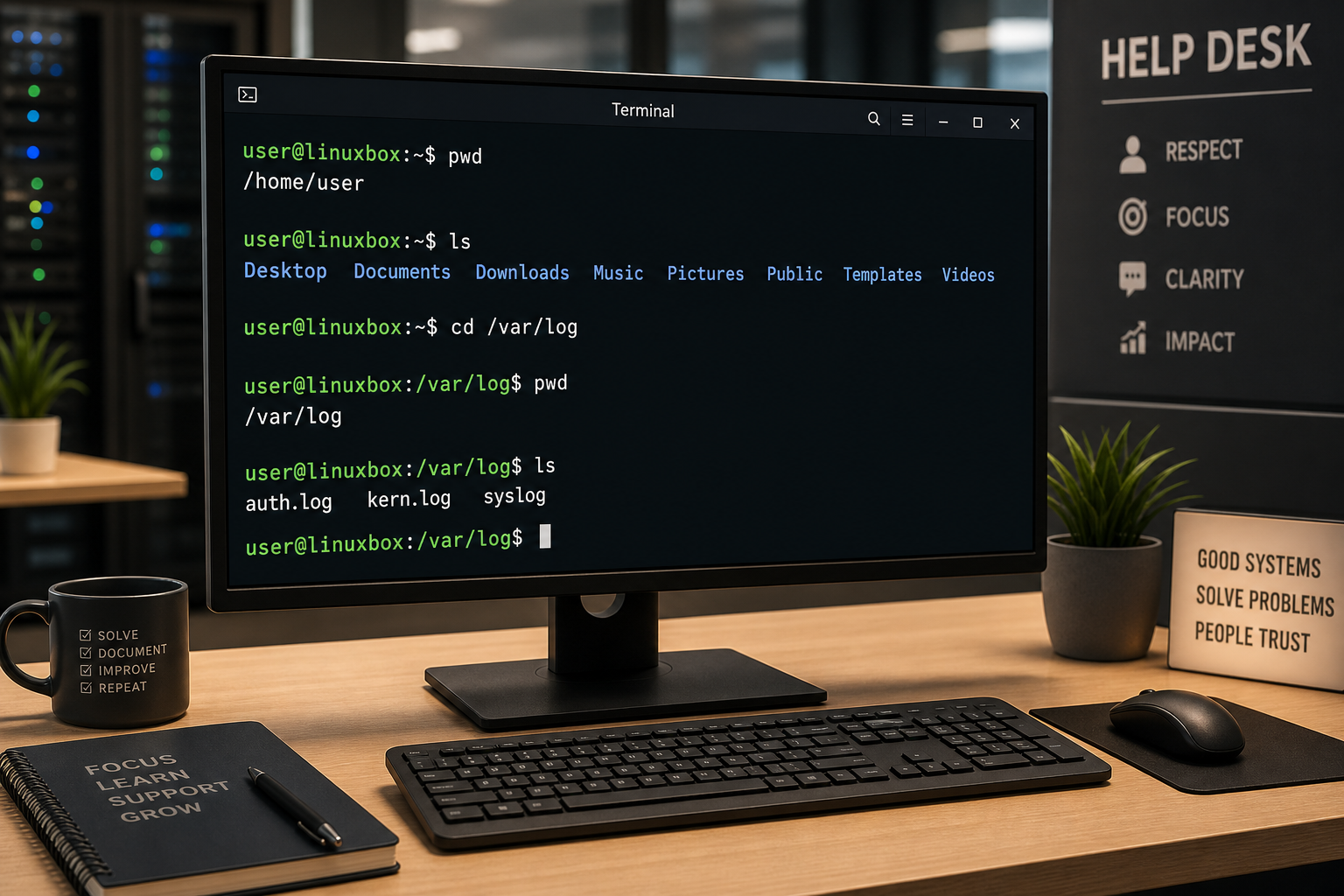
cd, ls, and pwd are the first three Linux navigation commands most beginners should learn. pwd tells you where you are, ls shows what is in the current directory, and cd moves you to a different directory.
That sounds tiny. It is not. A huge amount of command-line work starts with those three questions:
- Where am I?
- What is here?
- Where do I need to go next?
If you work help desk, support Windows users, touch WSL, SSH into Linux servers, or occasionally get handed a ticket with “the app is broken” and no other useful information, these commands are your starting point. Not because they are exciting. Because they keep you from making dumb mistakes while you are still figuring out the system.
The short version
Use this pattern whenever you open a terminal:
pwd
ls
cd /path/to/folder
pwd
ls -la
What each command does:
pwdmeans “print working directory.” It shows your current location.lsmeans “list.” It shows files and folders.cdmeans “change directory.” It moves you somewhere else.ls -lashows a detailed list, including hidden files.
A realistic first terminal session might look like this:
pwd
# /home/stetson

ls
# Desktop  Documents  Downloads  scripts

cd Downloads
pwd
# /home/stetson/Downloads

ls -la
# total 48
# drwxr-xr-x  4 stetson stetson 4096 May 12 08:40 .
# drwxr-x--- 22 stetson stetson 4096 May 12 08:30 ..
# -rw-r--r--  1 stetson stetson 1240 May 12 08:39 app.log
Nothing fancy happened. You looked around, moved into Downloads, confirmed where you landed, and listed the files. That is terminal confidence in its least dramatic and most useful form.
pwd: know where you are before you do anything
pwd prints your current directory:
pwdExample output:
/home/stetsonThat output means your shell is currently sitting inside /home/stetson. Any relative path you use starts from there.
This matters because the terminal does exactly what you ask from the place you are currently standing. If you think you are in /var/log but you are actually in /home/stetson/scripts, your next command may target the wrong file. Sometimes that is harmless. Sometimes that creates a new “learning opportunity” that your team did not ask for.
Use pwd before:
- deleting or moving files
- running scripts
- editing config files
- copying logs for a ticket
- following instructions from documentation
- helping someone over SSH while they narrate vague things like “I’m in the folder”
A good help desk habit is to run pwd whenever you feel even slightly lost. It is not a beginner crutch. It is basic situational awareness.
ls: see what is in the directory
ls lists the files and folders in your current directory:
lsExample:
Documents Downloads scripts notes.txtUse ls -l for a long listing:
ls -lExample:
-rw-r--r-- 1 stetson stetson  842 May 12 08:12 notes.txt
drwxr-xr-x 2 stetson stetson 4096 May 12 08:10 scripts
That detailed output shows permissions, owner, group, size, date, and name. You do not need to memorize every piece on day one, but you should recognize that a line starting with d is a directory and a line starting with - is a regular file.
Use ls -la when you need the useful version:
ls -laThe -a flag includes hidden files. On Linux, hidden files usually start with a dot, like .bashrc, .ssh, or .env.
Beginner mistake: running plain ls, not seeing the file, and assuming it does not exist. It might be hidden. Try ls -la before you announce that Linux has personally betrayed you.
cd: move around the filesystem
cd changes directories:
cd /var/logThen confirm:
pwd
# /var/log
Move to your home directory:
cd ~Move up one level:
cd ..Move back to the previous directory:
cd -That last one is underrated. If you jumped from your home directory into /var/log/nginx and want to go back where you just were, cd - saves you from retyping the whole path.
A realistic troubleshooting path:
cd /var/log
ls -la
cd nginx
ls -la
Now you are checking whether Nginx logs exist and what files are available. You still have not changed anything on the system. You are just looking. Looking first is how you avoid turning a small ticket into a team meeting.
Absolute paths vs relative paths
An absolute path starts from the root of the filesystem:
cd /var/log
cd /home/stetson/Downloads
A relative path starts from where you are right now:
cd Downloads
cd ../Documents
If you are in /home/stetson, this works:
cd DownloadsIf you are in /var/log, it probably does not, because /var/log/Downloads is not a normal place for your browser downloads unless your machine has made some truly questionable life choices.
When instructions say “go to /etc/nginx,” use the absolute path:
cd /etc/nginxWhen you are already inside a project folder and want to move into a folder below it, relative paths are fine:
cd src
cd content
The practical rule: use absolute paths when following documentation, working in production, or helping someone remotely. Use relative paths when you are already oriented and moving around a known project.
The beginner navigation loop
When you are new, use this loop constantly:
pwd
ls -la
cd folder-name
pwd
ls -la
Yes, it feels repetitive. That is the point. Beginners get in trouble when they skip the boring checks because they want to look fast. Fast comes later. First, be accurate.
Example support scenario: a user says an upload script failed. You SSH into a Linux box and need to find the script logs.
pwd
# /home/support

ls -la
# scripts  logs  README.md

cd logs
pwd
# /home/support/logs

ls -la
# upload.log  upload.log.1  errors.log
Now you know where the logs are. You can read them with less, search them with grep, or copy relevant lines into the ticket. But you did not start by guessing. You navigated.
Common mistakes with cd, ls, and pwd
Mistake 1: forgetting spaces
This fails:
cd/var/logThis works:
cd /var/logCommands and arguments are separated by spaces. The shell is picky because computers enjoy being technically correct at the worst possible time.
Mistake 2: using Windows paths in Linux
This is Windows-style:
C:\Users\stetson\DownloadsLinux paths look like this:
/home/stetson/DownloadsLinux uses forward slashes /, not backslashes \, and there is no C: drive in the normal Linux filesystem layout.
If you are using WSL, Windows drives usually show up under /mnt:
cd /mnt/c/Users/stetson/DownloadsThat one detail saves a lot of “why can’t I find my file?” pain for Windows admins learning Linux.
Mistake 3: not quoting paths with spaces
If a folder has spaces, quote it:
cd "My Folder"Or escape the space:
cd My\ FolderBetter yet, avoid spaces in directories you use constantly for command-line work. Your future self will appreciate the reduced nonsense.
Mistake 4: assuming ls shows everything
Plain ls hides dotfiles:
lsUse:
ls -laThat is how you see .ssh, .bashrc, .env, .config, and other files that often matter in support work.
Mistake 5: moving around without checking where you landed
After cd, run pwd when the location matters:
cd /etc/nginx
pwd
It is a two-second check that prevents a surprising amount of chaos.
Useful ls options beginners should know
Start with these:
ls
ls -l
ls -a
ls -la
ls -lh
What they mean:
lsshows a simple list.ls -lshows detailed output.ls -aincludes hidden files.ls -lacombines detailed output and hidden files.ls -lhshows file sizes in a human-readable format.
Example:
ls -lhOutput:
-rw-r--r-- 1 stetson stetson 2.4M May 12 08:20 application.log
-rw-r--r-- 1 stetson stetson  18K May 12 08:21 error.log
The -h flag turns sizes into KB, MB, or GB instead of raw bytes. That is helpful when you are checking whether logs are eating a disk alive.
You can also list a specific directory without moving into it:
ls -la /var/logThat is useful when you want to inspect something without changing your current location.
A simple practice drill
Open a terminal on a test machine, WSL, or a safe lab environment and run this:
pwd
ls -la
cd ~
pwd
mkdir terminal-practice
cd terminal-practice
pwd
ls -la
cd ..
pwd
ls -la
This drill teaches the basic rhythm: check location, list files, move, confirm, list again.
If you want to practice without worrying that you are going to break your real machine, this is exactly the kind of repetition Shell Samurai is built for. You can drill navigation commands, make beginner mistakes in a safe environment, and build the muscle memory before you are doing it while someone is waiting in a Teams chat.
Practice Linux navigation in Shell Samurai.
Quick reference
pwd              # show current directory
ls               # list files
ls -la           # list all files with details
ls -lh           # list details with readable sizes
cd /var/log      # move to an absolute path
cd ..            # move up one directory
cd ~             # move home
cd -             # go back to previous directory
If you remember nothing else, remember this: run pwd, run ls -la, then decide what to do. You do not need to impress the terminal. You need to know where you are before you start touching things.
Practice Linux commands next
If you want these commands to actually stick, do not stop at reading:
- Start Shell Samurai Chapter 1 free and practice in a real terminal.
- Use the Linux commands cheat sheet as your quick reference.
- Browse more Shell Samurai field notes after you finish a mission.
- Comparing resources? See the Linux Journey alternative breakdown.
Practice This in a Real Terminal
Shell Samurai gives you safe Linux missions so the commands actually stick. Chapter 1 is free; the full practice path is a one-time purchase, not another subscription.