Linux cut Command for Beginners: Extract Columns Fast
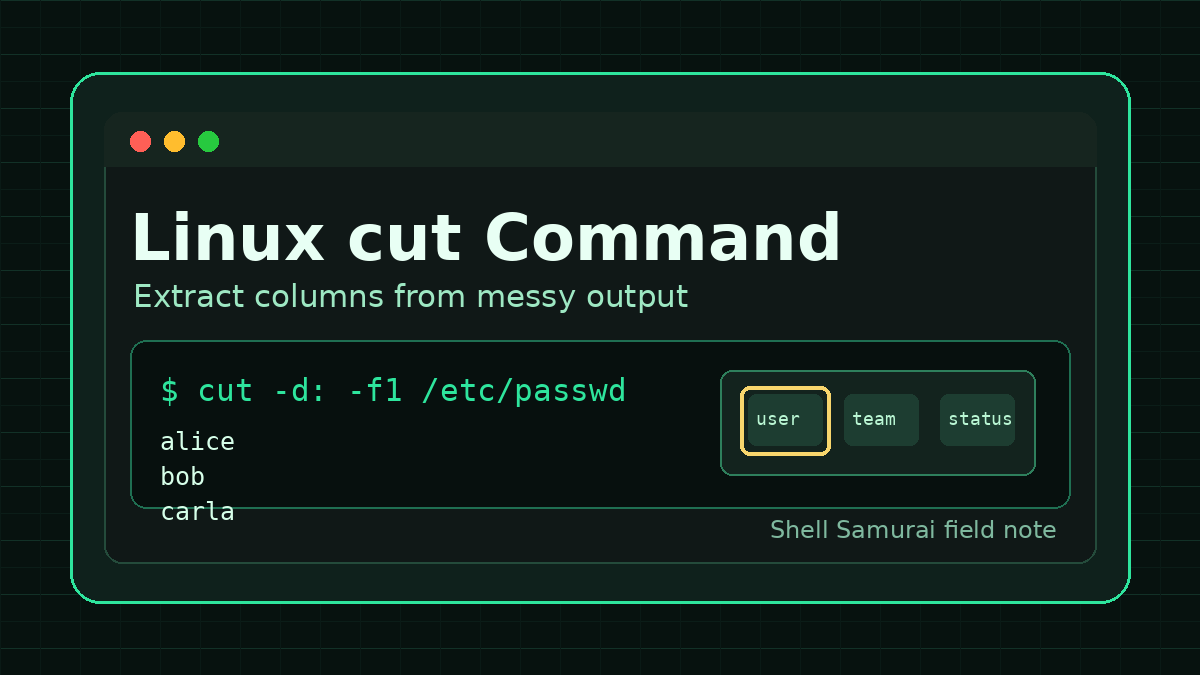
The Linux cut command extracts part of each line of text.
Quick version:
cut -d: -f1 /etc/passwdThat prints the first colon-separated field from /etc/passwd, which is the username field.
In plain English: cut is what you reach for when a command gives you rows of text and you only need one column, one field, or one small slice of each line.
It is not fancy. That is the point. When a ticket has a copied export, a log snippet, or a server file full of structured lines, cut can turn the noisy version into the one useful piece you actually need.
Quick answer: use cut to extract fields from lines
Extract the first colon-separated field:
cut -d: -f1 /etc/passwdExtract the second comma-separated field from a CSV-style file:
cut -d, -f2 users.csvExtract the first 10 characters from each line:
cut -c1-10 tickets.txtExtract multiple fields:
cut -d: -f1,7 /etc/passwdBeginner rule: cut works best when every line has a predictable shape. If your data is separated by colons, commas, tabs, or another clear delimiter, cut is usually worth trying.
Why cut matters in help desk work
A lot of beginner Linux work is not glamorous. You are usually trying to answer one practical question:
- Which users exist on this machine?
- Which shell does each account use?
- What hostnames are in this export?
- Which field in this CSV matters?
- What IP addresses are showing up in this log sample?
- Can I clean this output before sending it to someone else?
The beginner mistake is trying to read the whole file by eye. That works for five lines. It gets miserable at fifty lines. It gets suspiciously close to self-punishment at five hundred lines.
cut helps when the useful answer is already there, but buried in a repeated format.
The two cut options beginners actually need
Most beginner cut usage comes down to two options:
| Option | Meaning | Example |
|---|---|---|
-d | delimiter, or what separates fields | -d: for colon-separated text |
-f | field number to print | -f1 for the first field |
So this command:
cut -d: -f1 /etc/passwdmeans:
- split each line wherever a colon appears
- print field 1
- do that for every line in
/etc/passwd
You will also see -c, which means characters:
cut -c1-8 file.txtThat prints characters 1 through 8 from each line.
For real support work, -d and -f are usually the main event. -c is useful, but structured fields are where cut earns its keep.
Practice file for the examples
Create a tiny file that looks like a rough help desk export:
printf "alice,Help Desk,active\nbob,Sysadmin,locked\ncarla,Networking,active\n" > users.csvCheck it:
cat users.csvOutput:
alice,Help Desk,active
bob,Sysadmin,locked
carla,Networking,active
Now extract only the usernames:
cut -d, -f1 users.csvOutput:
alice
bob
carla
Extract only the account status:
cut -d, -f3 users.csvOutput:
active
locked
active
That is the basic cut workflow: pick the separator, pick the field, print the part you need.
Delimiters: the character between fields
The delimiter is the character that separates your fields.
In this line:
alice,Help Desk,activeThe delimiter is a comma.
In this line:
alice:x:1001:1001:Alice Example:/home/alice:/bin/bashThe delimiter is a colon.
In a tab-separated export, the delimiter is a tab. cut uses tabs by default, so sometimes you do not need -d at all:
cut -f1 file.tsvBut when you are dealing with commas, colons, pipes, or another visible separator, tell cut explicitly:
cut -d, -f1 users.csv
cut -d: -f1 /etc/passwd
cut -d'|' -f2 pipe-separated.txt
Notice the quotes around |. The pipe character has a special meaning in the shell, so quote it when you want it treated as plain text.
Real example: list local usernames
A classic beginner example uses /etc/passwd.
You do not need to memorize the whole file format yet. Just know that each line describes an account, and fields are separated by colons.
Run:
cut -d: -f1 /etc/passwdThat prints the account names.
Want the login shell too?
cut -d: -f1,7 /etc/passwdOutput will look something like:
root:/bin/bash
daemon:/usr/sbin/nologin
alice:/bin/bash
That can help when a ticket says a service account is behaving weirdly and you want to quickly see which accounts can actually log in.
One important note: do not edit /etc/passwd because you saw it in an example. Reading it is fine. Casually changing it is how you convert a learning moment into a restore-from-backup moment.
Extract a range of fields
You can print a range of fields with a dash.
Using the sample CSV:
cut -d, -f1-2 users.csvOutput:
alice,Help Desk
bob,Sysadmin
carla,Networking
Print fields 2 through the end:
cut -d, -f2- users.csvOutput:
Help Desk,active
Sysadmin,locked
Networking,active
Print the first field and third field:
cut -d, -f1,3 users.csvOutput:
alice,active
bob,locked
carla,active
This is handy when an export has one column you do not care about. No need to open a spreadsheet just to ignore the middle column.
Use cut with command output
cut is often more useful in a pipeline than by itself.
For example, list shells from /etc/passwd, sort them, and count the unique values:
cut -d: -f7 /etc/passwd | sort | uniq -cThat says:
- get field 7 from
/etc/passwd - sort the shell paths
- count repeated values
You might see output like:
      8 /bin/bash
     19 /usr/sbin/nologin
That kind of summary is useful when you are sanity-checking accounts on a server. It is also good practice for the command-line muscle you need in real troubleshooting: take messy output, pass it through one small tool, then pass it through another.
If you are still getting comfortable with that pattern, practice the pieces separately first:
cut -d: -f7 /etc/passwd
cut -d: -f7 /etc/passwd | sort
cut -d: -f7 /etc/passwd | sort | uniq -c
No bonus points for typing the full pipeline before you understand what each part is doing. That is how people paste scary commands into production and then act surprised when production has opinions.
Extract characters with cut -c
Use -c when you want character positions instead of fields.
Create a file:
printf "INC001234 password reset\nINC001235 printer jam\nINC001236 VPN broken\n" > tickets.txtExtract the ticket number:
cut -c1-9 tickets.txtOutput:
INC001234
INC001235
INC001236
Extract everything after the ticket number and space:
cut -c11- tickets.txtOutput:
password reset
printer jam
VPN broken
This only works cleanly when the character positions are consistent. If the line lengths vary in weird ways, field-based cutting is usually safer.
cut is not a full CSV parser
This matters.
cut -d, -f2 works nicely on simple comma-separated files like this:
alice,Help Desk,activeIt can break on real CSV files with quoted commas:
alice,"Help Desk, Tier 1",activeTo cut, that comma inside the quotes still looks like a delimiter. It does not understand CSV rules. It just splits on the character you gave it.
For quick support work, simple exports, and predictable text files, cut is great. For messy CSVs from business apps, use a spreadsheet, Python, or a proper CSV-aware tool instead.
The mature move is not “use the terminal for everything.” The mature move is knowing when the terminal tool is the right tool and when you are about to make your own afternoon worse.
Common beginner mistakes
Using the wrong delimiter
If this prints the whole line:
cut -d, -f1 file.txtthen your file might not be comma-separated. Check a few lines:
head file.txtMaybe it uses colons, tabs, pipes, or spaces.
Trying to split on multiple spaces
cut is not great for variable whitespace.
For output that has random numbers of spaces, awk is usually better:
awk '{print $1}' file.txtYou do not need to master awk today. Just know that cut likes clean delimiters.
Forgetting field numbers start at 1
Field 1 is the first field. Not field 0.
So for:
alice,Help Desk,active-f1isalice-f2isHelp Desk-f3isactive
Expecting cut to change the file
cut prints output. It does not edit the original file.
If you want to save the output:
cut -d, -f1 users.csv > usernames.txtUse a new output file first. Do not redirect back into the same file you are reading.
A realistic help desk workflow
Imagine a ticket says: “Can you send me a list of usernames from this Linux box?”
You could run:
cut -d: -f1 /etc/passwd | sortIf you only want accounts using Bash:
grep '/bin/bash' /etc/passwd | cut -d: -f1 | sortIf you want to save that list:
grep '/bin/bash' /etc/passwd | cut -d: -f1 | sort > bash-users.txtThen preview it:
head bash-users.txt
wc -l bash-users.txt
That little workflow uses grep, cut, sort, head, and wc together. None of those commands is complicated by itself. The useful part is combining them without losing track of what each step does.
That is exactly the kind of repetition Shell Samurai is good for: safe practice with small commands until pipelines stop looking like keyboard soup.
When to use cut, awk, or a spreadsheet
Use cut when:
- fields are separated by one clear delimiter
- you need one or a few columns
- you want a quick answer in the terminal
- the data format is simple and predictable
Use awk when:
- fields are separated by variable spaces
- you need conditions or calculations
- you need more control over formatting
Use a spreadsheet or CSV-aware tool when:
- quoted commas matter
- business users will edit the file
- the export is messy and the risk of misreading fields is high
That decision tree is boring, but useful. Boring and useful fixes more tickets than clever and fragile.
Practice commands
Create sample data:
printf "alice,Help Desk,active\nbob,Sysadmin,locked\ncarla,Networking,active\n" > users.csvTry these:
cut -d, -f1 users.csv
cut -d, -f2 users.csv
cut -d, -f1,3 users.csv
cut -d, -f2- users.csv
cut -c1-5 users.csv
cut -d, -f3 users.csv | sort | uniq -c
Then try the account examples:
cut -d: -f1 /etc/passwd
cut -d: -f1,7 /etc/passwd
grep '/bin/bash' /etc/passwd | cut -d: -f1 | sort
Do not just copy them once. Run them, change the field number, break one on purpose, then fix it. That is how the command becomes yours instead of another thing you vaguely recognize from a blog post.
Practice cut in Shell Samurai
If you are learning Linux for help desk, sysadmin, or Windows-to-Linux work, cut is a perfect beginner command because it teaches the real terminal pattern: make messy text smaller.
You do not need to become a text-processing hero overnight. Start with one clean delimiter, one field, and one file. Then add grep, sort, and wc when you are ready.
Practice beginner Linux commands in Shell Samurai and get comfortable extracting the part of the output that actually matters.
Practice This in a Real Terminal
Shell Samurai gives you safe Linux missions so the commands actually stick. Chapter 1 is free; the full practice path is a one-time purchase, not another subscription.