Linux sha256sum Command: Verify File Checksums
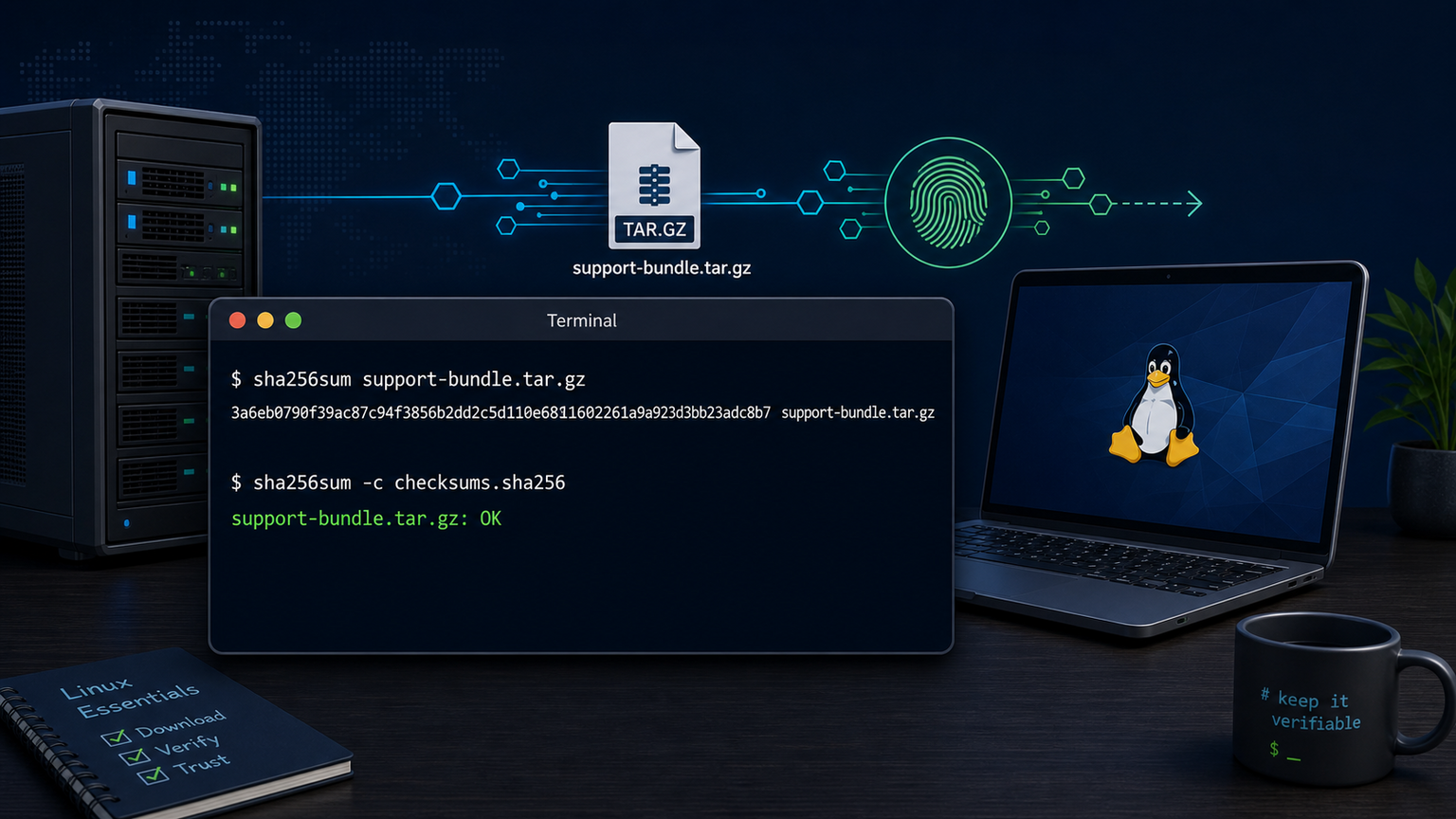
The Linux sha256sum command calculates a SHA-256 checksum: a long identifier derived from a file’s exact bytes. Run it like this:
sha256sum support-bundle.tar.gzExample output:
7c8f0bca2b9d8f1f17d90e9d996851758f7325d7213d7f0c2a636287a6a773fd support-bundle.tar.gzCompare that 64-character value with the checksum supplied by the software vendor, backup job, or person who sent the file. If the values match exactly, the files are almost certainly identical. If one character differs, stop and investigate instead of installing, extracting, or uploading the file.
This is useful for confirming that a download completed correctly, a support bundle survived a transfer, or a backup copy contains the same bytes as its source.
Quick sha256sum command reference
| Task | Command |
|---|---|
| Calculate one file’s checksum | sha256sum file.iso |
| Calculate several checksums | sha256sum file1 file2 |
| Save a checksum list | sha256sum file1 file2 > checksums.sha256 |
| Verify a saved checksum list | sha256sum -c checksums.sha256 |
| Check one expected value | printf '%s %s\n' "$hash" "$file" | sha256sum -c - |
Read a file name beginning with - | sha256sum -- ./-report.zip |
The basic syntax is:
sha256sum [OPTION]... [FILE]...On GNU/Linux, sha256sum is normally provided by GNU Coreutils. Other systems may use different commands or support fewer options.
Verify a downloaded file
Suppose you downloaded vendor-agent.tar.gz, and the vendor publishes this SHA-256 checksum:
fc1e8f1a67d0862713963c8bafe356ace9e1344964601367cae1c8e6b0b734f7Calculate the local checksum:
sha256sum vendor-agent.tar.gzThen compare the complete value, not only the first or last few characters.
A matching checksum tells you the local file has the same bytes as the file used to create the published checksum. It catches interrupted downloads, damaged storage, accidental substitutions, and many transfer mistakes.
It does not prove the software is safe. If an attacker can replace both the download and the checksum on the same compromised website, they can make a malicious file appear consistent. Trust still depends on where the expected checksum came from. Prefer the vendor’s HTTPS site, signed release metadata, or another authenticated channel.
Save checksums for several files
Create a manifest for a set of support artifacts:
sha256sum logs.tar.gz system-info.txt screenshot.png > checksums.sha256Inspect it before sending:
less checksums.sha256The file contains one checksum and file name per line:
9ad30d5c08643844d266f4dd734da5e80a7c8fbce67466c832cc2a846fd5f7ad  logs.tar.gz
672314d26f87b623d9190e7c7a6389c64d22f2d78ee35641fabe027145b5193f  system-info.txt
Send the manifest with the files. The receiving technician can verify the whole set in one command rather than comparing every hash manually.
If file names contain spaces, GNU sha256sum handles them in generated manifests. Newlines and backslashes in file names make checksum files harder for humans to review, so avoid unusual names in ordinary support workflows.
Verify a checksum file with -c
Move into the directory containing the files and manifest, then run:
sha256sum -c checksums.sha256Successful output looks like:
logs.tar.gz: OK
system-info.txt: OK
screenshot.png: OK
A changed or incomplete file produces output such as:
logs.tar.gz: FAILED
sha256sum: WARNING: 1 computed checksum did NOT match
The command also returns a nonzero exit status when verification fails. That makes it useful in scripts:
if sha256sum -c checksums.sha256; then
  echo "All support files passed verification"
else
  echo "Checksum verification failed" >&2
  exit 1
fi
Do not continue merely because two of three files reported OK. The failed file needs to be downloaded, copied, or generated again.
Verify one checksum without creating a file
You can feed an expected checksum to sha256sum -c through standard input:
expected='fc1e8f1a67d0862713963c8bafe356ace9e1344964601367cae1c8e6b0b734f7'
file='vendor-agent.tar.gz'

printf '%s  %s\n' "$expected" "$file" | sha256sum -c -
Expected output:
vendor-agent.tar.gz: OKUse printf, not echo, in scripts where exact formatting matters. A checksum line normally uses two spaces between the hash and a file name treated as binary input by GNU tools.
Quote variables. An unquoted file name with spaces becomes multiple shell arguments and turns a simple integrity check into a different ticket.
Check a file after copying it
To confirm a support bundle survived a copy between directories, calculate both checksums:
sha256sum /srv/intake/case-4821.tar.gz
sha256sum /mnt/archive/case-4821.tar.gz
Matching output means the file contents match, even if timestamps, ownership, or permissions differ.
For a repeatable workflow, create the checksum next to the source:
cd /srv/intake
sha256sum case-4821.tar.gz > case-4821.tar.gz.sha256
cp -- case-4821.tar.gz case-4821.tar.gz.sha256 /mnt/archive/
cd /mnt/archive
sha256sum -c case-4821.tar.gz.sha256
This checks content, not metadata. Use stat when you need ownership, size, timestamps, or inode details. Use diff when you want to see line-by-line differences between text files.
Why file size is not enough
Two files can have the same size and different contents. A one-byte change can replace one character without changing the total byte count. SHA-256 produces a dramatically different digest when the input changes.
That makes this weak:
ls -lh source.zip copied.zipIt is a reasonable first glance, but not an integrity check. Use:
sha256sum source.zip copied.zipIf both hash values match, the content matches with extremely high confidence.
Common sha256sum mistakes
Comparing only part of the hash
Matching the first six characters is not the same as matching the full SHA-256 value. Copy both full values into a careful comparison or use sha256sum -c.
Trusting a checksum from the same untrusted message
If a random email contains both an attachment and its checksum, matching them only proves the sender created a consistent pair. It does not establish that the sender or file is trustworthy.
Hashing the wrong file
Confirm the working directory and path before comparing results:
pwd
realpath -e -- vendor-agent.tar.gz
sha256sum -- vendor-agent.tar.gz
The realpath guide explains how to resolve relative paths and symbolic links.
Editing the file after creating the checksum
Compression, line-ending conversion, metadata embedded inside an archive, or any later edit changes the checksum. Generate the final file first, then hash it.
Assuming matching checksums mean matching permissions
Checksums represent file contents. They do not include ownership, mode, access-control entries, path, or ordinary filesystem timestamps.
Using MD5 for new integrity workflows
You may still encounter md5sum in old documentation. MD5 is not collision-resistant and should not be chosen for security-sensitive verification. SHA-256 is the safer default for new checksum manifests. A vendor may require another algorithm, but use the exact algorithm named in its instructions.
A practical help desk verification script
This script verifies a checksum manifest before a technician opens the support bundle:
#!/usr/bin/env bash
set -u

manifest=${1:-checksums.sha256}

if [ ! -f "$manifest" ] || [ ! -r "$manifest" ]; then
  printf 'Cannot read checksum manifest: %s\n' "$manifest" >&2
  exit 2
fi

manifest_dir=$(dirname -- "$manifest")
manifest_name=$(basename -- "$manifest")

cd -- "$manifest_dir" || exit 2

if sha256sum --quiet -c -- "$manifest_name"; then
  printf 'Checksum verification passed: %s\n' "$manifest_name"
else
  printf 'Checksum verification failed: %s\n' "$manifest_name" >&2
  exit 1
fi
--quiet hides each successful OK line but still reports failures. During manual troubleshooting, omit it so you can see every file checked.
Treat checksum manifests as input. Review unexpected file paths before running a manifest from someone you do not trust, and verify inside a disposable directory rather than a sensitive working tree.
Practice checksum verification safely
Create two small files, generate a manifest, and verify it. Then change one character in one file and rerun sha256sum -c. Seeing the failure once makes the workflow much easier to trust during a real software install or support transfer.
You can practice file and terminal workflows in Shell Samurai. A practice terminal is a better place to learn checksum formatting than halfway through a production agent upgrade.
Frequently asked questions
What does sha256sum do in Linux?
sha256sum calculates a SHA-256 digest from a file’s contents. It can print new checksums or verify files against a saved checksum list with -c.
How do I verify a SHA-256 checksum?
Run sha256sum FILE and compare the complete output with the trusted expected checksum. If you have a checksum manifest, place it with the files and run sha256sum -c checksums.sha256.
Does sha256sum change the file?
No. It reads the file and calculates a digest. It does not modify the file’s contents.
What does OK mean in sha256sum output?
OK means the checksum calculated from the local file exactly matched the expected checksum in the manifest. It does not independently prove the source is trustworthy or the software is harmless.
Are SHA-256 checksums case-sensitive?
Hexadecimal SHA-256 values are commonly printed in lowercase. Tools generally accept uppercase or lowercase hex digits, but file names and paths are case-sensitive on typical Linux filesystems.
Practice This in a Real Terminal
Shell Samurai gives you safe Linux missions so the commands actually stick. Chapter 1 is free; the full practice path is a one-time purchase, not another subscription.