Linux lscpu Command: Check CPU Details
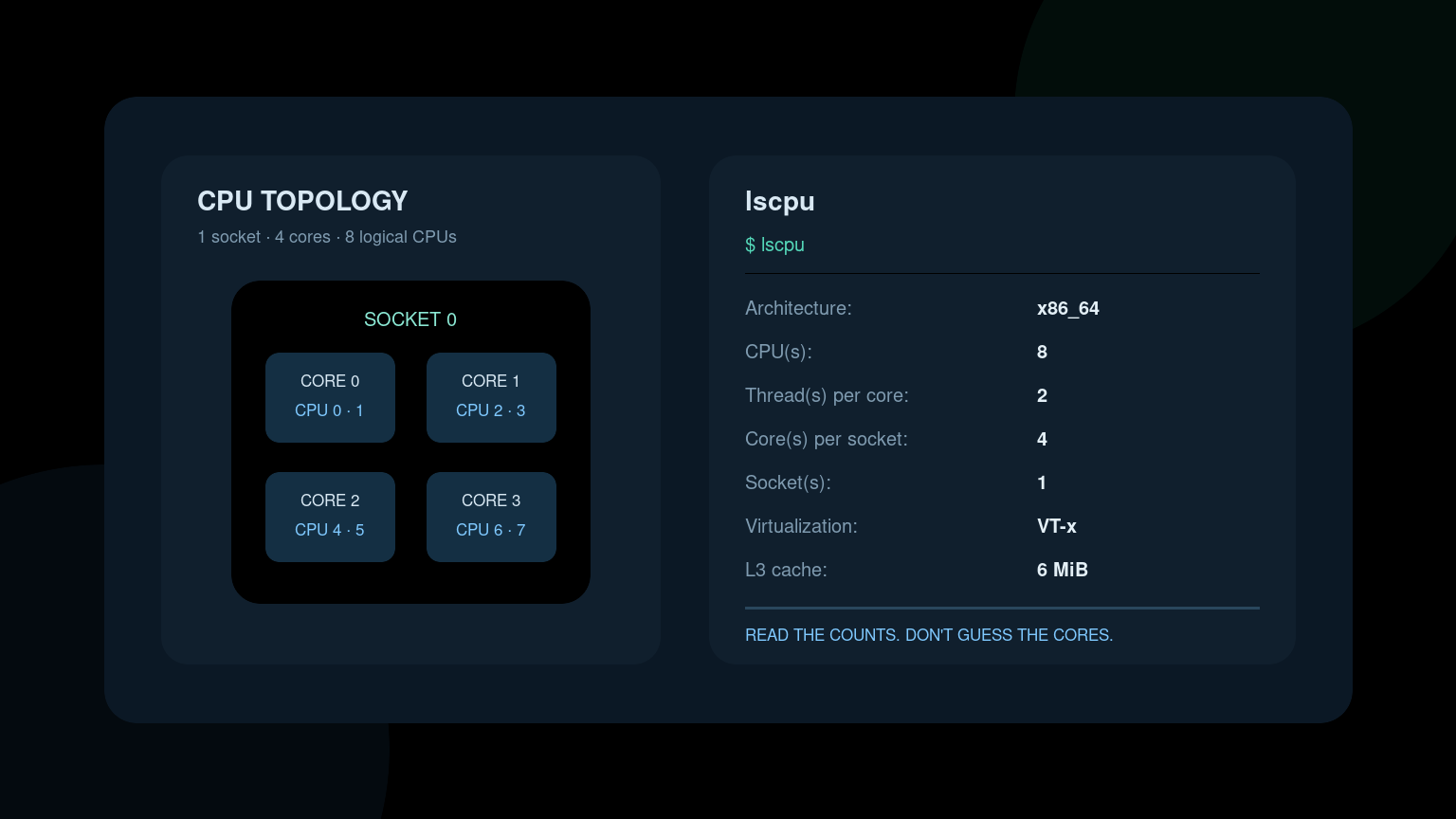
The Linux lscpu command displays CPU architecture and topology in a readable summary. It tells you the processor model, architecture, number of logical CPUs, cores per socket, threads per core, cache sizes, and supported features.
Start with:
lscpuThat one command is useful when you need to confirm whether software matches the machine’s architecture, document a server, investigate an unexpected CPU count, or check whether the processor advertises virtualization support.
lscpu reports what Linux sees. It does not benchmark performance, prove that every advertised feature is enabled in firmware, or tell you why an application is slow.
Quick lscpu command reference
| Goal | Command |
|---|---|
| Show the full CPU summary | lscpu |
| Show only the CPU model | `lscpu |
| Show architecture | `lscpu |
| Show sockets, cores, and threads | `lscpu |
| Show online and offline CPUs | lscpu --extended=CPU,ONLINE |
| Show CPU topology as a table | lscpu --extended=CPU,SOCKET,CORE,NODE |
| Show parsable topology | lscpu --parse=CPU,SOCKET,CORE,NODE |
| Show output as JSON | lscpu --json |
| Read another Linux root filesystem | lscpu --sysroot /mnt/system |
Run plain lscpu first. Filtering is helpful after you know which labels your distribution and util-linux version print.
Read the important lscpu fields
A shortened example might look like this:
Architecture:                         x86_64
CPU(s):                               8
On-line CPU(s) list:                  0-7
Vendor ID:                            GenuineIntel
Model name:                           Intel(R) Core(TM) i5-8250U CPU @ 1.60GHz
Thread(s) per core:                   2
Core(s) per socket:                   4
Socket(s):                            1
Virtualization:                       VT-x
L1d cache:                            128 KiB (4 instances)
L2 cache:                             1 MiB (4 instances)
L3 cache:                             6 MiB (1 instance)
Here is what those fields mean.
- Architecture describes the instruction-set architecture Linux is running, such as
x86_64,aarch64, orppc64le. - CPU(s) is usually the number of logical CPUs available to the operating system, not the number of physical processor packages.
- On-line CPU(s) list shows the logical CPUs currently available for scheduling work.
- Vendor ID identifies the CPU vendor as reported by the processor.
- Model name is the processor’s human-readable model string.
- Thread(s) per core shows how many hardware threads each physical core exposes.
- Core(s) per socket reports physical cores in each socket visible to Linux.
- Socket(s) reports physical CPU packages visible to the operating system.
- Virtualization shows an advertised CPU virtualization extension, such as Intel VT-x or AMD-V.
- Cache lines summarize CPU cache capacity and, on newer versions, the number of cache instances.
The labels are easy to read. The common mistake is treating all of them as interchangeable counts.
Understand CPUs, cores, threads, and sockets
Suppose lscpu reports:
CPU(s):                 16
Thread(s) per core:      2
Core(s) per socket:      8
Socket(s):               1
Linux sees 16 logical CPUs. The machine has one visible socket with eight physical cores, and each core exposes two hardware threads:
1 socket × 8 cores × 2 threads = 16 logical CPUsA logical CPU is a scheduling target. It is not the same thing as a complete physical core, and doubling the logical CPU count does not automatically double performance.
Virtual machines and containers complicate the picture. A VM may see only the virtual CPUs assigned by the hypervisor. A container can inherit host CPU information while cgroup limits restrict how much CPU time it may actually use. Always interpret lscpu in the context of where you ran it.
Check CPU architecture before installing software
Architecture mismatches cause a familiar support problem: a downloaded binary exists, has execute permission, and still refuses to run.
Check the system first:
lscpu | grep ArchitectureYou may see:
Architecture: x86_64Common values include:
x86_64for 64-bit Intel or AMD systems;aarch64for 64-bit ARM systems;i686for older 32-bit x86 environments.
Then inspect the binary if you already downloaded it:
file ./vendor-agentThe Linux file command guide explains how to identify an executable’s architecture. If the machine is aarch64 but the file is an x86-64 executable, reinstalling it repeatedly will not improve the relationship.
Check the CPU model for inventory and support cases
To capture the model line:
lscpu | grep "Model name"This is useful for:
- confirming hardware inventory;
- checking a vendor’s processor requirements;
- comparing an affected system with a known-good one;
- documenting a VM’s presented CPU model;
- identifying mixed hardware in a server fleet.
Do not use the model name alone to predict application performance. Cooling, firmware settings, power limits, memory, storage, workload design, virtualization, and CPU allocation can all matter.
Also avoid posting complete hardware output in public tickets without review. Inventory details can expose information your organization considers sensitive.
Inspect CPU topology
The extended view is clearer when you need to map logical CPUs to cores and sockets:
lscpu --extended=CPU,ONLINE,SOCKET,CORE,NODEExample:
CPU ONLINE SOCKET CORE NODE
  0    yes      0    0    0
  1    yes      0    0    0
  2    yes      0    1    0
  3    yes      0    1    0
CPUs 0 and 1 are threads on core 0. CPUs 2 and 3 are threads on core 1. All four belong to socket 0 and NUMA node 0.
For scripts, use parsable output instead of trying to split the pretty table by spaces:
lscpu --parse=CPU,SOCKET,CORE,NODELines beginning with # are comments. The remaining lines are comma-separated values. Check the local lscpu --help output before depending on a specific column because available fields vary by util-linux version and architecture.
Check online and offline CPUs
A system can have logical CPUs that are present but offline:
lscpu --extended=CPU,ONLINEIf the visible CPU count is lower than expected, compare:
lscpu
nproc
lscpu describes processor topology visible to Linux. nproc reports the number of processing units available to the current process, which may be lower due to container or process constraints.
Before changing CPU online status, collect evidence and check the platform’s maintenance procedure. CPU hotplug, firmware, hypervisor settings, kernel parameters, and workload controls can all affect the count. This is not a good place for random sudo commands copied from a forum.
Check virtualization support without overclaiming
Look for the virtualization line:
lscpu | grep VirtualizationOn x86 systems, you might see VT-x or AMD-V. That means the CPU advertises a virtualization extension to the operating system.
It does not guarantee that:
- virtualization is enabled in BIOS or UEFI;
- nested virtualization is exposed to a VM;
- kernel virtualization modules are loaded;
- your user can access
/dev/kvm; - a specific hypervisor is installed or configured.
Treat the field as one check, not a complete virtualization diagnosis. On a VM, the hypervisor may hide the extension even though the physical host supports it.
A practical helpdesk workflow
Imagine a vendor agent fails during installation with an architecture-related error, and the ticket says only “Linux install broken.”
1. Identify the environment
hostnamectl
lscpu
Record whether this is a physical machine, VM, or container, plus the OS and kernel context. The check Linux version guide covers the distribution and kernel checks.
2. Capture the relevant CPU fields
lscpu | grep -E 'Architecture|CPU\(s\)|Model name|Socket|Core|Thread|Virtualization'Do not dump the flags line into the ticket unless a specific instruction set matters. It can be extremely long.
3. Inspect the installer or binary
file ./vendor-agentCompare its reported architecture with lscpu. Confirm that you downloaded the correct build from the approved source.
4. Check process-visible CPU count
nproc
lscpu | grep '^CPU(s):'
If those counts differ inside a container or managed workload, investigate CPU limits before declaring missing hardware.
5. Write a useful handoff
A useful note might say:
VM reports
x86_64, one socket, four cores, two threads per core, and eight logical CPUs inlscpu. The current process sees four CPUs throughnproc. Vendor binary is x86-64. Checking VM CPU allocation and workload limits next.
That is much better than “CPU looks fine.” It tells the next technician what Linux sees, what the process can use, and where the discrepancy begins.
Common lscpu mistakes
Calling logical CPUs physical cores
The CPU(s) field usually counts logical CPUs. Use sockets, cores per socket, and threads per core to understand topology.
Assuming the host and VM have the same CPU view
Guests see what the hypervisor exposes. A generic virtual CPU model or reduced feature set may be intentional.
Treating virtualization support as virtualization readiness
An advertised extension is only one prerequisite. Firmware, kernel modules, device access, and hypervisor configuration still matter.
Using lscpu as a performance test
lscpu reports characteristics. It does not measure load, saturation, steal time, throttling, or application efficiency. Use workload metrics and tools such as uptime, top, or vmstat for performance troubleshooting. The Linux uptime guide is a useful starting point for load averages.
Parsing the human-readable output in automation
Labels and formatting can vary. Prefer --parse or --json, and verify support on the oldest systems your script must handle.
If lscpu says command not found
lscpu is normally provided by the util-linux package and is present on most Linux distributions.
Before installing anything, check:
command -v lscpuIf it is missing, use your distribution’s package search and your organization’s approved package-management process. On embedded or minimal systems, a reduced toolset may be intentional.
Practice reading Linux system information
The command itself takes seconds to run. The useful skill is translating the output into a correct description of the machine without mixing up sockets, cores, threads, and logical CPUs.
Practice Linux commands in Shell Samurai so system-information checks feel routine before a software rollout or “missing CPU” ticket reaches you.
FAQ
What does lscpu do in Linux?
lscpu summarizes CPU architecture and topology. It reports the model, logical CPU count, sockets, cores, threads, cache information, feature flags, and other processor details visible to Linux.
Does lscpu show physical cores?
Yes, but do not read only the CPU(s) line. Use Core(s) per socket, Socket(s), and Thread(s) per core to distinguish physical cores from logical CPUs.
How do I check whether Linux is x86_64 or ARM64?
Run lscpu and read the Architecture field. x86_64 indicates 64-bit x86, while aarch64 indicates 64-bit ARM.
Why does nproc show fewer CPUs than lscpu?
nproc reports processing units available to the current process. Containers, CPU affinity, or workload limits can make that number lower than the topology reported by lscpu.
Is lscpu safe to run?
Yes. Normal lscpu usage is read-only and does not require sudo. Review hardware details before sharing the output outside your organization.
Practice This in a Real Terminal
Shell Samurai gives you safe Linux missions so the commands actually stick. Chapter 1 is free; the full practice path is a one-time purchase, not another subscription.