Linux ethtool Command: Check Network Link
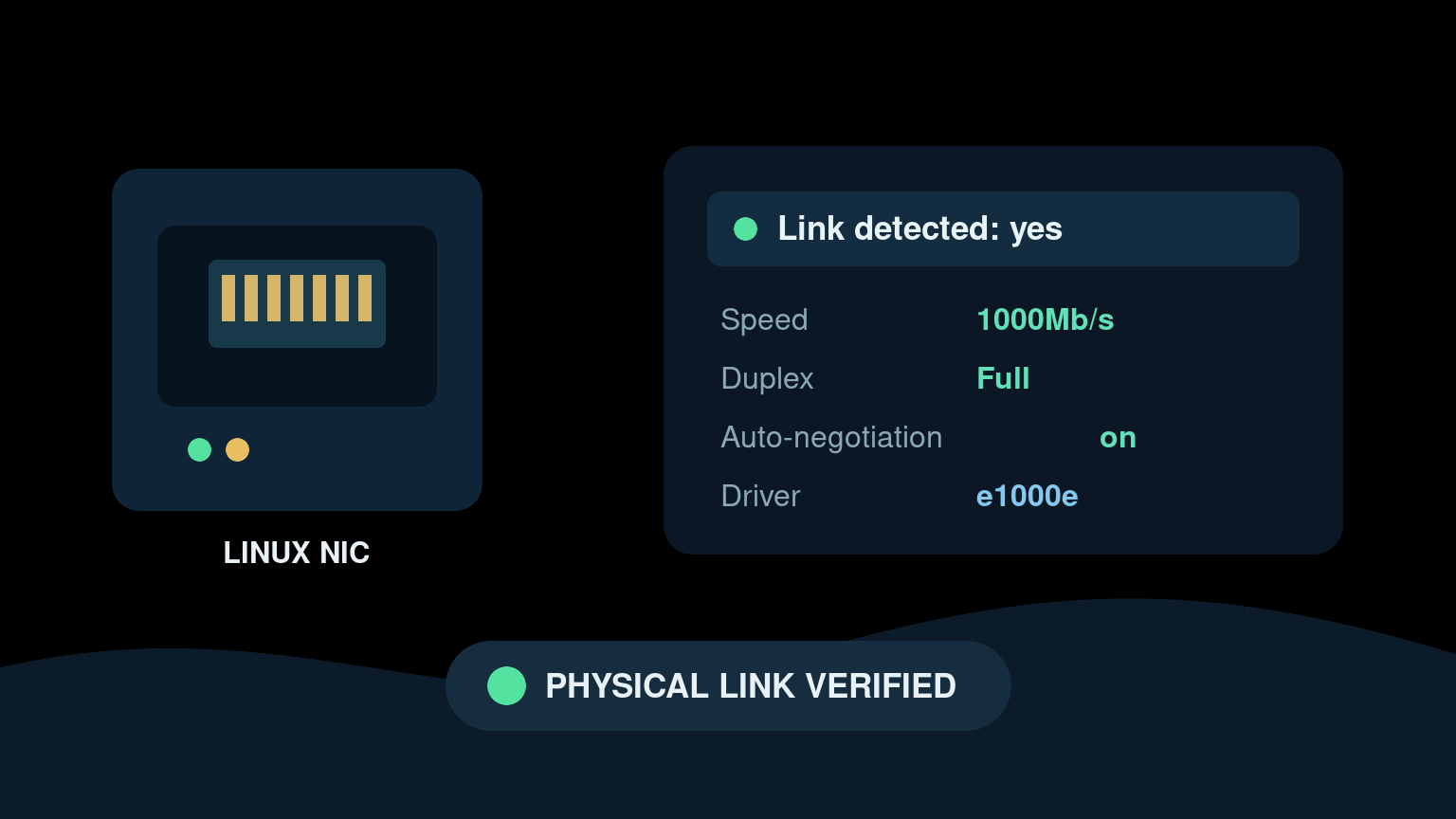
The Linux ethtool command shows what is happening between an Ethernet interface and the device on the other end of its cable. It can report link state, negotiated speed, duplex mode, auto-negotiation, driver information, and hardware counters.
Start with a read-only check:
sudo ethtool enp3s0Replace enp3s0 with the actual interface name. If a workstation can reach the local network but transfers are strangely slow, ethtool can quickly reveal that a gigabit adapter negotiated at 100 Mb/s—or that one side fell back to half duplex.
Quick ethtool command reference
| Goal | Command |
|---|---|
| Show link settings | sudo ethtool enp3s0 |
| Check only whether link is detected | sudo ethtool enp3s0 | grep "Link detected" |
| Show driver and firmware details | sudo ethtool -i enp3s0 |
| Show interface statistics | sudo ethtool -S enp3s0 |
| Show pause-frame settings | sudo ethtool -a enp3s0 |
| Show Energy Efficient Ethernet state | sudo ethtool --show-eee enp3s0 |
| Identify the physical port | sudo ethtool -p enp3s0 10 |
| Find interface names first | ip -br link |
The inspection commands are normally safe. Commands that change speed, duplex, offloads, pause behavior, or auto-negotiation can interrupt connectivity. On a remote machine, that may end your session before you can say “rollback plan.”
Find the correct interface name
Linux interface names are often not eth0. Run:
ip -br linkExample:
lo               UNKNOWN        00:00:00:00:00:00
 enp3s0           UP             3c:52:82:11:22:33
 wlp2s0           DOWN           a4:bb:6d:44:55:66
Use the wired interface, such as enp3s0, with ethtool. Wireless interfaces use different tooling—usually iw—and virtual interfaces may return partial data or “Operation not supported.”
If you are not sure which interface carries the default route, check:
ip route show defaultA result containing dev enp3s0 identifies the interface used for that route.
Read the main ethtool output
Run:
sudo ethtool enp3s0A shortened result might look like this:
Settings for enp3s0:
        Supported link modes:   100baseT/Full
                                1000baseT/Full
        Advertised link modes:  100baseT/Full
                                1000baseT/Full
        Speed: 1000Mb/s
        Duplex: Full
        Auto-negotiation: on
        Port: Twisted Pair
        Link detected: yes
The fields answer different questions:
- Supported link modes are modes the adapter says it can use.
- Advertised link modes are modes it offers during negotiation.
- Speed is the current negotiated rate, not a benchmark result.
- Duplex says whether both ends can transmit at the same time.
- Auto-negotiation shows whether automatic link negotiation is enabled.
- Link detected reports whether the interface has a physical link.
Speed: 1000Mb/s does not promise an application will transfer at exactly 1 Gb/s. Protocol overhead, storage, CPU limits, congestion, Wi-Fi elsewhere in the path, and the remote endpoint still matter. It does prove the local Ethernet link negotiated at that rate.
Diagnose a link that is unexpectedly slow
Suppose a desktop with a gigabit NIC is copying files at roughly 90 Mb/s. ethtool reports:
Speed: 100Mb/s
Duplex: Full
Auto-negotiation: on
Link detected: yes
The interface works, but the physical link negotiated at 100 Mb/s. Work through the evidence rather than forcing 1000 Mb/s immediately.
1. Confirm both endpoints support gigabit
Check the adapter’s supported modes and the switch-port specification. A 100 Mb/s switch, dock, USB adapter, or media converter creates a legitimate 100 Mb/s ceiling.
2. Reseat or replace the cable
Gigabit Ethernet over copper normally needs all four wire pairs. A damaged pair or poorly terminated cable can leave 100 Mb/s working while gigabit fails. Test with a known-good cable and, when practical, a known-good switch port.
3. Check the switch side
Review the managed switch port for negotiated speed, duplex, errors, security actions, and recent link flaps. The Linux host only reports its side of the connection.
4. Recheck after each physical change
sudo ethtool enp3s0 | grep -E 'Speed|Duplex|Auto-negotiation|Link detected'Record what changed. A useful ticket note says the link moved from 100Mb/s to 1000Mb/s after replacing a damaged patch cable, not merely that “networking was fixed.”
Check the driver and firmware
Use -i for driver information:
sudo ethtool -i enp3s0Typical fields include:
driver: e1000e
version: 6.12.0
firmware-version: 0.8-4
bus-info: 0000:03:00.0
supports-statistics: yes
This connects the network interface to its kernel driver, firmware revision, and hardware bus address. It is useful when comparing a working and failing machine or checking whether a driver changed after a kernel update.
Use the lsmod guide to confirm loaded kernel modules, and the lspci guide to inspect PCI hardware and driver binding.
Read interface statistics carefully
Driver-specific counters are available with:
sudo ethtool -S enp3s0The names vary by driver. You may see counters for received packets, transmitted packets, CRC errors, missed packets, dropped packets, timeouts, or resets.
Do not diagnose a problem from a large lifetime counter alone. Capture two snapshots around a short controlled test:
sudo ethtool -S enp3s0 > /tmp/ethtool-before.txt
# Run a brief, approved network test here.
sudo ethtool -S enp3s0 > /tmp/ethtool-after.txt
diff -u /tmp/ethtool-before.txt /tmp/ethtool-after.txt
Counters that increase during the failure are more useful than old totals. CRC or alignment errors often point toward the physical path, while timeouts and resets may require driver, firmware, hardware, or kernel-log investigation. Driver counter names are not standardized enough to treat every similarly named field identically.
Also compare normal interface counters:
ip -s link show enp3s0Then read kernel messages for the driver or interface:
journalctl -k -b | grep -iE 'enp3s0|e1000e|link|firmware'Replace e1000e with the actual driver from ethtool -i.
Identify which physical port you are checking
On a multi-port server, interface names are not always enough. Many adapters support a port-identification LED:
sudo ethtool -p enp3s0 10This asks the adapter to blink for 10 seconds. Support depends on the driver and hardware. Coordinate with anyone in the rack before using it, and do not confuse an identification light with proof that traffic or link health is good.
What not to change during basic troubleshooting
ethtool can modify link settings. For example, -s can change auto-negotiation, speed, and duplex. That is not a harmless experiment.
Avoid forcing settings unless:
- the network design explicitly requires them;
- both sides are configured compatibly;
- you have console or out-of-band access if the link drops;
- the change is approved and documented;
- you know the rollback command.
Modern Ethernet links usually should use auto-negotiation. Forcing one side while the other negotiates can create a duplex mismatch or a dead link. If the connection is remote management, storage, a hypervisor uplink, or a production server path, the impact can be much larger than one disconnected shell.
Offload changes also deserve a reason and a controlled test. Features shown by ethtool -k are not automatically broken just because their names look unfamiliar.
A practical helpdesk workflow
For a wired Linux device with slow or missing connectivity:
- Run
ip -br linkand identify the wired interface. - Run
ip route show defaultto understand which interface carries normal traffic. - Run
sudo ethtool <interface>and record link, speed, duplex, and negotiation. - Run
sudo ethtool -i <interface>and record driver, firmware, and bus information. - Check
ip -s linkplus twoethtool -Ssnapshots for counters that increase. - Review kernel logs for link flaps, resets, firmware errors, and driver messages.
- Check the cable, dock, adapter, patch panel, and switch port when the evidence points to the physical path.
- Retest and document the before-and-after state.
A solid escalation note might read:
Interface
enp3s0is up with physical link detected, but it negotiates at 100 Mb/s full duplex instead of 1 Gb/s. Adapter and switch port both support 1 Gb/s. RX CRC errors increased during a 60-second transfer. Replacing the patch cable restored 1000 Mb/s and counters remained stable. No driver resets appeared in the current boot log.
That gives the next technician evidence, scope, and a result.
Common beginner mistakes
Running ethtool against an IP address
ethtool expects an interface name such as enp3s0, not 192.168.1.20. Use ip -br link to find names.
Treating link detected as internet access
Link detected: yes proves a physical Ethernet link exists. It does not prove the interface has an IP address, a default route, working DNS, firewall permission, or internet connectivity.
Assuming negotiated speed equals throughput
Link speed is one layer. Measure the actual path separately with an approved tool and endpoint.
Blaming the driver before checking the cable
Driver problems happen, but a damaged cable, limited dock, or misconfigured switch port is often faster to rule out.
Changing settings during an SSH session
A link-setting change can disconnect the session. Gather read-only evidence first and arrange recovery access before approved changes.
Practice the workflow before the ticket is urgent
The useful skill is not memorizing every ethtool flag. It is knowing how to connect interface state, physical negotiation, driver details, counters, kernel logs, and switch-side evidence without randomly changing production settings.
Practice Linux troubleshooting commands in Shell Samurai. Build the command-line confidence now, before a slow-link ticket lands five minutes before a meeting.
FAQ
What does ethtool do in Linux?
ethtool displays and can change Ethernet interface settings. Read-only uses include checking physical link, negotiated speed, duplex, auto-negotiation, driver information, and hardware statistics.
Does ethtool require sudo?
Some information may be visible without elevation, but many drivers and distributions require sudo for complete settings, statistics, or identification features. Changing settings requires appropriate privileges.
How do I check Ethernet speed in Linux?
Run sudo ethtool enp3s0 and read the Speed field, replacing enp3s0 with your wired interface. This is negotiated link speed, not measured application throughput.
Why does ethtool say Link detected: no?
The cable may be disconnected or damaged, the switch port may be disabled, the adapter may be down or unsupported, or the driver may not expose link properly. Check interface state, the physical path, driver information, switch-side status, and kernel logs.
Can ethtool break a remote connection?
Read-only inspection should not. Changing speed, duplex, auto-negotiation, offloads, or other interface settings can interrupt traffic, so use an approved change plan and recovery access.
Practice This in a Real Terminal
Shell Samurai gives you safe Linux missions so the commands actually stick. Chapter 1 is free; the full practice path is a one-time purchase, not another subscription.