Windows Admin to Linux: Commands That Transfer Surprisingly Well
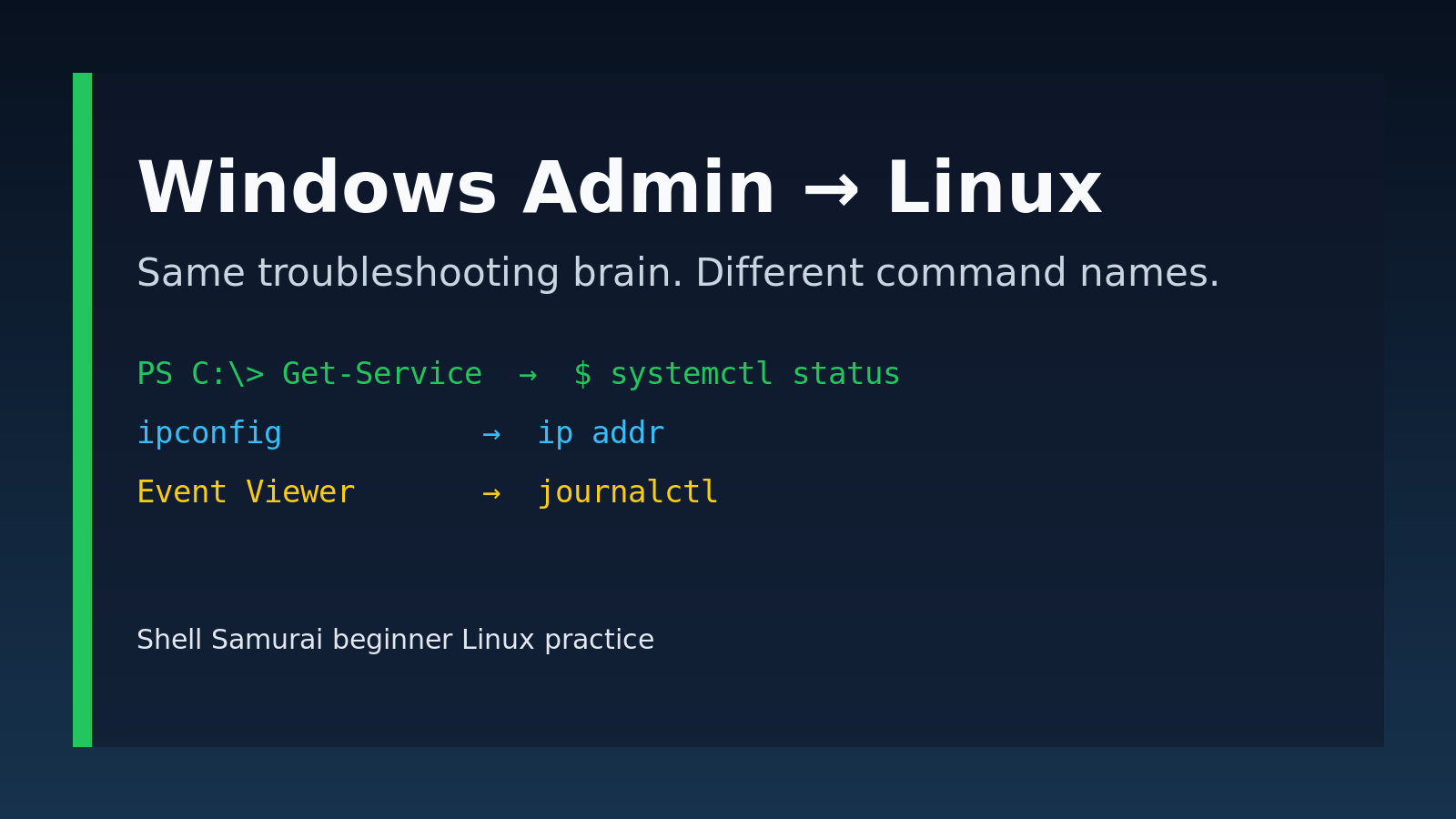
If you already work in Windows support, you are not starting Linux from zero.
You already know how to think like an admin: find the machine, check the service, read the logs, confirm the network path, avoid deleting the wrong thing, and document what changed before someone asks why payroll is on fire.
Linux uses different commands, but a lot of the job shape transfers. The trick is learning the Linux names for things you already do in Windows.
Here is the beginner map:
| Windows / PowerShell habit | Linux command to learn first |
|---|---|
cd, dir, Get-ChildItem | cd, pwd, ls -la |
type, Get-Content | cat, less, tail |
copy, Move-Item, Remove-Item | cp, mv, rm |
Services.msc, Get-Service | systemctl status, systemctl restart |
| Event Viewer | journalctl, /var/log/* |
Task Manager, Get-Process | ps, top, kill |
ipconfig, Test-NetConnection | ip, ping, ss, curl |
| RDP / PowerShell Remoting | ssh |
This is not a giant command dictionary. It is the shortest useful bridge for Windows admins who need Linux confidence without pretending their brain was formatted overnight.
The important mental shift
Windows admins often expect a GUI path first and a shell path second. Linux usually flips that.
On Windows, you might open Services, Event Viewer, Explorer, Task Manager, or Control Panel. On Linux, the fastest path is often a command:
systemctl status ssh
journalctl -u ssh --since "30 minutes ago"
ps aux | grep nginx
ip addr
That can feel harsh at first. It is not because Linux people are allergic to buttons, although some of them do act like a mouse personally betrayed them in 2007. It is because servers are commonly managed over SSH, automated scripts, and text logs.
For help desk and junior sysadmin work, your goal is not to memorize every flag. Your goal is to recognize the pattern:
- Where am I?
- What file or service am I touching?
- What does the output say?
- Is this a read-only check or a change?
- How do I undo or explain what I just did?
That mindset transfers from Windows very well.
Navigation: cd, pwd, and ls
Windows admins already know cd. Linux uses it too.
pwd
ls
ls -la
cd /var/log
cd ~
cd ..
What the commands mean:
| Command | What it does |
|---|---|
pwd | Shows your current directory. |
ls | Lists files. |
ls -la | Lists all files, including hidden ones, with details. |
cd /path | Moves to a directory. |
cd ~ | Goes to your home directory. |
cd .. | Goes up one directory. |
The Windows comparison is simple: pwd is like checking the current folder in PowerShell, and ls is close to dir or Get-ChildItem.
The beginner mistake is running commands from the wrong directory and then wondering why the file is not there. Use pwd constantly. It is boring, and boring is good when you are one typo away from editing the wrong config.
Reading files: cat, less, head, and tail
Windows admins reach for Notepad, Event Viewer, or Get-Content. On Linux, a lot of troubleshooting starts by reading text files.
Useful commands:
cat /etc/os-release
less /var/log/syslog
head /var/log/syslog
tail /var/log/syslog
tail -f /var/log/syslog
Use them like this:
| Task | Command |
|---|---|
| Print a short file | cat filename |
| Page through a long file | less filename |
| Read the first lines | head filename |
| Read the last lines | tail filename |
| Watch a log live | tail -f filename |
Do not use cat on giant logs just because it worked on a tiny config file. That is how you turn your terminal into a useless waterfall of regret. Use less or tail for logs.
A realistic support scenario:
cd /var/log
sudo tail -n 100 auth.log
That shows recent authentication messages on many Debian/Ubuntu systems. If someone cannot SSH in, this is the Linux equivalent of checking the relevant Event Viewer log instead of guessing.
Copy, move, and remove: cp, mv, and rm
Windows commands like copy, move, and del map pretty cleanly to Linux, but Linux is less likely to ask “are you super sure?” before doing what you typed.
cp source.txt backup-source.txt
mv old-name.txt new-name.txt
rm old-file.txt
rm -r old-folder
The big beginner rule: slow down around rm.
| Command | Meaning |
|---|---|
cp file backup | Copy a file. |
cp -r folder backup-folder | Copy a folder recursively. |
mv old new | Move or rename. |
rm file | Delete a file. |
rm -r folder | Delete a folder recursively. |
Before deleting, run pwd and ls -la. Confirm where you are and what matches.
This is especially important with wildcards:
rm *.logThat command removes every file ending in .log in the current directory. Sometimes that is exactly what you want. Sometimes it is a career development event.
Services: systemctl instead of Services.msc
In Windows, you might open Services.msc or run Get-Service. On modern Linux systems, the service command is usually systemctl.
Start here:
systemctl status ssh
sudo systemctl restart ssh
systemctl is-enabled ssh
systemctl --failed
Common service workflow:
| Task | Linux command |
|---|---|
| Check service status | systemctl status nginx |
| Restart a service | sudo systemctl restart nginx |
| Start a service | sudo systemctl start nginx |
| Stop a service | sudo systemctl stop nginx |
| Check failed services | systemctl --failed |
| Enable at boot | sudo systemctl enable nginx |
Swap nginx for the actual service: ssh, apache2, postgresql, docker, cron, or whatever your environment runs.
The Windows admin instinct that transfers: check status before restarting. Restarting a service can fix a symptom, but it can also hide evidence. If this is production, read the output, check impact, and do not turn “service is slow” into “service is gone.”
Logs: journalctl and /var/log
Event Viewer has logs. Linux has logs too; they are just more likely to be text-first.
Two places to learn:
journalctl
journalctl -u ssh --since "1 hour ago"
ls /var/log
sudo tail -n 100 /var/log/syslog
journalctl reads systemd journal logs. /var/log stores many traditional log files.
A safe beginner troubleshooting pattern:
systemctl status nginx
journalctl -u nginx --since "30 minutes ago"
sudo tail -n 100 /var/log/nginx/error.log
That is the Linux version of “check the service and then check the logs,” which is already familiar from Windows work.
Beginner mistake: seeing one scary red line and assuming it is the current problem. Logs contain old problems, noisy warnings, and sometimes messages that look dramatic but are normal in context. Use time filters like --since "30 minutes ago" so you are not debugging last month’s nonsense.
Processes: ps, top, and kill
Task Manager shows running processes. Linux has several commands for that.
ps aux
top
pgrep nginx
sudo kill 1234
sudo kill -9 1234
Use them carefully:
| Task | Command |
|---|---|
| List processes | ps aux |
| Watch live usage | top |
| Find a process by name | pgrep nginx |
| Stop a process politely | kill PID |
| Force stop a process | kill -9 PID |
kill -9 is not the normal first move. It is the “fine, be that way” option. Try a normal kill or service restart first when appropriate.
A realistic support example:
ps aux | grep nginx
systemctl status nginx
sudo systemctl restart nginx
If the process belongs to a managed service, use systemctl instead of randomly killing things. Linux will do exactly what you ask, including letting you make a mess with confidence.
Networking: ip, ping, ss, and curl
Windows admins know ipconfig, ping, netstat, and maybe Test-NetConnection. Linux has equivalents, though the names differ.
ip addr
ip route
ping -c 4 8.8.8.8
ss -tulpn
curl -I https://example.com
Quick map:
| Windows-ish task | Linux command |
|---|---|
| Show IP addresses | ip addr |
| Show routes/default gateway | ip route |
| Test basic reachability | ping -c 4 host |
| Show listening ports | ss -tulpn |
| Check a web response | curl -I URL |
A good beginner flow when someone says “the Linux server is down”:
ping -c 4 server-name
ssh user@server
ip addr
ip route
ss -tulpn
curl -I http://localhost
Each command answers a different question. Is the host reachable? Can you log in? Does the server have the expected network config? Is the service listening? Does the web endpoint respond?
Do not run random firewall changes because curl failed once. Gather evidence first. Your future self, the network team, and the incident channel will all appreciate it.
Remote access: ssh
If RDP is the Windows admin comfort zone, SSH is the Linux admin comfort zone.
Basic SSH:
ssh [email protected]
ssh [email protected]
Copy a file with scp:
scp file.txt [email protected]:/tmp/The important beginner idea: SSH gives you a shell on the remote machine. Once you connect, commands run on that remote Linux system, not your laptop.
That sounds obvious until you have three terminals open and cannot remember where you are. Use:
hostname
whoami
pwd
Those three commands save embarrassment. They also stop you from restarting the wrong machine because every terminal tab looked equally black and serious.
Permissions: sudo, ownership, and mode bits
Windows admins think in local admin, domain admin, NTFS permissions, and UAC. Linux has users, groups, file ownership, mode bits, and sudo.
Start with these:
whoami
id
ls -la
sudo command-here
chmod 644 file.txt
chmod 755 script.sh
sudo chown user:group file.txt
sudo means “run this command with elevated privileges,” assuming your account is allowed.
ls -la shows permissions and ownership:
-rw-r--r-- 1 root root 220 May 22 09:00 config.txtYou do not need to master every permission edge case on day one. You do need to stop doing this:
sudo chmod 777 important-folderThat is the Linux equivalent of fixing an access problem by giving the entire building a keycard and hoping nobody notices. Learn the permission model instead.
A simple Windows-admin Linux practice plan
If you want this to stick, practice in small loops.
Day one:
pwd
ls -la
cd /var/log
less syslog
Day two:
cat /etc/os-release
ip addr
ip route
ping -c 4 8.8.8.8
Day three:
systemctl status ssh
journalctl -u ssh --since "1 hour ago"
ps aux | head
Day four:
mkdir practice
cd practice
touch notes.txt
cp notes.txt notes-backup.txt
mv notes-backup.txt notes-old.txt
rm notes-old.txt
This is exactly where Shell Samurai fits. You can practice the Linux command patterns in a low-stakes environment before you are staring at a real ticket, a senior admin’s Slack message, and a production box that absolutely knows you are nervous.
Practice beginner Linux commands in Shell Samurai so the first time you type them is not during an outage.
Quick reference: commands worth learning first
Here is the compact list to keep nearby:
pwd                 # where am I?
ls -la              # what is here?
cd /path            # move directories
cat file            # print a short file
less file           # read a long file
head file           # first lines
tail -f file        # watch a log
cp source dest      # copy
mv old new          # move or rename
rm file             # remove a file
whoami              # current user
id                  # user and group info
sudo command        # run with elevated rights
systemctl status x  # check a service
journalctl -u x     # read service logs
ps aux              # list processes
top                 # live process view
kill PID            # stop a process
ip addr             # IP addresses
ip route            # routes
ping -c 4 host      # reachability test
ss -tulpn           # listening ports
curl -I URL         # HTTP response headers
ssh user@host       # remote shell
You do not need to become “the Linux person” in one weekend. Start by mapping what you already know from Windows admin work to the Linux commands that answer the same operational questions.
That is the bridge: same troubleshooting brain, different command names.
Practice This in a Real Terminal
Shell Samurai gives you safe Linux missions so the commands actually stick. Chapter 1 is free; the full practice path is a one-time purchase, not another subscription.