SSH for Beginners: What It Is and How to Use It
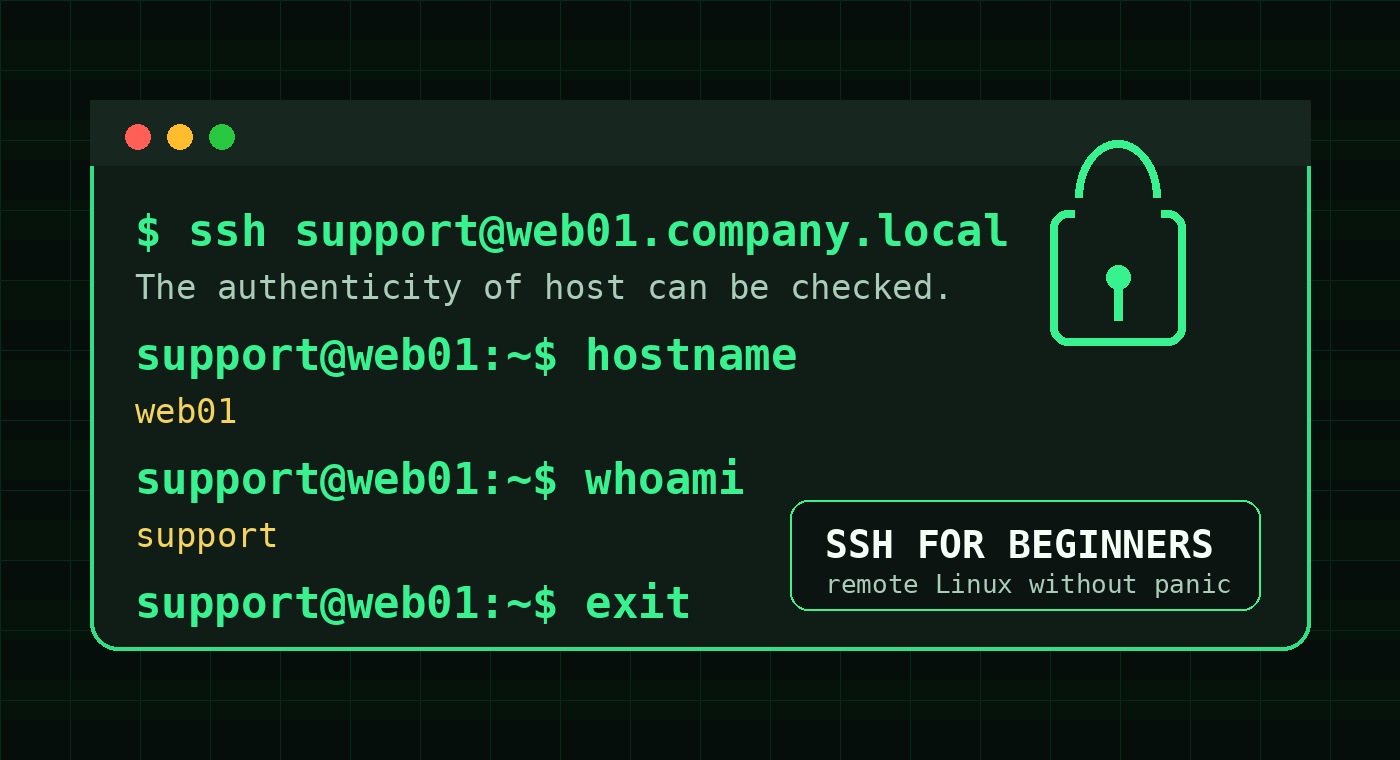
SSH is the secure way to open a command-line session on another computer, usually a Linux server.
The basic command looks like this:
ssh username@server-addressExample:
ssh [email protected]
ssh [email protected]
If the login works, the terminal on your laptop becomes a terminal on the remote server. You can check logs, restart services, inspect files, run troubleshooting commands, or confirm what is happening without sitting in front of the machine.
That is the part that matters for help desk techs and beginner sysadmins: SSH is not just a developer thing. It is how a lot of real Linux support work happens after someone says, “Can you check the server?” and then provides three details that are somehow both urgent and incomplete.
This guide explains SSH from the ground up: what it is, when you use it, what information you need before connecting, what the prompts mean, and how to avoid the beginner mistakes that create extra tickets.
What SSH means
SSH stands for Secure Shell.
That name sounds more complicated than the everyday use case. In normal support work, SSH gives you an encrypted terminal connection to a remote machine.
Without SSH, remote command-line access would be risky because usernames, passwords, commands, and output could be exposed on the network. SSH wraps the session in encryption and also checks the identity of the server so you are not casually typing credentials into the wrong place.
A normal SSH connection has three big parts:
- Client — the computer you are typing from.
- Server — the machine you are connecting to.
- Authentication — the proof that you are allowed in, usually a password or SSH key.
When you run:
ssh sam@server01Your computer starts the SSH client, contacts server01, checks the server identity, authenticates as user sam, and opens a shell session if everything lines up.
When help desk techs actually use SSH
SSH shows up any time Linux systems need remote support.
Common examples:
- A web app is down and someone needs to check the service status.
- A monitoring alert says disk space is low on a Linux VM.
- A developer needs help finding logs under
/var/log. - A backup job failed and you need to inspect a server-side script.
- A cloud instance needs a quick package update or config check.
- A user says an internal Linux appliance is not responding.
You are usually not opening SSH because everything is calm and well documented. You are opening it because something is broken, the ticket is vague, and the person before you wrote “Linux issue” like that was a diagnosis.
SSH gives you a safe path into the machine so you can gather facts before changing anything.
The information you need before connecting
Before you type random SSH commands, collect the basics.
| Need | Example | Why it matters |
|---|---|---|
| Server address | web01.example.com or 10.0.2.15 | SSH needs a host to contact |
| Username | alex, ubuntu, ec2-user, support | Linux accounts are user-specific |
| Authentication method | Password or SSH key | The server may reject the wrong method |
| Network path | VPN, office LAN, jump box, allowed IP | Private servers may not be reachable from home Wi-Fi |
| Port | Usually 22, sometimes custom | Some environments move SSH to another port |
Do not skip the network path. If a server only accepts connections from the VPN or office network, SSH will fail from your couch even if the username, key, and password are perfect.
That is not you being bad at Linux. That is routing doing its job.
The basic SSH command
The standard format is:
ssh username@hostExamples:
ssh [email protected]
ssh [email protected]
ssh alex@web01
If the server uses the default SSH port, port 22, that is enough.
If SSH listens on a different port, use -p:
ssh [email protected] -p 2222Beginner mistake: putting the port in the wrong place or using an uppercase -P because another command did it that way. For ssh, the port option is lowercase -p.
What the first connection prompt means
The first time you connect to a server, you may see a message like this:
The authenticity of host 'server01 (10.0.2.15)' can't be established.
ED25519 key fingerprint is SHA256:abc123...
Are you sure you want to continue connecting (yes/no/[fingerprint])?
This is SSH asking whether you trust the server identity.
For a lab VM, local test box, or freshly created training server, typing yes is usually fine. For a production server, cloud instance, or sensitive internal system, verify the fingerprint through documentation, a cloud console, or the system owner when possible.
After you accept it, SSH stores the server’s host key in your known_hosts file. On later connections, SSH checks that the server still looks like the same server.
The trap is treating every security prompt like a browser pop-up. If SSH later warns that the host key changed, pause. It might be a rebuilt server, a changed IP, a load balancer weirdness, or something sketchy. The correct move is to verify first, clean up known_hosts second.
Passwords vs SSH keys
SSH can authenticate you with a password or an SSH key.
A password login looks like this:
support@server01's password:When you type the password, the cursor may not move. That is normal. Linux password prompts often show no dots, stars, or reassuring little progress signs. Type the password carefully and press Enter.
SSH keys are different. They use a pair of files:
- Private key — stays on your computer and should not be shared.
- Public key — copied to the server so the server can recognize your private key.
A typical private key path on Linux or macOS is:
~/.ssh/id_ed25519On Windows, it might be:
C:\Users\YourName\.ssh\id_ed25519If you need to use a specific key, pass it with -i:
ssh -i ~/.ssh/work_key support@server01Do not paste private keys into tickets, chat threads, shared docs, or “temporary” notes. Temporary secret handling has a funny way of becoming permanent incident-review material.
How to tell where your commands are running
After a successful SSH login, your shell prompt changes. It might look like:
support@web01:~$That means you are now running commands on web01, not your laptop.
Start with safe read-only checks:
whoami
hostname
pwd
uptime
ls
Those commands answer boring but important questions:
| Command | What it confirms |
|---|---|
whoami | Which user you logged in as |
hostname | Which server you are on |
pwd | Which directory you are in |
uptime | Whether the machine recently rebooted and current load |
ls | What files are in the current directory |
Run hostname before doing anything risky. A five-second check beats explaining why you restarted the wrong server because both prompts looked similar.
A beginner-safe first workflow
When a ticket asks you to check a Linux server over SSH, use this order:
- Confirm the server address and username.
- Confirm whether you need VPN or a jump box.
- Connect with
ssh username@host. - Verify the host key prompt if it appears.
- Log in with the approved password or key.
- Run
whoami,hostname, andpwd. - Gather facts with read-only commands before changing anything.
- Exit cleanly when finished.
A simple support session might look like this:
ssh [email protected]
whoami
hostname
uptime
systemctl status nginx
journalctl -u nginx --since "30 minutes ago"
exit
That is already useful. You confirmed access, verified the machine, checked service health, reviewed recent logs, and left without making random changes.
How to exit SSH
To leave a normal SSH session, type:
exitOr press:
Ctrl+DIf the connection freezes, press Enter, then type:
~.That SSH escape sequence closes a stuck session. It only works at the start of a new line, so press Enter first.
Common beginner mistakes
Mistake 1: using the wrong username
Cloud servers often use default usernames. Ubuntu images commonly use ubuntu. Amazon Linux often uses ec2-user. Some appliances use a vendor account.
If authentication fails, check the username before assuming the key is bad.
Mistake 2: forgetting VPN
If DNS names like server01.company.local fail from home, ask whether the laptop is on VPN. Internal names often require internal DNS.
Mistake 3: confusing your laptop with the server
After you SSH in, commands run remotely. If you edit files, restart services, or delete anything, you are doing it on the server.
Mistake 4: ignoring host key warnings
A host key warning is not decoration. Verify why it changed before removing entries from known_hosts.
Mistake 5: practicing only during real incidents
The worst time to learn SSH is while a manager is asking for updates every five minutes. Practice the basic flow in a safe environment first.
Practice SSH before the ticket is on fire
SSH gets less intimidating once the flow becomes muscle memory: connect, verify where you are, run safe checks, gather facts, exit cleanly.
That is exactly the kind of thing worth practicing before production is involved. If you want a safe place to build the habit, practice Linux terminal skills in Shell Samurai. You can get comfortable with commands, prompts, and server-style workflows without learning on a real outage.
Quick SSH beginner checklist
Save this version:
ssh username@host              # connect to the server
ssh username@host -p 2222      # connect on a custom port
ssh -i ~/.ssh/key username@host # use a specific private key
whoami                         # confirm your remote user
hostname                       # confirm the server
pwd                            # confirm your current directory
exit                           # leave the SSH session
SSH is not about memorizing every option. It is about safely getting onto the right machine, proving where you are, and doing careful work from there.
That alone puts you ahead of a lot of panic-driven troubleshooting.
Practice This in a Real Terminal
Shell Samurai gives you safe Linux missions so the commands actually stick. Chapter 1 is free; the full practice path is a one-time purchase, not another subscription.