Linux who Command Explained for Beginners
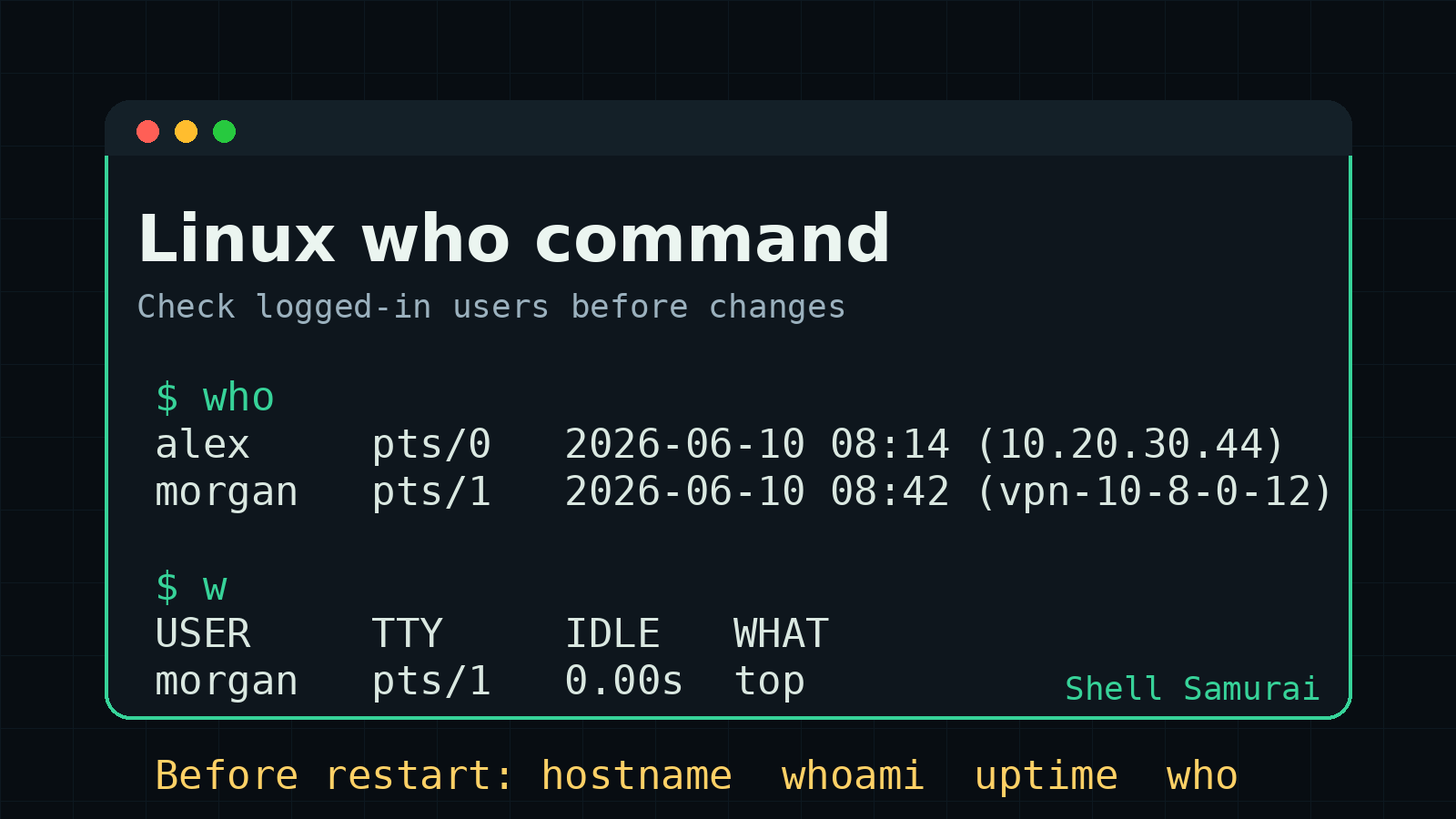
The Linux who command shows who is currently logged in to a system.
That sounds simple because it is simple. But in real help desk and junior sysadmin work, simple commands are often the ones that keep you from doing something dumb on a shared server. Before you restart a service, reboot a machine, kill a process, or tell someone “nobody else is using it,” you should know who is actually logged in.
The beginner mistake is seeing 2 users in uptime and either ignoring it or assuming two humans are actively working. Linux sessions can be SSH logins, local terminals, stale sessions, terminal multiplexers, or admins who forgot to disconnect because apparently closing loops is optional now.
who helps you turn that vague user count into names, terminals, login times, and source addresses.
The basic who command
Run:
whoYou might see output like this:
alex     pts/0        2026-06-10 08:14 (10.20.30.44)
morgan   pts/1        2026-06-10 08:42 (vpn-10-8-0-12)
That tells you two sessions are logged in.
Here is what each part means:
| Part | Example | What it means |
|---|---|---|
| Username | alex | The account logged in |
| Terminal | pts/0 | The pseudo-terminal session |
| Login time | 2026-06-10 08:14 | When the session started |
| Source | (10.20.30.44) | Where the login came from, if available |
For a beginner, the important point is not memorizing what pts means immediately. The important point is knowing that someone has a live session and may be affected by what you do next.
When help desk techs should use who
Use who when a Linux system is shared, remote, or production-ish.
Good moments to run it:
- Before restarting a service that might drop users.
- Before rebooting a server.
- Before killing a process you do not recognize.
- When
uptimesays multiple users are logged in. - When someone claims they are connected but you need to verify it.
- When you are writing a ticket note and need real evidence.
Example ticket situation:
A user says the reporting server is slow. You SSH in and see high load. You are tempted to restart the app service.
Before touching anything, run:
hostname
uptime
who
Now you know which server you are on, how long it has been up, how many sessions are active, and who is connected.
That is already better than the classic junior admin workflow of “SSH into mystery box, panic slightly, restart something, hope Slack stays quiet.”
Understanding the terminal column
The terminal column can look weird at first:
alex pts/0 2026-06-10 08:14 (10.20.30.44)pts/0 means a pseudo-terminal session. In normal beginner terms, it is usually an SSH terminal window or a terminal session inside a graphical login.
You might also see something like:
root tty1 2026-06-10 07:55tty1 usually points to a local console session. That can mean someone is at the machine, on a VM console, or connected through an out-of-band management console.
You do not need to become a terminal-device historian to use this command. Just learn the practical difference:
pts/...usually means remote or pseudo-terminal session.tty...usually means local console-style session.
If you are about to reboot and you see a local console session, slow down and verify what is going on. Maybe it is nothing. Maybe someone is actively fixing the thing you are about to interrupt.
Show who you are with whoami
Do not confuse who with whoami.
who shows logged-in sessions:
whowhoami shows the current user your shell is running as:
whoamiExample:
alexThis matters when you switch users or use privilege escalation. A beginner might SSH in as one account, run sudo -i, and forget they are now root.
Check your identity before making changes:
whoami
hostname
pwd
That three-command habit saves pain. It confirms who you are, where you are, and where in the filesystem you are standing before you edit anything.
Use w when you need more detail
who is the quick check. If you need more context, use:
wExample output:
 09:22:10 up 8 days,  1:12,  2 users,  load average: 0.35, 0.41, 0.39
USER     TTY      FROM             LOGIN@   IDLE   JCPU   PCPU WHAT
alex     pts/0    10.20.30.44      08:14    2:03   0.04s  0.04s -bash
morgan   pts/1    vpn-10-8-0-12    08:42    0.00s  0.12s  0.01s top
w combines some of the same information as uptime and who, then adds what each session is doing.
The WHAT column can be useful. If someone is running top, vim, tail -f, or a deployment script, you probably want to ask before stomping around.
The IDLE column is also helpful. A session idle for 3 days is different from a session actively running a command right now.
Beginner rule:
- Use
whofor a quick list of sessions. - Use
wwhen you need activity details. - Use
lastwhen you need login history.
Check login history with last
who shows current sessions. It does not show everyone who logged in earlier.
For recent login history, use:
lastExample:
alex     pts/0        10.20.30.44      Wed Jun 10 08:14   still logged in
morgan   pts/1        vpn-10-8-0-12    Wed Jun 10 08:42   still logged in
root     pts/2        10.20.30.50      Tue Jun  9 17:03 - 17:08  (00:05)
reboot   system boot  6.1.0-21-amd64   Tue Jun  9 16:58   still running
last is useful when the ticket is about access or reboot timing:
- Who logged in before the issue started?
- Did the system reboot recently?
- Was root used directly?
- Did a VPN user connect from an expected source?
Do not overreact to one line of login history. Treat it as evidence, not a courtroom verdict. But if a system rebooted at 16:58 and the outage started at 17:00, that is worth adding to the timeline.
A safe pre-change checklist
Before making a change on a Linux server, run a small orientation check.
hostname
whoami
uptime
who
That gives you:
- The system name.
- The account you are using.
- Recent uptime and load.
- Current logged-in sessions.
If people are logged in, decide whether your change can wait. For a lab VM, it probably does not matter. For a production-ish server, it absolutely might.
If you need more context, add:
wThen write a better ticket note:
Checked
app01. Uptime is 8 days. Two active SSH sessions:alexfrom10.20.30.44andmorganfrom VPN.morganis currently runningtop. Holding restart until confirmed no active work is in progress.
That note is boring in the best possible way. It tells the next person what you saw, what you did not do, and why.
Common beginner mistakes
Mistake 1: Assuming logged in means active
A session in who does not always mean someone is typing right now.
People leave SSH sessions open. Terminal multiplexers can keep sessions around. Stale sessions happen. Use w if you need idle time and activity.
Mistake 2: Ignoring source addresses
The source field can help you spot whether the login came from an expected workstation, VPN address, jump box, or console.
Do not turn into a conspiracy board over one unfamiliar hostname. But if the source is unexpected, note it and escalate through the right process.
Mistake 3: Rebooting while others are connected
Sometimes you have to reboot. Fine. But check first.
If who shows other users, communicate before changing state. A two-minute message can prevent a thirty-minute “who killed my session?” thread.
Mistake 4: Forgetting which account you are using
who shows sessions. whoami shows your current shell identity. Use both when privilege matters.
If whoami returns root, treat the keyboard with more respect. Root does not ask many questions before it lets you make a mess.
Useful who options
The plain who command is enough most of the time, but a few options are worth knowing.
Show all available information:
who -aShow the current runlevel or system state information when available:
who -rShow the current user’s login info:
who am iThat last one looks odd, but it is a real command form. It shows the login session connected to your terminal, which can be handy after switching users.
Example:
alex pts/0 2026-06-10 08:14 (10.20.30.44)Again, do not collect flags for sport. Learn the basic command first. Add options when they answer a real question.
Practice flow for beginners
If you are learning Linux for help desk or junior sysadmin work, practice this small flow on a safe machine:
hostname
whoami
uptime
who
w
last | head
Ask yourself:
- What machine am I on?
- What user am I acting as?
- Did the system reboot recently?
- Who is logged in?
- Are the sessions active or idle?
- Do I need to notify anyone before making a change?
That is the real skill. Not just typing commands, but using them to make better support decisions.
Shell Samurai is a good place to drill this kind of orientation habit without learning on a live server that has users, alerts, and a senior admin who can smell chaos through Teams. Practice the boring checks until they are automatic, because boring checks are usually what keep beginner mistakes from becoming incident notes.
Practice Linux session and orientation commands in Shell Samurai.
Quick reference
| Command | Use it for |
|---|---|
who | Show current logged-in sessions |
whoami | Show the current shell user |
w | Show logged-in users plus activity and idle time |
last | Show recent login and reboot history |
uptime | Show system uptime, users, and load average |
hostname | Confirm which machine you are on |
If you only remember one habit, make it this: before changing a Linux server, run hostname, whoami, uptime, and who. It is not flashy. It is just how you avoid being the reason the ticket got interesting.
Practice This in a Real Terminal
Shell Samurai gives you safe Linux missions so the commands actually stick. Chapter 1 is free; the full practice path is a one-time purchase, not another subscription.