Linux wc Command for Beginners: Count Lines, Words, and Bytes
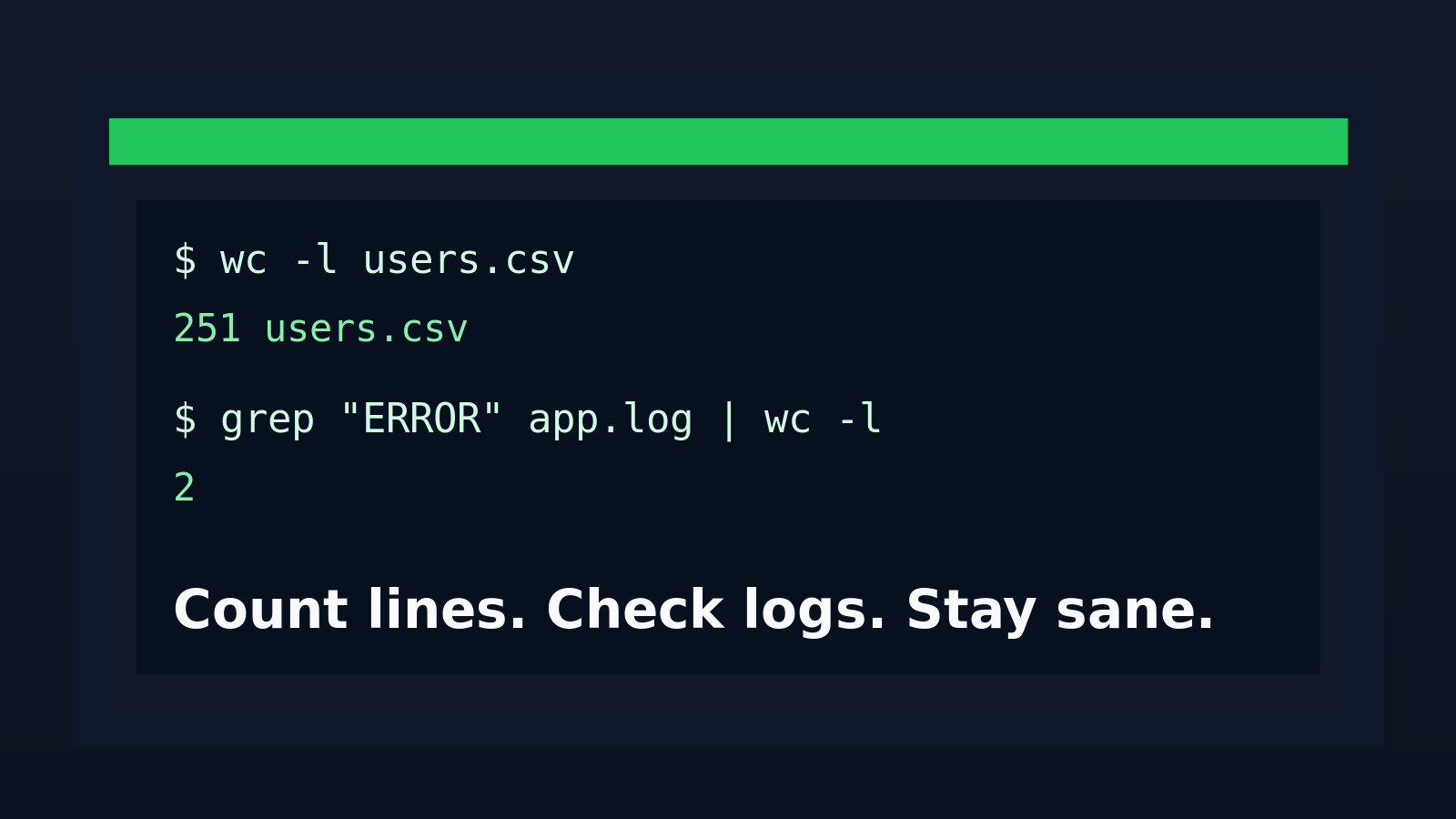
The Linux wc command counts text.
Quick version:
wc notes.txtThat prints three numbers: lines, words, and bytes.
The version beginners usually need at work is more specific:
wc -l /var/log/auth.logThat counts lines only. It is the kind of command you use when a ticket says, “Can you check how many failed rows are in that file?” or “Is this export empty?” and you would rather answer in five seconds than open a huge file and start scrolling like a person who has made peace with suffering.
This guide explains how to use wc for beginner Linux and help desk work: counting lines in logs, checking CSV row counts, measuring command output, avoiding byte-count confusion, and combining it with commands like grep, find, and ls.
Quick answer: use wc to count lines, words, and bytes
Count lines, words, and bytes in a file:
wc report.txtExample output:
42 310 1847 report.txtThat means:
42lines310words1847bytes- file name:
report.txt
Most support work uses one flag at a time:
wc -l report.txt   # count lines
wc -w report.txt   # count words
wc -c report.txt   # count bytes
wc -m report.txt   # count characters
Beginner rule: if you need to know “how many rows,” “how many matching log entries,” or “did this command return anything,” reach for wc -l first.
Why wc matters in real support work
Counting sounds boring until you are staring at a production export, a failed import, or a log file that is too large to casually open.
You might need to answer questions like:
- How many users are in this CSV?
- Did the overnight job create 10,000 rows or 10 rows?
- How many errors happened after 9 AM?
- Is this file empty?
- How many matching lines did
grepfind? - Did a script output one result, many results, or nothing?
The beginner mistake is opening the whole file and trying to eyeball it. That works for five lines. It does not work for a 200 MB log file, a vendor export, or the kind of CSV someone names final_final_real_one.csv because humans cannot be trusted with filenames.
wc gives you a fast count without making you inspect every line.
What wc prints by default
Create a tiny practice file:
printf "alpha beta\ngamma delta\n" > sample.txtNow run:
wc sample.txtOutput:
2 4 23 sample.txtRead it left to right:
- Lines:
2 - Words:
4 - Bytes:
23 - File name:
sample.txt
This default output is useful once you know the order, but it is easy to misread when you are new. If you only care about one number, use a flag.
Count lines with wc -l
This is the most common wc pattern.
wc -l sample.txtOutput:
2 sample.txtFor a help desk scenario, imagine you exported disabled accounts to a CSV:
wc -l disabled-users.csvIf the output says:
101 disabled-users.csvThat usually means 101 lines total. If the first line is a header row, you probably have 100 user records.
That distinction matters. Plenty of import mistakes happen because someone forgets the header row and says, “There are 101 users,” when there are actually 100 users plus one row explaining the columns.
Count CSV rows without fooling yourself
For CSV files, wc -l counts lines, not business objects.
Check the top of the file first:
head -n 3 users.csvIf it has a header row:
username,email,department
jdoe,[email protected],Support
asmith,[email protected],IT
Then count lines:
wc -l users.csvIf the answer is 251, you likely have 250 user records.
You can subtract the header mentally, or use a small shell expression:
echo $(( $(wc -l < users.csv) - 1 ))That prints the line count minus one.
Notice the < users.csv part. That feeds the file into wc without printing the file name. It keeps the output cleaner when you want to use the number in another command.
Why wc -l and grep are a useful pair
grep finds matching lines. wc -l counts them.
Count failed SSH login lines:
grep "Failed password" /var/log/auth.log | wc -lCount HTTP 500 errors in a web log:
grep " 500 " access.log | wc -lCount users in the sales department from a CSV:
grep ",Sales," users.csv | wc -lThis is where wc starts feeling useful instead of academic. You are not reading the whole log. You are asking the system a narrow question and getting a number back.
A small warning: grep matches text, not truth. If your pattern is too broad, your count will be wrong. For example, searching for 500 may match a username, timestamp, ID number, or byte count. Search for a more specific pattern when the answer matters.
Count command output
wc -l does not only work on files. It can count lines from another command.
Count files in the current directory:
ls -1 | wc -lCount matching processes:
ps aux | grep nginx | wc -lThat second example has a classic beginner trap: the grep nginx process may count itself. A better version is:
pgrep -a nginx | wc -lOr, if you are still practicing pipes:
ps aux | grep '[n]ginx' | wc -lThe bracket trick prevents grep from matching its own command line. It looks odd, but it is a real pattern you will see in scripts and old admin notes.
Count files with find and wc
For directories, find plus wc -l is usually better than ls.
Count regular files under /var/log:
find /var/log -type f | wc -lCount .log files in the current project:
find . -name "*.log" -type f | wc -lCount files changed in the last day:
find . -type f -mtime -1 | wc -lThis is useful when you need a quick sanity check:
- Did the backup job create the expected number of files?
- Did the export folder fill up overnight?
- Did the log rotation create a pile of new compressed logs?
You are not solving the whole problem with wc. You are getting a quick count so you know where to look next.
Count words with wc -w
wc -w counts words:
wc -w notes.txtThis is less common in support work than wc -l, but it can still help. Maybe you are checking whether a generated report is empty-ish, or whether a script produced the expected body text.
Example:
wc -w incident-summary.txtIf the output is:
12 incident-summary.txtThat might tell you the generated report is basically a stub. If it says 850, at least something substantial landed.
Do not overthink this one. Word counts are useful for rough checks, not precise data validation.
Bytes, characters, and why wc -c can surprise you
wc -c counts bytes:
wc -c file.txtwc -m counts characters:
wc -m file.txtFor plain ASCII text, those numbers may match. For files with emojis, accented characters, or other multi-byte text, they can differ.
Example:
printf "cafe\n" > plain.txt
printf "café\n" > accented.txt
wc -c plain.txt accented.txt
wc -m plain.txt accented.txt
Why should a beginner care? Because vendors, APIs, and old systems sometimes talk about byte limits, not character limits. If a field has a byte limit and someone pastes fancy characters into it, the count may not behave the way a normal human expects.
Most days, you will use wc -l. When dealing with uploads, API payloads, old apps, or weird file-size limits, remember that bytes and characters are not always the same thing.
Cleaner output with input redirection
When you run:
wc -l users.csvYou get:
251 users.csvWhen you run:
wc -l < users.csvYou get:
251Same count. Cleaner output.
That matters when you want to store the result in a variable:
row_count=$(wc -l < users.csv)
echo "Rows: $row_count"
Beginner scripts often break because a command prints both the number and the filename, then the script expects only the number. Input redirection keeps the output boring. Boring output is good output.
Common beginner mistakes with wc
Mistake 1: Forgetting the header row
If a CSV has 501 lines, it may have 500 records plus a header.
Check first:
head -n 1 users.csv
wc -l users.csv
Mistake 2: Counting a loose grep pattern
This may be too broad:
grep "error" app.log | wc -lIt might match terror, no error, or an old comment depending on the file.
Better:
grep -i "level=error" app.log | wc -lThe right pattern depends on the log format.
Mistake 3: Using ls for serious file counts
This is fine for quick local checks:
ls -1 | wc -lBut for scripts and nested directories, prefer find:
find . -maxdepth 1 -type f | wc -lls output is meant for humans. find output is usually easier to reason about in commands.
Mistake 4: Thinking bytes are characters
wc -c is bytes. wc -m is characters. If the file has non-plain text, those can differ.
Mistake 5: Trusting counts without checking the source
A count answers “how many lines matched this input?” It does not prove the input is correct.
Before you trust a count, spot-check the file:
head users.csv
tail users.csv
Or spot-check the matches:
grep "Failed password" /var/log/auth.log | headThat keeps you from confidently reporting the wrong number, which is somehow worse than not knowing.
A practical help desk workflow
Here is a realistic support workflow using wc.
A vendor says an import failed because the user file had the wrong number of rows. You SSH into the Linux box and check the file.
Preview the header:
head -n 3 users.csvCount total lines:
wc -l users.csvCount blank lines:
grep -n '^$' users.csv | wc -lCount rows with missing email fields, assuming a simple comma-separated file:
grep ',,' users.csv | wc -lCheck the first few suspicious rows:
grep -n ',,' users.csv | headNow you can say something useful: “The file has 2,001 lines including the header, 14 blank lines, and 9 rows that appear to have missing fields. I’m sending the first few row numbers.”
That beats “I opened it and it looked weird.” Not a high bar, but support work is often winning by clearing low bars reliably.
Practice commands
Try these in a safe directory:
seq 1 100 > numbers.txt
wc numbers.txt
wc -l numbers.txt
wc -w numbers.txt
wc -c numbers.txt
Create a fake log:
printf "INFO start\nERROR disk full\nINFO retry\nERROR failed again\n" > app.log
grep "ERROR" app.log | wc -l
grep "ERROR" app.log | head
Create a fake CSV:
printf "name,email\nAva,[email protected]\nBen,[email protected]\n" > users.csv
head users.csv
wc -l users.csv
echo $(( $(wc -l < users.csv) - 1 ))
Practice the small pieces until the shape feels normal: command, pipe, count, spot-check.
When wc is the wrong tool
Use wc for quick counts. Do not use it as a full data validator.
If you need to parse real CSV safely, use a CSV-aware tool or a small script. If you need unique counts, look at sort and uniq. If you need structured logs, consider jq for JSON logs or whatever tool your stack expects.
wc is still valuable because it is everywhere, fast, and simple. It gives you a first answer before you decide whether the problem deserves heavier tools.
Practice wc in Shell Samurai
The best way to learn wc is to use it on fake files, logs, and command output until it stops feeling like trivia.
Shell Samurai gives you a safe place to practice those terminal habits without poking at a production server and hoping nobody notices. Use it to drill the basics: preview with head, inspect with tail or less, search with grep, and count with wc.
Practice Linux commands in Shell Samurai
Learn the boring commands well enough and they stop being boring. They become the difference between guessing and actually knowing what happened.
Practice This in a Real Terminal
Shell Samurai gives you safe Linux missions so the commands actually stick. Chapter 1 is free; the full practice path is a one-time purchase, not another subscription.