Linux tee Command for Beginners: Save Output While You Watch
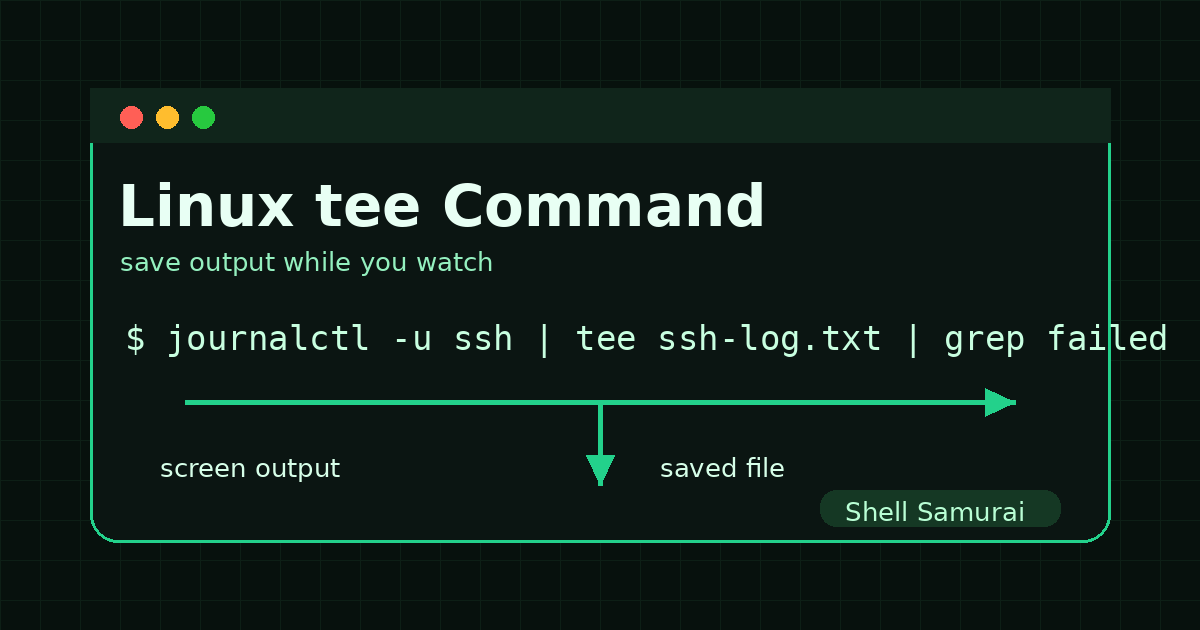
The Linux tee command shows output on your screen and saves a copy to a file at the same time.
Quick version:
ls -lah /var/log | tee log-files.txtThat runs ls -lah /var/log, displays the result in your terminal, and writes the same result to log-files.txt.
In plain English: tee is what you use when you want proof, notes, or a file for later without losing the live output you are looking at right now.
That matters in help desk work because a lot of tickets come down to this sentence: “show me what you saw.” If you can capture command output cleanly, you can attach it to a ticket, compare before and after results, or hand it to the next admin without making them decode a screenshot of your terminal.
Quick answer: use tee to save command output
Save output to a new file:
command | tee output.txtAppend output to an existing file:
command | tee -a output.txtSave output while also sending it to another command:
journalctl -u ssh --no-pager | tee ssh-log.txt | grep -i failedWrite to a root-owned file with sudo:
echo "example" | sudo tee /etc/example.confBeginner rule: tee sits in the middle of a pipeline. It copies what passes through it. One copy goes to your screen or the next command. The other copy goes into a file.
Why tee matters for beginner Linux work
Most beginners learn redirection first:
command > output.txtThat works, but it has one annoying behavior: the output disappears from your screen because it goes into the file instead.
Sometimes that is fine. Sometimes it is exactly how you end up muttering “cool, I guess?” at a blank terminal while a ticket timer keeps judging you.
tee fixes that. You get the file and the visible output.
That is useful when you need to:
- Save troubleshooting output for a ticket.
- Record a before-and-after check.
- Capture logs while still watching them.
- Create config snippets with
sudosafely. - Share command output with another tech.
- Build a simple audit trail during a maintenance window.
The beginner mistake is thinking tee is only a weird alternative to >. It is more than that. Redirection sends output away. tee makes a copy.
The mental model: a T-shaped pipe
The name tee comes from the shape of the letter T.
Imagine command output flowing left to right:
some-command | tee saved-copy.txtThe output reaches tee, then splits:
- One path keeps going to the terminal.
- One path gets written to
saved-copy.txt.
That is it. No motivational poster needed. It is just a splitter for command output.
Here is a harmless example:
echo "hello from the help desk" | tee hello.txtYou should see:
hello from the help deskAnd if you read the file:
cat hello.txtYou should see the same line.
Save command output for a ticket
Suppose someone says a Linux server is “out of space.” Before you start deleting things like the ticket queue personally offended you, capture the state clearly.
Use commands like this:
df -h | tee disk-check-before.txtNow you can see the disk usage and keep a copy.
If you also want the biggest folders under /var, you might run:
sudo du -h --max-depth=1 /var 2>/dev/null | sort -h | tee var-size-check.txtThat gives you a file you can reference later. If a senior admin asks what /var looked like before cleanup, you have an answer that is better than “it was bad, trust me.”
Ticket note example:
Checked disk usage with df -h and folder usage under /var.
Saved command output to disk-check-before.txt and var-size-check.txt.
/var/log was the largest path. No files removed yet.
That is boring in the best possible way. Boring notes save future-you from awkward archaeology.
Append with tee -a
By default, tee overwrites the target file.
This command replaces check.txt with the latest output:
date | tee check.txtIf you want to add to the file instead, use -a for append:
date | tee -a check.txt
uptime | tee -a check.txt
free -h | tee -a check.txt
Now check.txt contains multiple checks.
A practical help desk pattern:
echo "== $(date) ==" | tee -a server-check.txt
hostname | tee -a server-check.txt
uptime | tee -a server-check.txt
df -h | tee -a server-check.txt
free -h | tee -a server-check.txt
That is not a full monitoring system. It is a quick snapshot you can attach to a ticket or compare after a reboot.
Beginner mistake: forgetting -a and overwriting your earlier notes. If you are building a running log, use tee -a.
Save logs while filtering them
tee becomes especially useful in pipelines.
Say you are checking SSH logs for failed logins:
journalctl -u ssh --no-pager | tee ssh-full-log.txt | grep -i failedThis does two things:
- Saves the full SSH service log output to
ssh-full-log.txt. - Shows only lines containing
failedin your terminal.
That is a nice balance. You can focus on the likely problem without throwing away the full context.
Another example with web logs:
sudo tail -n 200 /var/log/nginx/access.log | tee recent-nginx-access.txt | grep " 500 "That saves the last 200 access log lines and shows only HTTP 500 errors on screen.
The mistake to avoid: filtering first when you actually need the full record.
This saves only matching lines:
journalctl -u ssh --no-pager | grep -i failed | tee failed-ssh.txtThat is fine if you only want failures. But if you want the complete log plus a filtered view, put tee before grep.
Write to root-owned files with sudo tee
This is one of the sneakiest reasons beginners need tee.
You might try this:
sudo echo "hello" > /etc/example.confAnd get a permission error.
Why? Because sudo applies to echo, but the > redirection is handled by your current shell before sudo writes the file. Your regular user still does not have permission to write into /etc.
Use sudo tee instead:
echo "hello" | sudo tee /etc/example.confNow tee is the command writing the file, and tee is running with sudo.
For appending:
echo "hello again" | sudo tee -a /etc/example.confReal-world style example:
echo "192.0.2.10 internal-demo.local" | sudo tee -a /etc/hostsDo not paste random config lines into root-owned files because a blog told you it was possible. The point is the pattern: when redirection fails with permissions, sudo tee is often the correct tool.
Hide tee output when you only want the file
Sometimes tee prints output you do not need to see.
You can send the screen copy to /dev/null:
echo "quiet line" | tee quiet.txt >/dev/nullThis writes quiet.txt but does not show the line in your terminal.
That looks silly for echo, but it is common in install instructions that add repository files:
echo "deb [signed-by=/usr/share/keyrings/example.gpg] https://example.invalid stable main" | sudo tee /etc/apt/sources.list.d/example.list >/dev/nullThe file gets written. Your screen stays clean.
Beginner warning: do not hide output while learning unless you understand what the command does. Seeing output is useful feedback.
Common tee mistakes
Mistake 1: expecting tee to capture errors
Most commands have standard output and standard error.
tee captures standard output by default. Errors may still go straight to your terminal.
Example:
ls /does-not-exist | tee output.txtThe error may not land in output.txt.
To capture both standard output and standard error:
ls /does-not-exist 2>&1 | tee output.txtUse that when you need a full troubleshooting record.
Mistake 2: overwriting a file by accident
This overwrites:
command | tee notes.txtThis appends:
command | tee -a notes.txtIf the file matters, slow down before hitting Enter. Linux is not mad at you. It is just very literal.
Mistake 3: using tee for secrets
Do not pipe passwords, API keys, tokens, or private customer data into files unless you know exactly where that file will live and who can read it.
Bad habit:
env | tee environment.txtThat can leak tokens. In a real company, that is the kind of “learning experience” nobody enjoys.
Mistake 4: forgetting where the file was saved
tee output.txt writes to your current directory.
Check where you are first:
pwdOr use a deliberate path:
uptime | tee ~/server-check.txtA practical mini-workflow
Here is a beginner-friendly troubleshooting capture you can practice in a lab VM or WSL environment:
echo "== system check $(date) ==" | tee system-check.txt
hostname | tee -a system-check.txt
uptime | tee -a system-check.txt
free -h | tee -a system-check.txt
df -h | tee -a system-check.txt
ip addr | tee -a system-check.txt
Then inspect the saved file:
less system-check.txtIf you want to add a second pass after a reboot or service restart:
echo "== after change $(date) ==" | tee -a system-check.txt
uptime | tee -a system-check.txt
df -h | tee -a system-check.txt
Now your notes have a before-and-after shape.
This is the kind of small habit that makes you look more competent on tickets. Not because tee is impressive. Because clean evidence is impressive.
How to practice tee safely
Practice with harmless commands first:
echo "one" | tee demo.txt
echo "two" | tee -a demo.txt
cat demo.txt
Then try it with real read-only checks:
pwd | tee location.txt
ls -lah | tee directory-listing.txt
uptime | tee uptime-check.txt
Then practice a pipeline:
ls -lah /etc | tee etc-listing.txt | grep sshThe point is not to memorize every option. The point is to build the reflex: when output matters, capture it.
Where Shell Samurai fits
tee is one of those commands that only really clicks after you use it in a few small scenarios: saving logs, appending checks, and understanding why sudo tee works when sudo echo > file does not.
That is exactly the kind of repetition Shell Samurai is good for. You can practice command pipelines in a safe environment instead of experimenting on a server that already has enough emotional baggage.
If you are building Linux confidence for help desk, sysadmin, or Windows-to-Linux work, use this article as your mental model, then go practice the pattern until it stops feeling weird.
Practice Linux command pipelines in Shell Samurai.
Final cheat sheet
| Task | Command |
|---|---|
| Save output and show it | `command |
| Append instead of overwrite | `command |
| Capture errors too | `command 2>&1 |
| Save full output before filtering | `command |
| Write with sudo | `echo “line” |
| Append with sudo | `echo “line” |
| Hide screen output | `command |
Learn tee as the command-output copy machine. When you need to keep watching and save proof at the same time, it earns its tiny weird name.
Practice This in a Real Terminal
Shell Samurai gives you safe Linux missions so the commands actually stick. Chapter 1 is free; the full practice path is a one-time purchase, not another subscription.