Linux tar Command Explained for Beginners
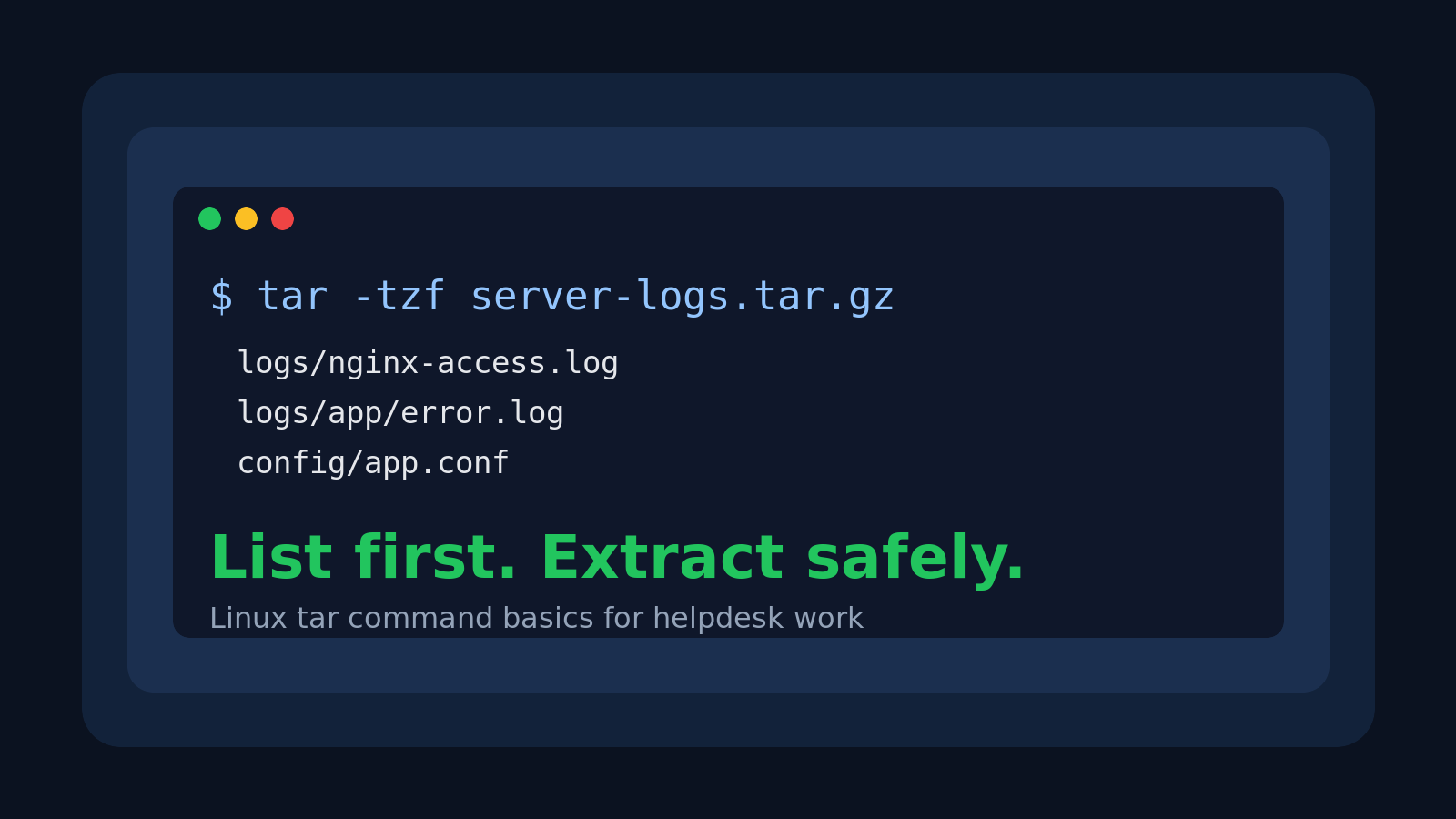
The Linux tar command is how you open and create a lot of archives on Linux.
If you are coming from Windows, think of it like dealing with ZIP files, except the filenames look more like backup.tar.gz, the options are short, and one wrong extraction can dump 4,000 files into your current directory like a help desk confetti cannon.
For beginner help desk techs and Windows admins learning Linux, tar shows up in very normal work:
- downloading a vendor tool that ships as
.tar.gz - unpacking logs someone archived before sending them to you
- creating a backup of a config directory before editing it
- moving a folder from one server to another
- checking what is inside an archive before extracting it
This guide explains the useful tar commands without pretending you need to memorize every flag. You need the daily-driver workflow: list first, extract safely, create archives when needed, and avoid making a mess in production.
What tar actually does
tar originally meant tape archive. Yes, tape. Linux has some old furniture in the house.
The practical meaning today is simpler: tar bundles files and directories into one archive file.
A plain tar archive usually ends with:
.tarA compressed tar archive often ends with:
.tar.gz
.tgz
.tar.bz2
.tar.xz
The .tar part means the files are bundled together. The .gz, .bz2, or .xz part means the bundle is also compressed.
That is why people casually say “tarball” for these files. A tarball is just a tar archive, usually compressed.
The three tar commands beginners use most
If you only remember three patterns, start here:
tar -tf archive.tar.gzList what is inside the archive.
tar -xzf archive.tar.gzExtract a gzip-compressed archive.
tar -czf backup.tar.gz folder-name/Create a gzip-compressed archive.
Those letters look weird at first, but they are not random:
| Option | Meaning | Beginner translation |
|---|---|---|
-t | list | show me what is inside |
-x | extract | unpack the archive |
-c | create | make a new archive |
-z | gzip | handle .gz compression |
-f | file | the next argument is the archive filename |
-v | verbose | show files as tar processes them |
The -f option matters because it tells tar which archive file to use. In normal beginner usage, keep f near the end and put the archive name right after the options.
List an archive before extracting it
Before you extract anything, list it.
tar -tf logs-from-server01.tar.gzExample output:
logs/
logs/nginx-access.log
logs/nginx-error.log
logs/app/app.log
logs/system/journal-export.txt
This tells you the archive contains one top-level folder named logs/. That is good. Extracting it will create a logs folder in your current location.
Now compare that with this:
nginx-access.log
nginx-error.log
app.log
journal-export.txt
config.yaml
notes.txt
That archive has files at the top level. If you extract it in your home directory, those files land directly in your home directory. If you extract it inside a shared troubleshooting folder, you may bury evidence in a pile of other files and make everyone hate the ticket a little more.
List first. It takes two seconds and prevents the classic “where did all these files come from?” cleanup dance.
Extract a .tar.gz file safely
Most beginner examples use .tar.gz, so start there.
tar -xzf package.tar.gzThat extracts the archive into your current directory.
A safer workflow is to make a clean folder first:
mkdir extracted-package
mv package.tar.gz extracted-package/
cd extracted-package
tar -xzf package.tar.gz
Or extract into a specific directory with -C:
mkdir extracted-package
tar -xzf package.tar.gz -C extracted-package
-C means “change to this directory before extracting.” It is one of the most useful safety flags in tar because it keeps the archive from spraying files wherever your terminal happens to be pointed.
Help desk scenario: a user sends you vpn-logs.tar.gz. You want to unpack it into a clean folder so you can search it with grep, not mix it with yesterday’s printer driver logs and your own half-finished notes.
mkdir vpn-logs-review
tar -xzf vpn-logs.tar.gz -C vpn-logs-review
Now you know exactly where the files went.
Extract a plain .tar file
If the file ends in .tar, it may not be gzip-compressed.
Use:
tar -xf archive.tarNo z needed.
If you try tar -xzf archive.tar and it fails, do not immediately assume the file is broken. You may have told tar to expect gzip compression when the archive is plain tar.
A useful check is:
file archive.tarExample output:
archive.tar: POSIX tar archiveFor .tar.gz you might see:
archive.tar.gz: gzip compressed dataThe file command is a nice sanity check when someone renamed a file badly, which definitely never happens in IT except constantly.
Create a tar.gz archive
To compress a folder into a .tar.gz file:
tar -czf server01-logs.tar.gz /var/log/nginx/That creates server01-logs.tar.gz from the /var/log/nginx/ directory.
For a local folder:
tar -czf app-config-backup.tar.gz app-config/Use cases:
- back up config before changing it
- package logs for escalation
- bundle a small project directory
- move a folder between machines
If you want to see each file as it gets added, include v:
tar -czvf app-config-backup.tar.gz app-config/Verbose mode is helpful while learning. In scripts or automated jobs, it can create noisy logs, so use it intentionally.
Common tar extensions and what to run
Here is the practical cheat sheet:
| File type | List contents | Extract |
|---|---|---|
.tar | tar -tf file.tar | tar -xf file.tar |
.tar.gz | tar -tzf file.tar.gz | tar -xzf file.tar.gz |
.tgz | tar -tzf file.tgz | tar -xzf file.tgz |
.tar.bz2 | tar -tjf file.tar.bz2 | tar -xjf file.tar.bz2 |
.tar.xz | tar -tJf file.tar.xz | tar -xJf file.tar.xz |
Modern GNU tar can often auto-detect compression with:
tar -xf file.tar.gzBut beginners should still understand the letters because you will see them in docs, tickets, vendor install guides, and old internal runbooks written by someone who left in 2019.
The beginner mistakes to avoid
Mistake 1: extracting in the wrong folder
Always run:
pwdbefore extracting if you are not sure where you are.
Then list the archive:
tar -tf archive.tar.gz | headIf there is no top-level folder, create one and extract with -C.
Mistake 2: confusing create and extract
-c creates an archive.
-x extracts an archive.
Do not mix them. If you are tired, caffeinated in a medically questionable way, and staring at a production box, slow down and read the command before pressing Enter.
Mistake 3: putting the archive name in the wrong place
This is the usual pattern:
tar -czf backup.tar.gz folder/Archive name comes right after the options because -f expects a filename.
This is not the pattern you want:
tar -czf folder/ backup.tar.gzThat tries to use folder/ as the archive file name, which is not your goal.
Mistake 4: archiving absolute paths without thinking
If you run:
tar -czf logs.tar.gz /var/log/nginx/tar may store paths that start from /var/log/nginx. That can be fine, but it can surprise beginners when extracting later.
A cleaner pattern is often:
cd /var/log
tar -czf ~/nginx-logs.tar.gz nginx/
Now the archive contains nginx/ instead of a full absolute path.
A realistic help desk workflow
Say a Linux web server has a weird intermittent error. Your escalation engineer asks you to collect nginx logs and the app config directory.
A careful beginner workflow might look like this:
mkdir ~/ticket-4832
cd ~/ticket-4832
sudo tar -czf nginx-logs.tar.gz /var/log/nginx/
sudo tar -czf app-config.tar.gz /etc/myapp/
ls -lh
Then verify the archives are readable:
tar -tzf nginx-logs.tar.gz | head
tar -tzf app-config.tar.gz | head
That last check matters. Sending an empty, corrupt, or wrong archive to escalation is how a ticket comes back with the spiritual energy of “per my last email.”
If the archive includes sensitive config files, follow your company’s process before uploading or sharing it. tar is a file tool, not a permission slip to yeet secrets into a chat thread.
Practice tar without touching production
The best way to learn tar is to create a junk folder and practice.
mkdir tar-practice
cd tar-practice
mkdir app logs
printf 'setting=true\n' > app/config.ini
printf 'error example\n' > logs/app.log
tar -czf practice-backup.tar.gz app logs
tar -tzf practice-backup.tar.gz
mkdir restore-test
tar -xzf practice-backup.tar.gz -C restore-test
find restore-test -type f
That sequence teaches the full loop:
- create files
- archive them
- list the archive
- extract into a safe folder
- confirm what came out
That is also the kind of repetition Shell Samurai is good for: small terminal reps where mistakes are harmless, muscle memory builds, and no production server gets turned into a file confetti experiment.
If you want structured command-line practice, try Shell Samurai here:
Practice Linux commands in Shell Samurai
Quick tar reference
Use this when you just need the command:
# List archive contents
tar -tf archive.tar.gz

# Extract .tar.gz here
tar -xzf archive.tar.gz

# Extract into a target folder
mkdir extracted
tar -xzf archive.tar.gz -C extracted

# Extract plain .tar
tar -xf archive.tar

# Create .tar.gz from a folder
tar -czf backup.tar.gz folder/

# Create with verbose output
tar -czvf backup.tar.gz folder/

# Check file type
file archive.tar.gz
FAQ
Is tar the same as zip?
Not exactly. tar bundles files together, and compression may be added with gzip, bzip2, or xz. ZIP bundles and compresses in one format. On Linux, .tar.gz is extremely common for source code, logs, backups, and vendor packages.
Should I always use tar.gz?
For beginner admin work, .tar.gz is a safe default because it is common and widely supported. Use whatever your team or vendor expects if there is an existing process.
Why did tar extract files everywhere?
The archive probably had files at the top level instead of inside a containing folder. Next time, use tar -tf archive.tar.gz first, then extract into a clean folder with -C.
What does tar -xvzf mean?
It means extract (x), show files as it works (v), use gzip compression (z), and read from the named file (f). The non-verbose version is tar -xzf archive.tar.gz.
Bottom line
tar is not fancy. It bundles, lists, and extracts files.
But it is everywhere in Linux support work, and learning the safe workflow saves real time: list before extracting, use a clean folder, understand the compression flag, and verify the archive before sending it to someone else.
That is the difference between “I downloaded a tarball and panicked” and “I handled the archive, checked the files, and moved the ticket forward.” Small skill. Big reduction in terminal nonsense.
Practice This in a Real Terminal
Shell Samurai gives you safe Linux missions so the commands actually stick. Chapter 1 is free; the full practice path is a one-time purchase, not another subscription.