Linux man Command for Beginners: Read Help Pages Without Getting Lost
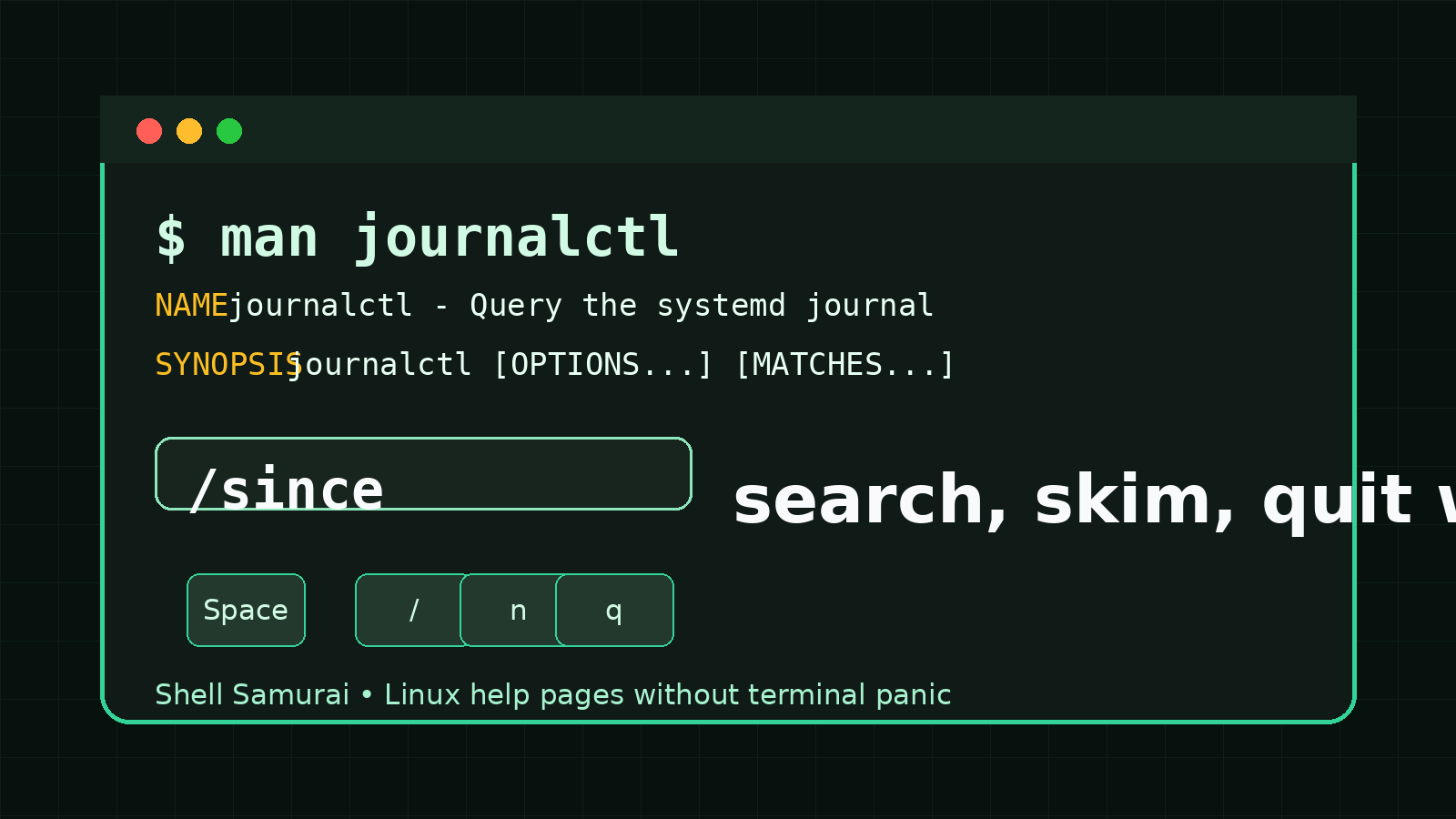
The Linux man command opens the manual page for another command. It is built-in help for the terminal.
Basic syntax:
man commandExample:
man lsThat opens the manual page for ls, including what the command does, which options it supports, and the formal description of how to use it.
The problem is that man pages can feel like someone printed the entire service manual for a printer when all you wanted was the Wi-Fi password. They are useful, but they are dense. Beginners open one, see a wall of text, press random keys, and then wonder if closing the terminal counts as troubleshooting.
You do not need to read every line. You need to know how to open a page, search inside it, find the option you care about, and quit.
Quick answer: how to use man
Open a manual page:
man lsSearch inside the page:
/wordFor example, type /sort and press Enter to search for “sort”.
Move around:
| Key | What it does |
|---|---|
Space | Move forward one page |
b | Move back one page |
j or down arrow | Move down one line |
k or up arrow | Move up one line |
/text | Search forward for text |
n | Jump to the next search result |
N | Jump to the previous search result |
g | Jump to the top |
G | Jump to the bottom |
q | Quit |
If you remember only one thing, remember q quits. That same key also gets you out of less, which is what many systems use to display man pages. Knowing q is a small but important part of not feeling trapped in the terminal like the ticket queue has grown walls.
Why man matters for help desk and beginner sysadmin work
When you are new to Linux, you will not memorize every option for every command. Nobody does. The useful skill is knowing where to look.
man helps when you need to:
- check what a command does
- find the exact option for a task
- confirm syntax before running something risky
- understand output from a command you inherited from a script
- troubleshoot on a server with limited internet access
- avoid blindly pasting commands from old forum posts
A realistic support moment looks like this:
man journalctlThen search for a word:
/sinceNow you can find how to show logs since a specific time instead of scrolling through half the server’s emotional history.
Another example:
man ssSearch for listening sockets:
/listenThat helps you understand the options behind commands like:
ss -tulpnYou do not have to become a walking encyclopedia. You need to become hard to fool by your own copy-paste habits.
Open a man page
To open help for a command, type man and the command name:
man grepYou will usually see sections like:
NAMESYNOPSISDESCRIPTIONOPTIONSEXAMPLESif you are luckySEE ALSO
The NAME section gives the short version. For example, a page might say grep searches for patterns in files.
The SYNOPSIS section shows the formal syntax. It often looks intimidating because it tries to cover every valid form of the command at once.
Example-style syntax might look like:
grep [OPTION...] PATTERNS [FILE...]Do not panic. Square brackets usually mean optional. The page is not telling you to type the brackets. It is showing the shape of the command.
Search inside a man page
The fastest way to use man is to search.
Open a page:
man lsThen type:
/sortPress Enter.
That searches for the word sort. Press n to jump to the next match or N to go backward.
This is how you turn a giant help page into a useful lookup tool. You do not read every option. You search for the option or topic you need.
Good search terms inside man pages:
/recursive/force/human/sort/time/follow/quiet/example
If your first search does not work, try a simpler word. Manual pages are written by humans, package maintainers, and occasionally people who seem personally offended by beginner clarity.
Use man with common commands
Here are practical commands worth checking with man.
For file listing:
man lsSearch for long format:
/longFor copying files:
man cpSearch for interactive overwrite prompts:
/interactiveFor logs:
man journalctlSearch for recent logs:
/sinceFor processes:
man psSearch for full-format output:
/fullFor network sockets:
man ssSearch for listening ports:
/listeningThis is a good habit before running options you found online. If a command includes flags you do not understand, check them. That does not make you slow. It makes you less likely to paste a tiny disaster.
Use —help when man is too much
Many commands also support --help:
ls --helpThis usually prints shorter help directly in the terminal. It can be easier for beginners than a full man page.
Good pattern:
command --help
man command
Use --help for the quick version. Use man when you need more detail.
Example:
grep --help
man grep
If you are on a busy support call, --help may be enough. If you are learning the command properly, man gives more context.
Use man -k to search manual page names
Sometimes you do not know the exact command name. Use man -k to search manual page descriptions:
man -k passwordThat can show related commands and pages containing the word password.
Another example:
man -k networkThis is useful on systems where you are trying to discover what tools are installed.
There is also a command called apropos that does the same kind of search on many systems:
apropos networkDo not worry about memorizing both right away. If you remember man -k, you have a good starting point.
Understand man page sections without overthinking it
Sometimes you will see pages written like this:
passwd(1)
passwd(5)
The number is the manual section.
Common sections:
| Section | Meaning |
|---|---|
1 | User commands |
5 | File formats and config files |
8 | Admin/system commands |
That means passwd(1) is the command, while passwd(5) may describe the related file format.
To open a specific section, put the number before the page name:
man 5 passwdBeginner rule: most of the time, plain man command is fine. Learn sections when you run into two pages with the same name.
Common beginner mistakes with man
Mistake 1: Trying to read the whole thing
A man page is a reference, not a novel. You are allowed to search, skim, and leave.
Open the page, search for the option, read the surrounding paragraph, test carefully, and move on.
Mistake 2: Not knowing how to quit
Press:
qThat is it. No need to close the terminal. No need to reboot. No need to text your most Linux-looking friend.
Mistake 3: Copying syntax brackets literally
If the synopsis says:
command [OPTION] FILEDo not type the brackets. They mean the option is optional.
Mistake 4: Ignoring safer quick help
If the man page is too dense, try:
command --helpYou can come back to man after you understand the shape of the command.
Mistake 5: Trusting random command examples without checking flags
If someone tells you to run:
somecommand -a -f -zand you do not know what those flags do, check:
man somecommandor:
somecommand --helpThis habit saves tickets. It also saves you from commands that were correct in 2014, on a different distro, for a different problem, run by someone who had backups.
A simple man-page workflow for support tickets
Use this when you are trying to understand a command during a real ticket:
- Run
command --helpfor the short version. - Run
man commandfor the full version. - Search inside the man page for the option or word you need.
- Read a few lines above and below the match.
- Test on a harmless file, lab box, or non-production path first.
- Save the working command in your ticket notes.
Example:
journalctl --help
man journalctl
Inside the man page:
/sinceThen test:
journalctl --since "1 hour ago" --no-pagerNow you understand the command instead of just borrowing it.
Practice this in Shell Samurai
The man command is not exciting. That is fine. A lot of real IT competence is boring lookup skill plus calm hands.
Shell Samurai gives you a safe Linux practice environment where you can open help pages, search them, quit them, and use what you found without touching a production server.
Try practicing this sequence:
- Open
man ls. - Search for
/sort. - Quit with
q. - Run
ls --helpand compare the short help to the man page. - Open
man grep. - Search for
/recursive. - Use one option you found on a harmless test file.
Once you can use man without getting lost, Linux feels less like memorization and more like a system you can interrogate. That is the point. You do not need every answer in your head. You need to know how to get the answer without making the server worse.
Practice reading Linux help pages in Shell Samurai.
FAQ
What does man do in Linux?
man opens the manual page for a command, file format, library call, or system topic. For beginner command-line work, you will mostly use it to read help for commands like ls, grep, cp, journalctl, and ss.
How do I exit a man page?
Press q. Man pages are usually displayed in a pager, and q quits the pager.
How do I search inside a man page?
Type / followed by the word you want to find, then press Enter. For example, /recursive searches for the word recursive. Press n for the next match.
Should beginners use man or —help?
Use both. --help is often shorter and easier. man is more complete. When learning a new command, start with command --help, then use man command when you need more detail.
Why are man pages so hard to read?
They are reference docs, not tutorials. They try to be complete and precise, which can make them dense. Use search, read only the relevant section, and practice with real examples instead of trying to memorize the whole page.
Practice This in a Real Terminal
Shell Samurai gives you safe Linux missions so the commands actually stick. Chapter 1 is free; the full practice path is a one-time purchase, not another subscription.