Linux history Command: Find Past Commands Fast
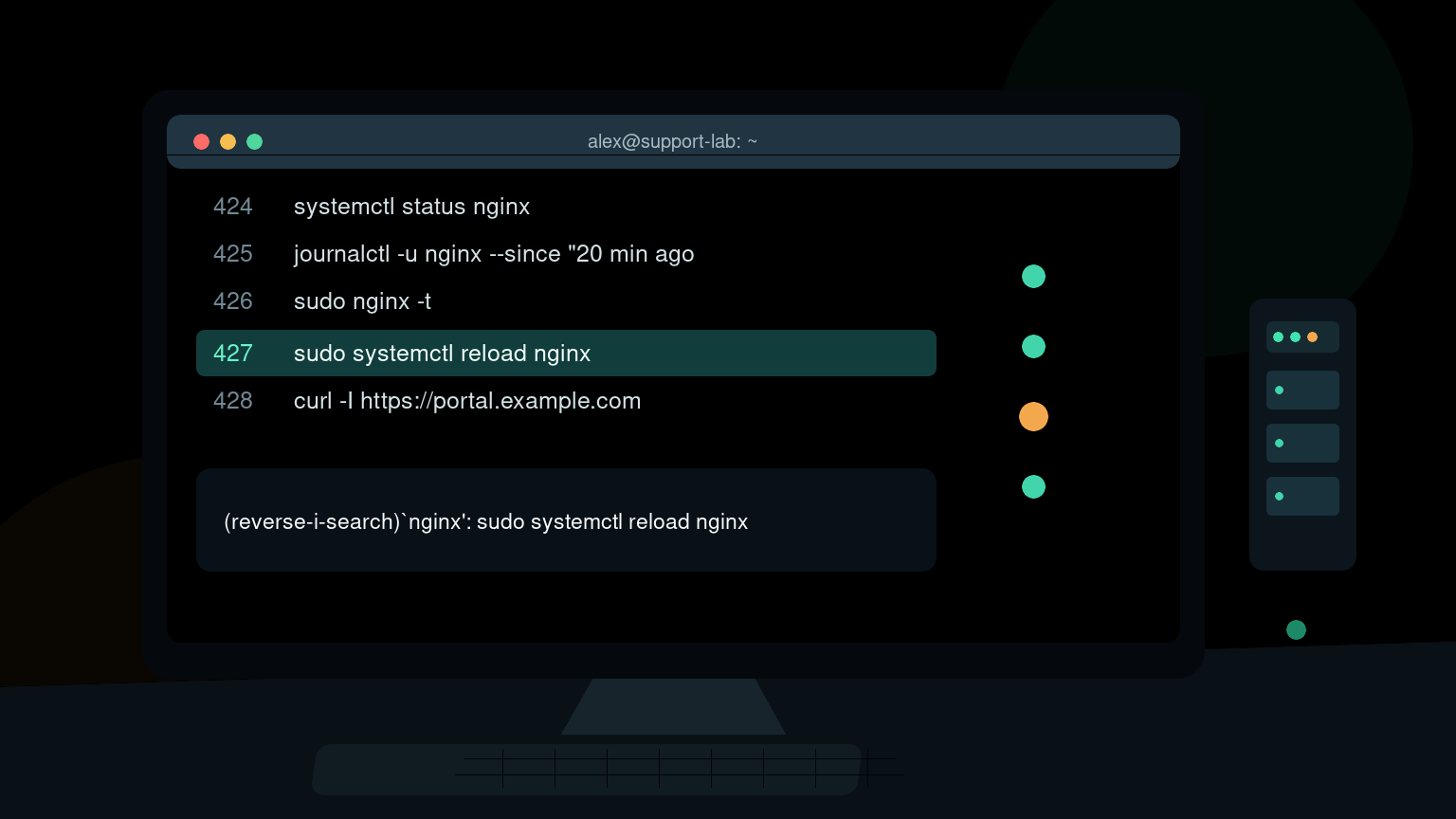
The Linux history command shows commands your current shell remembers:
historyIt is useful when you need to repeat a long command, remember how you fixed the same ticket last week, or reconstruct your own troubleshooting steps. In Bash, history is a shell builtin, and the saved history usually lives in ~/.bash_history.
History is convenient evidence, but it is not a complete audit log. Commands can be omitted, edited, cleared, stored only when a shell exits, or saved by a different shell in a different place. Use it to help your own work—not to make confident accusations about someone else’s session.
Quick Linux history command reference
| Goal | Command |
|---|---|
| Show command history | history |
| Show the newest 20 entries | history 20 |
| Search recent entries | `history |
| Search interactively | Press Ctrl+R, then type part of a command |
| Run entry 428 | !428 |
| Run the previous command | !! |
| Show the command before running it | history -p '!428' |
| Add timestamps for this shell | HISTTIMEFORMAT='%F %T ' history |
| Write current history to the history file | history -a |
| Read new lines from the history file | history -n |
| Delete one entry | history -d 428 |
| Clear the current shell history | history -c |
For normal help desk work, start with history 20 or Ctrl+R. Dumping thousands of lines is usually how the useful command hides in plain sight.
Read history output
Run:
history 5Example:
  424  systemctl status nginx
  425  journalctl -u nginx --since "20 minutes ago"
  426  sudo nginx -t
  427  sudo systemctl reload nginx
  428  curl -I https://portal.example.com
The number on the left is the history entry number. The text on the right is the command saved by Bash.
Those numbers are useful because you can recall an exact entry:
!428Bash expands that reference and runs the resulting command. That is fast, but it also means you should verify the entry before rerunning anything that changes files, restarts services, or uses sudo.
Preview it first:
history -p '!428'Then copy the printed command or rerun it only after checking the host, path, and arguments. Yesterday’s safe command can become today’s outage when you are logged into a different server.
Show only recent commands
You rarely need the entire list. Ask for a count:
history 20For a little more context:
history 50This works well when a user says, “I ran something that fixed DNS, but I don’t remember what.” Check the newest commands before searching the whole file.
You can also combine history with tail:
history | tail -n 20history 20 is simpler in Bash, while the pipeline is useful when you are already filtering or formatting output.
Search command history with grep
Search for a word you remember:
history | grep systemctlLook for SSH commands:
history | grep sshSearch without caring about capitalization:
history | grep -i networkmanagerA practical example is finding the command used to inspect one service:
history | grep 'journalctl -u nginx'Quote search text that contains spaces or shell characters. Otherwise, the shell may interpret part of your search before grep sees it.
Be aware that the search command itself may be added to history. If you run history | grep ssh, the newest matching line can be the search you just typed. That is normal, not Bash trying to pad the results.
For more search patterns, see the grep examples for real IT work.
Use Ctrl+R for faster interactive search
In Bash, press Ctrl+R and type part of a previous command. The prompt changes to a reverse search and shows the newest match.
For example:
(reverse-i-search)`nginx': sudo nginx -tUseful controls:
- Press
Ctrl+Ragain to move to an older match. - Press the right arrow or
Endto put the match on the prompt so you can edit it. - Press
Enterto run the displayed command. - Press
Ctrl+Gto cancel the search.
Treat Enter carefully. Reverse search can find a command from a different directory, environment, or incident. Put it on the prompt, inspect it, and edit the dangerous bits first.
This is especially helpful for long commands with several flags. It is less helpful when you search for sudo and discover that half your week apparently involved permissions.
Rerun commands safely
Bash supports history expansion shortcuts.
Run the previous command:
!!A common use is adding sudo after a permission failure:
apt update
sudo !!
Before using that pattern, make sure the previous command is exactly what you think it is. If you typed another command in between, sudo !! will faithfully elevate the wrong thing.
Run a numbered entry:
!428Run the newest command beginning with a prefix:
!systemctlThese shortcuts are convenient, but entry numbers and prefix matches can change as you work. Safer habits are:
- Find the command with
history,grep, orCtrl+R. - Put it on the prompt without executing it when possible.
- Check the hostname and current directory.
- Review paths, redirects, wildcards, and destructive flags.
- Run it only when the context is correct.
For production systems, a few seconds of review is cheaper than explaining why the cleanup command targeted /var/lib instead of your test directory.
Add timestamps to Bash history
By default, history may show no timestamps. In Bash, set HISTTIMEFORMAT when displaying history:
HISTTIMEFORMAT='%F %T ' history 20Example:
  424  2026-07-25 08:31:12 systemctl status nginx
  425  2026-07-25 08:32:04 journalctl -u nginx --since "20 minutes ago"
The format uses strftime codes:
%Fis an ISO-style date such as2026-07-25.%Tis a 24-hour time such as08:31:12.
To use that display format for future interactive shells, add an export to your Bash configuration:
export HISTTIMEFORMAT='%F %T 'Then reload the configuration:
source ~/.bashrcImportant limitation: Bash can only display accurate timestamps for entries whose history file contains timestamp metadata. Turning on HISTTIMEFORMAT today does not reliably reconstruct when old commands were run. It changes how available timestamp data is displayed, not what happened in the past.
Also confirm the system clock and time zone before building an incident timeline. The timedatectl guide covers that check.
Understand when Bash saves history
Bash keeps history for the current interactive shell in memory. It normally writes that history to ~/.bash_history when the shell exits.
That creates a common surprise: two terminal windows can have different in-memory histories. A command typed in terminal A may not immediately appear in terminal B.
Useful Bash commands are:
history -aAppend new commands from the current session to the history file.
history -nRead new lines from the history file into the current session.
history -wWrite the current history list to the history file.
Be careful with history -w when several shells are open because rewriting history can interact badly with concurrent sessions. Many administrators configure Bash to append after each prompt and merge new entries, but that is a shell-policy choice rather than a universal default.
Check the current settings with:
printf 'HISTFILE=%s\nHISTSIZE=%s\nHISTFILESIZE=%s\n' "$HISTFILE" "$HISTSIZE" "$HISTFILESIZE"HISTFILEis the file Bash uses.HISTSIZElimits entries kept in memory.HISTFILESIZElimits entries retained in the file.
If HISTFILE is empty or history is disabled, saved history may not be available.
Bash history is not a security audit log
Shell history has gaps by design and configuration. It may miss commands because:
- The command ran in a non-interactive shell or script.
- The shell has not exited or appended its current entries yet.
HISTCONTROLignores duplicates or commands beginning with a space.HISTIGNOREexcludes matching commands.- The user changed or cleared the history.
- The session used Zsh, Fish, another shell, or a tool that stores history elsewhere.
- Retention limits removed older entries.
- A command was executed through an application, automation service, or remote orchestration system.
History also records command text, not everything the command did. A script name in history does not show every action inside the script.
For your own troubleshooting, history is a useful memory aid. For accountability, use properly configured audit logs, sudo logs, centralized command/session recording, change-management records, and access controls appropriate to your organization.
Do not read another user’s history casually. It can contain internal hostnames, file paths, usernames, and accidentally pasted secrets. Follow your company’s access and incident-handling rules.
Remove a mistaken or sensitive entry
Delete one entry from the current history list:
history -d 428Clear the current in-memory history:
history -cThose commands are not a reliable incident-response plan. A secret may also exist in the history file, terminal scrollback, process list, logs, backups, monitoring, or the remote service that received it.
If you pasted a password, token, or private key into a command:
- Treat the secret as exposed.
- Rotate or revoke it using the proper system.
- Follow your incident process.
- Clean approved local records only after containment.
- Avoid putting the replacement secret directly on the command line.
Deleting a history line can reduce accidental rediscovery. It does not un-leak a credential.
A realistic help desk workflow
Suppose a web service is healthy again, and you need to document what you did during the ticket.
1. Confirm your context
hostname
pwd
whoami
Make sure the history belongs to the shell and host you actually used.
2. Show recent commands with timestamps
HISTTIMEFORMAT='%F %T ' history 40Look for the sequence around the incident.
3. Filter the relevant service commands
history | grep -E 'nginx|systemctl|journalctl|curl'Review the output rather than copying every unrelated command into the ticket.
4. Verify the current state separately
sudo nginx -t
systemctl is-active nginx
curl -I https://portal.example.com
History tells you what you typed. It does not prove the command succeeded or the service is still healthy.
5. Write a factual ticket note
A useful note might say:
Reviewed Nginx journal, found a configuration parse error, corrected the affected file, validated with
nginx -t, reloaded the service, and confirmed HTTP 200 from the portal at 08:44 ET.
That is better than pasting a wall of history output and making the next technician reverse-engineer your afternoon.
If you are investigating who logged in rather than what your shell remembers, use the Linux last command guide. Login history and command history answer different questions.
Beginner mistakes to avoid
Assuming history includes every command
It depends on the shell, session type, retention, and configuration. Missing history is not proof that nothing happened.
Rerunning entries without checking context
A command can be correct on one host and destructive on another. Verify the host, directory, arguments, and privileges.
Expecting timestamps to appear retroactively
HISTTIMEFORMAT displays timestamp data Bash has. It cannot invent reliable dates for entries that lack that metadata.
Treating history as proof of success
A saved systemctl restart line does not mean the restart worked. Check current state and logs.
Pasting secrets into commands
Command-line secrets can leak through history and other system surfaces. Use safer credential mechanisms and rotate anything exposed.
Clearing history during an investigation
That can destroy useful context and violate procedure. Preserve evidence and follow the approved incident process.
Practice history-based troubleshooting
The history command is simple. The real skill is using it without confusing memory with proof: search efficiently, inspect before rerunning, verify results separately, and document the useful sequence.
Practice Linux troubleshooting commands in Shell Samurai so finding and verifying the right command feels routine before a real ticket is waiting on you.
FAQ
How do I see command history in Linux?
In an interactive Bash shell, run history. Use history 20 for the newest 20 entries or press Ctrl+R to search interactively.
Where is Bash history stored?
Bash usually saves interactive command history in ~/.bash_history, but current-session commands may remain in memory until they are appended or the shell exits. Check $HISTFILE for the configured path.
How do I search Linux command history?
Use history | grep search-term for a visible list, or press Ctrl+R and type part of the command for interactive reverse search.
How do I show timestamps in Bash history?
Run HISTTIMEFORMAT='%F %T ' history. Reliable timestamps require timestamp metadata to have been saved with the entries; the setting cannot reconstruct missing historical times.
Does Linux history show commands from every user?
No. Shell history is normally per user and per shell, and it may be incomplete. Do not treat it as an organization-wide audit record.
Is deleting a history entry enough after exposing a secret?
No. Rotate or revoke the secret and follow your incident process. Removing a history entry does not erase terminal output, logs, backups, process data, or copies sent elsewhere.
Practice This in a Real Terminal
Shell Samurai gives you safe Linux missions so the commands actually stick. Chapter 1 is free; the full practice path is a one-time purchase, not another subscription.