Linux head Command for Beginners: Preview Files Safely
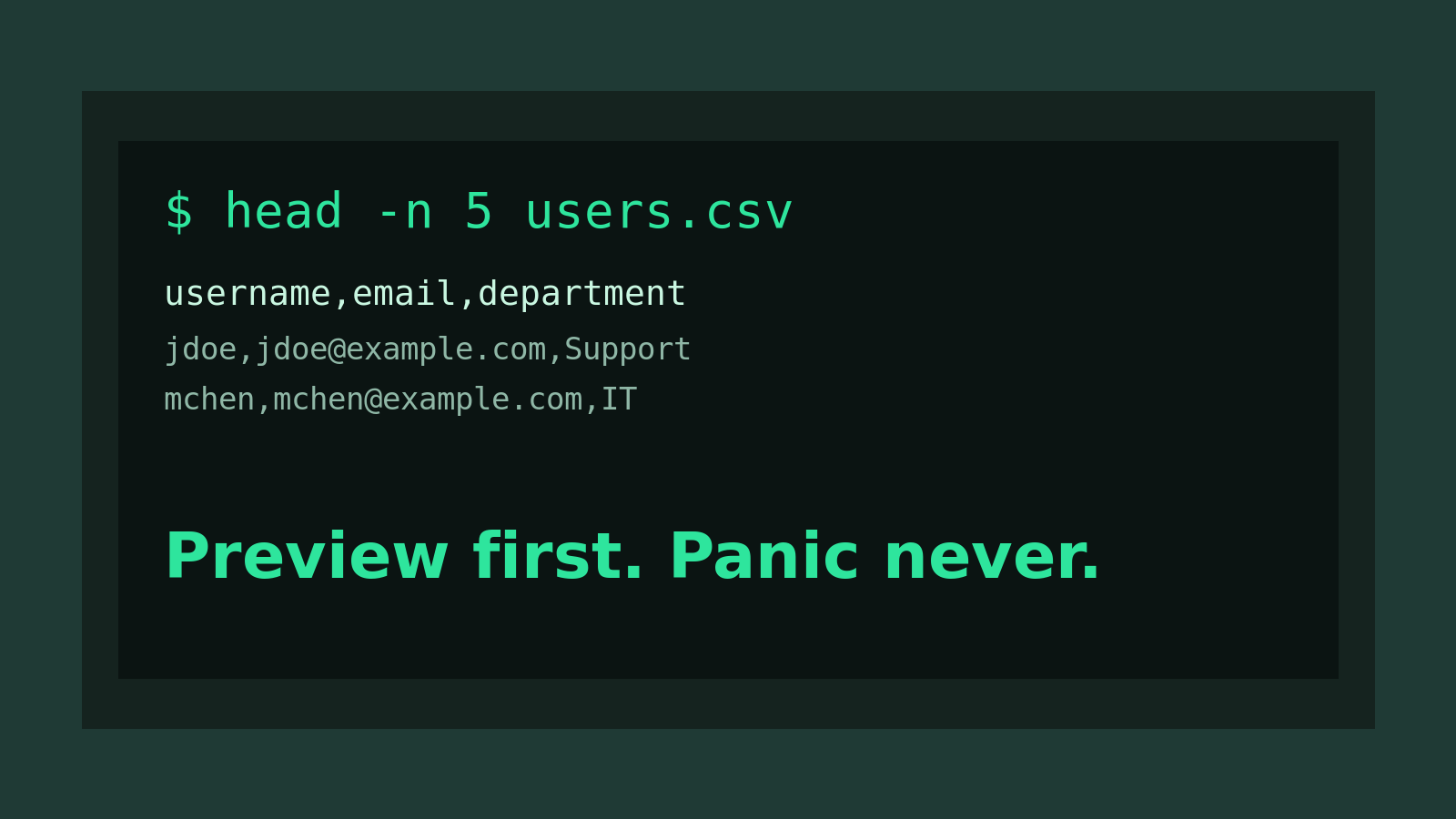
The Linux head command shows the first lines of a file.
Quick version:
head filename.txtThat prints the first 10 lines by default.
The more useful beginner version is this:
head -n 20 /var/log/auth.logThat shows the first 20 lines of the file without dumping the whole thing into your terminal. It is boring in exactly the way good support tools should be boring: predictable, fast, and unlikely to turn a simple ticket into a scrolling disaster.
This guide explains how to use head for real beginner Linux and help desk work: previewing files, checking log formats, reading CSV headers, comparing the beginning and end of a file, and knowing when head is the wrong tool.
Quick answer: use head to preview the start of a file
Show the first 10 lines:
head app.logShow the first 25 lines:
head -n 25 app.logShort version:
head -25 app.logShow the first line only:
head -n 1 users.csvBeginner rule: use head when you need to see what kind of file you are dealing with before opening, copying, parsing, or pasting it somewhere. If you need the newest entries in a log, use tail. If you need to search the whole file, use grep. If you need to move around inside the file, use less.
Why head matters in real support work
A lot of Linux files are bigger, noisier, or less friendly than they look.
You might get a ticket like:
- “The import failed. Can you check the CSV?”
- “This log file is huge. Is it the right one?”
- “The app config looks weird after the update.”
- “Can you confirm this export has the expected columns?”
- “The vendor asked for the first few lines of the output.”
The beginner mistake is opening the whole file without checking it first. Sometimes that is harmless. Sometimes you accidentally paste 30,000 lines into chat, lock up a terminal, or open a log file in an editor and spend the next five minutes regretting your optimism.
head gives you a safe first look.
For example:
head -n 5 customers.csvYou can quickly see whether the file has headers, whether commas look correct, whether the export is empty, or whether someone sent you HTML while calling it a CSV. That last one happens more often than it should. Computers are extremely confident liars.
Basic head examples
Create a tiny practice file:
printf "line 1\nline 2\nline 3\nline 4\nline 5\n" > sample.txtPreview it:
head sample.txtBecause the file only has five lines, head prints all five.
Create a bigger example:
seq 1 50 > numbers.txtNow run:
head numbers.txtOutput:
1
2
3
4
5
6
7
8
9
10
By default, head prints the first 10 lines.
Ask for only the first three lines:
head -n 3 numbers.txtOutput:
1
2
3
Ask for the first 15 lines:
head -n 15 numbers.txtThat is the core command. Most practical head usage is just choosing the right number.
Use head to check CSV headers
One of the best help desk uses for head is checking the top of a CSV or export file.
head -n 3 users.csvYou might see:
username,email,department,manager
jdoe,[email protected],Support,asmith
mchen,[email protected],IT,asmith
That tells you a lot:
- The file has a header row.
- The columns are comma-separated.
- The export has actual data.
- The first few rows look roughly sane.
If the output looks like this instead:
<html>
<head><title>Login</title></head>
<body>Please sign in</body>
Then congratulations, you probably downloaded an authentication page instead of the report. That is annoying, but it is much better to notice it with head than after importing junk into a system people actually use.
Use head before cat on unknown files
cat is fine for small files. It is not fine as your default move for everything.
Bad beginner habit:
cat giant-log-file.logBetter habit:
head giant-log-file.logThen, if you need more context:
less giant-log-file.logThe goal is not to memorize a rule that says “never use cat.” The goal is to stop treating every file like it is a sticky note. Some files are more like a warehouse full of receipts.
Use head with logs to understand format
For live troubleshooting, tail usually matters more because recent log entries are at the bottom. But head is still useful when you need to understand the file format.
head -n 5 /var/log/syslogor on some systems:
head -n 5 /var/log/auth.logYou are not usually looking for the current error here. You are checking what each line looks like:
- Is there a timestamp?
- Is there a hostname?
- Does the app name appear?
- Are fields separated by spaces, JSON, or something custom?
Once you understand the pattern, it is easier to search with grep or follow new entries with tail -f.
Example:
head -n 5 app.log
grep "ERROR" app.log
tail -f app.log
That workflow is simple and useful: inspect the format, search for known problems, then watch what happens next.
Use head and tail together
head shows the beginning. tail shows the end. Together, they give you a quick sense of a file without opening all of it.
head -n 5 import.log
tail -n 5 import.log
That can answer questions like:
- Did the file start normally?
- Did it end with an error?
- Is the file old or current?
- Does the format change halfway through?
For support work, this is handy when someone hands you a log and says “it failed.” You can check the first few lines for startup context and the last few lines for the final error.
You can also compare dates:
head -n 1 app.log
tail -n 1 app.log
If the first line is from January and the last line is from today, you know the file is long-lived. If both are from the last five minutes, it may be a short run log from one job.
Use head with pipes
head also works well after another command.
Show the first few results from a directory listing:
ls -lh /var/log | headShow the first five matching lines from a search:
grep "failed" auth.log | head -n 5This is useful when a command returns way more output than you expected. Instead of staring at a flood of text, you can sample the top.
One important note: if you pipe a command into head, head may stop reading after it has enough lines. Some commands handle that quietly. Others may print a “broken pipe” message. That does not always mean your data is broken. It can simply mean head closed the pipe because it already got the lines you asked for.
Example:
some-very-chatty-command | headIf you see a broken pipe warning, do not panic-click your way into a worse problem. Read the actual output and check whether the command completed enough for your purpose.
Count bytes with head when needed
Most beginners use head with lines, and that is usually right. But you can also preview by bytes:
head -c 100 file.binThat prints the first 100 bytes.
This can be useful when you want to identify a file type quickly, but be careful with binary files. Binary output can make your terminal look weird. If you are inspecting file types, file is often safer:
file download.datUse head -c when you have a reason. Do not make it your default.
Common beginner mistakes
Mistake 1: using head when you need the newest log lines
If you are troubleshooting something that just happened, this is usually wrong:
head app.logUse this instead:
tail -n 50 app.logLogs usually grow downward. The newest stuff is at the end.
Mistake 2: forgetting that headers are not data
For CSV files, the first line is often column names:
head -n 1 users.csvThat is great for checking structure, but do not count it as a user row. If a file has one header line and 100 data lines, wc -l will report 101 lines.
Mistake 3: previewing sensitive files in shared screens
head only prints a few lines, but those lines can still contain secrets, names, tokens, customer data, or other things you should not blast onto a screen share.
Before running head on config files, exports, or logs, think for two seconds. Two seconds is cheaper than explaining why an API token appeared in a meeting recording.
Mistake 4: assuming every Linux system has the same logs
Examples online often use /var/log/syslog, but some systems use /var/log/messages, journalctl, application-specific directories, or container logs.
If a path does not exist, do not assume Linux is broken. Check what is available:
ls /var/log
journalctl -n 20
A simple help desk workflow
When someone sends you a suspicious file or export, try this:
file report.csv
head -n 5 report.csv
wc -l report.csv
What each command tells you:
| Command | What it answers |
|---|---|
file report.csv | What kind of file Linux thinks it is |
head -n 5 report.csv | What the first rows look like |
wc -l report.csv | Roughly how many lines it has |
For a log file:
head -n 5 app.log
tail -n 50 app.log
grep -i "error" app.log | head
That gives you format, recent activity, and a quick error sample without opening the whole thing.
Practice this in Shell Samurai
Reading files safely is one of those command-line skills that feels tiny until you need it during a real ticket. The job is not to look impressive. The job is to avoid making the terminal messier than the problem.
Shell Samurai gives you a safe place to practice commands like head, tail, grep, less, and wc without poking at production logs or a customer export while your coffee is still negotiating with your bloodstream.
Practice Linux file-reading commands in Shell Samurai
Head command cheat sheet
| Task | Command |
|---|---|
| Show first 10 lines | head file.txt |
| Show first 20 lines | head -n 20 file.txt |
| Show first line only | head -n 1 file.txt |
| Preview a CSV | head -n 5 users.csv |
| Preview command output | `some-command |
| First five search matches | `grep “error” app.log |
| First 100 bytes | head -c 100 file.bin |
FAQ
What does head do in Linux?
head prints the first lines of a file or command output. By default, it shows the first 10 lines.
How do I show the first 20 lines of a file?
Use:
head -n 20 filenameWhat is the difference between head and tail?
head shows the beginning of a file. tail shows the end of a file. For old context or headers, use head. For newest log entries, use tail.
Can I use head with grep?
Yes. A common pattern is:
grep "ERROR" app.log | head -n 10That shows the first 10 matching lines from the search results.
Is head safe for huge files?
Usually, yes. head reads only the beginning of the file and prints a small amount by default. Still be careful with sensitive files and binary files.
The useful habit
Before opening a mystery file, run file and head. Before chasing a recent log problem, use tail. Before searching the whole thing, use grep.
That tiny decision tree prevents a lot of beginner terminal chaos. It will not make a bad ticket good, but it will keep you from adding a second problem called “I dumped the entire log into my terminal and now everything is soup.”
Practice This in a Real Terminal
Shell Samurai gives you safe Linux missions so the commands actually stick. Chapter 1 is free; the full practice path is a one-time purchase, not another subscription.