Linux Directory Structure Explained for Windows People
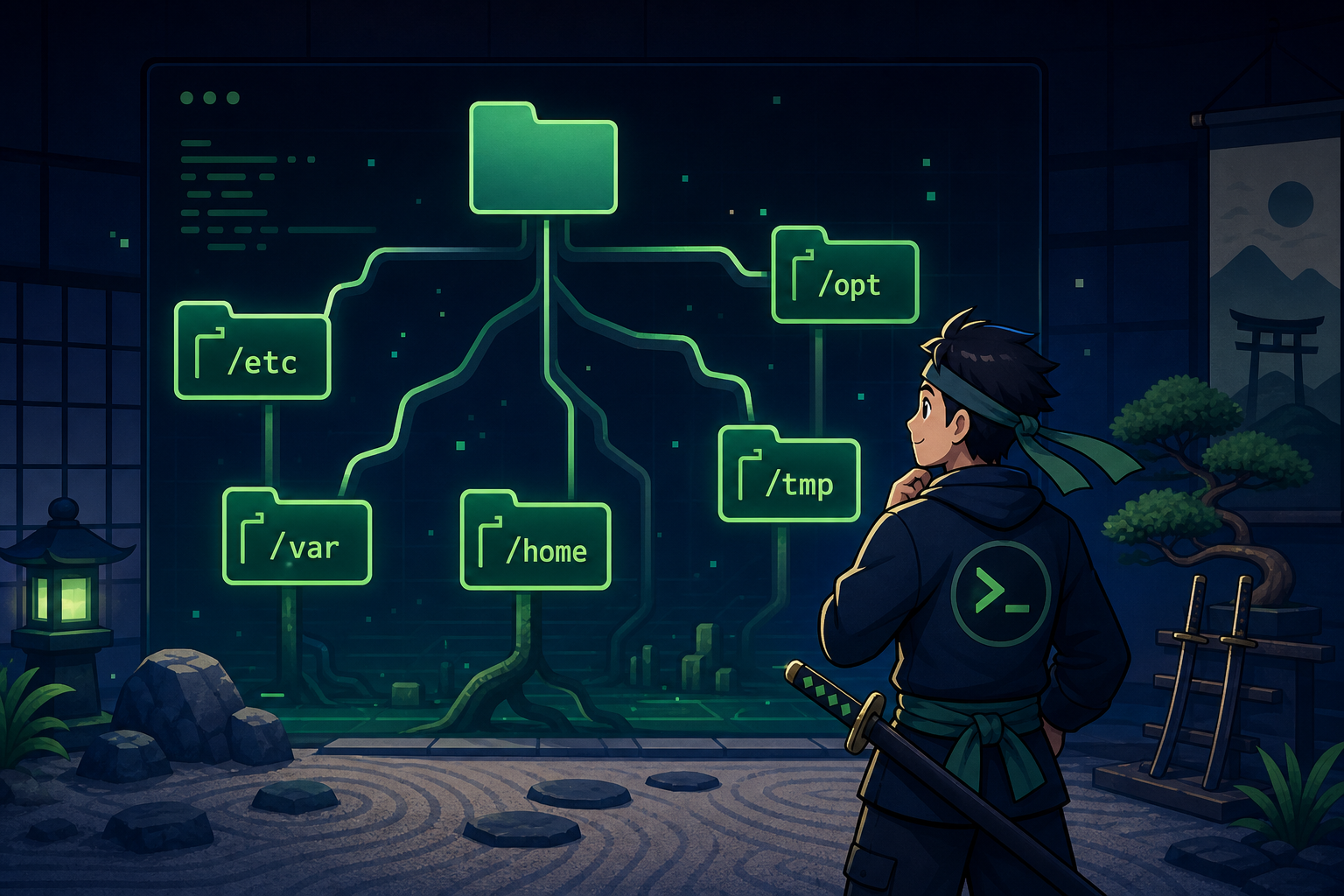
If you come from Windows, the Linux filesystem can feel like someone dumped your C: drive into a blender and labeled the pieces with tiny three-letter cave paintings.
Where is Program Files? Why is configuration in /etc? Why are logs hiding under /var? Why does everyone say “just check /home” like that explains anything?
Good news: Linux directories are weird until they are not. You do not need to memorize every folder on day one. You need a practical map for support work, so when a ticket says “the app broke after the update” or “disk is full again,” you know where to look without clicking around like a raccoon in Server Manager.
This guide explains the Linux directory structure in Windows-person terms, with the folders a beginner help desk tech, Windows admin, or junior sysadmin actually needs first.
The quick mental model
Windows often teaches you to think in drives:
C:\Users\Alex
C:\Program Files
C:\Windows
D:\Backups
Linux teaches you to think from one root:
/
├── home
├── etc
├── var
├── opt
├── tmp
├── usr
├── bin
└── dev
Everything starts at /, called the root directory. Not “root the admin user,” although Linux, being Linux, also has one of those. The root directory is the top of the filesystem tree.
A path like this:
/var/log/nginx/access.logmeans:
- Start at
/ - Go into
var - Go into
log - Go into
nginx - Read
access.log
There are no drive letters in the normal Linux path. Other disks, network shares, USB drives, and cloud volumes are usually mounted somewhere under the same tree, commonly under /mnt, /media, or an application-specific path.
Common beginner mistake: assuming / means “the current folder.” It does not. A leading slash means “start from the top.” If you type cd /var/log, you are going to the absolute path /var/log no matter where you are now.
/home: where normal user stuff lives
/home is the closest Linux equivalent to C:\Users.
Example:
/home/stetson
/home/alex
/home/helpdeskuser
Each regular user usually gets a folder under /home. This is where you will find shell history, SSH keys, downloads, scripts, dotfiles, and user-created junk piles with names like final-final-v2-backup-old.
Useful commands:
cd ~
pwd
ls -la
~ means “my home directory.” If you are logged in as alex, cd ~ takes you to /home/alex.
In support work, check /home when:
- A user cannot log in normally.
- SSH keys are broken under
~/.ssh. - A script works for one user but not another.
- Disk usage is high because someone stored backups in their home folder.
- You need to inspect dotfiles like
.bashrc,.profile, or.config.
Common beginner mistake: forgetting hidden files. Linux hides files that start with a dot. Plain ls will not show .ssh, .bashrc, .env, or .config.
Use this instead:
ls -la /home/alexThat -a flag saves a lot of “I swear the file is not there” moments.
/etc: where system configuration usually lives
/etc is one of the most important folders for IT support. It stores system-wide configuration files.
Think of it like a mix of Windows config files, service settings, network configuration, scheduled task settings, and the parts of the registry you wish were plain text.
Examples:
/etc/hosts
/etc/hostname
/etc/passwd
/etc/group
/etc/ssh/sshd_config
/etc/systemd/system/
You will touch /etc when troubleshooting:
- SSH server settings.
- Hostname or hosts-file issues.
- User and group records.
- Service unit files.
- App config installed at the system level.
- Network or resolver configuration.
A safe beginner habit:
sudo cp /etc/ssh/sshd_config /etc/ssh/sshd_config.bakBack up config before editing it. That is not paranoia. That is professional cowardice, which is the good kind.
Common beginner mistake: editing files in /etc without sudo, then being confused when the save fails. Most system config requires admin rights.
Another common mistake: editing config and forgetting to reload or restart the related service. Changing a file is not always enough.
Example:
sudo systemctl restart ssh
sudo systemctl status ssh
Do not randomly restart production services because a blog post said so. In real work, check maintenance windows and impact. In a lab? Go nuts. Break it, fix it, learn.
/var: where changing system data lives
/var means “variable data.” In plain English: stuff that changes while the system runs.
The big support folder inside it is:
/var/logThat is where many Linux logs live.
Examples:
/var/log/syslog
/var/log/auth.log
/var/log/nginx/
/var/log/apache2/
/var/log/mysql/
Check /var/log when:
- A service fails to start.
- Authentication is failing.
- A web server returns errors.
- Disk space is disappearing.
- You need proof of what happened instead of relying on “the user said nothing changed.”
Useful commands:
ls -lah /var/log
sudo tail -50 /var/log/syslog
sudo tail -f /var/log/auth.log
On many modern Linux systems, logs may also be available through journalctl:
journalctl -u ssh --since "1 hour ago"/var can also contain application data, caches, spool files, package-manager files, and web roots depending on the distro and app.
Common beginner mistake: deleting random logs or cache folders under /var because disk is full. Yes, you may free space. You may also delete something an app expects, wipe useful evidence, or make the problem worse with confidence. First measure:
df -h
sudo du -h --max-depth=1 /var | sort -h
Find the big thing before you start swinging the broom.
/opt: where third-party apps often land
/opt is commonly used for optional or third-party software that does not fit cleanly into the normal package-managed layout.
You might see paths like:
/opt/vendorapp
/opt/backup-agent
/opt/google
For Windows people, this can feel a little like C:\Program Files\Vendor App, except not every app uses it and Linux standards are more “strong tradition” than “everyone obeys or the filesystem police arrive.”
Check /opt when:
- A vendor-installed agent is broken.
- Documentation says the app lives under
/opt. - A monitoring, backup, security, or RMM tool installed outside the normal package manager.
- You need to inspect a vendor app’s scripts, logs, or config.
Useful command:
ls -lah /optCommon beginner mistake: assuming deleting a folder in /opt cleanly uninstalls the software. It might leave services, users, config, systemd units, cron jobs, or package records behind. Find the vendor uninstall instructions or package source first.
/tmp: temporary files, not a junk drawer for your dreams
/tmp stores temporary files. Many systems clean it automatically on reboot or by timer.
Use /tmp for quick scratch work:
cd /tmp
mkdir test-extract
Support examples:
- Extract a log bundle temporarily.
- Test whether a user can write files.
- Store a one-time troubleshooting output file.
- Move something out of the way briefly while diagnosing.
Common beginner mistake: putting something important in /tmp and assuming it will be there next week. It might not. Temporary means temporary. Linux is very literal when it feels like it.
Also, be careful with permissions in shared temporary directories. If you are handling sensitive logs, credentials, customer data, or config files, do not casually drop them somewhere world-readable.
/usr, /bin, and /sbin: where commands and system programs live
When you type a command like ls, grep, ssh, or systemctl, Linux finds an executable somewhere on your PATH.
Common command locations include:
/bin
/usr/bin
/sbin
/usr/sbin
You do not need to browse these every day, but you should know they exist.
Useful commands:
which grep
command -v ssh
Example output:
/usr/bin/grep/usr contains a lot of userland programs, libraries, documentation, and shared files. Historically the naming is a whole archaeological dig. For beginner support work, just remember: many installed commands and app files live somewhere under /usr.
Common beginner mistake: downloading random binaries into /usr/bin manually because a forum said so in 2014. Prefer the package manager, vendor instructions, or a safer local path. Mystery binaries in system paths are how future-you gets haunted.
/root: the root user’s home, not the root directory
This one confuses almost everyone at first.
/is the root directory of the filesystem./rootis the home directory for therootadmin user.
Regular users live under /home. The root user usually lives at /root.
You may need /root when troubleshooting scripts, SSH keys, cron jobs, or shell history that were run as root.
Common beginner mistake: saying “go to root” and not knowing whether that means / or /root. Be specific. Computers are pedantic little goblins.
/dev and /proc: weird but useful later
Two folders look especially strange to Windows admins:
/dev
/proc
/dev contains device files. Disks, terminals, random generators, and other devices show up as file-like objects.
Examples:
/dev/sda
/dev/null
/dev/tty
/proc is a virtual filesystem that exposes process and kernel information. It is not normal files sitting on disk in the way beginners expect.
Examples:
/proc/cpuinfo
/proc/meminfo
/proc/1234/
You do not need to master these immediately. Just know that Linux represents a lot of system stuff as files. That design choice is powerful once it clicks and deeply weird until then.
A simple troubleshooting path map
When you are on a Linux ticket and do not know where to start, use this rough map:
| Problem | First place to look |
|---|---|
| User files, shell config, SSH keys | /home/<user> |
| System config | /etc |
| Logs | /var/log or journalctl |
| Vendor app | /opt or /var/lib/<app> |
| Temporary scratch files | /tmp |
| Commands/binaries | /usr/bin, /bin, command -v |
| Root user’s files | /root |
| Disk/device weirdness | /dev, /mnt, /media |
That table will not solve every issue, but it gives your brain a starting grid instead of a fog machine.
Practice this without wrecking a real server
The best way to learn the Linux directory structure is not to stare at diagrams until your eyes glaze over. It is to move around, inspect files, break small lab things, and build muscle memory.
Try this practice sequence on a safe machine:
pwd
ls -la /
ls -la /home
ls -la /etc | head
ls -lah /var/log | head
df -h
command -v bash
Then ask yourself:
- Where would I look for a user’s SSH keys?
- Where would I look for auth logs?
- Where would I back up a config file before editing it?
- Where might a third-party monitoring agent live?
- What path tells me I am starting from the filesystem root?
If you want a safer place to build that command-line muscle memory, Shell Samurai is built for exactly this: beginner Linux practice that feels more like quests than reading man pages in a basement.
Practice Linux navigation in Shell Samurai
The folder names stop being scary fast
Linux directories look cryptic because they are old, terse, and extremely confident in their own weirdness. But for day-one IT support, the map is manageable:
/homeis user space./etcis configuration./varis changing data and logs./optis often third-party apps./tmpis temporary scratch space./usr,/bin, and/sbinhold many commands and system programs./rootis the root user’s home, not the top of the tree.
Learn those, and Linux stops feeling like a haunted filing cabinet. It becomes a map. Still a weird map, sure, but one you can use when the ticket is real and the server is grumpy.
Practice Linux commands next
If you want these commands to actually stick, do not stop at reading:
- Start Shell Samurai Chapter 1 free and practice in a real terminal.
- Use the Linux commands cheat sheet as your quick reference.
- Browse more Shell Samurai field notes after you finish a mission.
- Comparing resources? See the Linux Journey alternative breakdown.
Practice This in a Real Terminal
Shell Samurai gives you safe Linux missions so the commands actually stick. Chapter 1 is free; the full practice path is a one-time purchase, not another subscription.