Linux chown Command for Beginners: Fix File Ownership
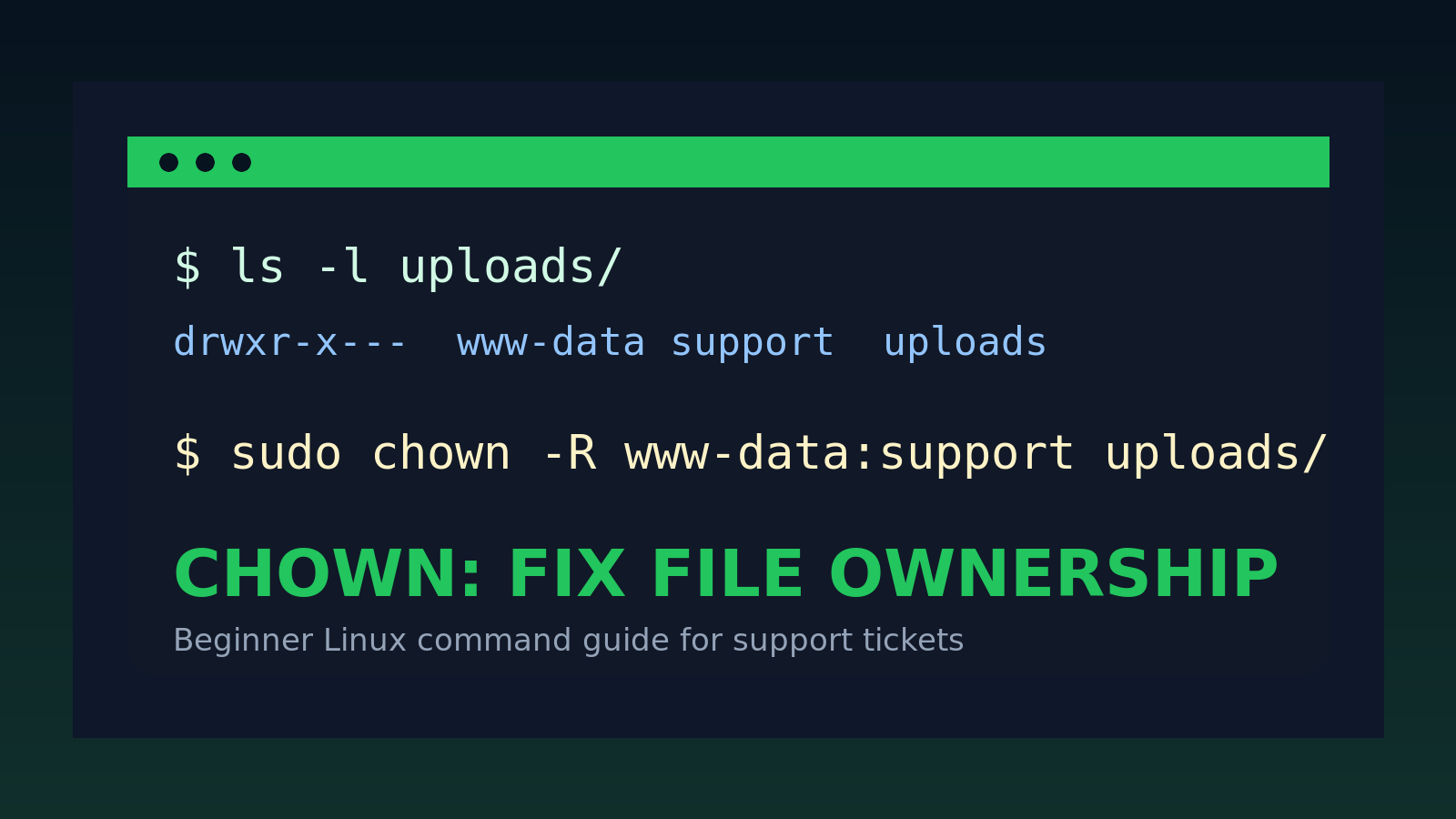
The Linux chown command changes who owns a file or directory.
Quick version:
sudo chown user:group file-or-folderExample:
sudo chown alex:support report.csvThat makes alex the owner of report.csv and support the group.
If you work help desk, desktop support, junior sysadmin, or you keep getting pulled into “the Linux app cannot write to its folder” tickets, chown is one of those commands that stops being optional fast. It is also one of those commands beginners misuse by spraying sudo chown -R across a directory like they are power-washing a driveway. Please do not be that ticket.
This guide covers the practical beginner version: how to read file ownership, change owner and group safely, use recursive ownership without making a mess, and know when chmod is the command you meant instead.
Quick answer: use chown to change owner and group
To see the current owner and group:
ls -l file.txtYou might see:
-rw-r--r-- 1 root root 2458 Jun 19 09:12 file.txtThe first root is the owner. The second root is the group.
To change both:
sudo chown alex:support file.txtTo change only the owner:
sudo chown alex file.txtTo change only the group:
sudo chown :support file.txtFor a directory and everything inside it:
sudo chown -R alex:support /srv/reportsBeginner rule: before you use -R, stop and check the path with pwd, ls -ld, and your actual human eyeballs. Recursive ownership changes are useful. They are also how a 30-second fix becomes a weird afternoon.
What file ownership means in Linux
Linux files have three permission audiences:
- the owner
- the group
- everyone else
You can see them with:
ls -lExample output:
-rw-r----- 1 maria helpdesk 1042 Jun 19 10:04 notes.txtRead the middle columns like this:
owner: maria
group: helpdesk
The permission bits at the front tell you what each audience can do:
-rw-r-----That means:
- owner
mariacan read and write - group
helpdeskcan read - everyone else gets nothing
chown changes the owner and group. It does not directly change the rw- permission bits. That is chmod territory.
The two commands often show up together, which is why beginners mix them up. Ownership answers “who is this file assigned to?” Permissions answer “what can they do with it?”
Check ownership before changing anything
Start with the exact file or directory:
ls -l app.logFor directories, use -d so Linux shows the directory itself instead of listing its contents:
ls -ld /var/www/appExample:
drwxr-xr-x 5 root root 4096 Jun 19 08:44 /var/www/appIf a web app runs as www-data but the folder belongs to root, the app may fail when it tries to upload files, write cache, or rotate logs.
Before changing anything, ask:
- What user does the service run as?
- What group should have access?
- Is this a single file problem or a whole directory tree?
- Is there a package manager, deploy script, or config management tool that expects current ownership?
That last one matters. If a server is managed by Ansible, Puppet, Chef, a CI deploy script, or some vendor installer, your manual chown might get reverted or break the next deployment. Always nice when your fix gets quietly undone by a robot at 2 a.m.
Change the owner of a file
The basic syntax is:
sudo chown newowner filenameExample:
sudo chown alex report.csvVerify:
ls -l report.csvYou should see alex in the owner column.
A realistic help desk example: someone exported a report using sudo, so the file ended up owned by root. Now their normal account cannot edit it.
ls -l report.csv
sudo chown alex report.csv
ls -l report.csv
That fixes ownership without weakening permissions for everyone else.
Do not jump straight to:
sudo chmod 777 report.csvThat is not a fix. That is a cry for help with file permissions attached.
Change the owner and group together
Use this pattern:
sudo chown user:group filenameExample:
sudo chown alex:support report.csvThis sets:
- owner:
alex - group:
support
Verify:
ls -l report.csvIf the group does not exist, Linux will complain. Check groups with:
getent group supportTo see which groups a user belongs to:
id alexThat command is boring and excellent. In support work, boring commands that tell the truth are your friends.
Change only the group
You can use chown with a leading colon:
sudo chown :support report.csvThat changes the group and leaves the owner alone.
There is also a separate command called chgrp:
sudo chgrp support report.csvBoth can work. chown :group is handy when you are already thinking in owner/group pairs.
Common use case: a shared folder where files should belong to a team group:
sudo chown :helpdesk /srv/shared/ticket-notes.txtThen use ls -l to verify the group column changed.
Use chown recursively, carefully
Recursive chown applies ownership changes to a directory and everything under it:
sudo chown -R user:group /path/to/directoryExample:
sudo chown -R www-data:www-data /var/www/app/uploadsThat can be the right fix when an application upload folder is owned by the wrong account.
But be careful. These are very different:
sudo chown -R www-data:www-data /var/www/app/uploads
sudo chown -R www-data:www-data /var/www
sudo chown -R www-data:www-data /
The first might fix a ticket. The second might break a deployment. The third is how you create a story people tell during onboarding.
Before recursive changes, run:
pwd
ls -ld /path/to/directory
find /path/to/directory -maxdepth 1 -ls
If the directory is huge, sample first:
find /path/to/directory -maxdepth 2 -type f | headThen make the smallest ownership change that solves the actual problem.
chown vs chmod
Use chown when the wrong user or group owns the file.
Use chmod when the right user or group owns it, but the permissions are too strict or too loose.
A quick comparison:
| Problem | Better command |
|---|---|
File is owned by root, but should belong to alex | chown |
| Directory belongs to the wrong service account | chown |
Group should be helpdesk, not root | chown or chgrp |
| Owner cannot write to the file | chmod if owner is correct |
| Script should be executable | chmod +x |
| Everyone has write access and that seems bad | chmod |
Example:
-rw-r--r-- 1 alex support 2458 Jun 19 09:12 deploy.shIf deploy.sh needs to be executable, ownership is already fine. Use:
chmod +x deploy.shNot:
sudo chown root:root deploy.shChanging ownership because a permission bit is wrong is like replacing a user’s laptop because Caps Lock was on. Technically decisive, spiritually unwell.
Common chown mistakes beginners make
Mistake 1: using chmod 777 instead
When a file says “permission denied,” beginners often reach for:
sudo chmod 777 some-fileSometimes the real issue is ownership:
ls -l some-fileIf the file is owned by root but the app runs as www-data, changing the owner may be the safer fix.
Mistake 2: forgetting the group
This changes only the owner:
sudo chown alex shared-report.csvIf the file is supposed to stay available to the support group, use:
sudo chown alex:support shared-report.csvMistake 3: recursive changes from the wrong directory
This is why pwd matters.
pwd
ls -ld uploads
sudo chown -R www-data:www-data uploads
Relative paths are fine when you know exactly where you are. They are less fine when you have three SSH tabs open and one of them is production.
Mistake 4: changing ownership of system files without understanding why
Be extra cautious under paths like:
/etc
/bin
/sbin
/usr
/var/lib
Those paths often have ownership that packages and services expect. If you are fixing a vendor app, read the docs before freestyle-adminning the whole server.
Practical help desk examples
Fix a report created with sudo
Problem:
ls -l report.csvOutput:
-rw-r--r-- 1 root root 2458 Jun 19 09:12 report.csvFix:
sudo chown alex:alex report.csvVerify:
ls -l report.csvFix a web upload folder
Problem: users can upload files through the app, but uploads fail with permission errors.
Check the service user:
ps aux | grep nginxCheck the folder:
ls -ld /var/www/app/uploadsPossible fix:
sudo chown -R www-data:www-data /var/www/app/uploadsVerify:
ls -ld /var/www/app/uploadsDo not automatically change the whole app directory. Upload folders, cache directories, and log directories often need write ownership. Source code directories usually do not.
Fix a shared team folder
Problem: help desk users should be able to read files in /srv/helpdesk, but new files belong to the wrong group.
Check:
ls -ld /srv/helpdeskChange group:
sudo chown :helpdesk /srv/helpdeskFor existing files:
sudo chown -R :helpdesk /srv/helpdeskThen review permissions too:
ls -ld /srv/helpdeskOwnership and permissions work together. If the group is right but group permissions are ---, the group still cannot do anything useful.
A safe chown workflow
Use this when you are not fully confident yet:
whoami
pwd
ls -ld /target/path
ls -l /target/path | head
id username
getent group groupname
sudo chown username:groupname /target/path
ls -ld /target/path
For recursive changes, add one more pause:
find /target/path -maxdepth 2 -ls | head -50
sudo chown -R username:groupname /target/path
That looks slower than YOLOing the command. It is faster than restoring ownership from backups while your manager hovers nearby pretending not to hover.
Practice chown without touching production
chown is a great command to practice in a safe Linux environment because the mental model matters more than memorizing one exact line.
In Shell Samurai, practice the surrounding skills too:
- reading ownership with
ls -l - checking users with
id - recognizing when
sudois needed - separating ownership problems from permission problems
- building the habit of verifying before and after a change
Practice Linux ownership and permission basics in Shell Samurai so the first time you use chown -R, it is not on a server with payroll files and vibes-based documentation.
FAQ
What does chown stand for?
chown stands for change owner. It changes the owner of a file or directory, and it can also change the group when you use the user:group syntax.
Do I always need sudo with chown?
Usually, yes. Normal users cannot freely give files to other users. You often need sudo to change ownership, especially outside your home directory.
What is the difference between chown and chmod?
chown changes who owns the file. chmod changes what the owner, group, and everyone else can do with it.
How do I change ownership of a folder and everything inside it?
Use -R for recursive changes:
sudo chown -R user:group /path/to/folderCheck the path carefully before running it.
Can chown break a Linux system?
Yes. Changing ownership on system directories, service files, or a broad path like /usr or /var can break services and package updates. Use the smallest path that solves the problem, and verify what owns it before changing anything.
Bottom line
The chown command is how you fix file ownership in Linux. Learn to read ls -l, identify the owner and group, choose the smallest safe target, and verify afterward.
If you remember one thing, make it this: chown changes who owns the file; chmod changes what they can do with it. Mix those up, and Linux will still obey you. It just might obey you into a mess.
Practice This in a Real Terminal
Shell Samurai gives you safe Linux missions so the commands actually stick. Chapter 1 is free; the full practice path is a one-time purchase, not another subscription.