Linux awk Command for Beginners: Pull Useful Columns Fast
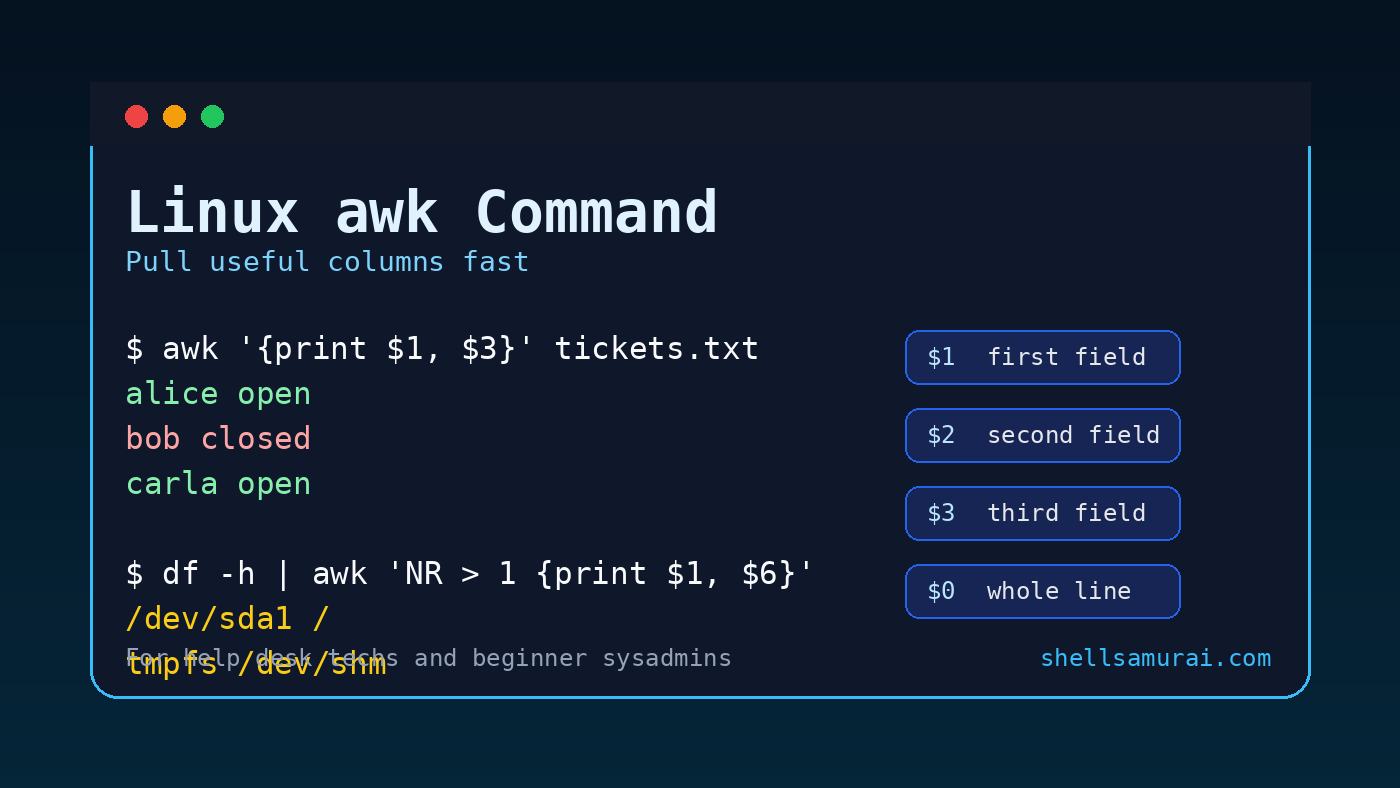
The Linux awk command reads text line by line, splits each line into fields, and lets you print or filter the parts you care about.
Quick version:
awk '{print $1}' access.logThat prints the first field from every line in access.log.
If that sounds too small to matter, wait until you are looking at a wall of log entries, CSV-ish exports, command output, or ticket evidence and only need one useful column. awk is one of those commands that turns “I am manually scanning this like a tired spreadsheet goblin” into “I can pull the exact piece I need in ten seconds.”
For help desk techs, Windows admins, and beginner sysadmins, awk is not something you need to master all at once. Start with fields, printing, simple filters, and safe one-liners. That alone covers a lot of real troubleshooting work.
Quick answer: what awk does
Use awk when you need to work with columns or fields in text output.
Basic pattern:
awk 'pattern { action }' fileCommon beginner pattern:
awk '{print $1, $3}' file.txtBeginner translation:
awkreads each line.- It splits the line into fields.
$1means the first field.$2means the second field.$0means the whole line.{print ...}says what to print.
By default, awk treats spaces and tabs as separators. That makes it great for many Linux command outputs and basic log checks.
Why awk matters at work
A lot of IT work is not glamorous. You are checking what happened, when it happened, which account was involved, what IP address showed up, or which process is making noise.
awk helps when the answer is buried inside text:
- Pull usernames from command output.
- Extract IP addresses from logs.
- Print only process IDs and command names.
- Show disk mount points from
dfoutput. - Add up simple numeric columns.
- Filter lines before handing them to another command.
The practical value is speed and repeatability. If you can explain your command, you can rerun it, paste it into ticket notes, or hand it to someone else without saying “I eyeballed it and prayed.”
Start with fields: $1, $2, and $0
Create a tiny sample file:
printf "alice helpdesk open\nbob admin closed\ncarla helpdesk open\n" > tickets.txtPrint the first field:
awk '{print $1}' tickets.txtOutput:
alice
bob
carla
Print the first and third fields:
awk '{print $1, $3}' tickets.txtOutput:
alice open
bob closed
carla open
Print the whole line:
awk '{print $0}' tickets.txt$0 is useful when you are filtering but still want the full matching line.
Print columns from command output
Here is a real beginner sysadmin example. Check disk usage:
df -hYou might see output like:
Filesystem      Size  Used Avail Use% Mounted on
/dev/sda1        40G   31G  7.1G  82% /
tmpfs           1.9G     0  1.9G   0% /dev/shm
Print the filesystem and mount point:
df -h | awk '{print $1, $6}'That gives you the first and sixth fields.
If you do not want the header row, use NR > 1:
df -h | awk 'NR > 1 {print $1, $6}'NR means the current record number, which usually means the current line number. NR > 1 skips line 1.
This is handy for ticket notes when you only need the important parts instead of dumping the entire command output into a comment like a log truck backing into a help desk queue.
Filter lines with awk
awk can print only lines that match a condition.
Using the sample file:
awk '$2 == "helpdesk" {print $1, $3}' tickets.txtOutput:
alice open
carla open
What happened?
$2 == "helpdesk"checks whether field 2 equalshelpdesk.{print $1, $3}prints the name and status for matching lines.
You can also filter numbers:
awk '$5 > 80 {print $0}' disk-report.txtThat prints lines where field 5 is greater than 80. The exact field depends on the file or command output, so always inspect a few lines first.
Use awk with logs
Suppose an application log contains simple space-separated lines:
2026-07-09 08:15:22 ERROR api01 timeout
2026-07-09 08:16:10 INFO api01 healthy
2026-07-09 08:18:44 ERROR api02 database
Print only ERROR lines:
awk '$3 == "ERROR" {print $0}' app.logPrint the time and host for ERROR lines:
awk '$3 == "ERROR" {print $2, $4}' app.logOutput:
08:15:22 api01
08:18:44 api02
That is the kind of thing you might use while answering “is this one server or multiple servers?” during a small incident.
For messy production logs, you may still need grep, journalctl, or a real log platform. awk is not a replacement for everything. It is a quick terminal tool for when the text shape is predictable enough.
Change the separator with -F
By default, awk splits on spaces and tabs. For colon-separated files or CSV-ish text, use -F to set the field separator.
Example with /etc/passwd style data:
awk -F ':' '{print $1, $7}' /etc/passwdThat prints the username and login shell.
Why?
-F ':'tellsawkto split fields on colons.$1is the username.$7is the shell.
Example with comma-separated text:
awk -F ',' '{print $1, $3}' users.csvBe careful with real CSV files. If fields can contain commas inside quotes, basic awk -F ',' can get confused. For simple exports, it is fine. For serious CSV work, use a CSV-aware tool or script.
Add labels to your output
You can print text along with fields:
awk -F ':' '{print "user=" $1, "shell=" $7}' /etc/passwdOutput might look like:
user=root shell=/bin/bash
user=daemon shell=/usr/sbin/nologin
That is more readable in ticket notes than unlabeled columns, especially when someone else has to read your evidence later.
Count matching lines
You can use awk to count matches.
Count ERROR lines:
awk '$3 == "ERROR" {count++} END {print count}' app.logWhat that means:
- For each line where field 3 is
ERROR, increasecountby 1. END {print count}runs after all lines have been read.
This looks a little more advanced, but it is useful. Instead of pasting 200 matching log lines into a ticket, you can say “43 ERROR entries between 08:00 and 09:00” and include the command you used.
Add up a column
Suppose you have a simple file named requests.txt:
api01 120
api02 95
api03 210
Add the second column:
awk '{total += $2} END {print total}' requests.txtOutput:
425This is useful for small reports, quick sanity checks, or proving that several little numbers add up to one annoying bigger number.
Combine awk with other commands
awk works well in pipelines.
Show process IDs and commands:
ps aux | awk 'NR > 1 {print $2, $11}'Find lines in a log, then print only useful fields:
grep "Failed password" /var/log/auth.log | awk '{print $1, $2, $3, $9, $11}'Sort unique IPs from a simple web log:
awk '{print $1}' access.log | sort -uCount repeated values:
awk '{print $1}' access.log | sort | uniq -c | sort -nrThat last pattern is everywhere in practical Linux work: extract a field, sort it, count it, and put the biggest values first.
Common beginner mistakes
1. Guessing the field number
Do not guess. Print the line first, then test fields:
awk '{print $1, $2, $3, $4, $5}' file.txtOnce you see the shape, write the real command.
2. Forgetting that spaces matter
Default awk field splitting works well for whitespace-separated text. It does not automatically understand every format on earth. If the file uses colons, commas, tabs, or another separator, set -F.
3. Treating messy CSV as simple CSV
This is fine:
alice,helpdesk,openThis can break simple awk -F ',' parsing:
alice,"helpdesk, tier 2",openWhen quoted commas matter, use a proper CSV tool.
4. Running a clever command you cannot explain
A copied awk one-liner can be useful, but do not paste it into a production troubleshooting session without understanding the fields and conditions. Start small. Print harmless output first. Then add filtering.
5. Using awk when another command is clearer
If cut handles the job cleanly, use cut. If grep is enough, use grep. awk shines when you need fields plus conditions or simple calculations.
A safe awk learning path
Learn awk in this order:
- Print one field with
{print $1}. - Print multiple fields with
{print $1, $3}. - Skip headers with
NR > 1. - Change separators with
-F. - Filter with
$2 == "value". - Count matches with
count++andEND. - Add up a column with
total += $2. - Combine it with
grep,sort,uniq, andps.
That is enough to be genuinely useful without pretending you are writing a full reporting system in a terminal window.
Practice it without turning work into a science fair
The best way to learn awk is to use it on boring, safe text first:
- Sample ticket exports.
- Copied command output.
- Small fake log files.
- Local practice files.
- Shell Samurai exercises where breaking something does not create a new incident channel.
If you are building Linux confidence for help desk or junior sysadmin work, practice the field basics until they feel automatic. Open a Shell Samurai session, run through column-pulling drills, and get comfortable reading command output without freezing up.
Practice Linux text-processing commands in Shell Samurai
Quick awk cheat sheet
awk '{print $1}' file.txt                    # print first field
awk '{print $1, $3}' file.txt                # print fields 1 and 3
awk '{print $0}' file.txt                    # print whole line
awk 'NR > 1 {print $1}' file.txt             # skip header row
awk -F ':' '{print $1, $7}' /etc/passwd      # use colon separator
awk '$2 == "ERROR" {print $0}' app.log       # print matching lines
awk '$5 > 80 {print $0}' report.txt          # numeric filter
awk '{count++} END {print count}' file.txt   # count lines
awk '{total += $2} END {print total}' nums   # add second column
Bottom line
awk is a practical Linux command for pulling useful fields out of text. You do not need to learn the entire language on day one. Learn how fields work, how to print them, how to filter them, and how to set separators with -F.
That gives you a real troubleshooting skill: turning noisy command output into the few facts that matter.
Practice This in a Real Terminal
Shell Samurai gives you safe Linux missions so the commands actually stick. Chapter 1 is free; the full practice path is a one-time purchase, not another subscription.