How to Quit Vim Without Panicking
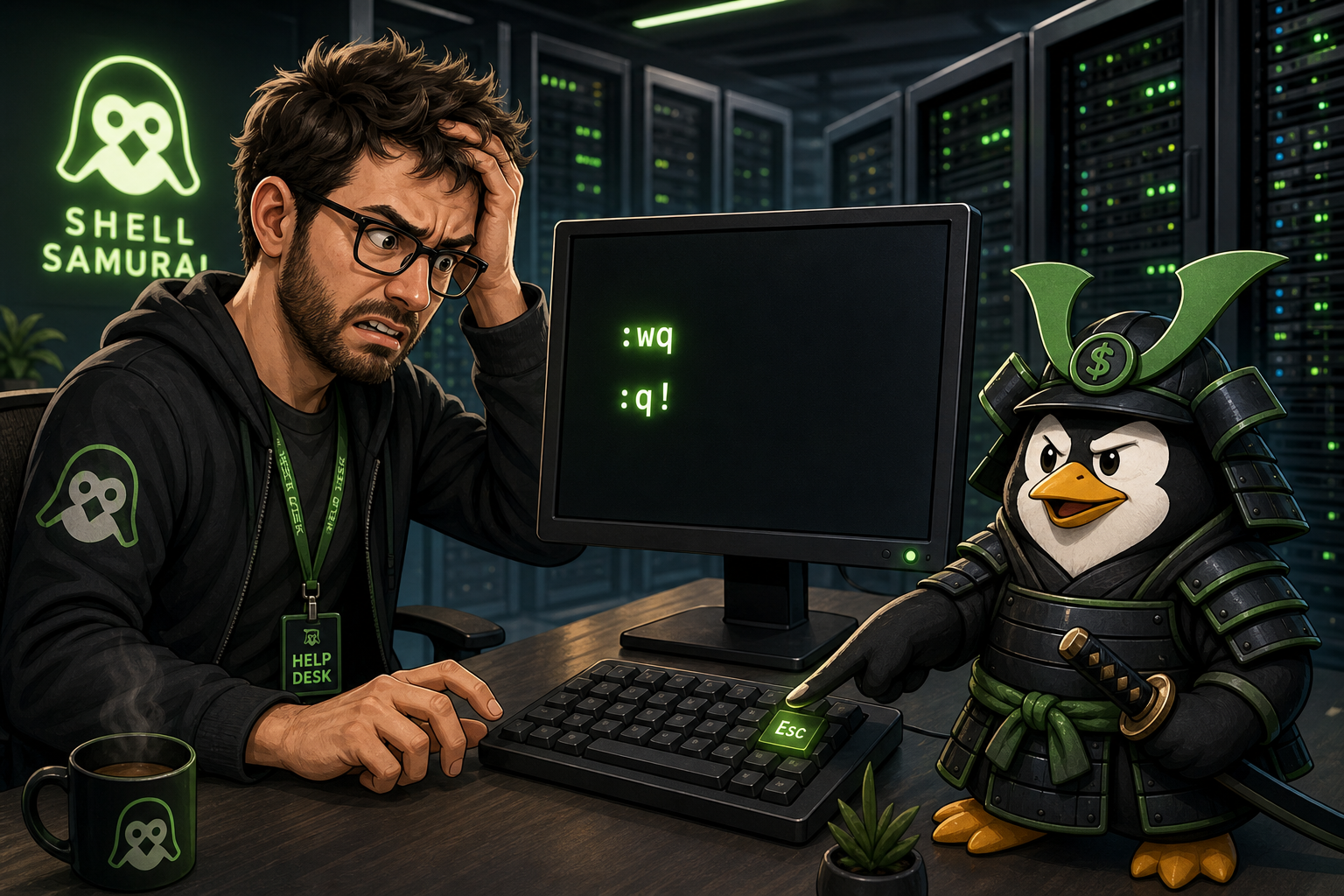
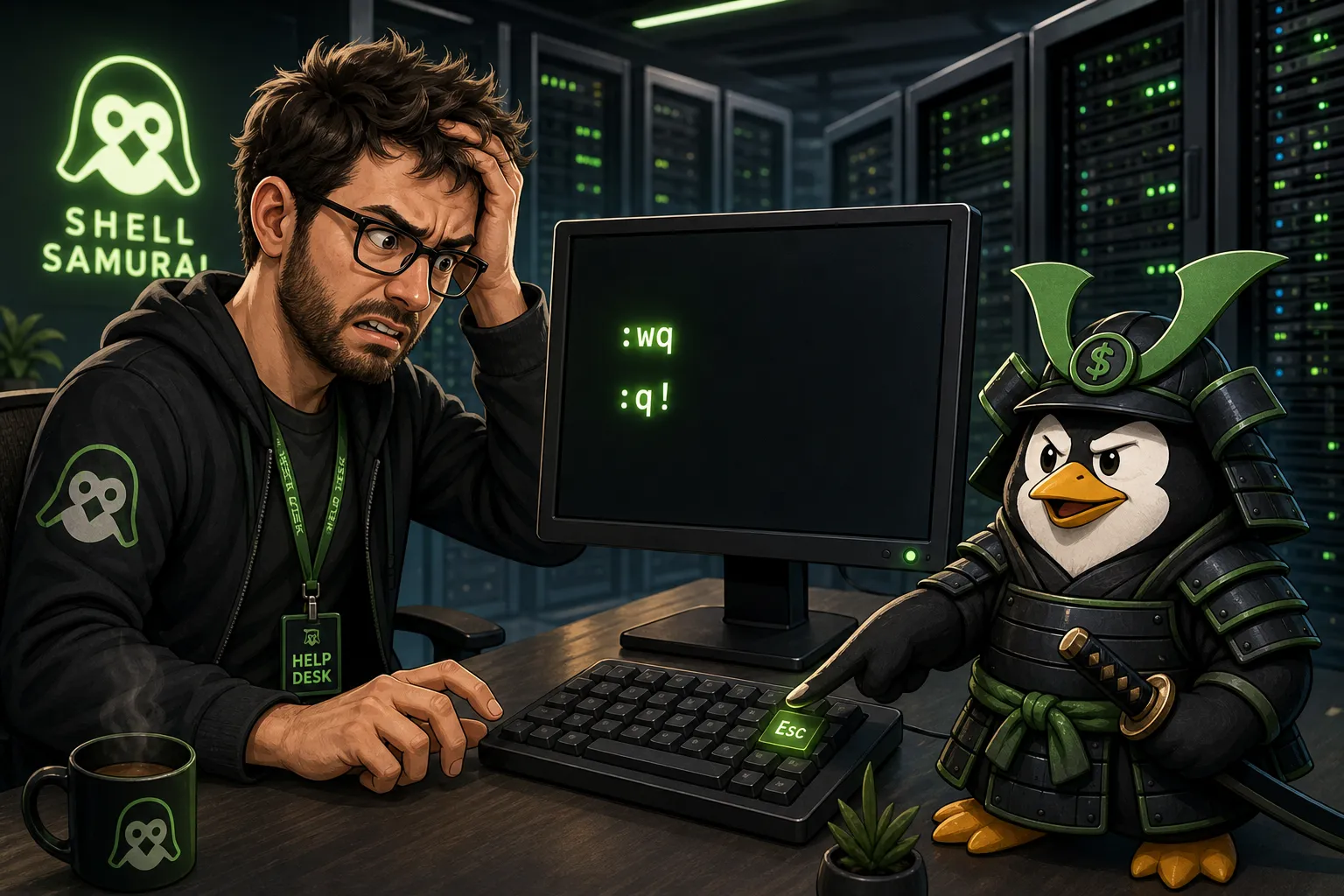
If you opened Vim by accident and now it feels like the terminal has taken you hostage, do this:
Esc
:q!
Enter
That quits Vim and throws away any changes.
If you want to save first, use this instead:
Esc
:wq
Enter
That is the whole emergency version. You can breathe now.
The quick Vim exit cheat sheet
Most Vim exits start the same way: press Esc first.
Esc puts Vim back into Normal mode. That matters because Vim has modes. If you are in Insert mode, typing :q! just puts those characters into the file like a very sad ransom note.
Once you press Esc, use one of these commands:
| What you want | Vim command |
|---|---|
| Quit if nothing changed | :q |
| Quit and discard changes | :q! |
| Save changes | :w |
| Save and quit | :wq |
| Save and quit, shorter | :x |
The one most beginners need is usually :q!.
What each command means
:q quits Vim
Use :q when you opened a file, looked around, and did not change anything.
:qIf Vim complains, it probably means the file has unsaved changes.
:q! force quits Vim
Use :q! when you do not care about saving.
:q!The exclamation mark means “yes, I mean it.” Vim will close and discard your edits.
This is the command you want when you opened Vim by mistake from Git, crontab, sudo, or some cursed server prompt and just need out.
:wq saves and quits
Use :wq when you edited the file and want to keep the changes.
:wqw means write the file. q means quit.
:x also saves and quits
:x is another save-and-quit command.
:xIt is slightly different from :wq because it only writes the file if something changed. For beginner purposes, treat it as another way to save and leave.
Why pressing random keys does not work
Vim is a modal editor. That means the same key can do different things depending on the mode you are in.
The two modes beginners trip over most are:
- Normal mode: keys are commands
- Insert mode: keys type text into the file
When Vim opens, you are usually in Normal mode. Press i and you enter Insert mode. Now you can type like a normal editor.
To leave Insert mode, press Esc.
That is why every Vim exit recipe starts with Esc. It gets you back to the mode where :q! means “quit” instead of becoming literal text in your file.
What to do if Vim says “No write since last change”
You tried :q, and Vim yelled something like this:
E37: No write since last changeThat means you changed the file and Vim is refusing to throw your work away by accident.
You have two choices:
:q!Quit and discard the changes.
:wqSave the changes and quit.
Pick one. Do not mash keys. Mashing keys is how people end up with jjjjjjjj:wq in a config file.
What if you are stuck in Git commit Vim?
This happens all the time. You run git commit, Git opens Vim, and now you are trapped in a blank-looking terminal.
If you want to cancel the commit:
:q!If you want to write the commit message:
- Press
i - Type your commit message
- Press
Esc - Type
:wq - Press
Enter
That saves the commit message and closes Vim.
The absolute panic button
If Vim is truly wedged, you can suspend it with:
Ctrl+ZThat drops you back to the shell, but it does not really quit Vim. It just pauses it in the background.
You can then run:
jobs
kill %1
Use this as a last resort. Most of the time Esc, then :q!, then Enter is enough.
Should you actually learn Vim?
Yes, at least a little.
You do not need to become the kind of person who edits their grocery list with macros. But if you work in Linux, help desk, DevOps, security, cloud, or anything server-adjacent, Vim will appear eventually.
You should know enough to:
- open a file
- move around
- insert text
- save changes
- quit without panic
Start with these:
| Action | Key or command |
|---|---|
| Insert text | i |
| Leave Insert mode | Esc |
| Save | :w |
| Quit | :q |
| Force quit | :q! |
| Save and quit | :wq |
| Search | /text |
| Undo | u |
If you want guided practice, run this in your terminal:
vimtutorIt is old-school, but it works.
Practice this in Shell Samurai
Reading :q! once is enough to escape today. Running commands until they feel boring is how you stop freezing up on real tickets.
Practice Linux in Shell Samurai so you can break stuff in a safe terminal instead of on a production box.
Practice Linux commands next
If you want these commands to actually stick, do not stop at reading:
- Start Shell Samurai Chapter 1 free and practice in a real terminal.
- Use the Linux commands cheat sheet as your quick reference.
- Browse more Shell Samurai field notes after you finish a mission.
- Comparing resources? See the Linux Journey alternative breakdown.
Practice This in a Real Terminal
Shell Samurai gives you safe Linux missions so the commands actually stick. Chapter 1 is free; the full practice path is a one-time purchase, not another subscription.