How to Find What Is Eating Disk Space on Linux
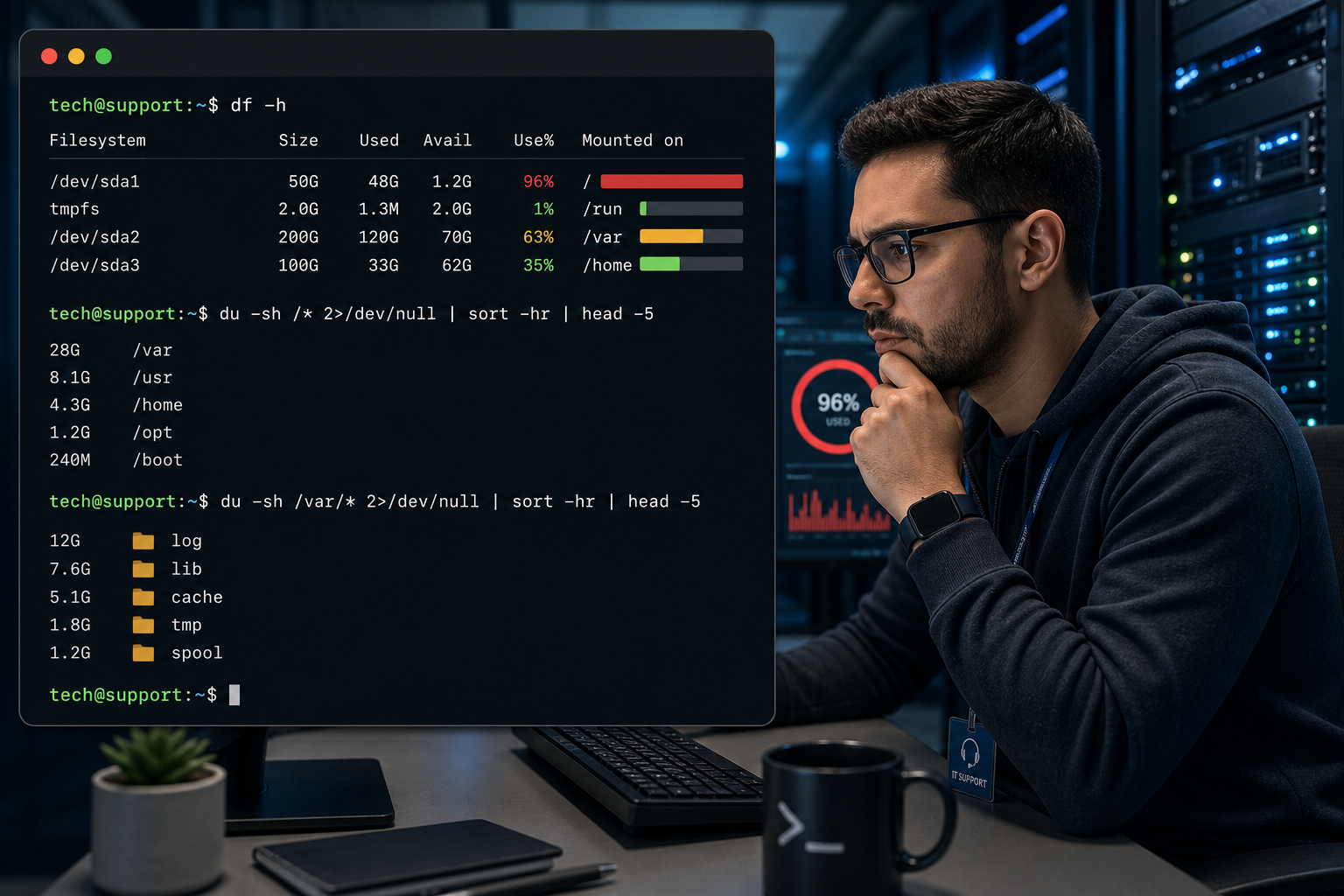
Finding what is eating disk space on Linux usually starts with two commands: df to see which filesystem is full, and du to find the folders using the space.
If you work help desk or junior sysadmin tickets, this is one of those Linux skills that pays rent. A server can look broken for dramatic reasons, but sometimes the real problem is boring: logs grew forever, backups piled up, Docker images multiplied, or someone copied a giant file into the wrong place and then went to lunch.
Start here:
df -h
sudo du -xhd1 /var | sort -h
sudo du -xhd1 /home | sort -h
The goal is not to delete random files until the error goes away. The goal is to answer three questions:
- Which filesystem is full?
- Which directory is using the space?
- What is safe to clean, archive, rotate, or escalate?
That last part matters. rm -rf is not troubleshooting. It is troubleshooting with a chainsaw.
The short version
Use this workflow when a Linux box is low on disk space:
| Task | Command |
|---|---|
| Show filesystem usage | df -h |
| Show inode usage | df -ih |
| Check one top-level folder | `sudo du -xhd1 /var |
| Find big files | sudo find /var -xdev -type f -size +500M -ls |
| Check logs | `sudo du -sh /var/log/* 2>/dev/null |
| Check Docker usage | docker system df |
| Interactive folder browser | sudo ncdu -x /var |
A safe beginner pattern:
df -h
sudo du -xhd1 / | sort -h
sudo du -xhd1 /var | sort -h
sudo find /var -xdev -type f -size +500M -ls
Read the output before doing anything destructive. If the server is production, take notes or screenshots before cleanup so the next person does not have to reconstruct the crime scene from vibes.
What df -h tells you
df means disk free. It shows how much space is used and available on mounted filesystems.
df -hExample output:
Filesystem      Size  Used Avail Use% Mounted on
/dev/sda1        40G   38G  1.1G  98% /
/dev/sdb1       200G   80G  120G  40% /data
tmpfs           2.0G  4.0M  2.0G   1% /run
The important columns are:
Size: total size of the filesystem.Used: how much is currently used.Avail: how much usable space remains.Use%: the part your brain notices first.Mounted on: where that filesystem appears in the directory tree.
In this example, / is 98% full. That means your next searches should stay on /, not wander into /data unless you have a reason.
Beginner mistake: seeing /dev/sda1 and trying to cd into it. You do not browse /dev/sda1 like a folder. You inspect the mount point, which is / in the example above.
Check inode usage too
Sometimes a filesystem is not full because of one huge file. It is full because there are too many tiny files.
Check inodes with:
df -ihIf IUse% is at 100%, the filesystem may have space left but cannot create more files. This can happen with runaway session files, cache directories, mail queues, or poorly behaving apps that create tiny temp files like they are collecting Pokémon.
If inodes are the problem, du -sh may not look scary. You need to find directories with lots of files:
sudo find /var -xdev -type f | cut -d/ -f1-4 | sort | uniq -c | sort -n | tail -20That command is ugly, but useful. It groups files by top-level-ish paths so you can see where the file count is exploding.
What du tells you
du means disk usage. It shows how much space directories and files use.
Start broad:
sudo du -xhd1 / | sort -hBreakdown:
sudo: lets you read directories normal users cannot.du: measures disk usage.-x: stays on the same filesystem.-h: human-readable sizes like1.2G.-d1: only show one directory level deep./: start at the root filesystem.sort -h: sort human-readable sizes correctly.
The -x flag is important. Without it, du / may crawl into other mounted filesystems like /data, backups, or network mounts. That is how a five-minute check turns into a slow tour of every storage decision the company has made since 2018.
Example:
4.0K    /mnt
16K     /lost+found
120M    /boot
1.1G    /usr
3.8G    /home
29G     /var
If /var is huge, go one level deeper:
sudo du -xhd1 /var | sort -hThen keep narrowing:
sudo du -xhd1 /var/log | sort -h
sudo du -xhd1 /var/lib | sort -h
This is the whole game: start broad, follow the big number, repeat until you find the obvious culprit.
Common places disk space disappears
For beginner support work, check these areas first.
/var/log
Logs can grow fast if a service is stuck, chatty, or failing in a loop.
sudo du -sh /var/log/* 2>/dev/null | sort -hIf a single log file is massive, do not immediately delete it. Check what is writing to it:
sudo tail -n 50 /var/log/syslog
sudo tail -n 50 /var/log/nginx/error.log
If the log is actively filling, the real fix is probably the failing service or log rotation, not just clearing the file.
/var/lib/docker
Docker can eat disk space through images, containers, build cache, and volumes.
docker system dfUseful cleanup commands exist:
docker image prune
docker builder prune
docker system prune
But be careful with volumes. Volumes may contain actual application data. If you run docker system prune --volumes without understanding the environment, you may solve the disk problem by creating a much more exciting data problem.
/home
User home directories can hide downloads, backups, VM images, ISO files, and “temporary” archives that are old enough to have opinions.
sudo du -xhd1 /home | sort -h
sudo find /home -xdev -type f -size +1G -ls
If this is a shared server, do not delete user files without approval. Send the evidence and ask the owner to confirm.
/tmp and /var/tmp
Temporary directories can fill up, especially if jobs fail to clean up after themselves.
sudo du -xhd1 /tmp | sort -h
sudo du -xhd1 /var/tmp | sort -h
Some files in temp directories may still be in use. On a production system, do not blindly clear everything because the folder name sounds disposable.
Package caches
On Ubuntu and Debian, package caches can sometimes be cleaned safely:
sudo apt clean
sudo apt autoremove
Still, read the prompt. If apt autoremove wants to remove something important, stop and ask a human with more context.
Find large files directly
If you want to search for giant files, use find:
sudo find / -xdev -type f -size +1G -lsThat means:
- Start at
/. - Stay on the same filesystem with
-xdev. - Only show files.
- Only show files larger than 1 GB.
- Print details with
-ls.
For /var only:
sudo find /var -xdev -type f -size +500M -lsYou can change +500M to +100M, +2G, or whatever makes sense.
A realistic ticket flow:
df -h
sudo du -xhd1 / | sort -h
sudo du -xhd1 /var | sort -h
sudo find /var/log -xdev -type f -size +500M -ls
If the biggest file is /var/log/app/error.log, check the newest lines before cleaning it:
sudo tail -n 100 /var/log/app/error.logThat tells you whether the application is currently screaming.
Use ncdu when you can
ncdu is a terminal disk usage browser. It is easier to navigate than raw du output.
Install it on Ubuntu/Debian:
sudo apt update
sudo apt install ncdu
Run it against a filesystem or folder:
sudo ncdu -x /
sudo ncdu -x /var
The -x flag keeps it on one filesystem, just like with du.
Use the arrow keys to move around. Press q to quit.
Beginner warning: ncdu can delete files if you use its delete feature. For help desk work, treat it as a map first. Use deletion only if you understand what the file is and have approval.
How to clean up safely
Disk cleanup is where beginners accidentally turn a storage ticket into an outage.
Before deleting, ask:
- Is this a log, cache, backup, user file, database file, or application data?
- Is the file still open by a running process?
- Is there a retention policy?
- Does the app need to be stopped before cleanup?
- Can this be compressed, moved, or rotated instead of deleted?
To check if a deleted file is still held open:
sudo lsof | grep deletedThis matters because Linux can keep disk space allocated for a deleted file if a process still has it open. In that case, deleting the filename may not free space until the process restarts.
For log files, prefer log rotation or truncation with context:
sudo truncate -s 0 /path/to/logfile.logDo not truncate random files. Truncating a database file is not “cleanup.” It is a resignation letter with fewer steps.
A beginner help desk checklist
When you get a “disk full” ticket, work through this:
- Run
df -hand identify the full mount point. - Run
df -ihto check inodes. - Use
sudo du -xhd1 <mount-point> | sort -h. - Follow the biggest directory one level at a time.
- Use
findfor large files if the folder tree is messy. - Check logs and active errors before removing log files.
- Confirm with an owner before touching user data, backups, Docker volumes, or database files.
- Clean the safest thing first.
- Run
df -hagain and document what changed.
Here is the compact version:
df -h
df -ih
sudo du -xhd1 / | sort -h
sudo du -xhd1 /var | sort -h
sudo find /var -xdev -type f -size +500M -ls
df -h
That is enough to solve or escalate most beginner disk space tickets without doing anything heroic.
What not to do
Do not run commands like these because a random forum comment said so:
sudo rm -rf /var/log/*
sudo rm -rf /tmp/*
sudo docker system prune -a --volumes
Could those be appropriate in some controlled situations? Sure. So is pulling a fire alarm if there is a fire. That does not mean it belongs in your default troubleshooting flow.
Your default should be: inspect, narrow, understand, then clean.
Practice this before production is yelling
Disk space troubleshooting is perfect beginner Linux practice because the workflow is repeatable. You learn how to inspect the system, follow evidence, read command output, and avoid the classic “I fixed it by deleting the wrong thing” incident.
Shell Samurai gives you a safer place to build those reps before a real server is at 99% and Slack is making that stressful little notification sound.
Practice Linux troubleshooting in Shell Samurai
Start with the boring commands. The boring commands are usually the ones that keep the ticket from becoming a story people tell at standup.
FAQ
What command shows disk space on Linux?
Use df -h to show Linux disk space in a human-readable format. It shows each filesystem, how much space is used, how much is available, and where it is mounted.
What command shows which folders use the most space?
Use du. A good beginner command is sudo du -xhd1 /var | sort -h, which shows one level of folders under /var sorted by size.
Why does Linux still show disk full after I deleted a file?
A running process may still have the deleted file open. Check with sudo lsof | grep deleted. You may need to restart the process after confirming that is safe.
Is it safe to delete files in /var/log?
Not blindly. Logs can contain troubleshooting evidence, and active services may still be writing to them. Check what is in the logs first, then use log rotation or approved cleanup methods.
What is the difference between df and du?
df shows filesystem-level usage. du shows file and directory usage. Use df to find which mount point is full, then use du to find what is using the space inside it.
Practice This in a Real Terminal
Shell Samurai gives you safe Linux missions so the commands actually stick. Chapter 1 is free; the full practice path is a one-time purchase, not another subscription.