Common SSH Errors Explained for Beginners
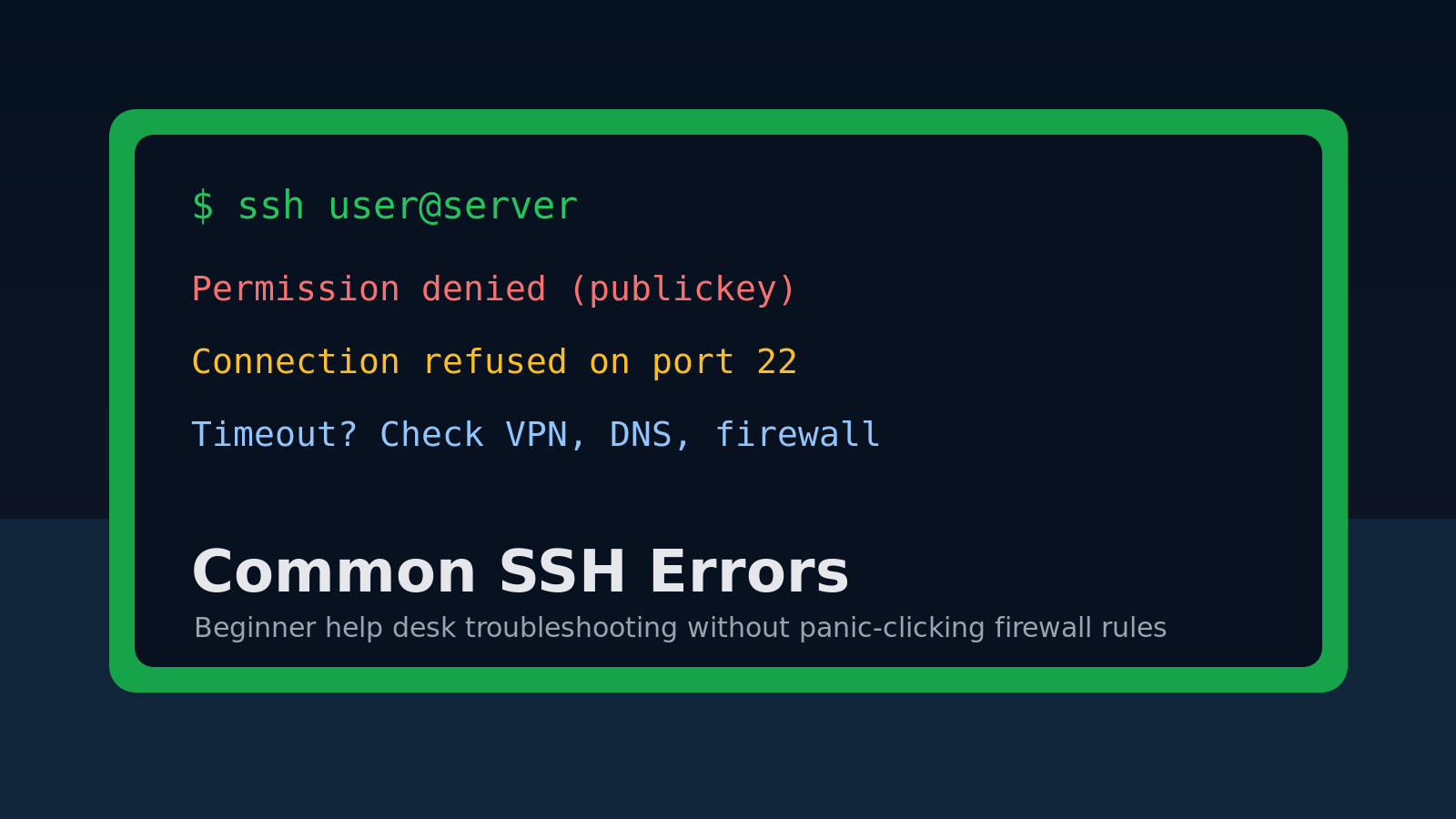
SSH errors look dramatic when you are new, but most of them are just the terminal telling you where the connection failed.
The trick is to read the error as a clue instead of treating every failed login like the server has personally rejected you.
Here is the short version:
| SSH error | Usually means | First thing to check |
|---|---|---|
Connection refused | You reached the server, but nothing accepted SSH | Is SSH running? Is the port right? |
Connection timed out | Your computer could not reach the server | VPN, firewall, IP address, routing |
Permission denied (publickey) | The server wants a key you do not have or are not using | Correct user, correct key, correct account |
Host key verification failed | The server identity changed or your known_hosts entry is stale | Verify the server before removing anything |
Could not resolve hostname | The name cannot be turned into an IP address | Spelling, DNS, VPN, hosts file |
This guide explains the common SSH errors a help desk tech or beginner sysadmin will actually see, what each one means, and what to check before you start changing random settings at 4:57 PM.
First: where SSH can fail
A normal SSH connection has a few stages:
ssh user@serverBehind that one line, your computer has to:
- Resolve the server name to an IP address.
- Reach the server over the network.
- Connect to the SSH port, usually
22. - Confirm the server identity with a host key.
- Authenticate you with a password or SSH key.
- Start a shell session.
Each common error points to one of those stages.
That is good news. It means you do not need to memorize every SSH option on earth. You need to ask: did DNS fail, did the network fail, did the port fail, did identity verification fail, or did login fail?
Error: Could not resolve hostname
Example:
ssh: Could not resolve hostname web01: Name or service not knownThis usually means your machine cannot translate the name you typed into an IP address.
Common causes:
- You misspelled the hostname.
- You used an internal server name without connecting to VPN.
- DNS is not working on your machine.
- The name exists only in a company network or
/etc/hostsfile. - You copied the wrong value from a ticket.
Beginner-friendly checks:
ping web01
nslookup web01
nslookup web01.company.local
On Windows, you can also run:
Resolve-DnsName web01If the server has an IP address, try the IP directly:
ssh [email protected]If the IP works but the name does not, you likely have a DNS or search-domain problem, not an SSH problem.
Help desk note: ask whether the user is on VPN before escalating. Internal names often fail from home Wi-Fi because the laptop is not using company DNS. That is not the server being down; that is Tuesday.
Error: Connection timed out
Example:
ssh: connect to host 203.0.113.10 port 22: Connection timed outA timeout usually means your computer tried to reach the server, waited, and got no useful response.
Think network path first.
Common causes:
- The server IP is wrong.
- You are not on VPN.
- A firewall is dropping the connection.
- The server is powered off or unreachable.
- SSH is on a different port.
- A cloud security group does not allow your source IP.
Useful checks:
ping 203.0.113.10
traceroute 203.0.113.10
ssh -v [email protected]
On many systems, nc is handy:
nc -vz 203.0.113.10 22If you are on Windows PowerShell:
Test-NetConnection 203.0.113.10 -Port 22A timeout is different from a login failure. Your username and password have probably not even mattered yet, because the network connection did not make it far enough.
Beginner mistake: retrying the password ten times when the error is a timeout. SSH did not reject your password. It did not get to the password part.
Error: Connection refused
Example:
ssh: connect to host 192.168.1.50 port 22: Connection refusedThis one is subtle but important. Connection refused usually means you reached the machine, but nothing was listening on that port, or the machine actively rejected the connection.
Common causes:
- The SSH service is not running.
- The server uses a non-standard SSH port.
- A firewall is rejecting the connection.
- You connected to the wrong host.
- SSH is installed but disabled.
If you have console access or another admin can check the server, look at the SSH service:
sudo systemctl status ssh
sudo systemctl status sshd
The service name depends on the distro. Ubuntu often uses ssh; many Red Hat-like systems use sshd.
Check whether the server is listening on port 22:
sudo ss -tulpn | grep ':22'If SSH uses a custom port, connect with -p:
ssh alex@server01 -p 2222Do not guess ports randomly against production machines. Check the ticket, cloud console, config management, or server documentation first. Port scanning your own lab is fine. Port scanning the accounting server because you are annoyed is how meetings happen.
Error: Permission denied (publickey)
Example:
Permission denied (publickey).This means you reached the server and SSH authentication failed. The server is saying: “I expected an SSH key, and you did not prove you have the right one.”
Common causes:
- You used the wrong username.
- You did not specify the correct private key.
- Your key is not installed in the server account’s
~/.ssh/authorized_keys. - File permissions on
.sshorauthorized_keysare too open. - Password login is disabled and you only have a password.
- You are trying the right key against the wrong server.
Start with the username. This is the boring fix that solves a shocking number of tickets.
Cloud images often use default usernames:
| Platform or distro | Common username |
|---|---|
| Ubuntu cloud images | ubuntu |
| Amazon Linux | ec2-user |
| Debian | admin or debian |
| Some appliances | Vendor-specific account |
Try the key explicitly:
ssh -i ~/.ssh/helpdesk_key [email protected]Use verbose mode when you need to see which keys your client is trying:
ssh -v -i ~/.ssh/helpdesk_key [email protected]Look for lines like:
Offering public key: /home/alex/.ssh/helpdesk_keyIf SSH never offers the key you expected, the client side is wrong. If it offers the key and the server rejects it, the server account may not have the matching public key.
Beginner mistake: copying the private key to the server. Do not do that. The server gets the public key in authorized_keys; your private key stays private.
Error: Permission denied, please try again
Example:
alex@server's password:
Permission denied, please try again.
This means password authentication was attempted and failed.
Common causes:
- Wrong password.
- Wrong username.
- The account is locked or expired.
- Password authentication is disabled.
- Keyboard layout or copy/paste added an invisible character.
- You are connecting to the wrong server.
A password prompt does not show characters while you type. That is normal. The terminal is not frozen; it is just not displaying bullets or dots.
If you know the password is right, check the username and server. Then check server-side authentication logs if you have access:
sudo tail -50 /var/log/auth.log
sudo journalctl -u ssh --since "10 minutes ago"
sudo journalctl -u sshd --since "10 minutes ago"
Those logs can tell you whether the account is invalid, the password failed, or the server rejected the authentication method.
Error: Host key verification failed
Example:
@@@@@@@@@@@@@@@@@@@@@@@@@@@@@@@@@@@@@@@@@@@@@@@@@@@@@@@@@@@
@    WARNING: REMOTE HOST IDENTIFICATION HAS CHANGED!     @
@@@@@@@@@@@@@@@@@@@@@@@@@@@@@@@@@@@@@@@@@@@@@@@@@@@@@@@@@@@
Host key verification failed.
This warning means the server identity no longer matches what your computer remembers.
Sometimes this is harmless:
- The server was rebuilt.
- The VM was replaced.
- The hostname now points to a new machine.
- A lab machine was reinstalled.
Sometimes it is not harmless:
- DNS is pointing you to the wrong machine.
- Someone changed infrastructure without telling anyone.
- There could be a man-in-the-middle risk.
Do not automatically delete the old key just to make the scary message go away. Verify the server change first.
Once you confirm the server was intentionally rebuilt or replaced, remove the old known_hosts entry:
ssh-keygen -R server01.company.local
ssh-keygen -R 192.168.1.50
Then reconnect and accept the new host key only if it matches what you expect.
Beginner mistake: treating this warning as annoying paperwork. Host keys are one of the ways SSH protects you from connecting to an impostor machine. Annoying, yes. Pointless, no.
Error: No route to host
Example:
ssh: connect to host 10.0.10.25 port 22: No route to hostThis is a network routing problem. Your machine does not know how to get to that network, or something along the path is explicitly unreachable.
Common checks:
ip route
ping 10.0.10.25
traceroute 10.0.10.25
On a help desk ticket, this often means one of these:
- The user is off VPN.
- The VPN split tunnel is not routing that subnet.
- The IP address belongs to a different site or VLAN.
- The server was moved or decommissioned.
If five people can SSH from the office but one person cannot from home, do not start by restarting the Linux server. Start with that person’s network path.
Error: Too many authentication failures
Example:
Received disconnect from 203.0.113.10 port 22:2: Too many authentication failuresThis can happen when your SSH agent has several keys loaded and your client offers too many wrong keys before it gets to the right one.
Try specifying the correct key and telling SSH to use only that identity:
ssh -i ~/.ssh/helpdesk_key -o IdentitiesOnly=yes [email protected]You can see loaded keys with:
ssh-add -lThis error feels like the server hates you, but often your laptop is just walking up with a giant keyring and trying every key at the door while the server loses patience.
A simple SSH troubleshooting order
When you get an SSH error, use this order:
- Check the exact command: username, hostname, and port.
- Check DNS: can the name resolve?
- Check network: are you on VPN or the right network?
- Check port reachability: is port
22or the custom port open? - Check SSH service: is
sshorsshdrunning? - Check authentication: password, key, username, account status.
- Check logs:
auth.logorjournalctl.
That sequence keeps you from doing the classic beginner shuffle: change password, restart service, blame firewall, delete known_hosts, then discover you typed servre01 instead of server01.
Commands worth practicing
For SSH troubleshooting, these are the commands to get comfortable with:
ssh -v user@server
ssh -i ~/.ssh/keyname user@server
ssh user@server -p 2222
ssh-keygen -R servername
ping servername
nslookup servername
nc -vz servername 22
systemctl status ssh
systemctl status sshd
journalctl -u ssh --since "10 minutes ago"
journalctl -u sshd --since "10 minutes ago"
ss -tulpn | grep ':22'
You do not need to become an SSH lifer. You need enough pattern recognition to know whether the failure is name resolution, network reachability, service availability, host identity, or authentication.
If you want a safe place to build that pattern recognition, practice the basics in Shell Samurai. It is a lot better to learn what ssh -v, systemctl, journalctl, and ss are telling you in a practice environment than while someone is asking whether payroll can log in yet.
FAQ
Is Connection refused the same as Connection timed out?
No. Connection refused usually means you reached the host but the SSH port was closed or rejected. Connection timed out usually means your machine could not reach the host or the traffic was silently dropped.
Does Permission denied (publickey) mean the server is down?
No. It usually means the server is reachable, but your SSH key authentication failed. Check the username, key path, and whether your public key is installed for that account.
Should I delete known_hosts when SSH complains about the host key?
Not blindly. First verify whether the server was rebuilt or replaced. After you confirm the change is legitimate, use ssh-keygen -R hostname to remove the stale entry.
What SSH command should beginners memorize first?
Start with ssh user@server, then learn ssh -v user@server for troubleshooting and ssh -i ~/.ssh/key user@server for key-based login.
Practice This in a Real Terminal
Shell Samurai gives you safe Linux missions so the commands actually stick. Chapter 1 is free; the full practice path is a one-time purchase, not another subscription.