How to Check Linux Version from the Command Line
If you support Linux systems, one of the first questions you need to answer is painfully basic: what Linux version is this thing running?
That question matters before you install a package, follow a vendor doc, troubleshoot a service, escalate a ticket, or copy commands from a random forum post written for a different distro in 2017. Ubuntu, Debian, Fedora, Rocky, AlmaLinux, Amazon Linux, and WSL all look similar when you are new. They do not always behave the same.
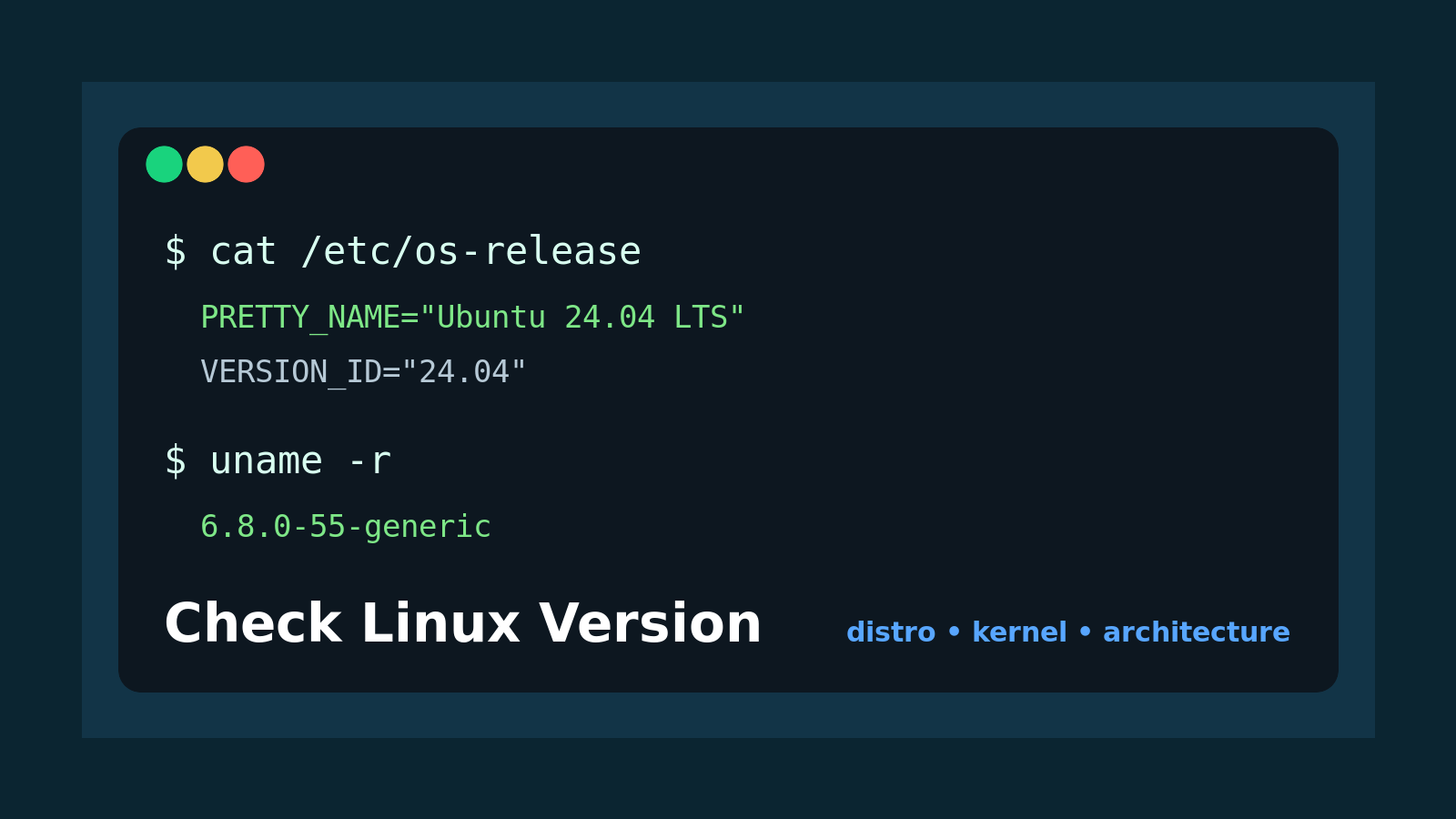
The fast answer is this:
cat /etc/os-release
uname -r
cat /etc/os-release tells you the Linux distribution and version. uname -r tells you the running kernel version.
That is usually enough for a help desk ticket note, but this guide will show you the practical commands, what the output means, and which one to use when someone asks, “What version of Linux is on that server?”
The quick command: cat /etc/os-release
Most modern Linux distributions include a file called /etc/os-release. It is a plain text file with operating system identity information.
Run:
cat /etc/os-releaseExample output from Ubuntu:
PRETTY_NAME="Ubuntu 24.04.2 LTS"
NAME="Ubuntu"
VERSION_ID="24.04"
VERSION="24.04.2 LTS (Noble Numbat)"
ID=ubuntu
ID_LIKE=debian
For beginner support work, the most useful lines are:
| Field | Example | What it tells you |
|---|---|---|
PRETTY_NAME | Ubuntu 24.04.2 LTS | Human-readable distro and version |
NAME | Ubuntu | Distribution name |
VERSION_ID | 24.04 | Major distro version |
ID | ubuntu | Lowercase distro ID for scripts/tools |
ID_LIKE | debian | Related distro family |
If a vendor says “use the Debian/Ubuntu instructions,” ID_LIKE=debian helps explain why an Ubuntu box often uses apt, .deb packages, and Debian-style paths.
If a vendor says “RHEL-compatible,” you might see output like:
NAME="Rocky Linux"
VERSION="9.4 (Blue Onyx)"
ID="rocky"
ID_LIKE="rhel centos fedora"
VERSION_ID="9.4"
That points you toward dnf, RPM packages, SELinux assumptions, and RHEL-ish documentation.
Check the kernel version with uname
The distro version and the kernel version are not the same thing.
Use this for the kernel release:
uname -rExample:
6.8.0-55-genericThat tells you the version of the Linux kernel currently running. The kernel is the core of the operating system. It handles hardware, processes, memory, filesystems, networking, and all the other low-level stuff you are very happy not to reimplement during a password-reset ticket.
Use this for more system details:
uname -aExample:
Linux web01 6.8.0-55-generic #57-Ubuntu SMP PREEMPT_DYNAMIC x86_64 GNU/LinuxThat output includes:
| Part | Meaning |
|---|---|
Linux | Kernel name |
web01 | Hostname |
6.8.0-55-generic | Kernel release |
#57-Ubuntu... | Build/version details |
x86_64 | CPU architecture |
GNU/Linux | Operating system family |
The common beginner mistake is answering “Ubuntu 24.04” when someone asked for the kernel, or answering “6.8.0” when someone asked for the distro. Both are version numbers. They answer different questions.
Distro version vs kernel version
Here is the practical difference:
| Question | Command | Example answer |
|---|---|---|
| What distro is this? | cat /etc/os-release | Ubuntu 24.04.2 LTS |
| What kernel is running? | uname -r | 6.8.0-55-generic |
| What CPU architecture is this? | uname -m | x86_64 |
| What hostname am I on? | hostname | web01 |
Why this matters:
- Package instructions depend on the distro and version.
- Driver, filesystem, and container issues may depend on the kernel.
- Architecture matters when downloading binaries.
- Hostname matters because “wrong server” is a classic way to ruin your afternoon.
If you are opening a vendor ticket, include both distro and kernel unless the vendor tells you otherwise.
Good ticket note:
Server
web01is running Ubuntu 24.04.2 LTS with kernel6.8.0-55-genericonx86_64. Issue started after package updates this morning.
Bad ticket note:
It is Linux.
Accurate, technically. Also about as helpful as telling a mechanic your car is “blue.”
Check architecture with uname -m
Some install guides ask whether the system is x86_64, amd64, arm64, or aarch64.
Run:
uname -mExample output:
x86_64That means a standard 64-bit Intel/AMD architecture. You may also see:
aarch64That usually means 64-bit ARM.
This matters when you download command-line tools from GitHub releases, install agents, or choose container images. If you put an ARM binary on an x86 server, it will not run just because you asked nicely.
Common support scenario:
A monitoring agent install fails with “exec format error.”
One of your first checks should be:
uname -m
file ./agent-binary
If the machine is x86_64 and the binary is for ARM, you found the problem.
Use hostnamectl when systemd is available
On many modern Linux systems, especially Ubuntu, Debian, Fedora, Rocky, and AlmaLinux servers using systemd, hostnamectl gives a nice summary.
Run:
hostnamectlExample:
 Static hostname: web01
       Icon name: computer-vm
         Chassis: vm
      Machine ID: 3f8b1d...
         Boot ID: 9e2d4a...
Operating System: Ubuntu 24.04.2 LTS
          Kernel: Linux 6.8.0-55-generic
    Architecture: x86-64
This is easy to read because it puts hostname, OS, kernel, and architecture in one place.
The catch: hostnamectl may not exist or may be less useful in containers, minimal installs, older systems, or stripped-down environments. If it works, great. If not, fall back to /etc/os-release and uname.
Use lsb_release if it is installed
Some tutorials recommend:
lsb_release -aExample:
Distributor ID: Ubuntu
Description:    Ubuntu 24.04.2 LTS
Release:        24.04
Codename:       noble
This command is friendly, but it is not always installed by default.
If you see:
lsb_release: command not foundDo not panic. It does not mean Linux is broken. It just means that helper command is missing.
Use this instead:
cat /etc/os-releaseFor most support work, /etc/os-release is the better habit because it is widely available and does not require installing another package just to answer a basic question.
Check package manager clues
If you are trying to figure out which instructions to follow, the distro info is the first clue. The package manager is another.
Common families:
| Distro family | Package command | Package type |
|---|---|---|
| Debian / Ubuntu | apt | .deb |
| Fedora / RHEL / Rocky / AlmaLinux | dnf | .rpm |
| Older CentOS / RHEL | yum | .rpm |
| Arch | pacman | .pkg.tar.zst |
| Alpine | apk | .apk |
You can check whether a command exists with:
command -v apt
command -v dnf
command -v yum
command -v apk
Example:
/usr/bin/aptDo not use package-manager guessing as your only source of truth, especially inside containers. But it can help you understand why a command from a guide is failing.
If the guide says:
sudo apt install nginxand your server is Rocky Linux, the command should probably be closer to:
sudo dnf install nginxThe exact package name may still vary. Welcome to infrastructure, where naming consistency went out for lunch and never came back.
Check Linux version inside containers
Containers can make version checks confusing.
Inside a container, this command shows the container image’s distro info:
cat /etc/os-releaseBut this command shows the host kernel, because containers share the host kernel:
uname -rThat means you might see Debian in /etc/os-release and an Ubuntu-flavored kernel from uname -r. That is not automatically a problem.
Example:
$ cat /etc/os-release
PRETTY_NAME="Debian GNU/Linux 12 (bookworm)"

$ uname -r
6.8.0-55-generic
Beginner interpretation:
- The container userland is Debian 12.
- The running kernel belongs to the host system.
This matters when troubleshooting container networking, kernel modules, filesystem behavior, or security features. For normal app package installs inside the container, follow the container distro. For kernel-level questions, remember the host is involved.
Check WSL version details
On WSL, Linux version checks can be split across Windows and the Linux environment.
Inside WSL, run:
cat /etc/os-release
uname -r
You may see Ubuntu as the distro, but the kernel string may mention Microsoft or WSL.
Example:
5.15.167.4-microsoft-standard-WSL2That tells you the Linux environment is running on the WSL kernel, not a normal standalone Linux server kernel.
From Windows PowerShell, you can also run:
wsl --version
wsl --list --verbose
For help desk work, be clear in the ticket:
User is on Ubuntu 24.04 under WSL2, not a standalone Linux VM.
That one sentence prevents a lot of confusion when someone starts asking about bootloaders, systemd behavior, services, or networking.
A practical help desk checklist
When you first connect to a Linux system for troubleshooting, run a small orientation block:
hostname
whoami
cat /etc/os-release
uname -r
uname -m
That tells you:
- Which machine you are on.
- Which account you are using.
- Which distro and version it runs.
- Which kernel is active.
- Which architecture it uses.
If hostnamectl works, you can use it as a readable summary too:
hostnamectlFor a ticket note, you might write:
Connected to
web01asalex. OS is Ubuntu 24.04.2 LTS, kernel6.8.0-55-generic, architecturex86_64. Package manager appears to beapt.
That is not flashy. It is just the kind of boring detail that makes escalations cleaner.
Common beginner mistakes
Mistake 1: Mixing up distro and kernel
Ubuntu 24.04 is the distribution version. 6.8.0-55-generic is the kernel version.
If someone asks what Linux version you are running, clarify what they need. If you are not sure, provide both.
Mistake 2: Trusting old documentation blindly
If a guide is written for Ubuntu 18.04 and you are on Ubuntu 24.04, commands may still work, but assumptions can be stale.
Check your version first. Then check whether the vendor has docs for your release.
Mistake 3: Installing lsb_release just to check the version
If lsb_release is missing, you usually do not need to install it.
Run:
cat /etc/os-releaseThat solves the immediate question without changing the system.
Mistake 4: Forgetting containers and WSL are special
Containers share the host kernel. WSL uses Microsoft’s WSL kernel. Those are normal, but they change how you explain the environment.
When in doubt, write down what you actually observed instead of forcing it into a neat mental box.
Commands to remember
| Need | Command |
|---|---|
| Distro and release | cat /etc/os-release |
| Kernel release | uname -r |
| Full uname output | uname -a |
| CPU architecture | uname -m |
| Hostname | hostname |
| Systemd summary | hostnamectl |
| LSB distro summary | lsb_release -a |
| Package command clue | command -v apt dnf yum apk |
Practice it safely
You can practice these commands on a lab VM, WSL install, cloud test box, or Shell Samurai session. None of the main commands here change the system. They just read facts.
A simple practice flow:
hostname
whoami
cat /etc/os-release
uname -r
uname -m
hostnamectl
Then explain the output in plain English:
- What distro is this?
- What release is it?
- What kernel is running?
- Is it x86 or ARM?
- Is this a server, VM, container, or WSL environment?
That last part is the actual skill. Commands are easy to memorize. Knowing what the output means when a ticket is breathing down your neck is what makes you useful.
If you want a safer place to build that muscle memory, Shell Samurai gives you guided Linux practice without needing to turn your real machine into a science project:
Practice beginner Linux commands in Shell Samurai
Checking the Linux version will not make you a senior sysadmin by lunch. But it does stop you from following the wrong guide, downloading the wrong binary, or escalating a ticket with “it’s Linux idk” energy. Small win. Take it.
Practice This in a Real Terminal
Shell Samurai gives you safe Linux missions so the commands actually stick. Chapter 1 is free; the full practice path is a one-time purchase, not another subscription.